List a partner and run their insert
Create a merchant's record, write their insert, then show it to your guests — with the two switches that actually govern the display.
The Local partners programme puts the merchants around your property in front of your guests: a ski rental shop, a restaurant, a shuttle. You create the merchant's record, write their insert, then choose which listings and which surfaces it runs on.
It all happens on a single page, Local partners, opened from the Partners menu, in tabs: Partners (the catalogue), Placements (where each insert appears) and Statements (the proof handed to the merchant).
The path, screen by screen
Create the merchant's record
Partners tab, New partner button. The form asks for the Merchant name, a Category, a Status, then optional contact details — Email, Phone, Address.
The screen notes under the fields: “These details stay internal: they are never served to guests.” Guests only ever see the insert.
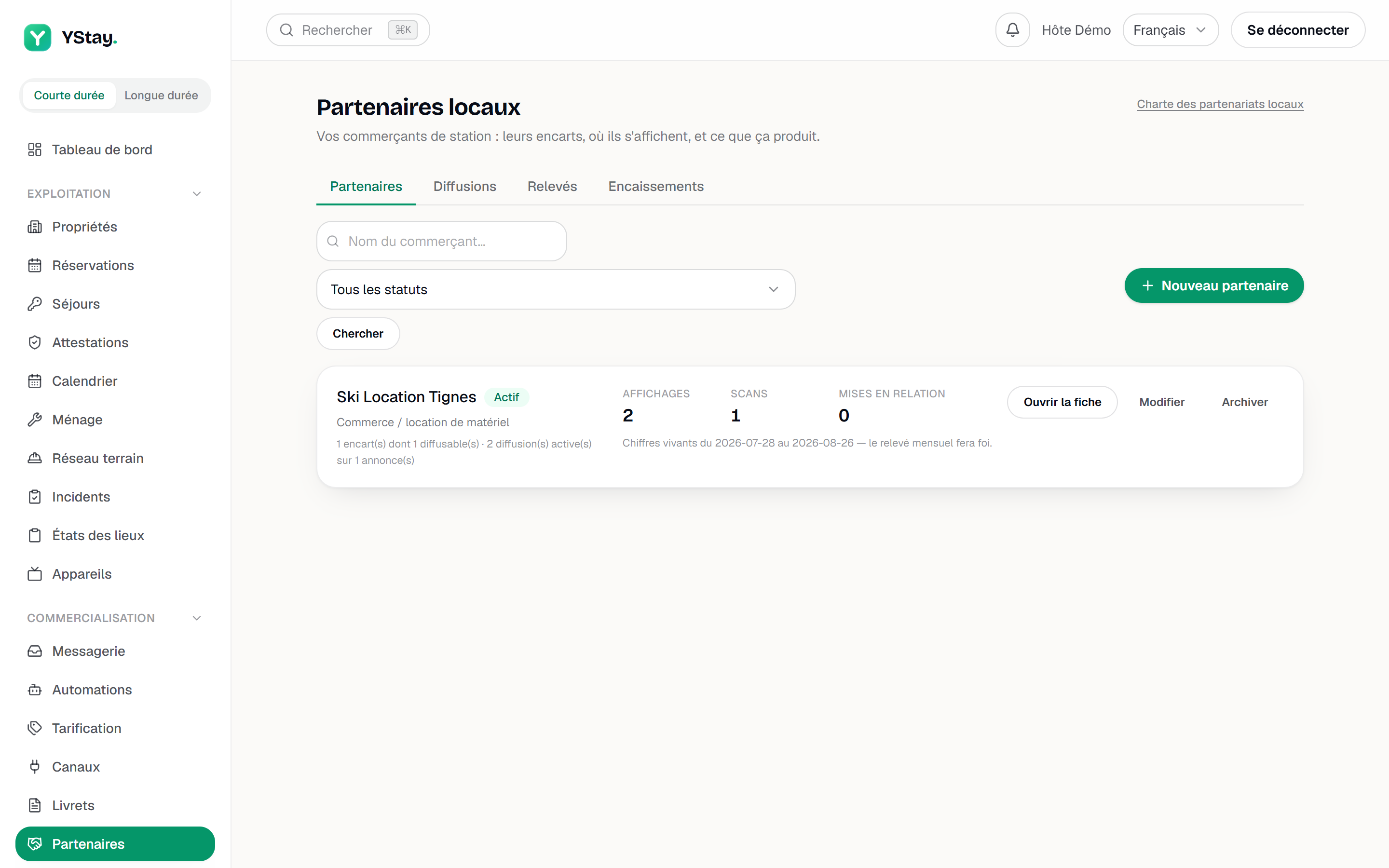
The Partners tab: the catalog with a referenced merchant. Write the insert
Open the partner's record: the Inserts section offers New insert. A Title, some Insert copy, a Destination link in https — the domain shown to guests is derived from it, you do not type it.
The Image is optional: without one, the insert runs as text only. An image taken from your guidebooks, your sites or your listings is referenced, not copied. Finally set the status to Ready to run — a draft is never served.
Turn the module on for the listing (level 1)
Placements tab: one card per listing. At the top of the card, the Module on switch governs everything else. Off, a banner warns: “Module off: no partner insert shows on this listing, whatever the placements below say.” The same card carries Categories blocked on this listing: a ticked category is never served here, even with an active placement.
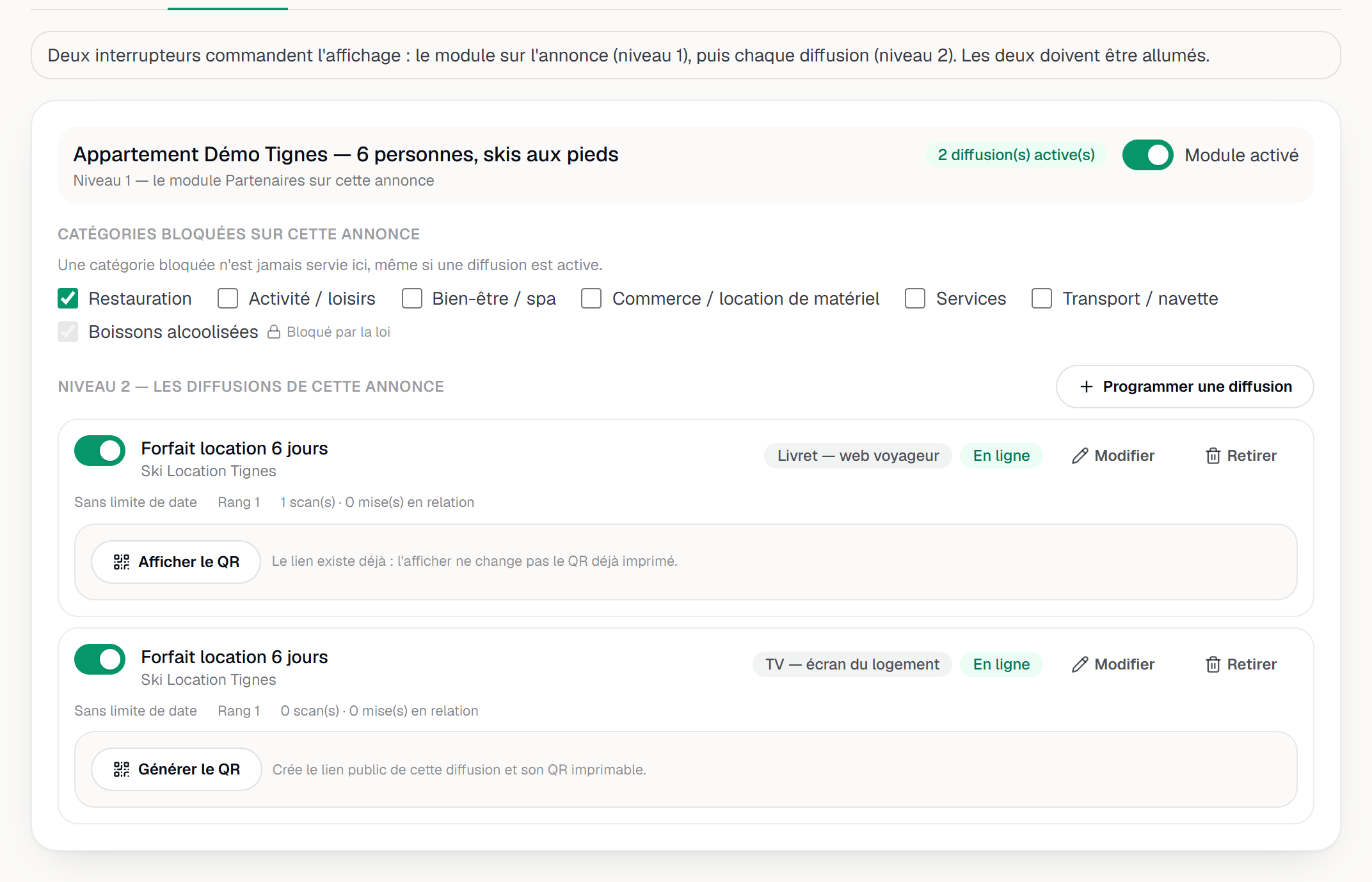
A listing's placement card: the module, then each partner. Schedule the placement (level 2)
Schedule a placement opens the form: Listing, Partner, Insert, Surface, an optional Start and End, a display Rank. Each row then carries its own switch, Run this insert on this listing.
If the listing's module is off, the form still lets you save but warns you: “The Partners module is off on this listing: while it is, no placement will show, even an active one.” Same warning when the partner's category is blocked there.
Print the attribution QR
On the placement row, Generate QR creates the public link for that placement and its printable QR, then Download QR (PNG) hands it over to print and place in the home. The QR opens a landing page specific to that placement: that is what makes scans and referrals countable.
A link already issued never changes: showing it again does not void the printed QR.
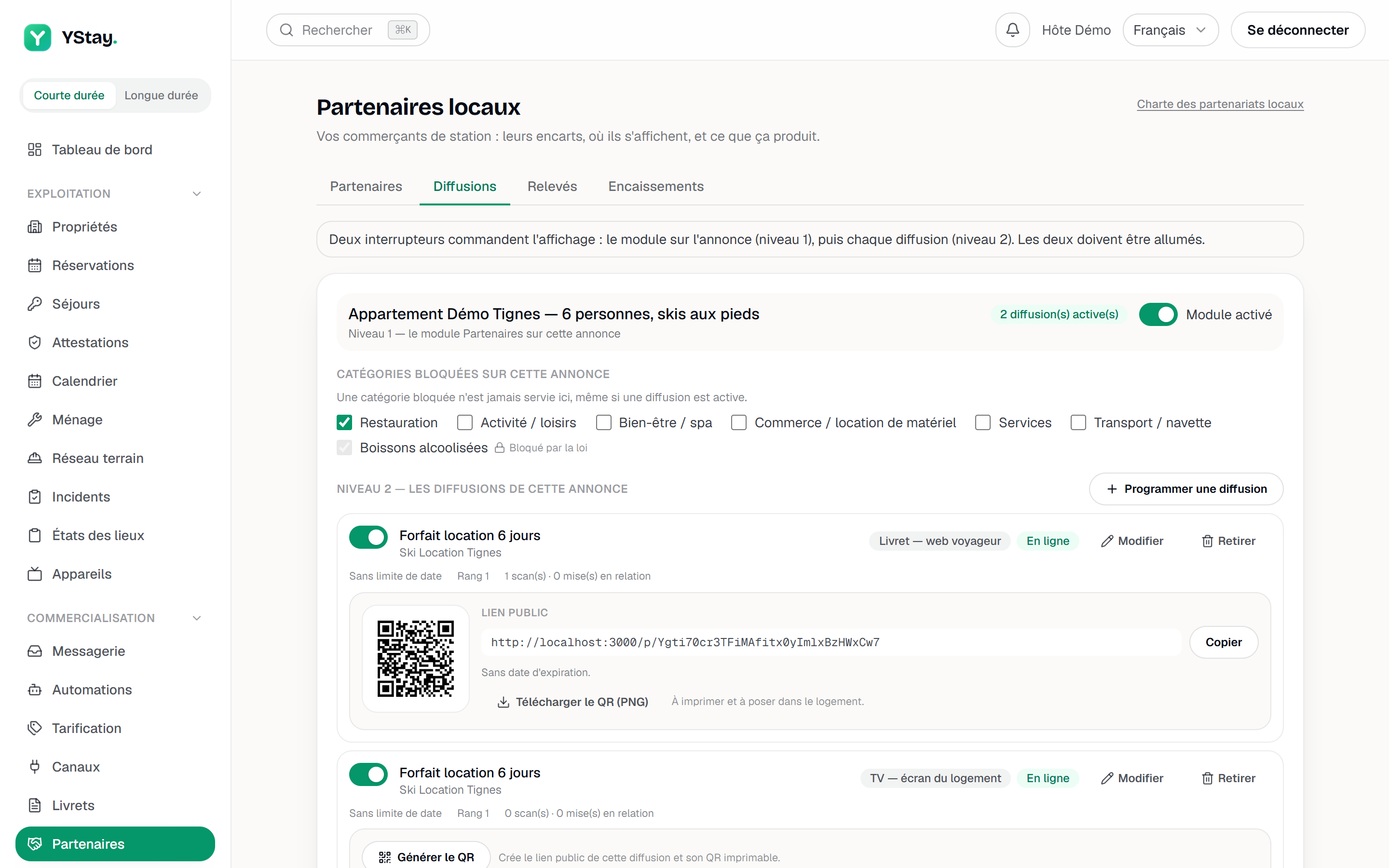
The attribution QR ready to print.
Where the insert appears
The Surface field offers three destinations, and one placement targets exactly one: Guidebook — guest web, Guidebook — mobile app, TV — accommodation screen.
On the TV the insert is flattened to text: no button, no QR — nobody clicks on a television set, so an insert meant to be scanned needs the printed QR. On both guidebook surfaces the insert always carries the Partner label, which cannot be removed.
Remove, never delete
A partner is set aside with Archive, a placement is stopped with Remove: the display stops, but nothing is erased — history and already frozen statements stay intact. A partner or an insert may also be marked as withdrawn by moderation: that withdrawal belongs to the platform and cannot be undone from your workspace.
The rules, and what guests can report
The Local partnership rules link, at the top of the page, opens the programme's written rules in the five interface languages: the text that binds everyone.
On the guest side, every insert in the guidebook can be reported in two clicks, anonymously, with a reason picked from a short list. The guest always gets the same neutral answer, whether a report is upheld or not.
Next
- Prove visibility and bill the merchant
- Create and publish your first guidebook — the guidebook where inserts live on the guest side.
- TV screens · Local partners
Updated on