Track your revenue
Where to read what you actually collected: the Earnings page, the Insights page and the month block on the dashboard.
YStay keeps apart two questions that are often mixed up: how much came in and how the business is doing. The first has its own page, Earnings; the second has Insights. The dashboard gives a quick glance at both, but it replaces neither.
Reading your earnings
Open the Earnings page
Menu Sales & marketing, then Earnings. The page introduces itself this way: “Your collected payments, the YStay commission and your host net, period by period.” It is reserved for roles that manage billing or hold ShortStay finance access; without that right the entry does not appear in the menu.
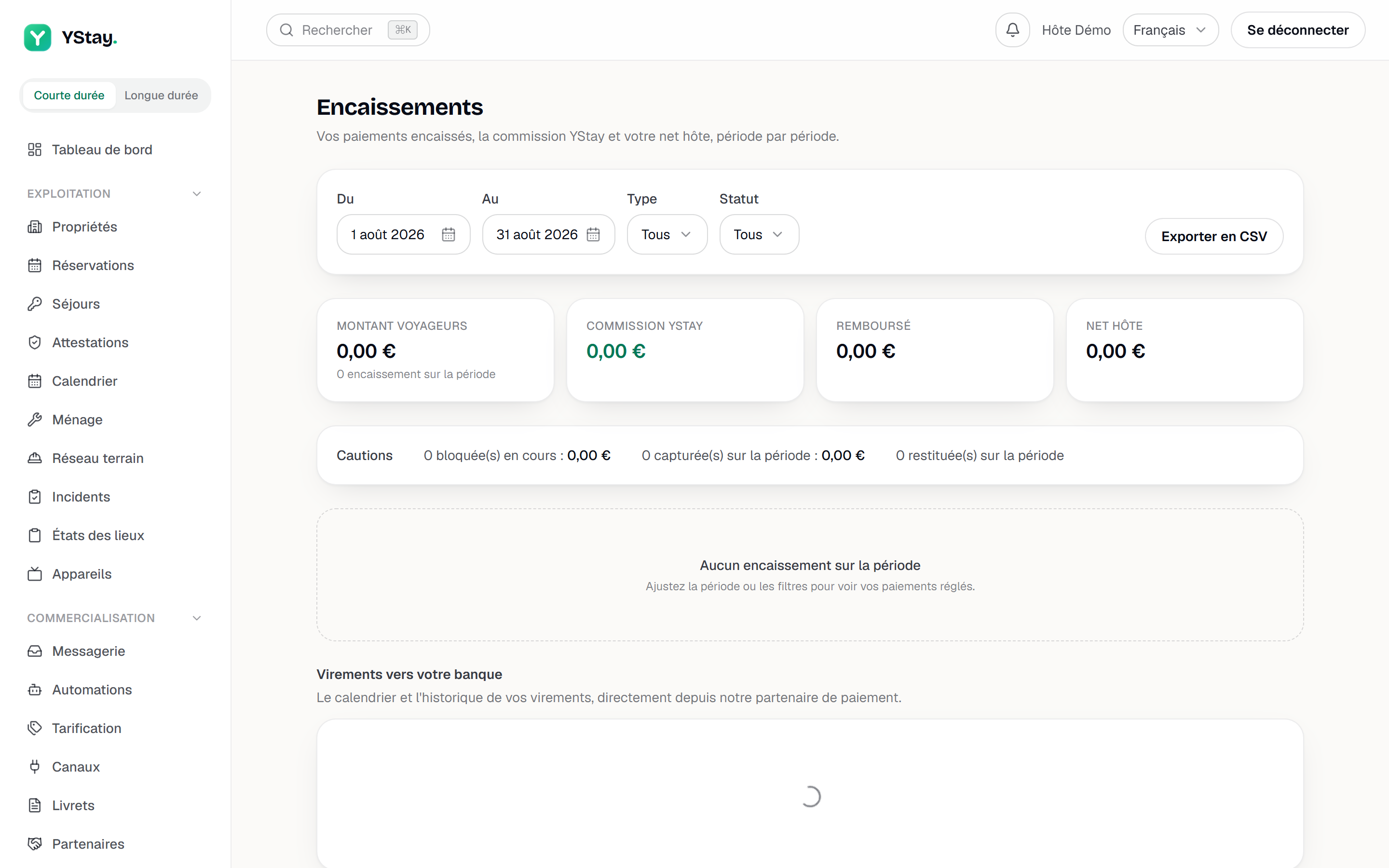
The Earnings page: payments, commission, host net. Read the four totals for the period
At the top, four cards sum up the selected period: Guest amount, YStay commission, Refunded and Host net. The first one carries the number of payments counted over the period as its subtitle.
Host net is what comes back to you once commission and refunds are taken out. Of the four figures, it is the only one that answers “how much did I earn”.
Follow deposits separately
Just below, a Deposits line counts held, captured and released security deposits for the period, each on its own. A deposit is not revenue: it only enters the totals once it has actually been captured.
Filter, then export
The top bar carries the From and To fields, a Type filter and a Status filter, both set to All by default. The Export as CSV button follows exactly the selection on screen.
If nothing matches, the page says so plainly: “No payments in the period”, with the advice to adjust the period or the filters. That is an empty result, not an error.
Go line by line
The table gives Paid on, Reservation, Types, Channel, Status, then Amount, Commission, Refunded and Net. The Types column tells a Stay settled in one go from a Down payment, a Balance, an Installment of a split payment, or an Extra sold during the stay.
Check payouts to your bank
At the bottom, the Payouts to your bank section shows “The schedule and history of your bank payouts, straight from our payment partner.” While your payments are not connected, it reads “Connect your payments to see your payouts.” with a Connect my payments link.
A payment shows up as soon as the traveller has paid; the payout to your bank follows our payment partner's own schedule. A gap between the two views at any given moment is therefore normal — compare over a period, never over a single day.
Stepping back with Insights
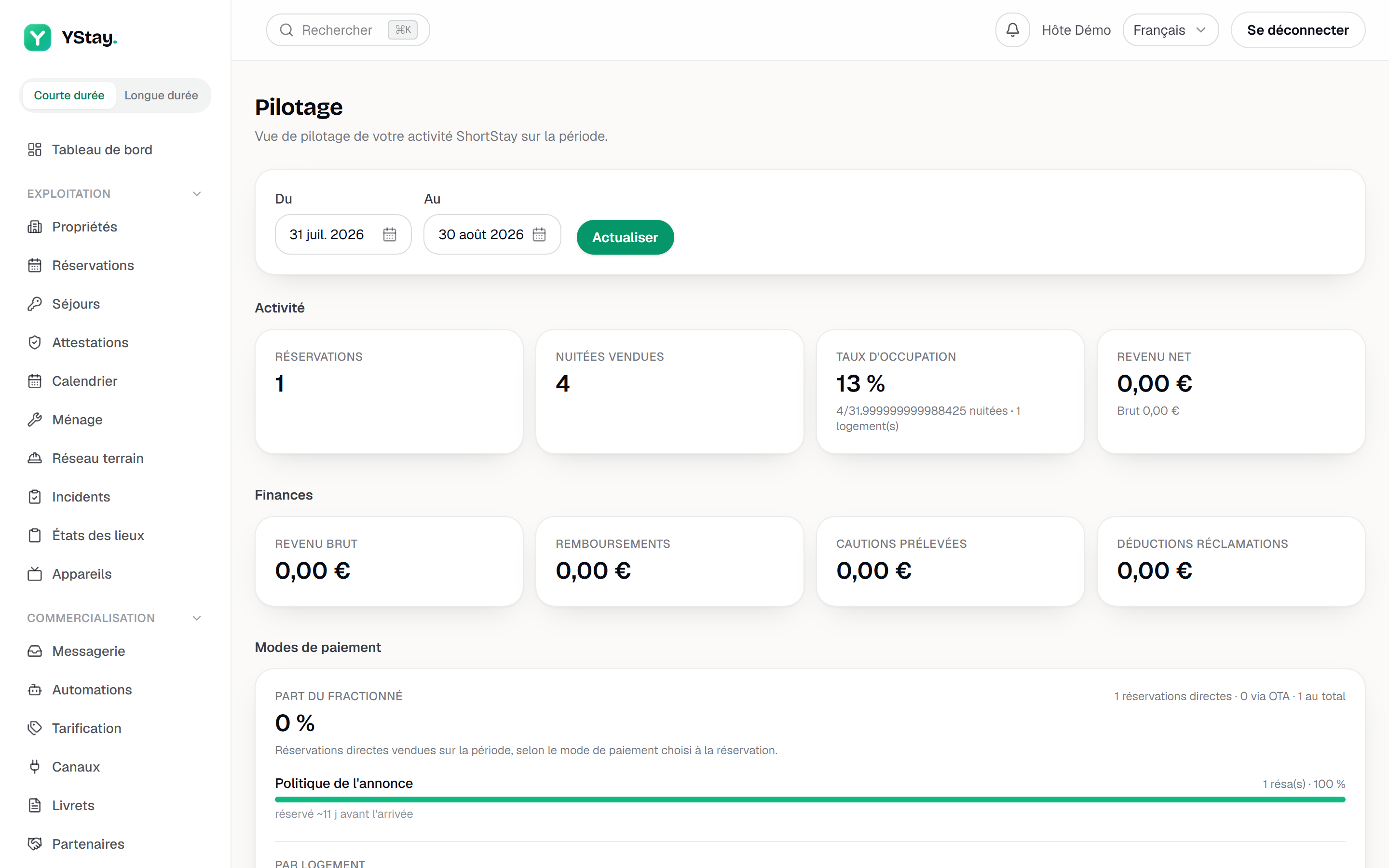
The Insights entry, in the same Sales & marketing group, opens a page described as “Insights view of your ShortStay activity over the period.” It requires read access to ShortStay reporting.
The top bar carries the From and To fields — preset to the current month — and a Refresh button. Dates apply on their own after a short pause; Refresh forces the reload straight away.
Four blocks then follow. Activity gives Reservations, Nights sold, Occupancy rate and Net revenue. Finances gives Gross revenue, Refunds, Deposits captured and Claim deductions. Operations gives Open turnovers, Blocked turnovers, Incidents and Claims resolved. Top units finally ranks your units by number of reservations, or shows “No reservations over the period” when the window is empty.
Right at the bottom, the Exports card produces two files over a period of your choosing: Reservations (CSV), “Tabular export of the period's reservations, for your accounting or a spreadsheet.”, and Owner statement (PDF), “Activity and revenue statement per property, ready to send to the owner.” — that one is generated per property, not for the whole account at once.
Next
- Enable payments (Stripe) — without a connected payment account, the Earnings page stays empty.
- Understanding the trial and your subscription — the YStay commission and your subscription invoices, on the Subscription page.
- Invite your team and set roles — open these two pages to an accountant or a manager.
- Team and account — the other account settings.
Updated on