Control tower
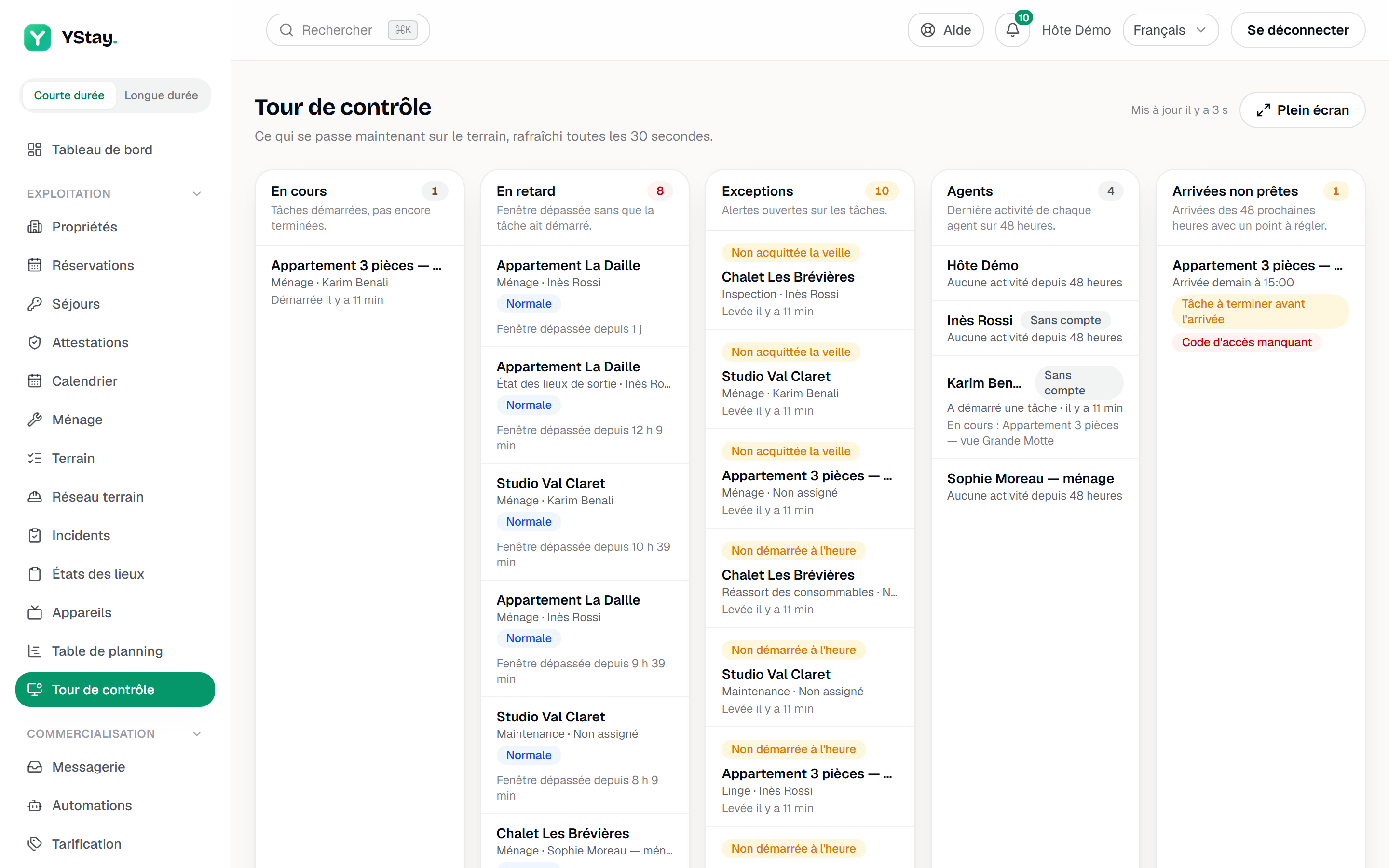
The control tower: what is happening in the field right now, in five columns refreshed every 30 seconds — in progress, late, exceptions, agents, arrivals not ready — and its “Full screen” display for an office screen.
The Control tower shows the state of the field at this moment: what is in progress, what is running late, what has raised an alert, what each agent is doing and which arrivals in the next 48 hours are not ready. It refreshes by itself every 30 seconds, without you having to reload the page.
It opens from the Operations › Control tower menu. It watches; to distribute the work, see Planning board.
Who can open it
The conditions are those of the planning board, checked in the same order.
- The Team interface level: at least two agents — you count as one — or five properties, or the Forced interface level setting in the Terrain settings tab (see Terrain: the stay plan and My day). Below that, the entry does not appear in the menu, and the page opened by its address shows “Available from the Team level” with an Open Terrain link.
- The Agent Ops plan option, the same one that lifts the limit of two agents without an account (see Add a field agent without an account). Without it, the page shows “The control tower is part of the Agent Ops plan option” and a See the plans link to the Subscription page.
- A role that can read it: the account owner, or a member with the Concierge, Ménage or Manager preset; Compta and Co-investisseur have no access (see Invite your team and set their roles). A member limited to certain properties sees neither the tasks, nor the alerts, nor the agents' latest actions, nor the arrivals of a property that is not theirs. The tower changes nothing.
The five columns
Each column has a title, a counter and a line of help. The counter of Late turns red as soon as it is not zero, those of Exceptions and Arrivals not ready turn amber. An empty column shows “Nothing to report”; each column stops at 100 rows and says so then: “Only the first 100 rows are shown.” A task row opens the task detail, and an arrival row opens the reservation, if your role allows you to read them.
| Column | What it shows |
|---|---|
| In progress | “Tasks started and not finished yet.” For each one: the unit, the task type and the agent (or “Unassigned”), then “Started 12 min ago”. |
| Late | “Window passed and the task has not started.” Pending or assigned tasks whose window is over, with their priority and “Window passed 25 min ago”. A started task is not late: it is in progress; a blocked task has its own alert. |
| Exceptions | “Open alerts on tasks.” Four kinds: “Not started on time”, “Blocked for too long”, “Not acknowledged the day before” and “Proof photo missing”, with “Raised 40 min ago”. |
| Agents | “Latest activity of each agent over 48 hours.” The name (with No account where relevant), their latest action — “Started a task”, “Added a proof photo”, “Finished a task”… — and how long ago, then “In progress:” followed by the unit when a task is under way. “No activity in the last 48 hours” if the agent has done nothing. |
| Arrivals not ready | “Arrivals in the next 48 hours with something to fix.” The unit, “Arrival today”, “Arrival tomorrow” or “Arrival” followed by the weekday, with the time, and one badge per point to fix. |
The four kinds of exception are the alerts described in Terrain: the stay plan and My day, with their adjustable thresholds. An alert leaves the column when it closes. The Agents column lists the whole team — members, contractors, agents without an account —, whatever property scope the reader has.
Arrivals not ready
An arrival in the next 48 hours (pending or confirmed reservation) appears as soon as at least one of these four points needs fixing, and each has its badge:
- Task to finish before arrival — a task of the unit that is still open, a cleaning or a turnaround for example, which must be done before the arrival.
- Proof photo missing — a missing-proof alert is open on a task of the unit.
- Open incident — an incident is still open on a reservation of the unit.
- Access code missing — no active access code for the stay. The tower reports that the code is absent, never the code itself.
A member on the Ménage access template sees neither the open incident nor the missing access code: these two points are reserved to the roles that read stay operations (Concierge, Manager, account holder). They keep the points about their own tasks.
The arrival time used is that of the Check-in time setting in the Terrain settings tab (15:00 by default), the same one that sets the tasks' windows. No guest data is displayed.
Staying up to date
The text “Updated 12 s ago” at the top of the page gives the age of what you are reading. If a refresh fails, the tower keeps the last version, the age keeps growing and a banner warns you: “The last refresh failed: the information shown may be out of date.” Refreshing pauses when the tab is not visible, and resumes when you return. If the banner persists, reload the page; if access is refused, sign in again.
Full screen, for an office screen
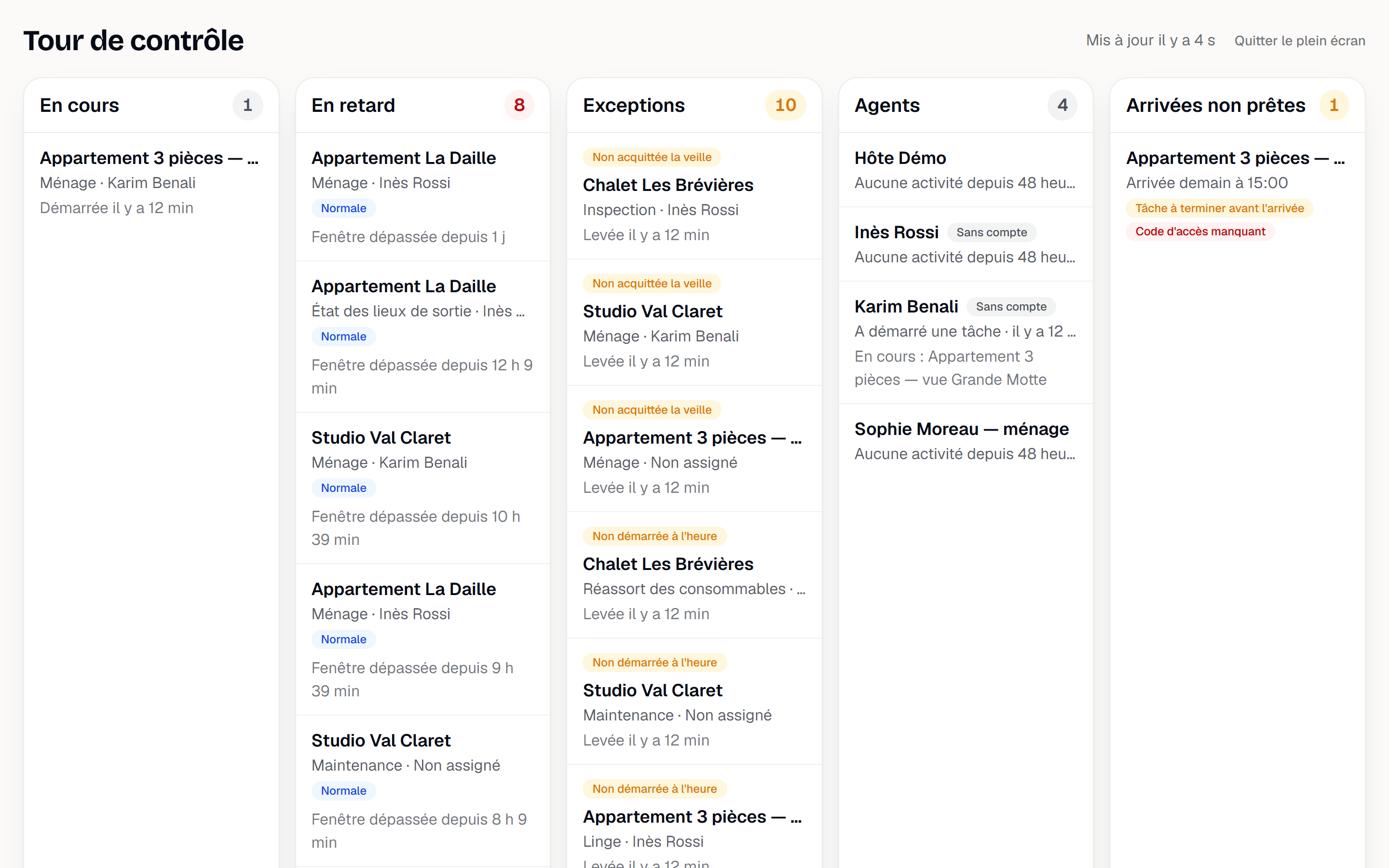
The Full screen button, at the top right, opens the tower in a new tab, without menu or header: the title, the stamp and the five columns in large type, without the help lines or the links to tasks. That tab refreshes by itself, like the normal page. Exit full screen, at the top right, takes you back to the usual page.
The button does not put the browser itself into full screen. For a wall screen, open that tab, then put the browser in full screen (F11 key), and keep the tab in the foreground. The tab uses your session: the person who opened it stays signed in on that screen.
What's next
- Planning board — distribute tasks among the agents: workload, travel, drag and drop.
- Terrain: the stay plan and My day — the alerts, their thresholds and the check-in and check-out settings.
- Incidents and disputes — open, follow and close an incident.
- StayProof: build and share the evidence — the proof photos of tasks count there too.
Updated on