Connect a lock to a unit
Connect a lock provider from Integrations, then attach a lock to a unit so YStay can issue guest access codes.
A connected lock changes arrival day: no key to hand over, no single code shared by every stay. YStay issues one code per reservation, valid only around that stay, and sends it to the guest. Once the lock is attached, there is nothing left to do.
Two settings, in two different places. The provider is connected once for the whole account, from API & integrations. The lock is attached to a unit — one lock, one door: every listing sitting on that unit shares it. That second setting is the one that drives code issuance.
The path, screen by screen
Look at the available providers
In the Account group of the menu, open API & integrations. The Connected locks card states its purpose: “Connect your lock provider to automatically generate guest access codes at confirmation.”
Four rows, always the same ones. Virtual lock carries the Active by default badge and a Test connection button. Nuki offers Connect, which opens a Nuki API token field — the token is checked against Nuki before it is saved, and “The token is encrypted and will never be shown again.” Yale Home and SwitchBot carry the Coming soon badge: their button is disabled, and those providers cannot be connected today.
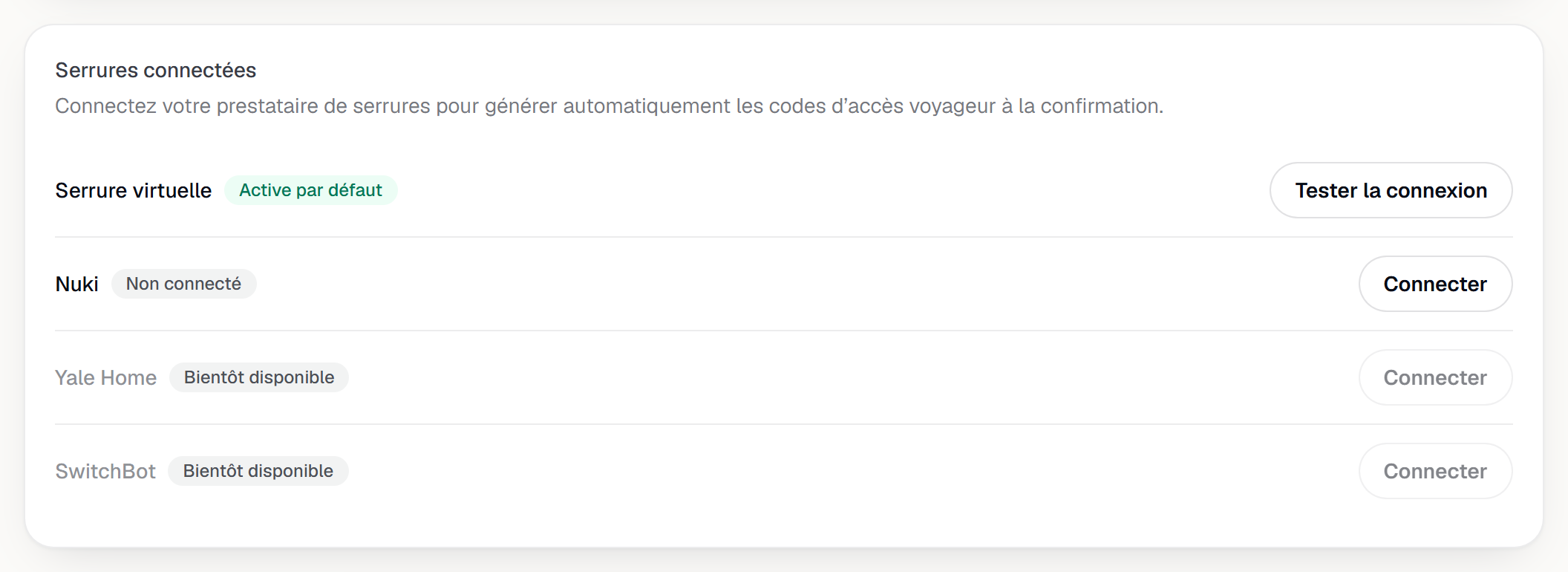
The Connected locks card on the Integrations page: the four providers and their state. Open the listing's Connected lock card
Open the listing page and scroll to the Connected lock card. It spells out the commitment: “Attach this property's lock: guest access codes will be issued automatically when each reservation is confirmed.”
As long as no lock is attached, the card shows No lock attached. and the consequence: “Without a lock, no automatic access code is issued for this property.” The Manage providers link goes back to the previous screen.
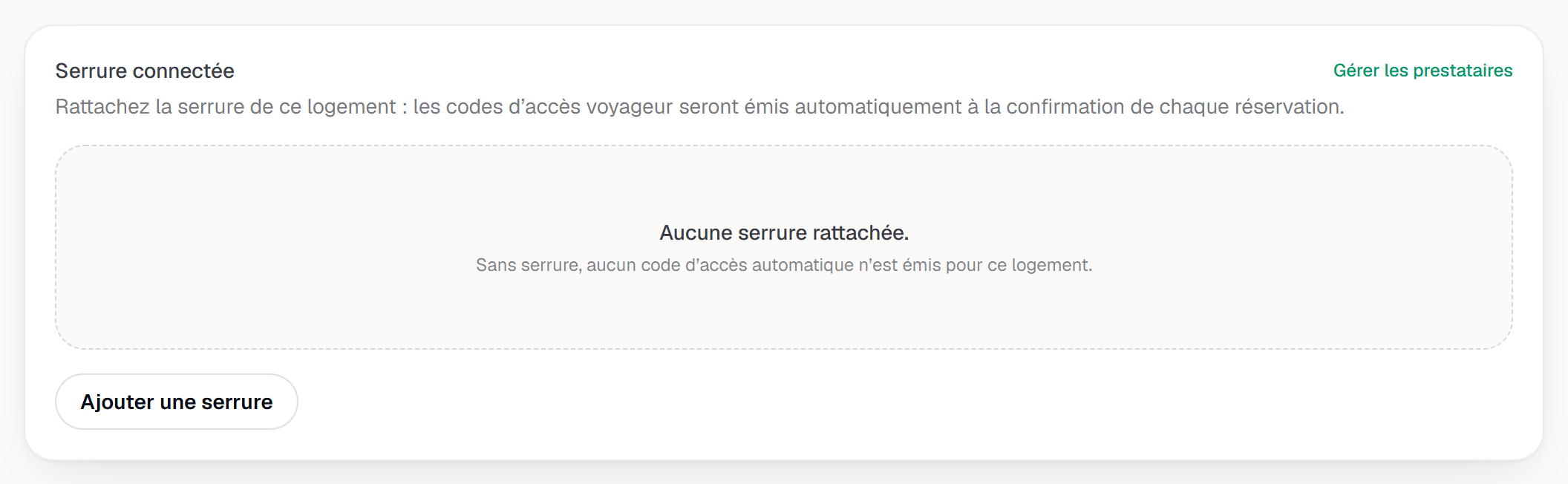
The Connected lock card of a listing with no lock: the empty state and the Add a lock button. Fill in the add form
Add a lock opens two fields. Lock name is free text — the E.g. Front door hint says what is expected: the name of the door, not the name of the unit. Provider only lists providers that are connected and not gated; on a new account, that means Virtual lock is the only option.
For a real provider, YStay queries your account and shows Locks in your Nuki account: each lock carries Available, or Assigned to followed by the unit already using it — in which case it cannot be selected. If the provider does not answer, or has nothing to list, a manual identifier field takes over. Attach submits.
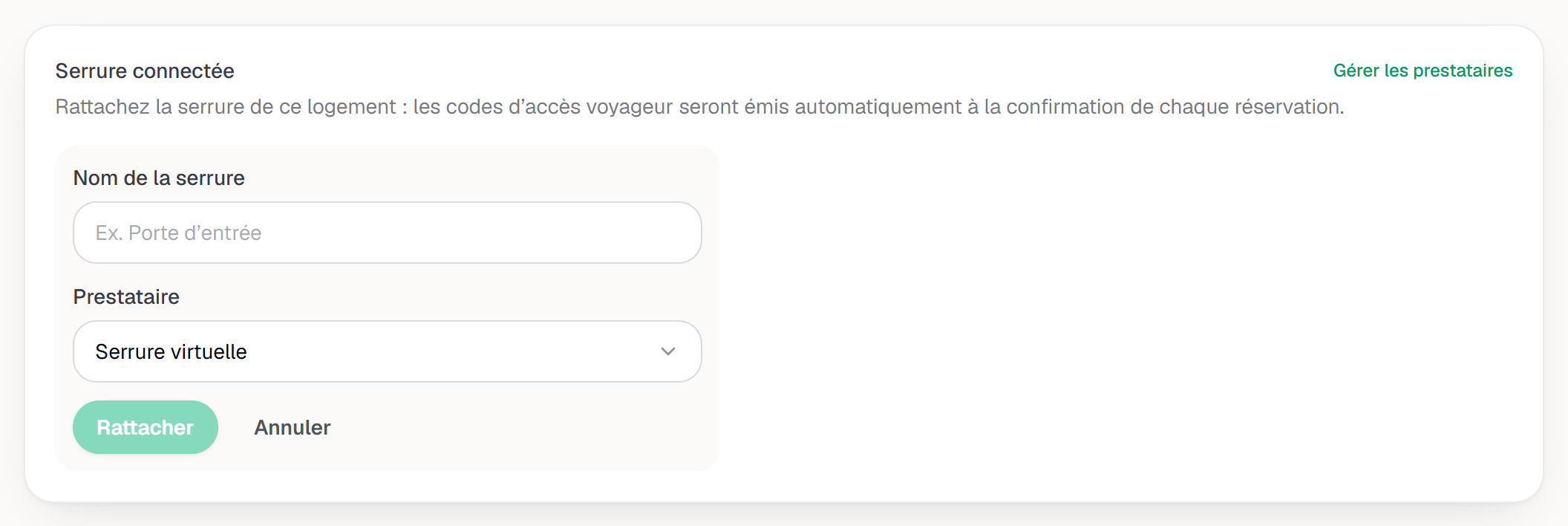
The add form: lock name and provider choice. Check the attached lock
The lock appears in a list with its name, its provider and a status badge: Active, Inactive or Unreachable. Three buttons follow it: Test — which really calls the provider and answers Connection OK or Lock unreachable — Edit and Detach. Seeing this list requires the Lecture box of Stay operations, and those three actions the Écriture box. When the YStay team works on your account, it sees this list and can use Test to help you troubleshoot; it never attaches, edits or detaches a lock on your behalf. Neither that test nor its look at the locks of your Nuki account changes the connection status shown on the Connected locks card.
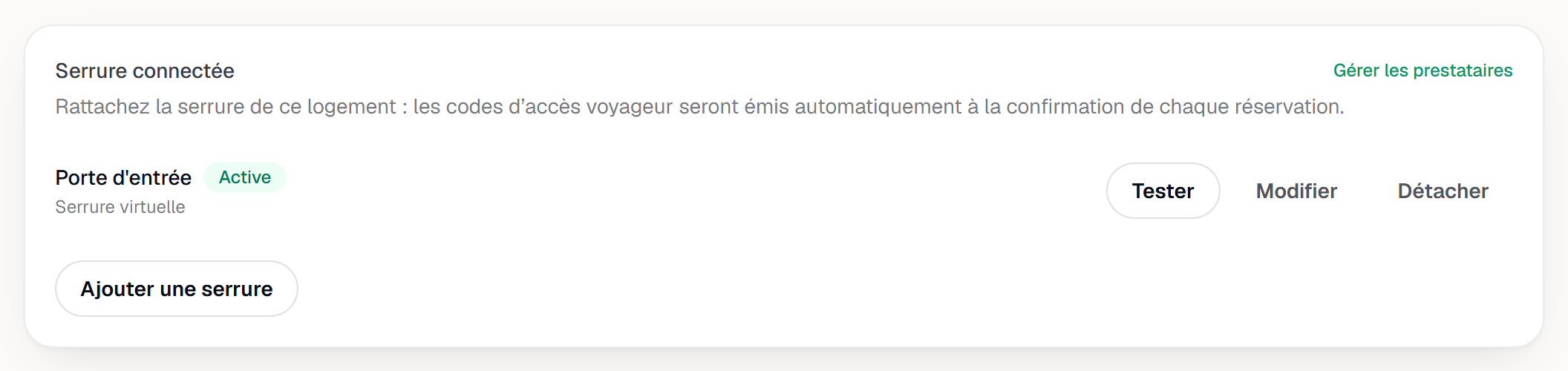
The attached lock: name, provider and status badge.
Next
- Guest access codes: issuance, tracking and troubleshooting — what comes next: what happens at confirmation, how to view or revoke a code, and what to do if nothing shows up.
- Receive your first reservation and manage your calendar — the path that takes a reservation through to confirmation.
- Create and publish your first guidebook — the practical information your guest reads on arrival.
- Listings — the other cards on the listing page.
Updated on