Add a field agent without an account
Hand tasks to someone who has no YStay account: add them on the Team page, send their personal link by SMS or WhatsApp, assign them a task, then follow, resend or cut off their access.
An occasional cleaner, a tradesperson called in for a day, a trusted neighbour: none of them has — or wants — a YStay account. The Field agents section of the Team page takes them in anyway. You add a name and a phone number; the person receives a personal link by SMS or WhatsApp and works from that link: their schedule, the detail of each task, a proof photo, a button to accept or finish. No password, no sign-up.
An agent without an account, or a contractor with one?
Two kinds of people sit in the same list, told apart by a badge.
- Contact — the agent without an account. You add them yourself, with a name and a phone number; they only work from their link. It is the right choice for someone who will only handle a few tasks, or who does not want an account.
- Contractor — a person or company that has a YStay account, invited by email from the Field network page. They work from their own access and find their tasks on their My jobs page. See Field network: partners and missions.
Both appear in the Field agents section and in the assignee choice of a task. A contact can become a contractor later: see “Invite an agent to create an account”, below.
Add an agent
Open the Field agents section
In the Account group of the navigation, open the Team page. The Field agents card — “Field workers without a YStay account, who work from a link sent by SMS or WhatsApp.” — shows even if your plan does not include teamwork: it does not depend on the Team plan. While it is empty it says “No field agents”.
The Add an agent button only appears for members with write access to the Field agents module of the access matrix (the Concierge and Manager presets have it; the Ménage preset only has read access). See Invite your team and set roles.
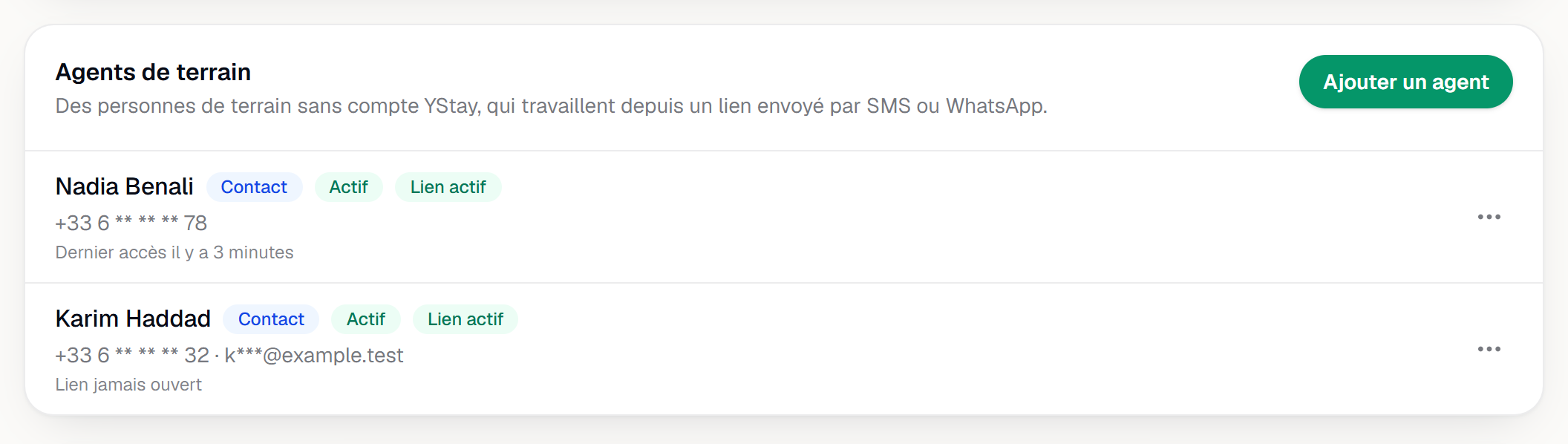
The Team page, Field agents card: a contact with its badges, link state and last access, and a contractor. Fill in the add dialog
Add an agent opens Add a field agent. It asks for:
- Name — required (“Enter a name.”).
- Mobile phone — required, with a country picker (France by default). An invalid number is refused (“Enter a valid mobile phone number.”), and so is a number already held by another agent on your account (“This number is already used by another agent on your account.”).
- Email (optional) — mostly useful to invite the agent to create an account later.
- Message language — one of YStay's five languages, shown in its own name (Français, English, Español, Deutsch, Italiano). It sets the language of the SMS, the WhatsApp messages and the link page. Your own language is preselected.
- Send the link by — SMS or WhatsApp. If WhatsApp is not available for your account, the link goes by SMS, and the screen says so (“If WhatsApp is not available for your account, the link is sent by SMS.”).
- Morning summary by SMS — ticked by default: the agent receives their list of the day's tasks every morning.
Under the form, a notice reminds you of your obligations: “You are responsible for informing the people who work for you: let them know that their name and number are stored to send them their schedule.” See “Your obligations”, below.
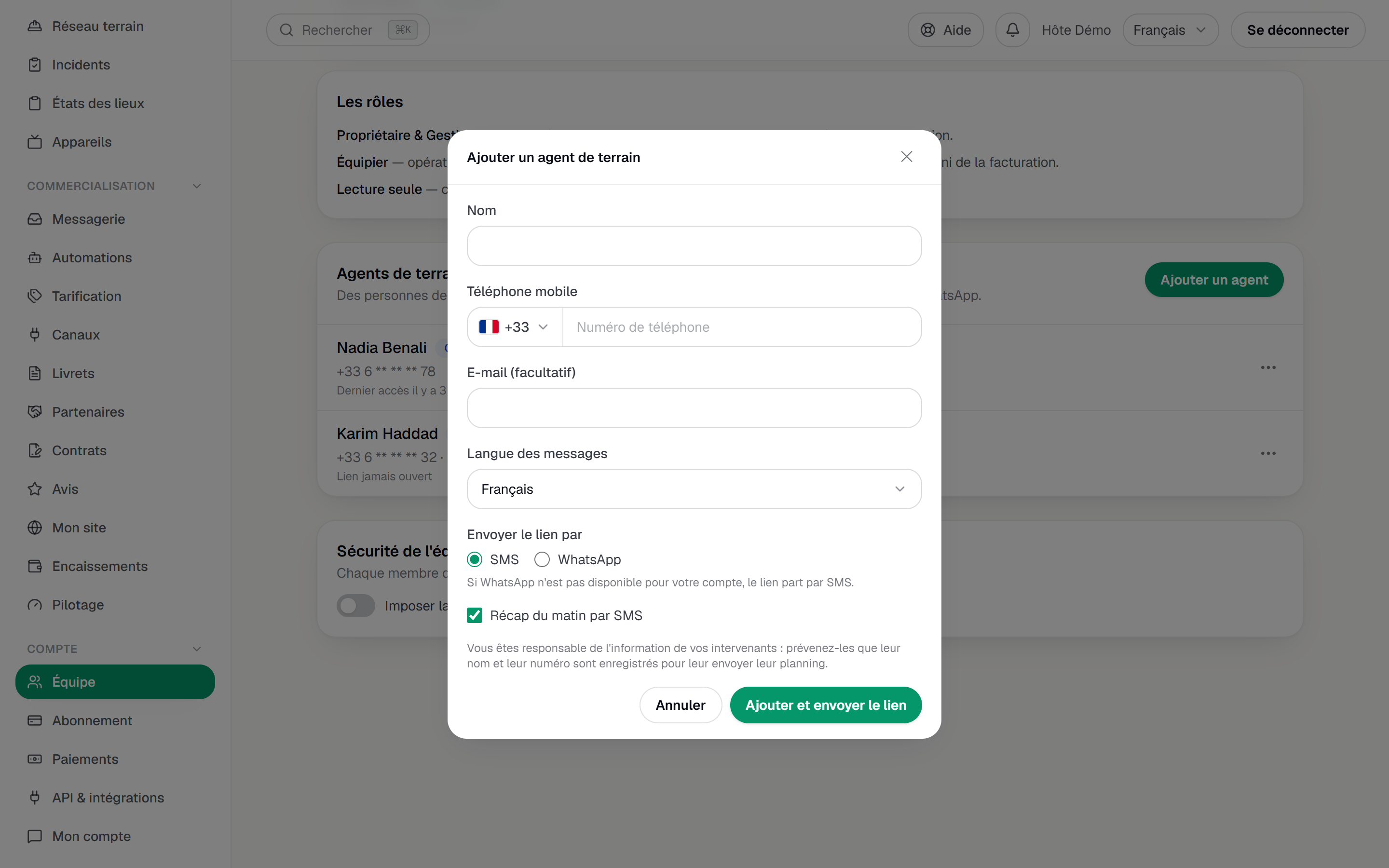
The Add a field agent dialog filled in: name, mobile phone, language, SMS or WhatsApp delivery, Morning summary box and information notice. Send the link
Add and send the link creates the agent and sends their link right away: the screen confirms with “… has been added and their link has been sent.” The agent's row appears with the Contact, Active and Active link badges.
What the agent receives
An SMS (or a WhatsApp message) in the chosen language, with their personal link. That link is their only key: whoever holds it sees the agent's schedule, hence the instruction not to forward it. It opens a page, My schedule, which shows:
- their tasks for today and the next seven days;
- for each task, the time window, the unit, the address — revealed only 24 hours before the start —, the note, if any, and the checklist;
- the Accept, Decline, Start and Finish actions, and Take a photo for the proof;
- from 24 hours before the task starts, the unit sheet: access instructions for the team, Wi-Fi hint, waste sorting, particularities, rooms with their reference photos, useful locations and handover notes — never the useful contacts — and a checklist guided room by room (see Room-by-room guidance and reference photos);
- if your account has turned on check-in tags, the Scan a tag button to record their visit to a room and open its checklist, and a Messages thread with you, translated automatically into their language (see NFC / QR tags);
- their availability, their message settings, and the day's route sheet as a PDF.
What they see stops there. They never see any guest data: no name, no contact, no message, no amount. Only a Guest on site badge tells them the unit is occupied. The page in front of them is described, from their side, in Your schedule by link — that is the guide to point them to.
The link is valid for 180 days. Each opening during the last 30 days renews it for another 180 days: an agent who works regularly never has to ask for it again, while a link nobody opens any more ends up expiring.
Assign a task to an agent
An active agent appears wherever you pick an assignee, in a group separate from your team.
Pick the task
From the Housekeeping menu (the Operations page), open the task and click Assign: the Assign the task dialog opens. For a new task, the Assigned to field of the New task form offers the same choice.
Pick the agent
The Choose an assignee list has two groups: Team (you and your members) and Field agents. An agent without an account shows with the (no account) suffix — a reminder that the task will go out by SMS or link, not in an app. Confirm with Assign.
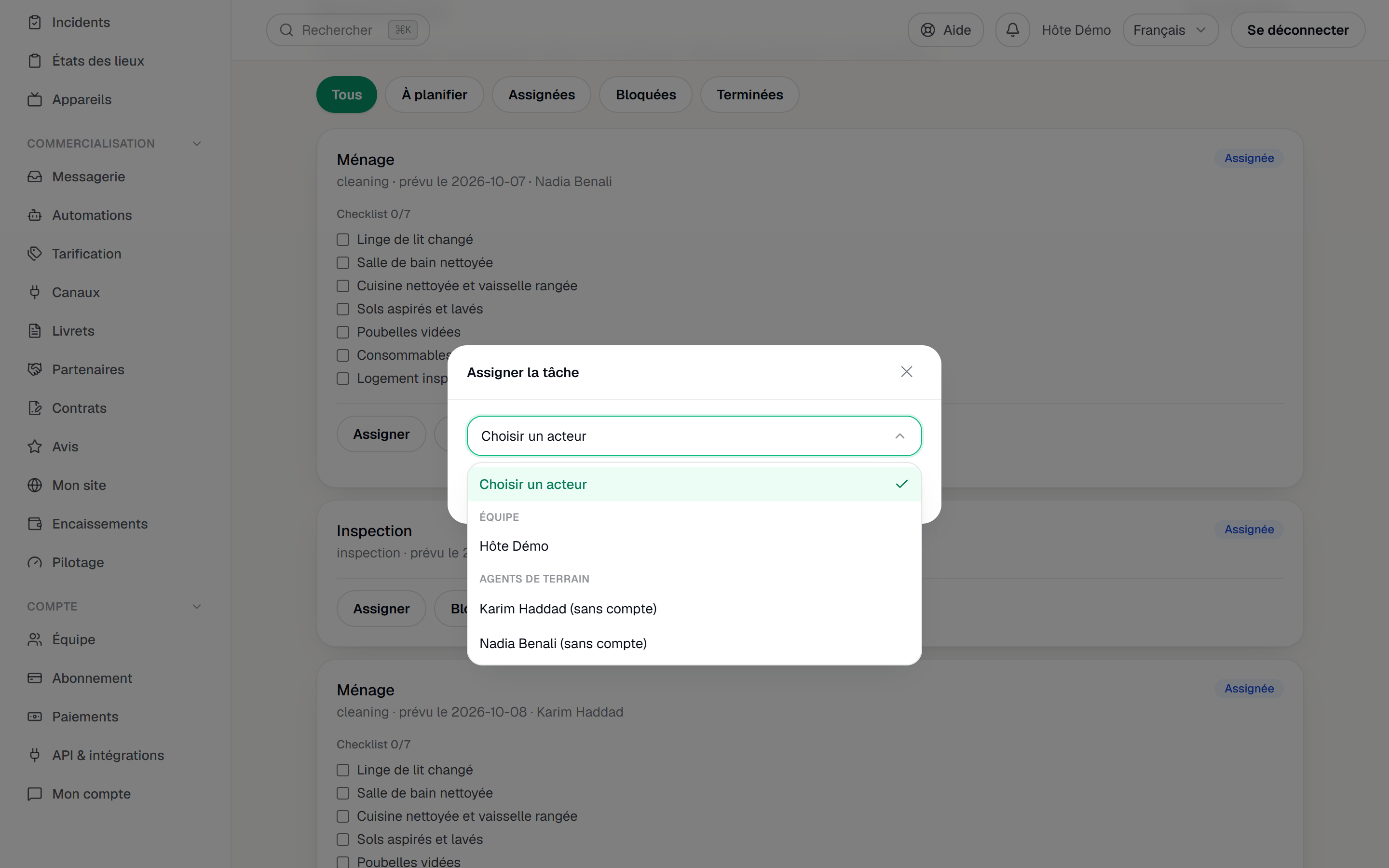
The Assign the task dialog: the dropdown with the Team and Field agents groups, one agent carrying the no account suffix. The agent is notified
The agent receives a New job notification through the channel chosen when they were added (SMS or WhatsApp) and finds the task in their schedule. They can Accept or Decline it — without giving any reason. A refusal hands the task back to your team, which has to give it to someone else: YStay does not reassign it for you.
On Host Ops, a task's detail carries an Assign button (or Reassign if the task already has an assignee). The sheet that opens likewise separates Équipe (Team) from Agents de terrain (Field agents) and marks an agent without an account “sans compte · travaille par lien” (no account, works by link); a tap ticks a line, and it is the Assigner à button followed by the name that sends. See Terrain: the stay plan and My day.
Follow your agents
Each row of the Field agents card summarises:
- the name, with a partly masked phone number and email;
- the type — Contact or Contractor — and the status — Invited, Active or Suspended;
- for a contact — and for a contact who became a contractor —, the link state: Active link, Expired link, Revoked link or No link;
- their last access (“Last access” followed by the relative date) or Link never opened — the sign that the agent has not clicked yet;
- the number of Declared availability, when they have some;
- the Account created badge once a contact has become a contractor.
Resend, revoke, suspend
The three-dot menu on the row (Actions for followed by the name) gathers the actions. They require write access to the Field agents module; without it, only Availability can be viewed.
- Edit — changes the name, the message language and the Morning summary by SMS (Unchanged, On or Off). The phone number cannot be changed from this dialog.
- Resend a link — a new link replaces the previous one, “which stops working immediately”. Use it when the agent lost their message, changes phone, or their link expired.
- Revoke the link (offered while the link is active) — the link stops working at once, the agent stays in your list, and you can send them a new one later. On their phone, the agent then sees “This link is no longer valid”.
- Suspend — the agent can no longer receive tasks and their link stops working. A suspension frees a place in the limit described below.
- Reactivate — makes the agent assignable again, but does not resend a link: an SMS never goes out because of a simple status change. After a reactivation, use Resend a link. Beyond the plan limit, reactivating meets the same warning as an addition.
- Availability — opens Availability for that agent: the Typical week (a Start and an End per day) and the Exceptions (Add a date, then Available or Unavailable for that day). The agent can fill them in themselves from their link. They are informative, never blocking.
- Invite to create an account — see below.
A contact who has become a contractor keeps their schedule link, and their row still shows it (link state, last access). Their menu offers Resend a link — when their phone number is stored —, Revoke the link while the link is active, Availability and Suspend; Edit and Invite to create an account are no longer offered. A contractor who was never a contact has no schedule link: these two actions are not offered.
Invite an agent to create an account
Invite to create an account (offered for an active contact) sends the agent an invitation by email; if no address is stored, the dialog asks for one (Agent's email). The invitation is valid for seven days. Their history is kept and their link stays valid until they accept: nothing changes for them until they answer.
Once the invitation is accepted, the same row becomes a Contractor, with the Account created badge, and joins the network described in Field network: partners and missions. It then no longer counts toward the limit of agents without an account.
Their schedule link stays valid after the acceptance: you can resend it or revoke it, which cuts that access without touching their account. They also find their tasks in My jobs, from their account (see Field network: partners and missions). Once the person works from their account, you can revoke the link.
The two-agent limit and the Agent Ops option
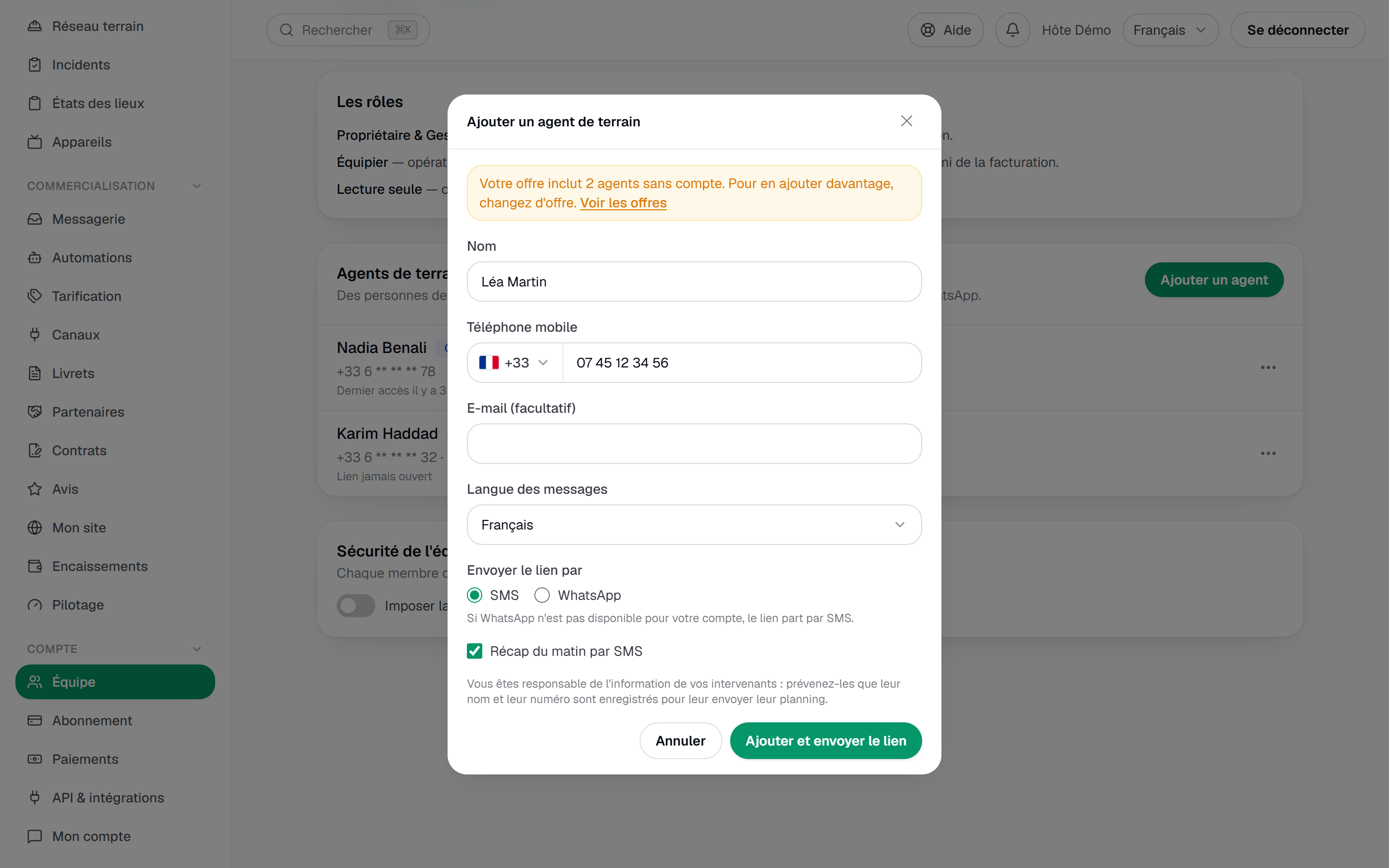
Every plan includes two active agents without an account. Adding a third requires the Agent Ops plan option: instead of creating the agent, the dialog shows a warning — “Your plan includes 2 agents without an account. To add more, change your plan.” — with a See plans link to the Subscription page. It is not an error: what you typed stays in the dialog. The free trial does not include the option.
Only active agents without an account count: a suspended agent frees their place, and a contact who became a contractor no longer counts. Contractors with an account are not capped. For the subscription itself, see Understanding the trial and your subscription.
Your obligations
An agent is not a YStay user: you chose them, and their data — name, number, answers, availability, proof photos — is stored for your account. The screen puts it this way: you are responsible for informing the people who work for you. In practice:
- before adding someone, tell them their name and number will be stored to send them their schedule;
- on their first opening of the link, the agent also sees an information card (“Your data on this link”) that names your account as the data controller and YStay as the processor. They dismiss it with Got it; their schedule stays readable underneath. That card complements your own information, it does not replace it;
- the product does not geolocate the agent, does not rate them, and does not ask them for a reason when they decline.
This guide describes what the tool does; it is not legal advice. For your own situation — employees, freelancers, workers from abroad — talk to your adviser.
Confidentiality: what the agent does not see
The agent only sees their own tasks, over the next seven days, and never:
- a guest's name, contact, messages or payments;
- other agents' tasks, yours, or the rest of your account;
- a task's address before the 24 hours that precede it.
When the YStay team steps in on your account, it sees the list of your agents read-only and can revoke or resend a link; it adds none and edits none.
If the screen will not move
- “Unable to load field agents.” — reload the page; the list could not be read.
- “This number is already used by another agent on your account.” or “This email address is already used on your account.” — the person is probably already in the list, under another name: look for them first.
- “Check the highlighted fields.” — one of the required fields is empty or invalid.
- “The action failed. Please try again.” — the agent's state changed since the screen was displayed; reload before trying again.
Next
- Your schedule by link — the guide to pass on to your agent.
- Terrain: the stay plan and My day — where the tasks you assign come from.
- Housekeeping and turnovers — today's board and a task's life cycle.
- Field network: partners and missions — contractors with an account.
- Operations — every screen of the stay and its aftermath.
Updated on