Dynamic pricing (PriceLabs)
Connect your PriceLabs account, enrol a listing, follow the sync — and what the platform has not switched on yet.
The Dynamic pricing (PriceLabs) card sits at the bottom of a listing's pricing page. It sums up its own role: “PriceLabs adjusts your nightly prices based on demand. Prices you set manually on the calendar always take priority.” Two levels are configured here: the PriceLabs account, one for your whole YStay account, and enrolment — which listing is actually driven — which is decided listing by listing.
The path, screen by screen
Connect your PriceLabs account
While no account is connected, the card shows the Not connected badge and a single field, PriceLabs API key, with the hint “Paste your API key”. Its help text says what matters: “Available in your PriceLabs dashboard. The key is tested on save, stored encrypted and never shown again.” Connect submits it.
The key is tested there and then. Accepted, the badge turns to Connected; rejected, it turns to Key rejected and a notice invites you to enter a new one. If PriceLabs does not answer, a distinct message says so and nothing is saved: your previous key stays in place.
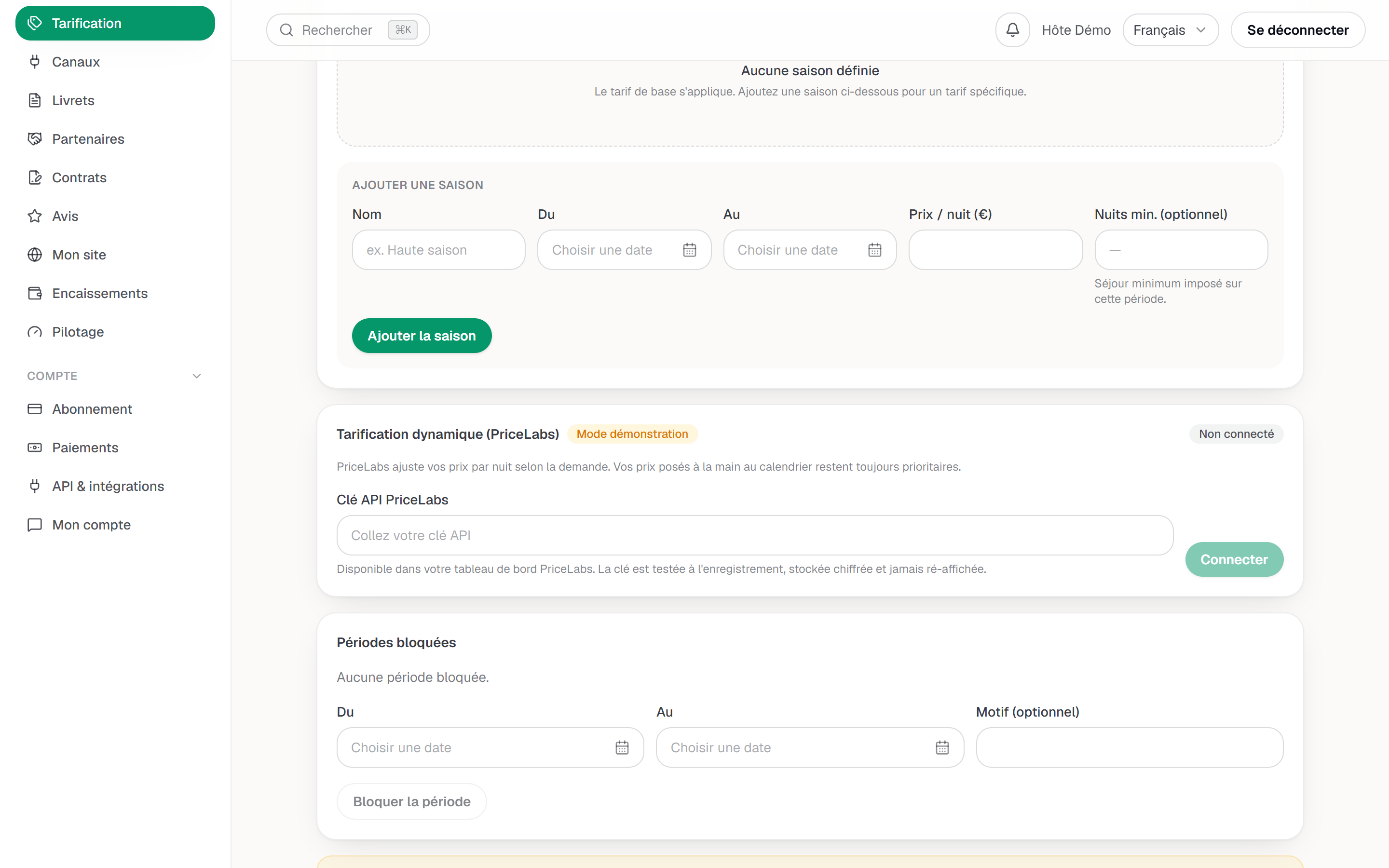
The PriceLabs card before connecting: the API key field. Match the listing
Once the account is connected, the card shows Matching PriceLabs listing: a picker fed by your PriceLabs inventory. Until a choice is made, the screen reminds you to first pick the matching PriceLabs listing to enable syncing. That match belongs to this listing: connecting the account drives nothing on its own.
Enable syncing
The Sync this listing's prices switch does not act on the first click: an Enable dynamic pricing? confirmation first states the consequence — PriceLabs will drive the listing's upcoming prices and they will be pushed to your distribution channels, while prices you set by hand keep priority. Enable immediately starts a first sync.
Screenshot to be produced
captures/tarification-dynamique-pricelabs/02-mode-demonstration.png
Follow the sync
Below the picker, one line gives the server truth: Last sync followed by the date, or Never synced, completed by the outcome of the last run — succeeded, failed or skipped. From then on everything is automatic: a daily run at 04:30 (Paris time) refreshes enrolled listings over a one-year window, just before the catch-up that pushes rates out to your channels. On the calendar, nights driven this way carry the Dynamic price legend.
Change listing, or stop
Picking another PriceLabs listing on an active listing asks for confirmation: upcoming dynamic prices are removed, re-synced from the new listing, and your channels updated. Turning the switch off likewise removes upcoming dynamic prices and returns the listing to your base rates and seasons. In both cases only future nights are touched.
The module's guardrails
- PriceLabs never talks to your channels directly. It feeds YStay, and the usual channel sync does the distributing — see Connect your distribution channels.
- No currency conversion. A price returned in a currency other than your rate's is skipped and logged, never converted.
- Your plan gates enabling, not leaving. Without dynamic pricing in your plan, an Included from the Simple Host plan. banner replaces the settings — but Disconnect account is always still offered.
- Disconnecting deletes the key and removes upcoming dynamic prices from all your listings. Prices you set by hand are kept.
If something does not go as planned
- The badge reads Key rejected. The key was turned down and syncing is stopped until a new one is entered — check it on the PriceLabs side, then reconnect.
- PriceLabs is announced as temporarily unavailable. A passing outage: nothing was changed, try again.
- The listing picker is empty. Your PriceLabs account offers no listing to match with; create it on the PriceLabs side first.
- Prices do not change on the calendar. Check, in order, the Demo mode badge, this listing's switch, then whether a manual price exists on those nights — it outranks everything.
What comes next
- Set your rates — the foundation dynamic pricing sits on.
- Take your first reservation and run your calendar — set, read and remove a manual price.
- Listings — back to the overview of a listing.
Updated on