StayProof: build and share the evidence
Record findings, generate the package from the check-in inspection alone, compare entry with exit, and pre-fill an incident that is never created automatically.
StayProof is the StayProof — evidence panel on the stay page. It gathers the inspections — what you record, in words and in photos — and the Evidence package, a timestamped deliverable you can download or share.
The panel is read with the Lecture box of Stay operations (reservations, check-in/out); everything in it that creates or changes something — starting or finishing an inspection, recording a finding, generating the package, creating the sharing link, analysing the gap, correcting it, creating an incident — requires the Écriture box.
While no session is open, the panel shows “No inventory” and “Open a check-in / checkout session to start an inspection.”: evidence always hangs off a session — see Run a stay: check-in and checkout.
The path, screen by screen
Start the inspection
From an open session, Start the inspection creates the matching inspection, check-in or check-out. It opens empty, with the line “No photo or issue recorded yet.”
Record findings and photos
+ Issue adds a finding: a category — Cleanliness, Damage, Missing item, Maintenance, Other — a severity, Minor or Major, and a free note. + Photo attaches an image to the finding at hand.
Finish the inspection freezes it. That gesture, and only that one, makes it usable by the evidence package.
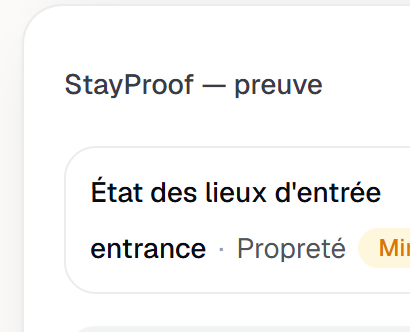
The completed entry inspection: its Cleanliness finding, minor severity. Give an OK / KO verdict on the checked points
When the listing entrusts the inspection to The host / concierge team and its template contains Photo + OK/KO check points, the inspection in progress shows the OK / KO compliance block. It lists those points by section, with their photo count (“2 photo(s)”) and the Required badge when the point is required. For each one, pick OK or KO, add a Remark (optional) if needed, then click Save verdict — the button stays greyed out until a verdict is chosen. Each point is saved separately, verdict and remark together: “Saved” confirms it, “Unsaved change” flags a draft. A point's photos are added like any other, with + Photo, after choosing the point in the list.
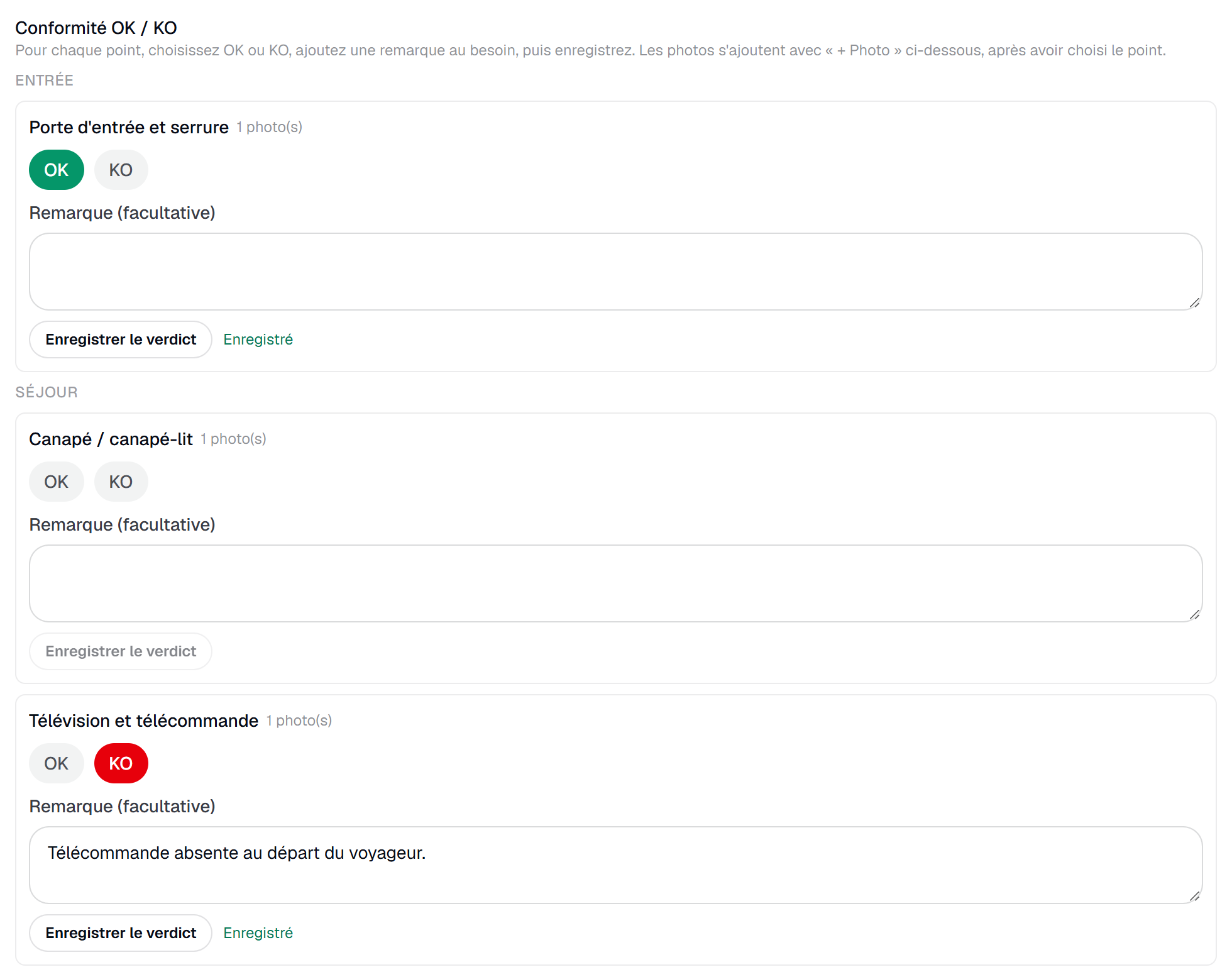
The OK / KO compliance block of a host inspection in progress: OK and KO buttons, remark, a saved KO point. A KO with neither photo nor remark is flagged in advance: “A KO with neither a photo nor a remark will be refused when closing: add a photo or a remark.” Finish the inspection applies these rules. If one is missing, the inspection stays in progress and the panel answers “The inspection cannot be finished yet:” followed by every point at fault:
- “Required photo missing: …” — a Required point with no photo;
- “Verdict missing: …” — a Required point with neither a verdict nor a remark;
- “"…" is marked KO without a photo or a remark.” — a KO with neither.
Required photo points do not block the closing of a host inspection. When it closes, every point judged KO becomes a finding — category Other, severity Minor, the remark as its note — flagged KO noted by the host (see “What the evidence keeps”). The block then re-reads the saved verdicts (OK, KO or No verdict) without allowing changes; it also becomes read-only, with a reminder, if the listing is no longer set to The host / concierge team.
Generate the evidence package
Generate the package produces the Evidence package card: the count behind “New issues at checkout:”, the suffix “(including major)” when there is one, and the timestamp “Generated on …”.
The PDF follows once it is ready: Download the PDF, or the waiting message “The evidence PDF will be available once the package is finalized.” A failed render never loses the package — the summary stays readable.
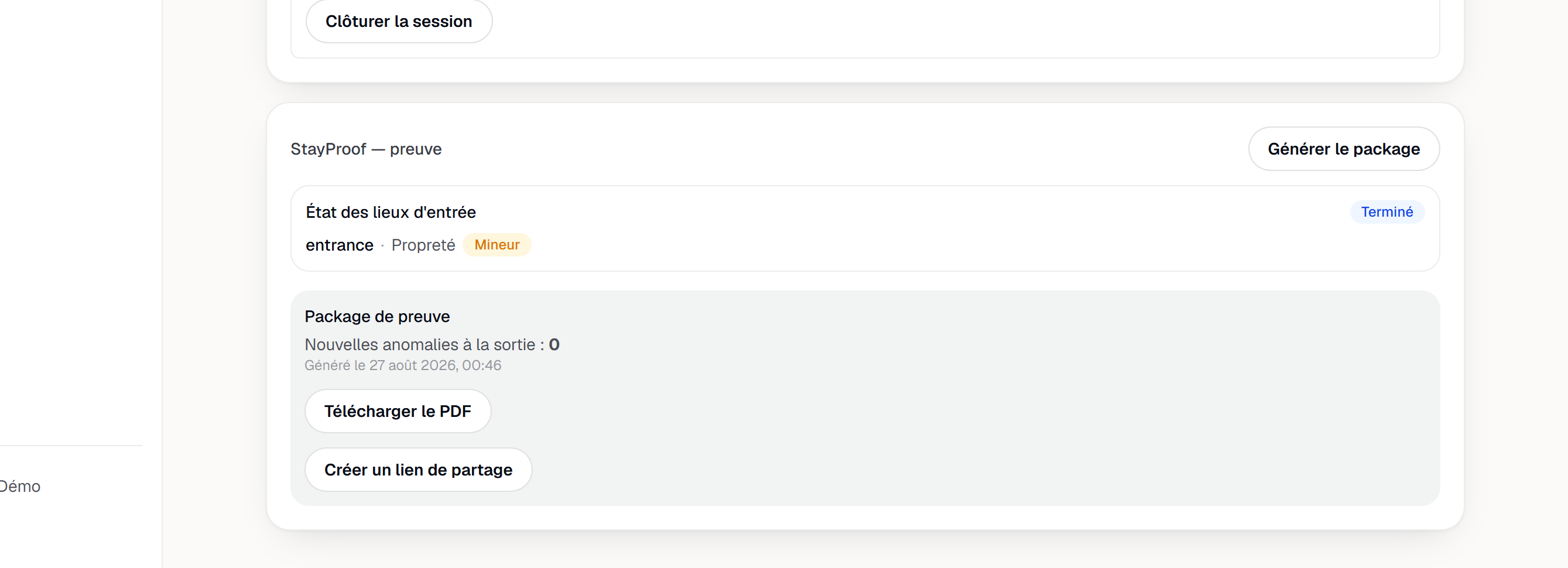
The evidence package: discrepancies, PDF, insurer sharing. Share with your insurer
Under the package, Create a share link produces a time-limited link — Renew the share link issues a new one. Send to insurer copies that link for you to pass on to your insurer or your platform.
The link carries an expiry, shown as “Expires on …”: it is an access granted for a purpose, not a publication.
Compare entry with exit
The Entry / exit comparison card is attached to the exit inspection. Its Analyze entry/exit delta button — then Re-run analysis afterwards — stays disabled until the exit inspection is finished, with the instruction “Complete the exit inspection to run the analysis.”
The analysis lists the findings that are new at exit, ranked (Priority, Watch, Minor), adds a Major delta badge where relevant, and marks with AI summary whatever the assistant wrote. A counter shows the analyses you have used.
Screenshot to be produced
captures/stayproof-preuve/03-comparaison-incident.png
Pre-fill an incident
Once the analysis has been saved and carries at least one finding, a Create an incident button appears. It opens the Incident pre-filled from the analysis form, with its warning: “Everything is editable before creation — nothing is created automatically.”
Title, Severity, Findings to include, Description: everything can be edited before Create the incident. The confirmation “Incident created.” then offers View the incident.
Sealing
When an inspection closes — yours, the guest's, or their co-validation — YStay computes a fingerprint of its content (findings, photos, timestamps) and records it in the audit log. The Sealed badge then appears on the inspection: it attests that its content has not changed since that date. If a photo lands on an already sealed inspection afterward, the fingerprint is recomputed and the log keeps the trace of both seals.
Download the full file
Under the evidence package, the Download the full file (ZIP) button produces a complete archive of the stay: raw photos and media, answers and findings, the evidence PDF, and the sealing manifest with its fingerprint. The download link is valid for 7 days.
This button is reserved for the account owner and for members whose access includes Stay operations (reservations, check-in/out) for reading — the Manager, Staff and Read only roles, and the Concierge, Compta, Co-investisseur and Manager presets. A Ménage member, or a Custom access that does not tick that box, cannot download it. The Read only role can: preparing the archive is a read, which changes nothing in your account.
A stay with no inspection at all — one that only carries task photos — has none of those pieces to give: its case then holds only the task photos and their list of fingerprints, no evidence PDF, no answers, no findings.
What the evidence keeps
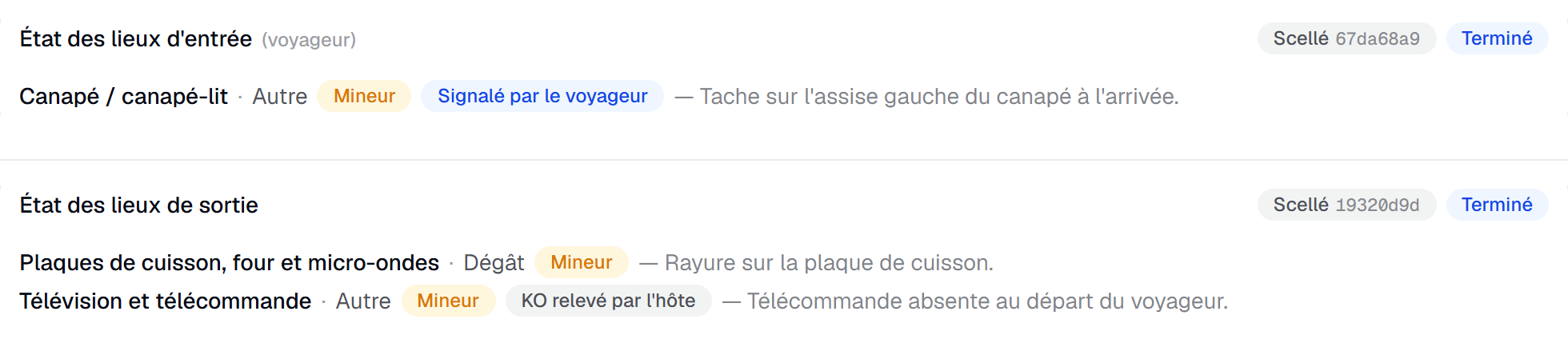
- One finished inspection, the most recent one. Per kind — check-in or check-out — the package keeps the latest Completed inspection. An inspection in progress, awaiting co-validation or rejected never enters the evidence.
- The order of photos and when they were added. A photo uploaded after the guest's attestation is marked “Added after guest attestation” and flagged “+ later”: the timeline stays readable.
- The raw comparison, even without AI. If the assistant is unavailable, out of quota or reserved for a paid plan, the message says so — “The AI assistant is temporarily unavailable: the deterministic comparison is still shown.” — and the list of discrepancies remains.
- Where each finding comes from. A finding entered with + Issue has no badge. A point judged KO becomes a finding when the inspection closes, with a badge saying who noted it: Reported by the guest when the guest attested it KO, KO noted by the host when your own inspection ended on a KO. If you reject an attestation under co-validation, the Reported by the guest findings it created are removed: the guest will have to attest again.
Retention and purge
StayProof evidence — inspections, photos, PDF — is kept for 24 months after the stay by default. From Account › StayProof evidence retention, the account owner can extend this up to 60 months.
30 days before the purge, you receive an email and a notification inviting you to download the full file if you want to keep it.
Once the purge has run, the panel shows Evidence purged on …: the photos, answers and PDF are gone, but the inspection's line and its sealing fingerprint remain in the audit log, as proof that the inspection did take place.
The stay's task proof photos — cleaning, welcome — follow exactly the same duration and the same notice, and enter this same downloadable case. Since that case is reserved for Stay operations for reading, a Ménage member, whose access only covers tasks, cannot download it. A stay with no inspection at all, but that carries task photos, also gets the J-30 notice and offers its own case: the StayProof panel shows Task proof photos there, with the same Download the full file (ZIP) button.
The key handover signature that the guest gives on arrival, on the field worker's phone, follows the same duration, the same notice and the same case: it is an item of the task, just like its photos. The proof of service — the PDF that gathers the task's photos, signature and timeline — follows the task's photos too: it is deleted as soon as they are, and cannot be rebuilt afterwards. The ZIP case carries the photos and the signature, not this PDF: see Proof of service.
Turning this feature off
The account holder can turn off StayProof discrepancy analysis for the whole account, from the AI features page (My account page): the entry/exit comparison by finding codes stays displayed, without the AI-written summary or anything sent to the AI provider — the Analyze entry/exit delta button is disabled while the feature stays off or suspended. The area concerned shows “This AI feature is turned off for your account.” and, for the account holder, the Turn back on in AI features link. Details: AI features: turning them on and off.
Next
- Inspections: policy, guest link, templates — when the guest is the one recording.
- Incidents and disputes — what happens when a finding turns into a case.
- Housekeeping and turnover — putting the home back in order between two stays.
- Proof of service — the PDF that proves the field worker's work on a task, and the retention period it shares with StayProof.
- Operations — everything about the stay and what comes after it.
Updated on