Early check-in and late checkout
Offer an early arrival when the unit is ready, or a late departure when nothing follows: when YStay thinks of it, the YStay default, the policy to set per account, property or unit, copilot and autopilot, what the guest receives, what their payment changes on the access code and the tasks, exemptions, the stay preview and the reservation card.
A unit that is already ready at noon, a departure at 2 pm when nobody arrives behind: these two gaps in the schedule cost you nothing, and the guest may be willing to pay for them. Early check-in and late checkout turn them into an offer: YStay spots the moment, applies the policy you have set, and lets you decide — or sends the offer on your behalf if you chose that.
This guide is written for you, the host. It covers what YStay offers and when, the policy to set, the two ways to decide (copilot and autopilot), what the guest receives and what their payment changes on the access code and on the field tasks.
What YStay offers, and when
Each offer comes from a precise signal, once per reservation and per kind of extra: an offer that was dismissed, expired or withdrawn does not come back.
- Early check-in, signal 1: the departure cleaning is finished early, on the arrival day. When the housekeeping task is closed, YStay prepares an early arrival for the guest arriving the same day, at the time the unit will be ready (end of cleaning plus your buffer). This signal only applies if your policy accepts a departure and an arrival on the same day: the YStay default rules it out.
- Early check-in, signal 2: the evening before, a free unit. At your account's evening digest time (7 pm by default, the Evening digest time setting under Terrain settings), YStay looks at tomorrow's arrivals. If no departure takes place on the unit that day, it is already ready: the early arrival is offered at the earliest time of your policy. This is the signal the YStay default uses.
- Late checkout: the evening before, with no arrival behind. At the same time, YStay looks at tomorrow's departures. If no arrival takes place on the unit that same day, a late departure is offered. If your policy accepts an arrival on the same day, the late departure is capped so that the cleaning and the next code's lead time still fit: with the default clocks, never after 1 pm.
If the policy rules the stay out — channel not selected, length of stay out of bounds, excluded unit, standard time already passed —, nothing is offered. The preview, further down, tells you why, stay by stay.
The YStay default, and where to see it
As long as you have set nothing, YStay applies its default:
- Early check-in: Paid, 20.00 € flat fee, never before 12:00, in Copilot mode — you approve each offer.
- Late checkout: Paid, 20.00 € flat fee, until 14:00, also in Copilot mode.
- Both cover direct bookings and all platforms (OTA), with a 30-minute buffer after cleaning. An early arrival is only offered if no departure takes place on the arrival day, and a late departure only if no arrival takes place on the departure day.
To see and set it: the Terrain menu, Early check-in / late check-out tab.
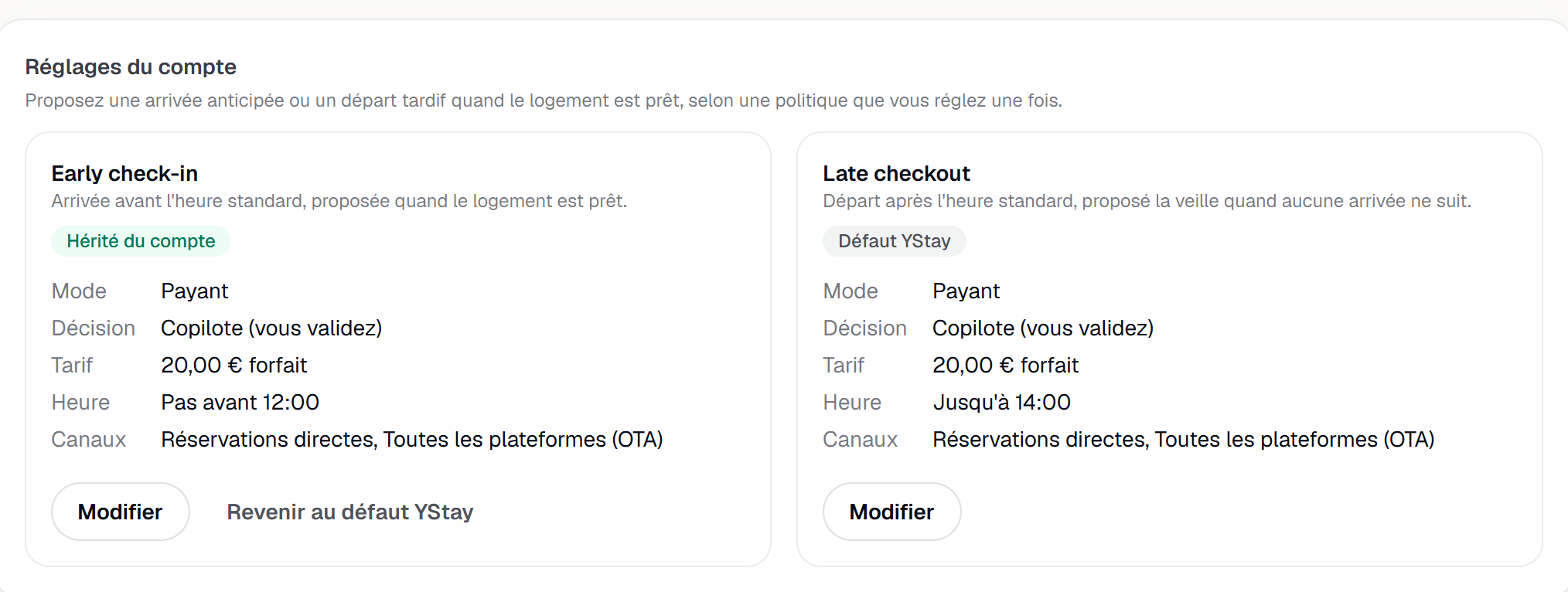
The badge tells you where the rule comes from: YStay default (you have saved nothing), Inherited from the account (an account policy), Overridden for this property or Overridden for this unit.
The tab appears if your role opens the Early check-in and late check-out module: the Lecture box to see it, the Écriture box to change it and to decide on offers. The Concierge and Manager presets have both read and write (see Invite your team and set their roles).
Setting a policy
A policy is set at three levels: the account, a property, a unit. The finest one wins: a unit's policy beats its property's, which beats the account's, which beats the YStay default. At the same level, a policy limited to a period (Applies from … Applies until …) beats one that holds all year. A policy in Off mode at a fine level wins too: that is how you switch a unit off.
- The account. Under Account settings, Edit opens the card's form. Reset to the YStay default deletes your account policy: the default applies again.
- A property or a unit. Under By property and by unit, choose a Property then a Unit: the tab shows the policy that applies there and where it comes from. Override for this property or Override for this unit opens the form pre-filled with the policy in force — nothing is created until you press Save. Revert to the account settings deletes the override, and the Current overrides list gathers them. On a unit whose policy comes from its property, this button deletes the property's override, and therefore for all of its units.
A member limited to certain properties sets the properties open to them, but not the account settings: the tab says so (“Account settings can only be changed with access to all properties.”).
Each setting is a list, a box or a bounded number — never free text or a formula:
| Setting | What it does |
|---|---|
| Mode | Off: nothing is offered. Free: the guest pays nothing. Paid: the guest pays the price online. On request: the extra is added to the reservation, but nothing is sent: you collect by hand. |
| Decision | Copilot (you approve) or Autopilot (add-on) — see the next section. |
| Pricing | Flat fee (Price (€)), Per hour (Price per hour (€), multiplied by the gap with the standard time, rounded up to the next hour) or Percentage of a night (Percentage of the average nightly rate (%), computed on the stay). |
| Cap (€) | Maximum amount, whatever the pricing. Empty: no cap. |
| Free from (previous stays) | A guest who has already stayed this many times with you — same email or same phone — gets the extra for free. Empty: never. |
| Earliest arrival time (early) or Latest departure time (late) | Early: YStay never offers an arrival before this time. Late: the late departure offered runs until this time. |
| Buffer after cleaning (min) | Time left between the end of cleaning and the offered time (signal 1). |
| Only if no departure takes place on the arrival day (early) or Only if no arrival takes place on the departure day (late) | Ticked by default. Untick it to accept turnover days: that is what opens signal 1 of the early arrival, and YStay then checks that the offered time leaves room for the other stay. |
| Require a completed check-out inspection | On a turnover day, the early arrival is only offered if the check-out inspection of the departing stay is completed. |
| Channels covered | Groups: Direct bookings, Manually entered bookings, All platforms (OTA). Specific channels: Airbnb, Booking.com, Abritel/Vrbo, Expedia, Google, iCal. A stay from an unticked channel is never offered. |
| Minimum nights and Maximum nights | Bounds on the length of stay. Empty: no bound. |
| Excluded units | Nothing is offered on the ticked units. |
| Free for tagged guests | Tags Loyal guest, Business, Family, Other: a guest who carries one (see exemptions) gets the extra for free. |
| Applies from and Applies until | Validity period. Empty: all year. |
| Policy active | Untick to pause the policy: the level above applies. |
Copilot or autopilot
Copilot is the default. YStay prepares the offer and waits for your move. It arrives in the notification bell:
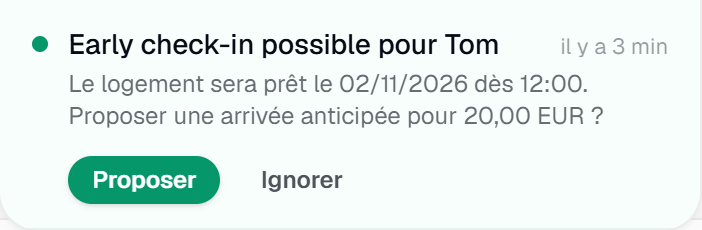
- Offer adds the extra to the reservation and sends the offer to the guest (next section). In Free mode, the same button confirms the time right away; in On request mode, it adds the extra without sending anything.
- Dismiss files the offer as Dismissed: nothing is sent, nobody is notified, and it does not come back.
Nothing reaches the guest without your tap. The bell itself sends no email and no push notification. The two buttons require the Écriture box of the module and only show on an unread notification: once it is read (or after Mark all as read), decide from the reservation card, further down. An offer that has already been handled reads “Already handled”.
Autopilot is part of the Agent Ops add-on. YStay sends the offer to the guest as soon as it is ready, without waiting for your tap — and you keep control: as long as the guest has not paid, Withdraw the offer cancels it. Nothing goes through the bell then; find the offer on the reservation card. A few rules:
- Without the add-on, choosing Autopilot (add-on) still saves the policy, in copilot mode: the tab shows “Autopilot is part of the Agent Ops add-on.” and “The policy is saved in copilot mode.”, with the See plans link.
- In On request mode, and for any reservation without a payment link or without a guest email (most reservations that come from a platform), autopilot does not apply: you decide, from the bell.
- YStay can suspend the extras autopilot for the whole platform: the tab then shows “Autopilot is temporarily paused by YStay: offers go through you.”
- If an automatic send fails, the offer stays to be decided in the bell: nothing is lost silently.
- During a support session, YStay support can neither save a policy in autopilot nor offer, dismiss or withdraw on your behalf: these are host decisions.
What the guest receives
- Paid mode. The guest receives an email, in their language — “Arrive earlier: your unit is ready” (or “Leave later: your unit stays available”) — announcing the offered time, the date and the price, with a Confirm and pay button to the guest space of their reservation. They pay online, and their access is adjusted automatically.
- Free mode. No payment: as soon as you tap Offer (or as soon as the automatic send), the time is confirmed, and the guest receives “Your unit is ready: arrive earlier” (or “Your unit stays available: leave later”), at no extra charge.
- On request mode, a reservation without a guest space, or without an email. A reservation that has no payment link, or whose guest email YStay does not know — the case of reservations that come from a platform (OTA) —, cannot be paid online: it falls back to “on request”, even on autopilot, and the offer waits for you in the bell. Offer adds the extra — named “Early check-in at 12:00” or “Late checkout at 14:00” — and its installment stays pending, with no email. You agree the time with the guest, you collect the money, then you press Mark as paid on the installment, in the reservation's Payment schedule: it is a payment like any other, and it confirms the time in the same way.
While the offer is open, the extra cannot be removed from the reservation's Extras card: use Withdraw the offer.
What payment triggers
Whether the guest pays online or you press Mark as paid, the result is the same:
- The time is confirmed on the reservation — “Early check-in confirmed at 12:00” or “Late check-out confirmed at 14:00” — and the offer becomes Accepted.
- The access code is adjusted. The active codes are replaced by a code whose window follows the confirmed time: for an early arrival, it opens before that time with the same lead (3 hours) as for the standard time; for a late departure, it runs until the departure time. If no code has been issued yet, it will be issued directly with the right window. If issuing fails, the old code stays valid: the guest is never left without a code. See Guest access codes.
- The check-in task is rescheduled to the confirmed time — the check-out task, for a late departure —, as long as it has not started: a task in progress is never moved.
- The previous cleaning is re-prioritised: if the departure cleaning has not started yet, its deadline — the time by which the unit must be ready — is recomputed from the new arrival, and the team sees its new time limit.
- The guest receives a confirmation by email (“Your early check-in is confirmed”), if an email is known.
Payment closes the decision: a paid offer can no longer be withdrawn. Refunding the extra remains a manual gesture on your side, and it undoes neither the confirmed time nor the adjusted code.
Guest exemptions
To give the extra for free to your regulars, your business clients or your family, add them under Guest exemptions, at the bottom of the tab: an Email and/or a Phone, a Tag — Loyal guest, Business, Family or Other — and a Note (optional), then Add exemption.
- The email and the phone number are never stored in clear: YStay keeps only a fingerprint, to recognise the guest, and the list only shows a masked version.
- The tag does nothing on its own: it is the policy that decides, with Free for tagged guests, which tags get the extra for free. A guest recognised by their email or their phone then switches to Free mode, whatever the price of the policy.
- An exemption applies to the whole account. Remove deletes it after confirmation: the guest pays for extras again according to your policy.
- Exemptions are managed with access to all properties: a member limited to certain properties can neither read nor change them.
Previewing a stay
Under What would happen for this stay?, choose a confirmed Booking within the next 30 days and an Extra (Early check-in or Late check-out): YStay applies your policy and answers Eligible or Not eligible, with the Amount, the Offered time (“12:00 instead of 16:00”), the Decision, the Policy applied and Why. The reason is spelled out: policy off, channel excluded, length of stay out of bounds, unit excluded, another stay on the same day, check-out inspection not completed, standard time already passed, price impossible to compute.
The preview sends nothing and saves nothing: use it to test a setting before the next evening.
The reservation card
On the page of a confirmed reservation, the Early check-in / late check-out card — under the extras card — gathers everything about the stay:
- the times already confirmed (“Early check-in confirmed at 12:00”);
- the policy that applies to each kind of extra, with its origin badge;
- the offers, with their status: To decide, Sent, Accepted, Dismissed, Expired or Withdrawn (To collect by hand for an “on request” offer), the Proposed time and, expandable, Why this offer?.
On an offer To decide, Offer and Dismiss are the same gestures as in the bell. On a Sent offer, Withdraw the offer opens a confirmation: “The extra is removed from the reservation as long as it has not been paid. The guest is not notified.” The extra then disappears from the reservation and its installment is cancelled; if you have talked to the guest, let them know. Once the extra is paid, the button gives way to “Already paid: it can no longer be withdrawn”; while a card payment is in progress, the card reads “A payment is in progress”.
When an offer expires
An offer does not wait forever: an early arrival expires at the standard arrival time of the arrival day (4 pm by default — past that point, arriving earlier makes no sense), a late departure at the standard departure time (11 am by default). It then becomes Expired. If it had been sent without being paid, the extra is removed from the reservation and its installment cancelled: the guest is not chased for an extra that no longer exists.
An offer also expires as soon as the stay dates change: it had been evaluated for the old date. An offer already paid is not withdrawn: if the new dates no longer allow the time, the extra is yours to refund by hand.
Next
- Run a stay: check-in and checkout — the arrival and the departure these extras move.
- Housekeeping and turnovers — the cleaning whose early closing triggers the first signal.
- Guest access codes: issuance, tracking and troubleshooting — the code's window, which payment adjusts.
- Terrain: the stay plan and My day — the Terrain settings, including the evening digest time.
- Operations — the other screens of the stay and the after-stay.
Updated on