Planning board
The planning board: who does what, when and where, on a grid with agents as rows and hours as columns — read the day, the workload and the travel, assign a task by drag and drop, understand a refusal and “Assign anyway”, filter and save views.
The Planning board answers a single question: who does what, when and where? Your agents are the rows, the day runs across the columns from 6:00 to 23:00, and every task of the day appears on it, whatever its type — cleaning, turnaround, inspection, maintenance, welcome, check-out inspection, linen, restocking, key handover, mid-stay cleaning. You also see everyone's workload, the estimated travel between two tasks and the pressure over the next fourteen days, and you can hand a task to another agent in one gesture.
It opens from the Operations › Planning board menu. To follow what is happening right now rather than to plan, see Control tower.
Who can open it
Three conditions, checked in this order.
- The Team interface level. The board is for people who have a team to coordinate: it appears from the Team level, reached as soon as your account has at least two agents — you count as one — or five properties. You can also raise the level yourself with the Forced interface level setting in the Terrain settings tab: see Terrain: the stay plan and My day. Below that level the entry does not appear in the menu; if you open the page by its address, it shows “Available from the Team level” and an Open Terrain link.
- The Agent Ops plan option. The board is part of the Agent Ops plan option, the one that also lifts the limit of two agents without an account: see Add a field agent without an account. Without the option the entry stays in the menu — so you can see what it brings — and the page shows “The planning board is part of the Agent Ops plan option” with a See the plans link to the Subscription page.
- A role that can read it. The account owner can. A member gets it with the Concierge, Ménage or Manager preset; Compta and Co-investisseur do not open the page — see Invite your team and set their roles. A member limited to certain properties only sees the tasks of those properties.
Moving a task also requires write access to Stay operations or Housekeeping & turnovers — the same right as the Assign button. Without it the board stays readable and says so: “Read-only: your role does not allow reassigning tasks.”
Reading the board
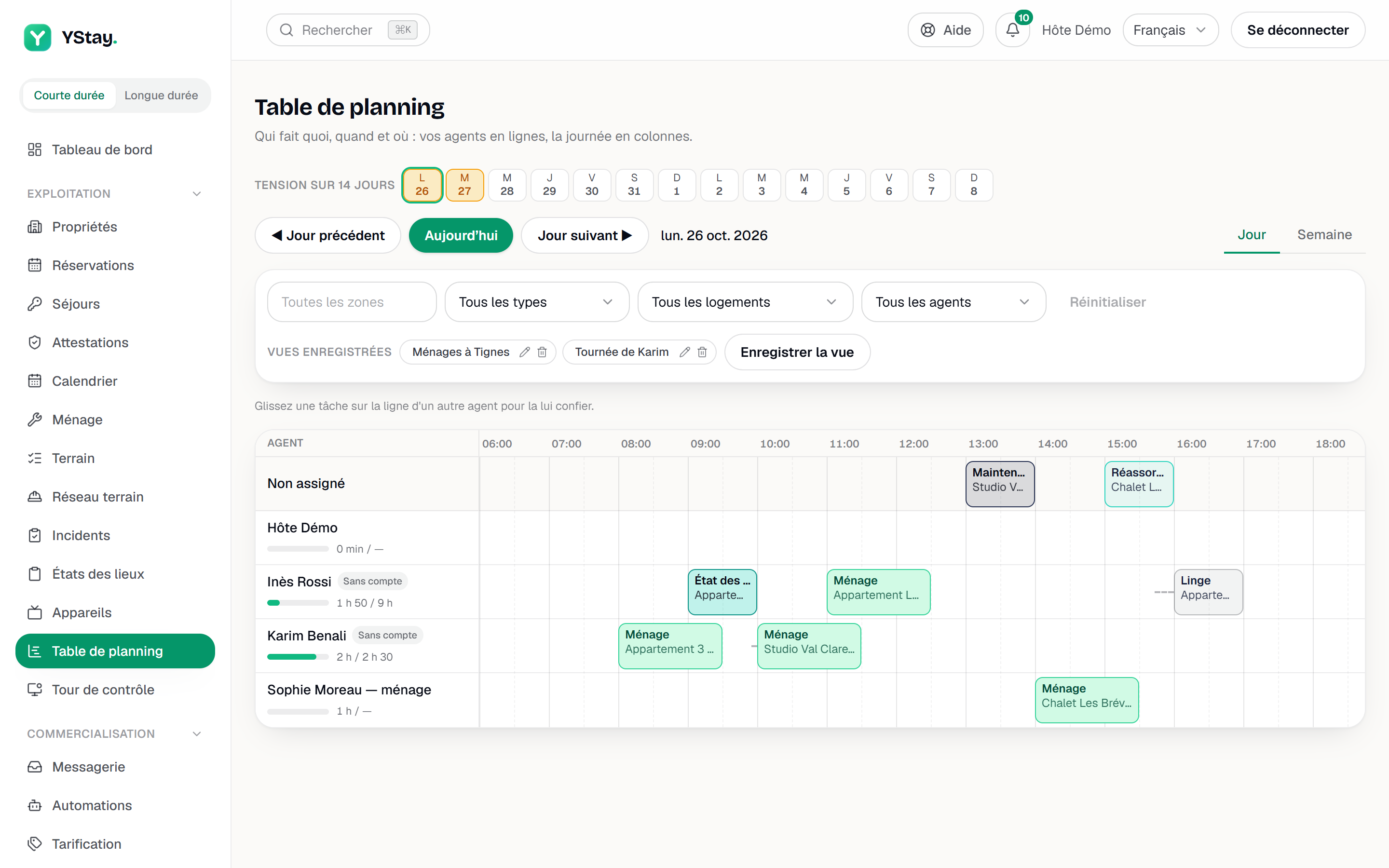
Each row is an agent, each column an hour in your account's time zone. On the left, the Agent column stays in view when you scroll the grid; on the right, the Unscheduled column collects the tasks that have no time window.
- Unassigned opens the grid, on a distinct background: the tasks that have no agent yet.
- Then comes one row per agent: team members — you included —, contractors with an account, and agents without an account, the latter marked No account. An agent with no task that day keeps their row: that is where you can hand them one.
- Each task is a block, placed on its time window and coloured by type. It shows the type, the unit and the hours, plus a badge for high and urgent priorities. A blocked task has a red outline; a finished or cancelled task stays visible, dimmed. Hover over a block to read its type, the property and unit, its window, its status and its estimated travel.
- A task that starts before 6:00 or ends after 23:00 is cut at the edge of the grid, with an arrow; the tooltip says “Starts before 06:00” or “Ends after 23:00”.
Travel. Between two consecutive tasks of the same agent, a dotted line shows the estimated travel, with its duration when there is room (“Estimated travel: 25 min” in the tooltip). It is a straight-line estimate, increased and converted at an average speed that depends on the city: neither a route nor the travel time of the day. Between two units of the same property, or when one of the two properties has no coordinates, no line is drawn.
The gauge. Under each agent's name, a bar and two durations: the time planned over the time available for the day, for example 4h / 8h. The planned time adds up the estimated durations of the day's tasks that are still open — pending, assigned, in progress or blocked —, or failing that the default duration of their type. The available time comes from the availability the field agent has declared, the Typical week and the Exceptions: see Add a field agent without an account. The bar turns amber above 80% of the available time, red above 100%.
When nothing is declared, the gauge shows “—” in place of the available time and the bar stays grey. That is the case for team members and the owner, who have no availability to declare: “—” means not declared, never unavailable. The durations are recomputed every hour, and right after each reassignment made from the board.
Pressure over 14 days. Above the grid, one badge per day, starting from the day displayed. An amber badge flags a day to rebalance: at least one agent whose workload exceeds what they declared available, or at least one task with no agent. Hovering gives the detail — “2 agents overloaded · 3 tasks without an agent”, or “No pressure” — and a click opens that day. The strip ignores the filters: it describes the whole account.
Handing a task to another agent
Dragging a block onto another agent's row is the same as using the task's Assign button, without opening it: see Terrain: the stay plan and My day.
Pick up the block
With the mouse, hold the click on the block and move it. With the keyboard, press Space or Enter, change rows with the arrow keys, then press Space or Enter again to drop it, or Escape to cancel.
Drop it on the agent's row
The row is highlighted. “Reassigning…” appears above the grid.
Read the result
“Task assigned to Léa.” confirms the change and the block joins the agent's row. A refusal appears instead, with its reason: see below.
What drag and drop does, and does not do:
- It changes the agent, never the time: the block keeps its window and its day.
- It only moves tasks that are still open. A finished or cancelled task cannot be picked up, and the Unassigned row accepts no drop: you take tasks from it, you do not remove a task from an agent through the board.
- Dropping a block on the agent who already has it changes nothing and notifies nobody.
- The agent is notified as with Assign: a notification for a member or a contractor with an account, a message — SMS or WhatsApp — for an agent without an account, and nothing when it is yourself.
- The reassignment is audited: the task's Log shows it as an ordinary assignment, and the account audit records that it came from the board and, where relevant, that it was forced.
When the board refuses a move
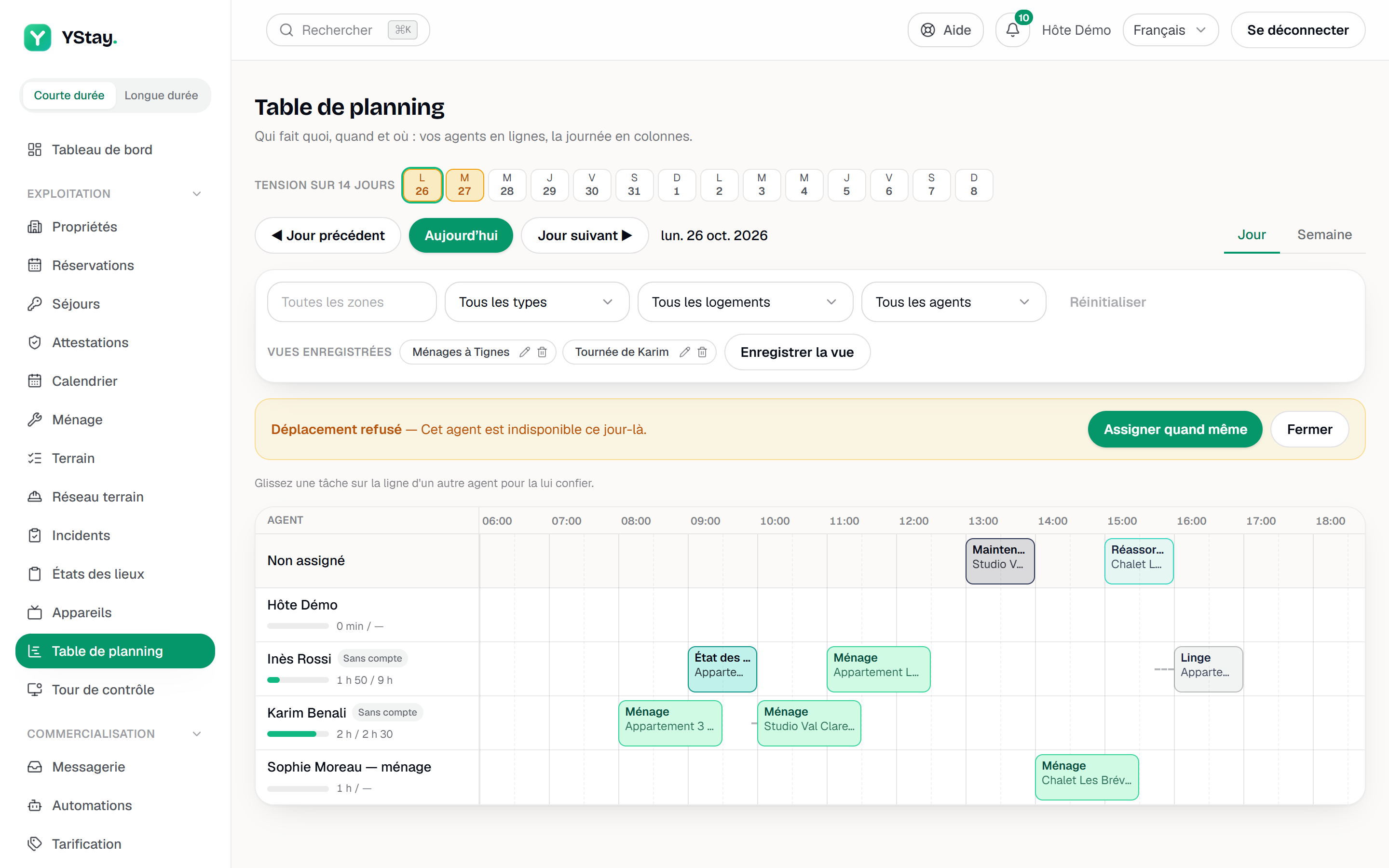
Before saving, YStay checks three points, in this order. At the first one that fails, the block does not move and a Move refused banner appears above the grid.
- Access to the property. “This member has no access to this property.” — you are aiming at a member limited to certain properties, and this one is not among them: they could not open the task. This refusal cannot be forced.
- Availability. “This agent is unavailable that day.” — the field agent declared an Unavailable exception for that day, or their Typical week does not cover the task's window.
- The day's capacity. “This agent would exceed their capacity for the day (9h planned for 8h available).” — their open tasks of the day, plus this one, exceed what they declared available.
Only field agents declare availability: a team member is therefore never refused for unavailability or capacity. For the two refusals that can be bypassed, the banner offers Assign anyway, which replays the same drop knowingly, and Close, which abandons it. The access refusal only has Close.
If the task changed in the meantime — finished, cancelled or reassigned by a colleague —, the board reloads the day and says so: “This task changed in the meantime: the board has been refreshed.”
Filtering, and saving views
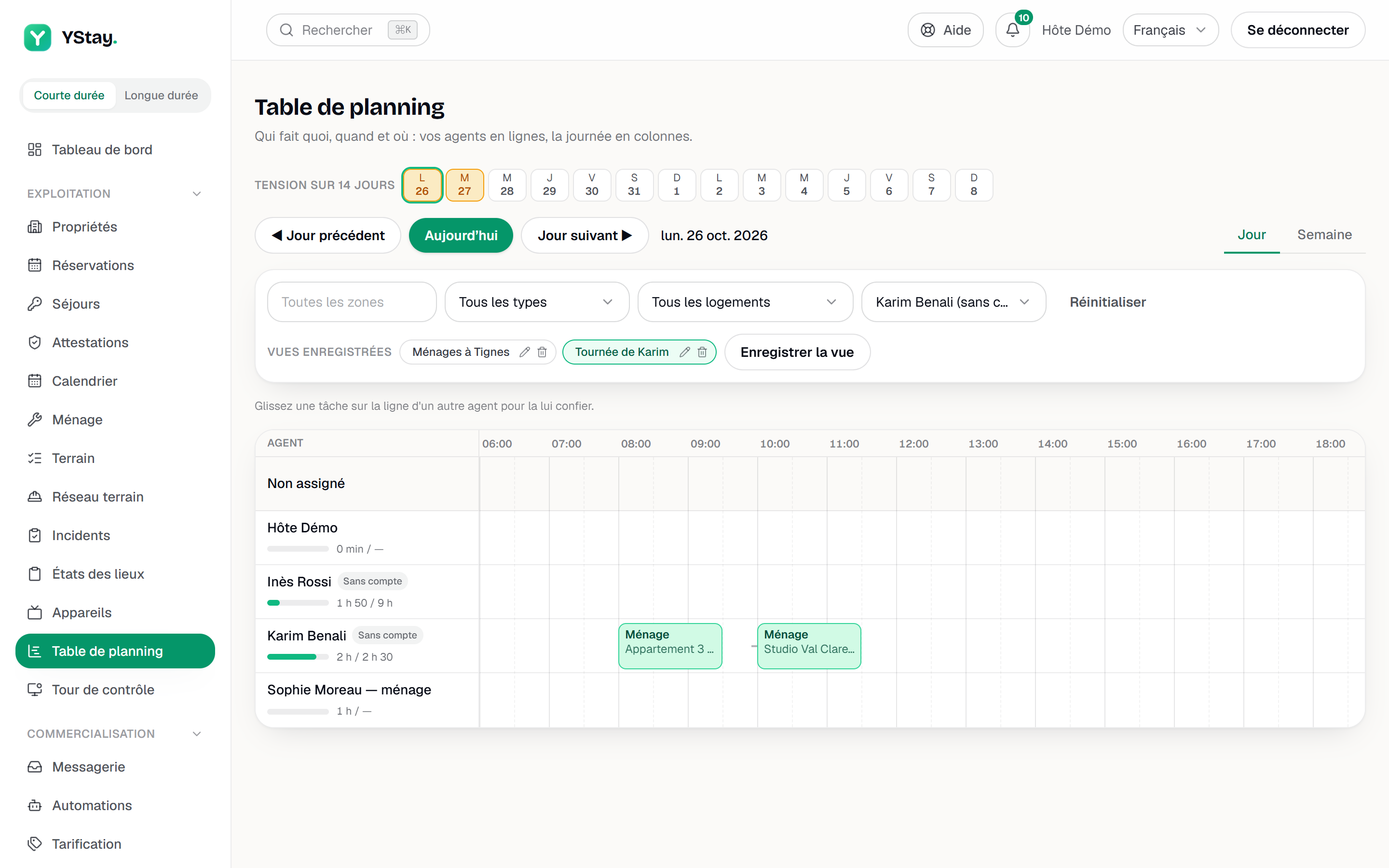
Four filters sit above the grid. They combine, and only the matching blocks stay displayed: the agents' rows all stay, so you can still drop a task on them.
- Area — the property's city. Type it or pick one from the list of the day's cities; the filter applies when you confirm with Enter, leave the field or pick a suggested city, not on every letter. The city is compared in full, ignoring capitals.
- Task type — one of the ten types; “All types” shows them all.
- Unit — one unit, listed with its property; “All units”.
- Agent — one agent, or Unassigned to keep only the tasks to distribute; “All agents”.
The lists offer what the displayed tasks contain. Reset puts every filter back to zero.
The Saved views line keeps your favourite combinations — for example “Lyon, cleanings”.
- Save a view. Set the filters, click Save view, give a View name (40 characters at most), then Save.
- Apply it. Click its name; the view that matches the current filters is highlighted.
- Rename it with the pencil: the Rename view window offers Rename.
- Delete it with the bin: a confirmation asks whether you want to delete the view and states that the tasks are not changed.
- Ten views at most. Beyond that, Save view stays off and a message says so: “10 views at most: delete one to save a new one.”
A view only keeps the filters, not the day or the Day or Week display. It is specific to your user on this account: your colleagues do not see your views, and you do not see theirs. If the list does not load (“Your views could not be loaded.”), Save view stays off, so that existing views are not overwritten.
Day and week
The Day display is the default. ◀ Previous day, Today and Next day ▶ change the day, and a click on a badge of the pressure strip opens that day. When a day has no task, “No tasks on this day” says so, and the agents' rows stay displayed.
The Week display stacks seven grids, Monday to Sunday, each under its date; an empty day carries the mention “No tasks”. ◀ Previous week, This week and Next week ▶ change the week, and “Week of … to …” says which one you are reading. Drag and drop works in each grid; a reassignment only reloads the day concerned.
What's next
- Control tower — what is happening now: tasks in progress, late tasks, exceptions, agents and arrivals not ready.
- Terrain: the stay plan and My day — the interface level, inherited settings and assigning from a task.
- Add a field agent without an account — add a person, declare their availability, the Agent Ops option.
- Housekeeping and turnovers — the day's board and the life cycle of a task.
Updated on