Set your rates
Base rate, weekend, seasons, length-of-stay discounts, fees and taxes: where each price is set, and the rule that decides the price of a night.
Every listing has its own pricing, even when several listings share the same unit. It opens from Pricing in the navigation: the Pricing & availability page lists your listings, and Configure opens the one you are after, under the heading Listing pricing. Four blocks live there — Base rate, Seasons, Blocked periods and Fees & taxes — plus a quote simulator.
The path, screen by screen
Set the base rate
The first card is titled Base rate and gathers five fields: Price / night (€), Weekend price (Fri/Sat) (€), Cleaning fee (€), Min. nights and Max. nights (optional). Save rate submits the lot.
The weekend price is optional, and the screen says so: “Optional. Friday and Saturday nights; otherwise the price / night applies.” Left empty, it simply does not exist. This rate is also one of the two prerequisites on the Publishing card, alongside the cover photo: without it, Publish the listing will not enable.
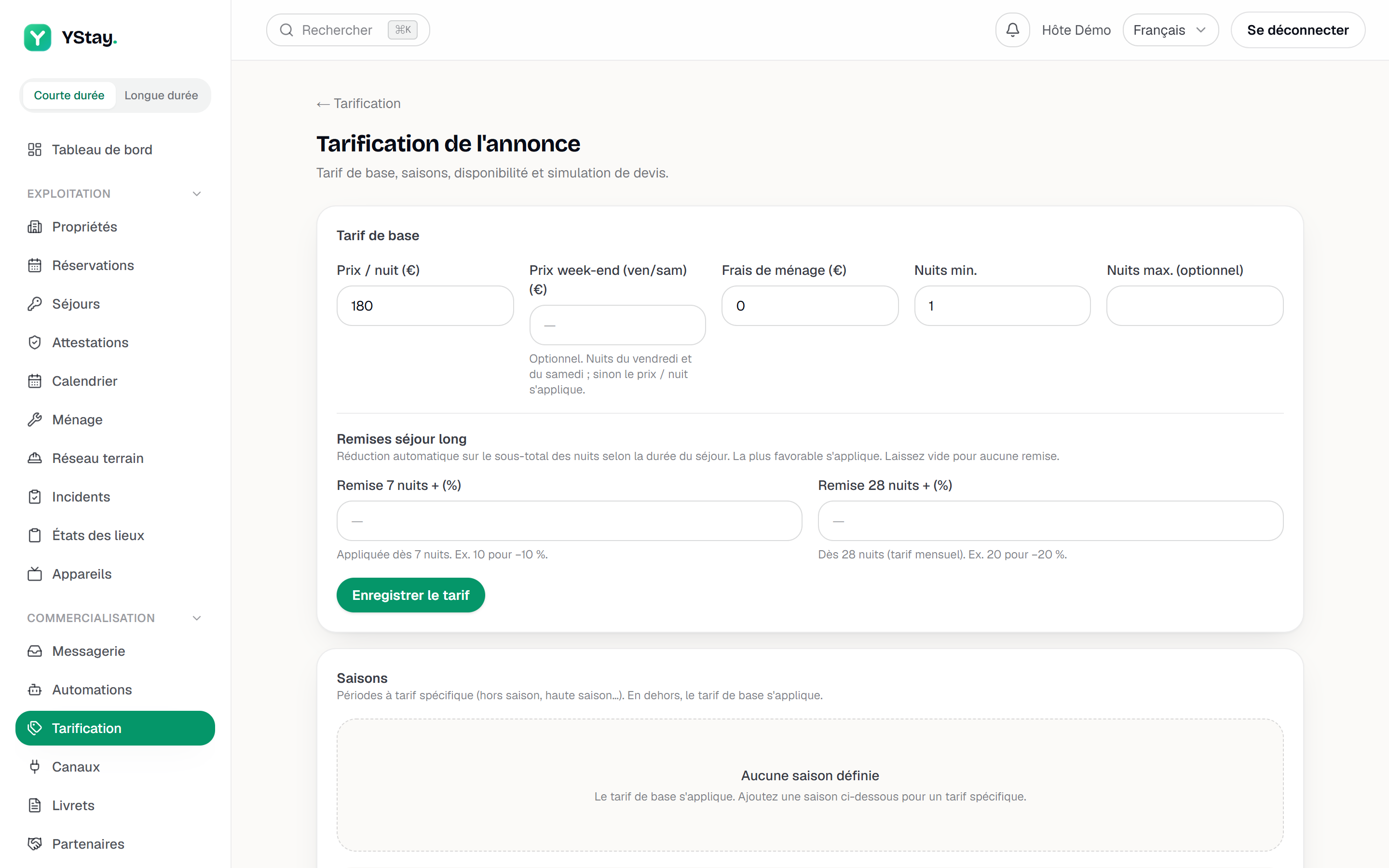
The Base rate card: price per night, weekend, cleaning, stay lengths, discounts. Add length-of-stay discounts
Below the same fields, the Long-stay discounts block offers 7+ nights discount (%) and 28+ nights discount (%). The screen sums up the mechanics: “Automatic reduction on the nights subtotal based on stay length. The most favorable one applies. Leave empty for no discount.”
Worth remembering: the discount applies to the nights subtotal, never to cleaning, fees or taxes, and the two tiers do not stack.
Create a season
The Seasons card opens Add a season: a name, From, To, Price / night (€) and Min. nights (optional). With no season at all, the screen states that the base rate applies.
Two seasons cannot overlap on the same listing: saving is refused with a message asking you to adjust the dates. That guard is what makes the precedence rule deterministic.
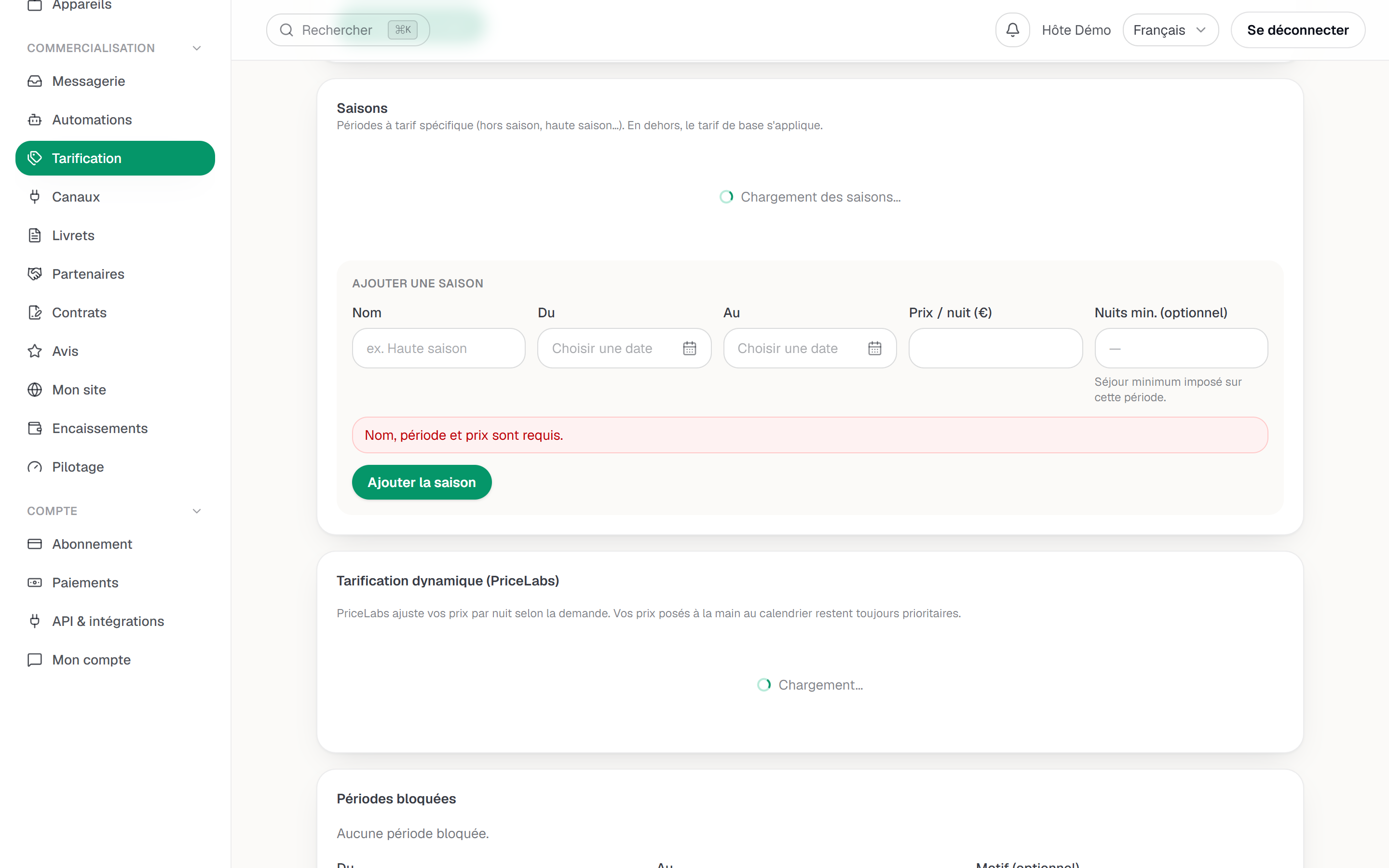
The seasonal periods: the list and the form. Add fees and taxes
The Fees & taxes card covers “Additional fees and taxes (including the tourist tax) applied to the quote.” The + Tourist tax shortcut pre-fills the form with the right settings, and Type offers five bases: Flat fee, Per night, Per guest, Per guest / night and Percentage. Depending on the type you enter an Amount (€) or a Percentage (%), and the This is a tax checkbox separates the line from fees in the quote.
Proportional fees are computed after your discounts, on the accommodation amount actually due. A Connect your payments to receive bookings banner may appear above: it informs, and locks no field.
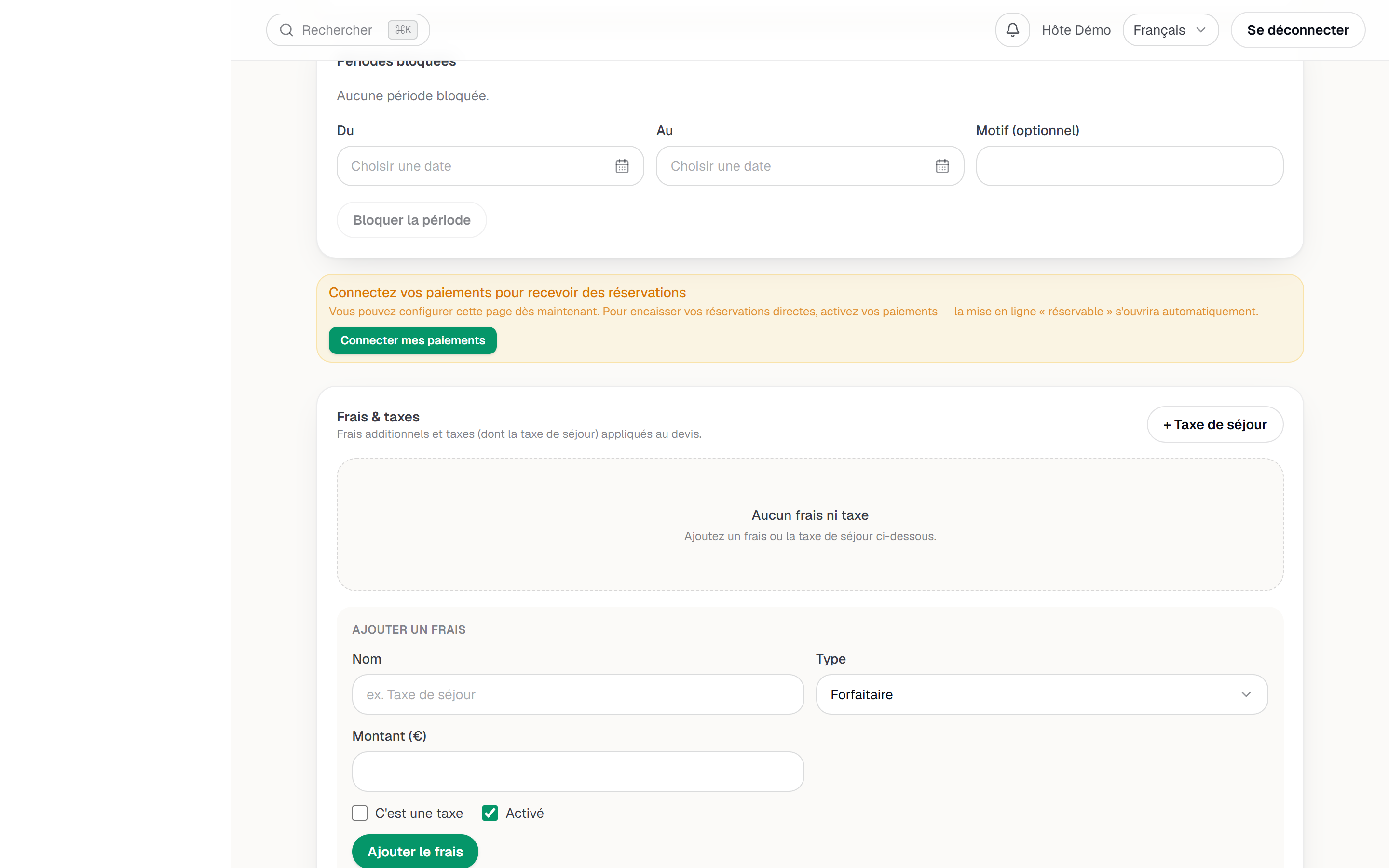
The listing's fees and taxes, with the tourist tax. Check it with a quote
The last card, Simulate a quote, takes Check-in, Check-out and Guests, then Calculate displays the breakdown: the nights subtotal, the Long-stay discount where applicable, Cleaning, each fee — taxes followed by their marker — and the Total. It is exactly a traveller's quote calculation, and therefore the best check on your configuration.
What is not set on this page
- The price of one specific night. It is set on the calendar, range selected then Apply price — see Take your first reservation and run your calendar — and it outranks everything else.
- Closed nights. The Blocked periods card does the same work as Close the nights on the calendar, which stays more readable for a one-off block.
- The security deposit. A hold placed and released on the payments side, independent of the price of the stay.
- Dynamic pricing. Same page, its own rules: Dynamic pricing (PriceLabs).
What comes next
- Translate and distribute your listing — the version read by travellers in other languages.
- Connect your distribution channels — push these rates to Airbnb, Booking.com or Vrbo.
- Listings — back to the overview of a listing.
Updated on