NFC / QR tags
Stick QR labels in a unit's rooms so that your field workers record their visit and open the room's checklist: turn the setting on, add the tags from the unit sheet, print the sheet, revoke a lost label, and what YStay records — the time and the room, never the position.
A tag is a label stuck in a room of the unit. The field worker — an agent working from their link, a contractor working from My jobs — scans it on arrival: YStay then writes their visit in the task's log (the time and the room) and opens that room's checklist. The tag is what says “I was here”: there is no position tracking behind it.
Today these are QR labels that you print yourself. NFC chips will come with the Host Ops app, on the same principle (same rooms, same log); no date has been announced.
Turning check-in tags on
Tags are off by default: it is an account setting, to switch on before printing anything. It is called Check-in tags (QR) in your units and sits in the Terrain menu, Terrain settings tab, Account settings card. Its help says what it does: “Print QR labels to stick in the rooms. Your field workers scan them to record their visit and open the room's checklist. No geolocation.”
A toggle applies as soon as you change it, and Reset to the YStay default puts it back to off. Unlike several other Terrain settings, this one applies to the whole account: it does not go down to the unit. Like the others, it is edited with the right to edit stay plans (see Terrain: the stay plan and My day).
When it is off, nothing is lost but nothing prints or scans any more: the tags already in place stay listed and can still be revoked, you can no longer add one or print the sheet, the Scan a tag button disappears from the workers' screen, and a scanned code is refused like an unknown code.
Adding a unit's tags
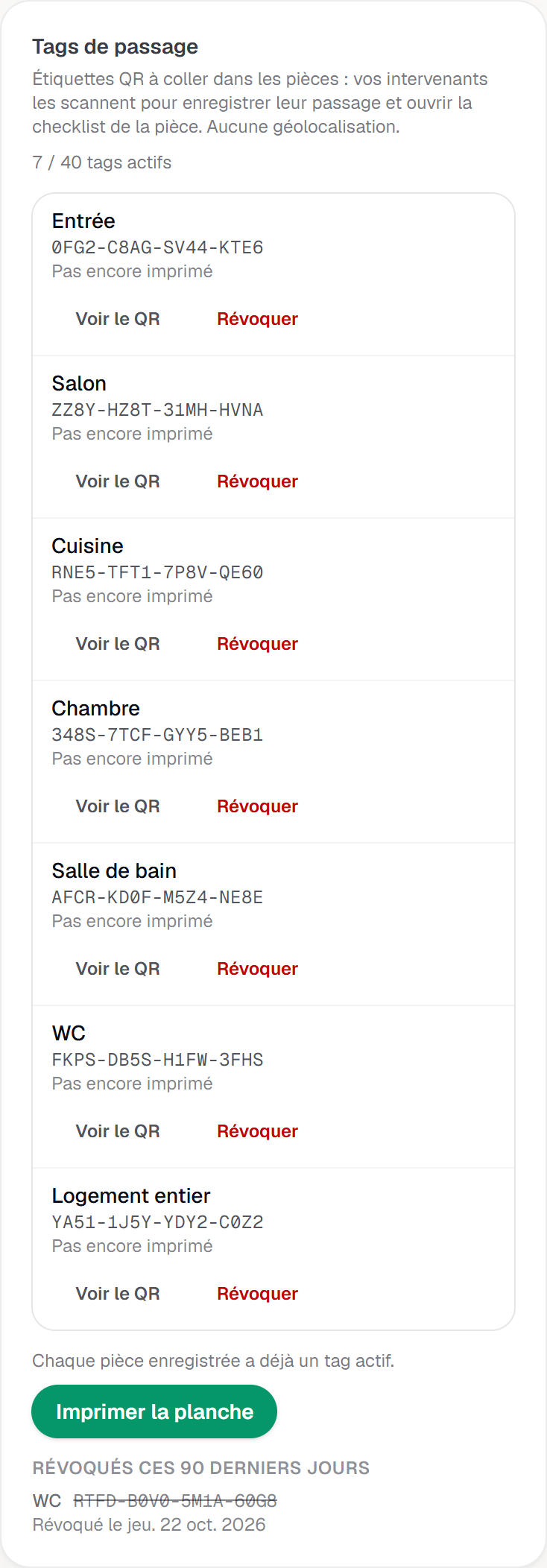
Tags are managed unit by unit, from the Check-in tags card of the Unit sheet page (see The unit sheet: rooms, key locations, instructions and checklists). It sits under the Sheet status card. Its first line recalls what it is for — “QR labels to stick in the rooms: your field workers scan them to record their visit and open the room's checklist. No geolocation.” — and a counter says how many tags are active, for example “3 / 40 active tags”. While the setting is off, the card says so — “Check-in tags are turned off for your account.” — and its Open Terrain settings link leads to the Terrain page.
Choose the place
The Room to equip field offers the places that have no active tag yet: Whole unit, then the sheet's rooms, in the sheet's order. A room only appears once it is saved: add it first in the Rooms card. A room tag opens that room's checklist; a Whole unit tag records the visit in the unit, without a room.
Add the tag
Add a tag creates the label — “Tag added”. The tag's line gives the room (or Whole unit), the 16-character code, shown in groups of four —
XXXX-XXXX-XXXX-XXXX— and “Not printed yet”. Show QR code unfolds a preview of the label, Hide QR code folds it back. The code and the preview are shown only to members who can edit sheets (Terrain write permission); other members and YStay support see the line without its code. Each place carries a single active tag, and a unit carries 40 at most: “Limit reached: at most 40 active tags per unit.” When every place is equipped, the card says “Every saved room already has an active tag.”Print, then stick
Print the sheet produces the labels (see the next section). Stick one in each room, somewhere the worker finds without searching.
Adding a tag, revoking one and printing the sheet require the right to edit stay plans. Without it, the card can be read — the list and the QR previews — but no write button appears.
Printing the sheet
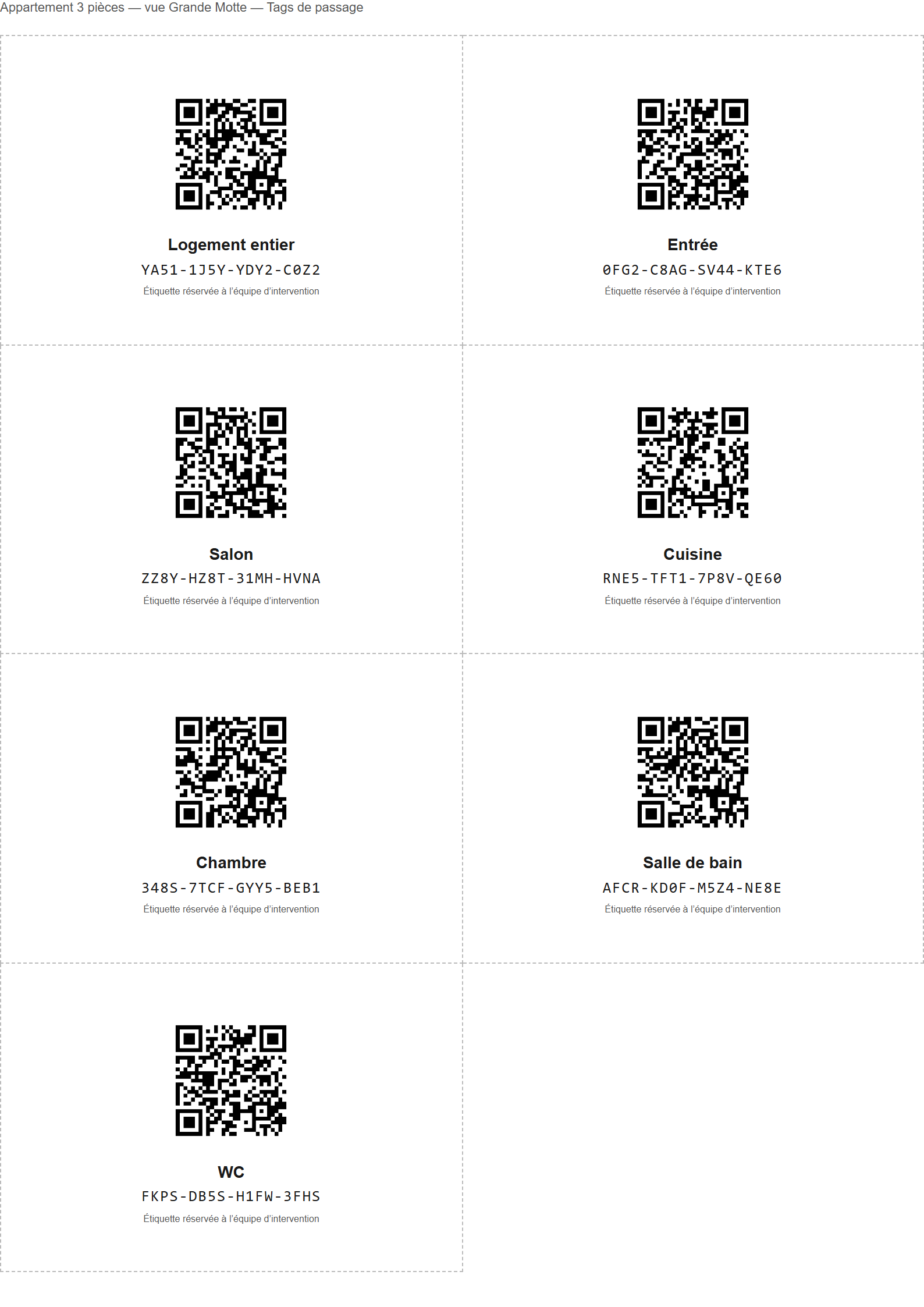
Print the sheet prepares an A4 PDF — “Preparing the sheet…” — and downloads it. It gathers all the unit's active tags, eight labels per page: the Whole unit tag first, then the rooms in the sheet's order. The sheet is printed in the language of the person who asks for it.
Each label carries the QR code, the room name (or Whole unit), the short code XXXX-XXXX-XXXX-XXXX — the one the worker can type by hand — and the line “Label reserved for the service team”. Neither the unit's name, nor its address, nor your account appears on a label: it stays stuck in your place, within reach of guests. The unit's name only appears at the top of the printed page, to recognise the sheet before cutting it out.
Once the sheet has been produced, each tag's line reads “Printed on …”. The sheet is a file reserved for signed-in members who have the right to edit stay plans: it is found at no address open to everyone, since it carries the unit's codes.
Revoking a label
A lost, damaged or torn-off label is revoked: Revoke, on the tag's line, opens “Revoke this tag?” and reminds you “The printed code will stop working. Remove the label from the room.” Once confirmed — “Tag revoked” — the code is dead: a revoked tag, like a code that never existed, is refused when scanned, and the refusal says nothing more.
The revoked tag stays listed for 90 days, apart, under “Revoked in the last 90 days” and “Revoked on …”. A tag whose room was removed from the sheet reads “Deleted room — room name” there. To replace the label, revoke the old tag, then Add a tag for the same place: it becomes available again as soon as the revocation is done. Removing a room from the sheet revokes its active tags in the same way. Revoke remains possible even when the setting is off.
What the field worker does
The worker scans the tag from the task, where they read it: the Scan a tag button shows there as long as tags are turned on and the task is neither finished nor cancelled.
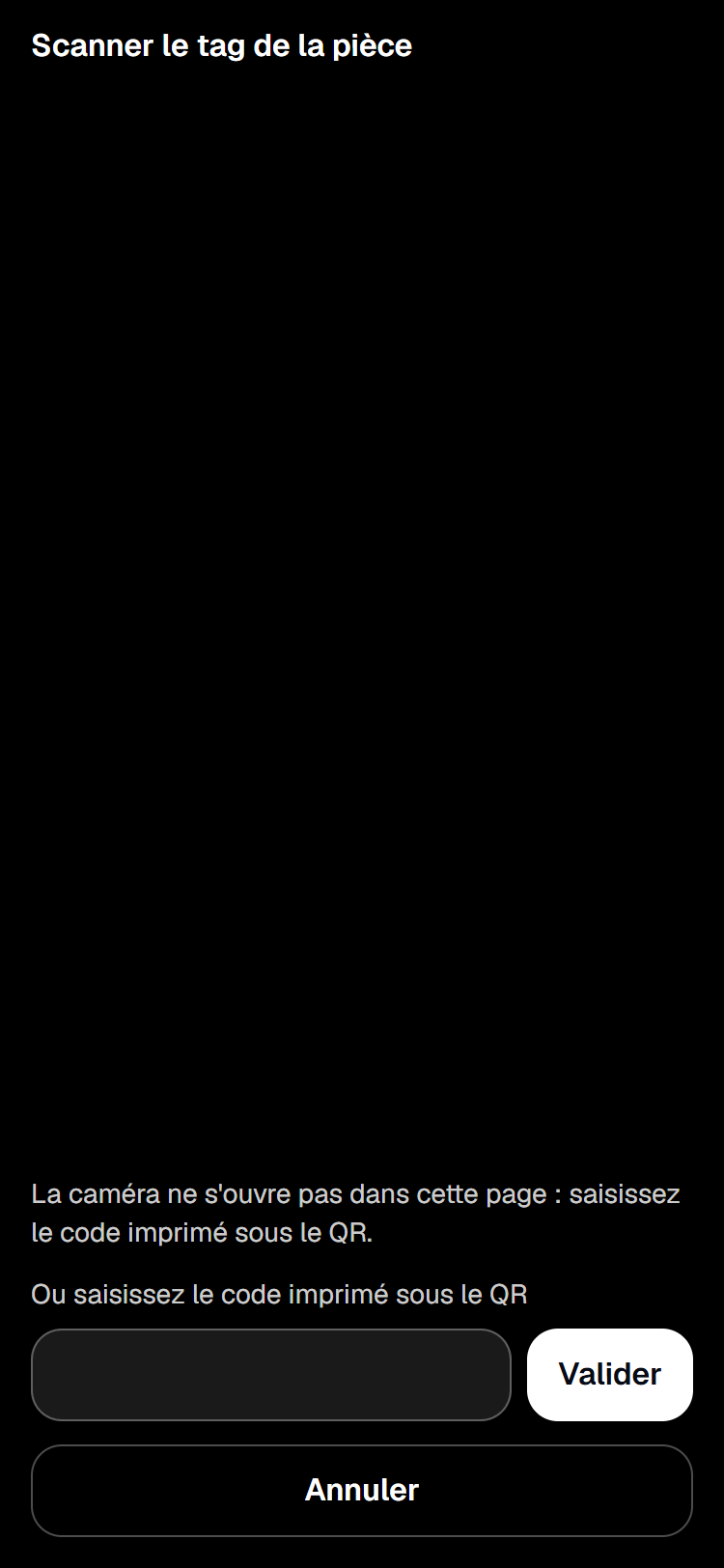
- An agent without an account finds it in the task on their link (see Your schedule by link). The phone opens its rear camera: they aim at the QR code stuck in the room. The reader ignores a foreign QR code — a Wi-Fi QR code stuck nearby, for example — and keeps looking.
- A contractor with an account finds it in the task detail in My jobs (see Field network: partners and missions), with the same reader.
If the camera does not open, or the QR code is damaged, typing the code is always there: under “Or type the code printed under the QR code”, the worker types the 16 characters read on the label, then Confirm. Upper or lower case, spaces and dashes do not matter. An impossible code is flagged at once — “This code is not valid. Check the 16 printed characters.” — and nothing is sent. A scan ends with one of these notices:
- “Visit recorded” — the visit is in the task's log, with the time of the scan. If the unit sheet is shared, the checklist of the tag's room is highlighted (see Room-by-room guidance and reference photos); with a Whole unit tag, only the banner appears;
- “This code does not match this unit or is no longer active” — the tag is revoked, it comes from another unit, tags have just been turned off or the code never existed: the cases cannot be told apart;
- “The visit could not be recorded. Try again.” — the sending failed.
Without a network, an agent's scan is not lost: the phone keeps it with its time, the banner says “Scan saved, will be sent when the network is back”, and the visit goes out as soon as the network returns, dated from the moment of the scan. The room does not open while there is no network. In My jobs, nothing is kept on the device: the scan needs a network.
A QR code read with the phone's camera app
A label's QR code only holds a neutral address, with no account, unit or agent name: the code alone. A QR code read with the phone's camera app — by a curious guest, for example — therefore opens a page with nothing to see: “Label reserved for the service team.”, then “Nothing to do here for guests.” It never shows the code or the unit, in the browser's language.
On the phone of an agent who has already opened their link, the same page offers Open my schedule. The screen that opens records the visit for the day's job: if only one is open, it opens it directly with “Visit recorded”; if there are several, it asks “Which job is this for?”; if none offers scanning, it says so — “No job open today offers tag scanning.” An unreadable tag link shows “This tag link cannot be read.”
What you see
Every scan appears in the Log of the task detail (see Terrain: the stay plan and My day), with the worker and the time: “Visit scanned — Living room”, or “Visit scanned — whole unit” for a tag without a room. When the code was typed in by hand rather than read by the camera, the label says so: “· code typed in”. The room name comes from the unit sheet; if it is no longer readable — the room has since been removed, or your role does not allow reading the sheet —, the log keeps “Visit scanned”, without a room.
A visit is a marker, never a rating: YStay draws no ranking and no sanction from it, and it does not replace the task's proof photos.
YStay support
During a support session, YStay support reads the Check-in tags card and the task logs, but cannot write anything: neither add or revoke a tag, nor print the sheet. The card says so — “Read-only: this action is not possible in support mode.” A worker's presence cannot be manufactured from the console.
If the screen won't move on
- “Check-in tags are turned off for your account.” — switch on Check-in tags (QR) in your units in the Terrain settings.
- “This room already has an active tag.” — the place is equipped: revoke the old tag before adding another.
- “This unit has reached the maximum number of active tags.” — 40 active tags at most: revoke one before adding.
- “No active tag to print.” — there is nothing to put on the sheet: add a tag first.
- “This room is no longer in the unit sheet. Reload the page.” — the sheet changed since it was displayed.
- “The operation did not go through. Try again.” and “Tags could not be loaded.” — reload or try again; the second message offers Retry.
- The worker does not see Scan a tag — tags are off, or the task is finished or cancelled, or their page shows an older copy, made before tags were turned on: with a network, they reload it.
- A scan is refused although the label is new — the tag belongs to another unit than the task's, or it was revoked by mistake: check the tag's line in the card.
What's next
- The unit sheet: rooms, key locations, instructions and checklists — compose the rooms whose tags open the checklist.
- Room-by-room guidance and reference photos — the checklist that the scan highlights.
- Your schedule by link — what the agent reads on their phone, scanning included.
- Field network: partners and missions — contractors with an account and their My jobs page.
- Terrain: the stay plan and My day — the setting, the log and a task's messages.
- Operations — every screen of the stay and its aftermath.
Updated on