Understanding the trial and your subscription
What the ShortStay trial opens, what its end closes again, and how to read the Subscription page: plans, statuses, invoices and original pricing.
Every YStay account starts on a ShortStay trial: during that trial you publish and take reservations exactly like a subscribed account. This guide explains what the trial opens, what its end closes again, and how to read the Subscription page. That entry lives in the Account group of the menu, next to Payments and My account; its description says as much: “Manage your YStay Classic and ShortStay plans.” Two cards sit side by side, one per environment — everything below concerns the ShortStay card.
The Subscription page, screen by screen
Open the Subscription page
Menu Account, then Subscription. The ShortStay card carries the subtitle “Short-term rental — publishing, reservations and field ops.”; the Classic card, “Long-term rental — applications, leases and signatures.”
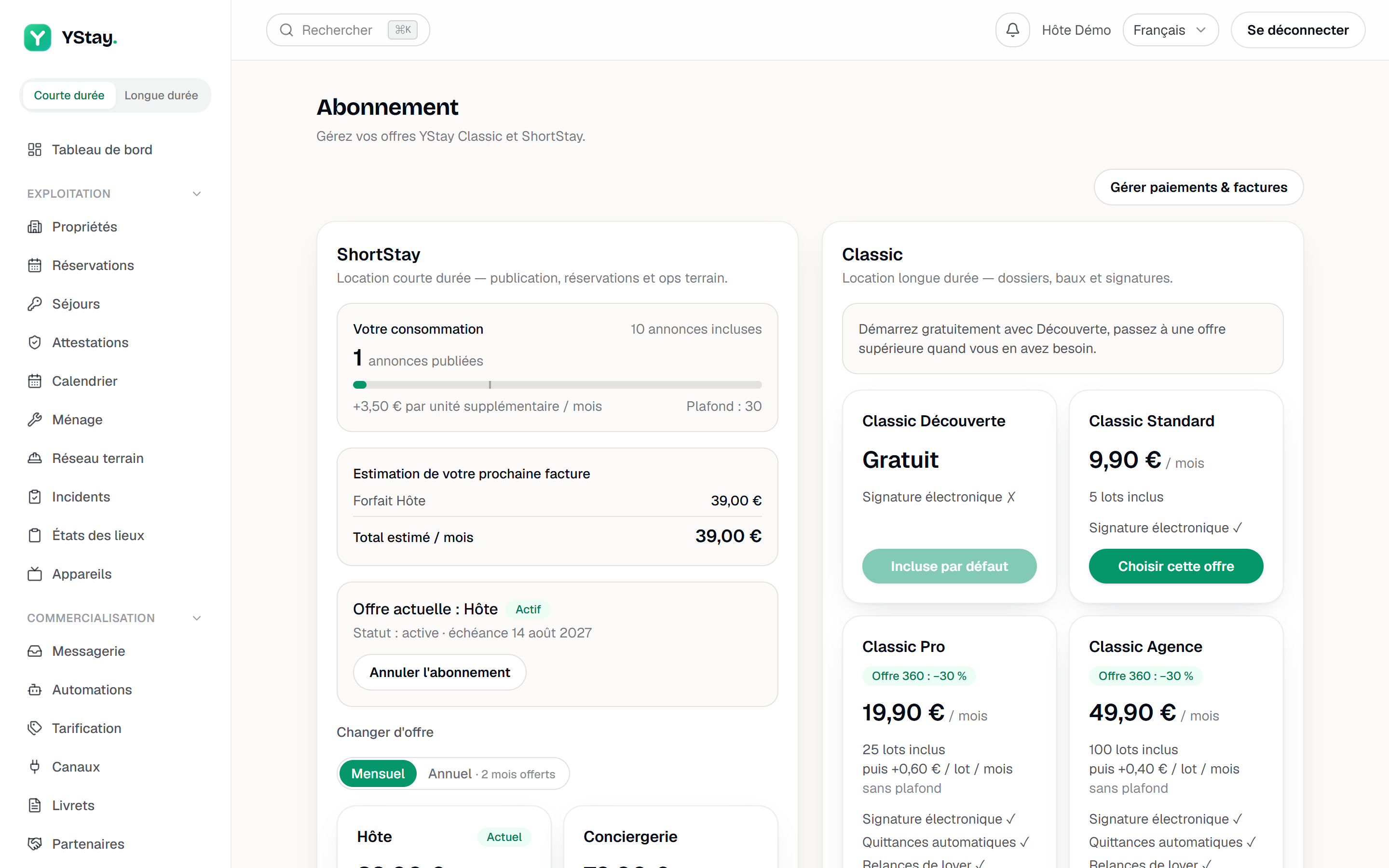
The Subscription page: trial banner and plans. Read the trial banner
While the trial runs and no paid subscription is in force, the ShortStay card opens on an amber banner: “Trial — N days left · subscribe to keep access.” (on the last day the sentence turns singular).
Once the trial has run out without a subscription, that banner becomes: “Trial ended — subscribe to publish and receive reservations.” The same state is repeated at the top of every other page as a red banner, “Trial ended — subscribe to publish your listings and receive bookings.”, followed by a Subscribe link.
Choose a plan, then save your card
Below the banners, the card shows Your usage, Your next invoice estimate, then the plan grid. The Monthly / Yearly switch governs what is displayed; the yearly option carries the 2 months free mention. A plan's button reads Choose this plan, or Switch to this plan when a subscription is already running in that environment.
Subscribing then opens a Save your card panel. If your trial is still running, the line underneath is explicit: “Your card will only be charged at the end of your trial, on …” Otherwise it announces an immediate charge for the first instalment.
If your bank asks you to authenticate this first payment (3D Secure), the subscription is not refused: a Bank authentication — … panel opens instead, with the sentence “Your bank asks you to confirm this first payment (3D Secure). Approve it to activate your subscription.” The Confirm with my bank button opens your bank's window. Once the payment is approved, the page shows “Payment confirmed — your subscription will be active shortly.”: activation follows a few moments later. If the authentication does not go through, the panel says so: “Authentication did not go through. Try again or use another card.” If you cancel, the page shows “Payment cancelled. No subscription was activated.” A card that is genuinely refused remains a refusal, with a message returned in French: “Paiement refusé par votre banque : vérifiez votre carte ou utilisez-en une autre.”
Follow the state of your subscription
Once subscribed, the card shows Current plan, the due date, and a status badge: Active, Awaiting payment, Payment overdue or Cancelled. Awaiting payment flags an unpaid first invoice: the subscription is not in force yet, so the trial state keeps showing. Payment overdue, by contrast, is still a subscription in force — access is not cut off while payment is being retried.
A Payment overdue subscription is settled by subscribing again with a card: the new subscription replaces the unpaid one. If that replacement fails (card refused, technical error) or is left unfinished (bank authentication not completed), a warning banner appears: “Replacing your unpaid subscription did not go through. Subscribe by …: otherwise your account will be terminated and third-party tools cut off.” The date falls 14 days after the replacement. Without a new subscription by then, the account is terminated: the deletion of your guests' data is scheduled at 90 days and third-party tools lose access at once, for good — see Your data and your account.
Find your invoices
At the bottom of the page, the Invoices section lists “Your YStay subscription invoices, numbered and archived.” — these are YStay's own invoices, kept by YStay, and they are not the invoices you issue to your travellers.
The columns are Number, Period, Total (incl. tax), Status, PDF; statuses run from Issued to Paid, Voided or Refunded. On an account with no charge yet, the section reads “No invoices yet.”
When the trial ends
Your account does not close: publishing locks. On an unpublished listing, the Publishing card keeps its checklist but the Publish the listing button no longer responds, and this message appears under the list: “Trial ended — a ShortStay subscription is required to publish.”, with a Subscribe link. The server refuses the same way on its side, with a message in French.
Reservations are blocked by the same rule — a request on your public page, like a reservation pulled in from a channel, is refused while no paid subscription is in force. Your data stays untouched: subscribing reopens all of it.
Screenshot to be produced
captures/comprendre-essai-abonnement/02-essai-termine.png
If the page is refused
The Subscription entry appears only to roles allowed to manage billing. A teammate without that right does not see it in the menu, and opening the page directly shows a full-page refusal — Access denied, then “Your role does not allow you to view the subscription and billing of this account.” This is not an incident: it is the scope of the role. The fix belongs to the team settings, not to billing.
Next
- Invite your team and set roles — grant (or withdraw) the right to manage billing.
- Track your revenue — earnings and insights, once access is open.
- Create your account and your first listing — the full path up to the Publish button.
- Team and account — the other account settings.
Updated on