Automate your guest messages
Four triggers, one daily 9 a.m. pass, six tokens — and what a rule will never do on your behalf.
An automation sends a message to the guest without you. It lives in the Sales & marketing menu, under Automations, and the page states its promise: “Automatically send a message to the guest based on a trigger (arrival, departure, confirmation, cancellation).”
A rule comes down to four decisions: when it goes out, which listings it covers, what it says, and whether it is enabled. Nothing more — there is no sequence, no condition, no branching.
The path, screen by screen
Open Automations
Sales & marketing menu, then Automations. On an account with no rule, the screen shows No automation and the lead “Create a reminder before arrival, a review request after departure, or a message on confirmation.”
Every rule in the list carries two badges — Enabled or Disabled, then Event-based or D±offset — followed by Sent: and Scope:, which recall the moment and the listing covered. The Edit and Delete buttons close the row.
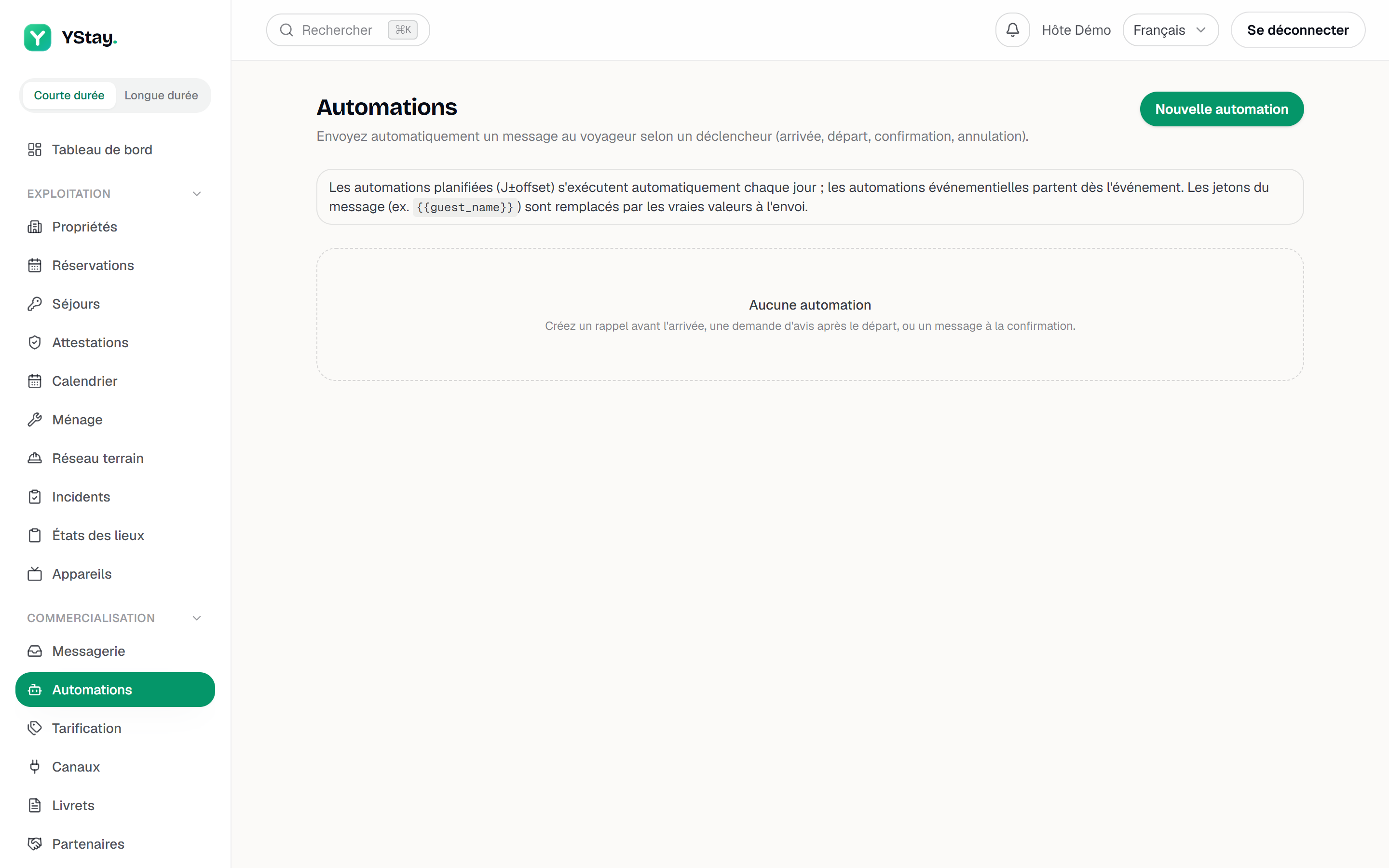
The Automations page and its rules. Write the rule
New automation opens the form. Name is a label for you alone (the suggested example is “Arrival reminder D-1”). Trigger offers the four values, Offset (days) accepts 0 to 365 — and 0 means on the day itself of arrival or departure, not “right away”. Targeted listing stays on All my listings until you narrow it down.
A blue line recaps the choice as you go — “Will be sent 1 day before arrival.” — then come the Message field, the Enabled checkbox and the Create button.
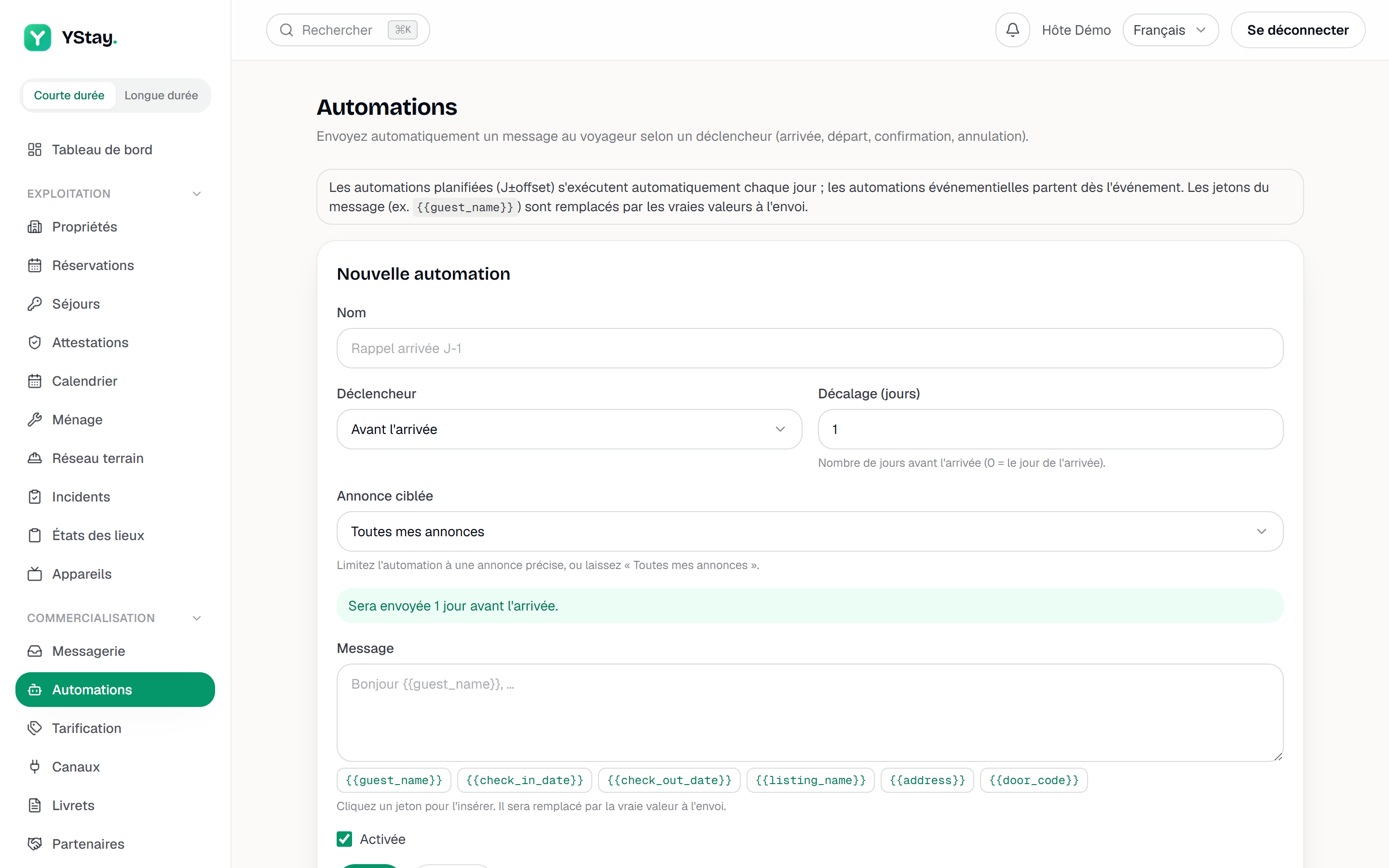
The rule form: trigger, offset, insertable tokens. Insert the tokens
Below the message, six buttons insert a token at the cursor. Each one displays its technical name in double curly braces, and its tooltip names it in plain words: the Guest name, Check-in date, Check-out date, Listing name, Property address and Access code tokens. The screen sums it up: “Click a token to insert it. It will be replaced with the real value when sent.”
Check what actually went out
The audit does not happen on the rules page but on the reservation: its page carries a Automated messages sent card at the bottom, which timestamps each send, names it and recalls its trigger. Until something goes out, it shows No automated messages and “Reminders and confirmations sent automatically will appear here.”
Screenshot to be produced
captures/automatiser-les-messages/03-journal-envois.png
Where the message lands
An automated send is not a separate channel: it takes the path of a message you would have written by hand.
- In the reservation's conversation, where it appears like your own messages — the access code is masked there for some members, see above.
- By email to the guest, as soon as their address is known.
- To the originating channel, if the conversation came from Airbnb, Booking or Abritel/Vrbo — with the same delivery statuses as your manual replies, described in Reply to your guests.
What a rule will never do
- Send twice. One rule writes only once per reservation, even if the status swings back and forth or two runs overlap.
- Write to a pending reservation. Only confirmed, in-progress and completed reservations receive a scheduled message.
- Translate your text. The body goes out as typed: a rule carries a single language. To write to guests in several languages, create one rule per language and target them by listing.
- Catch up on past sends. Editing or deleting a rule only affects the future: a message that has gone is gone.
- Flag an abandoned cart. A reservation that expires for want of confirmation does not fire your On cancellation rule — only a reservation that was confirmed and then cancelled does.
Next steps
- Reply to your guests (inbox) — the thread where these sends land, alongside your manual replies.
- Take your first reservation and run your calendar — the statuses your triggers rely on.
- The other operations guides — the stay, incidents and what comes after.
Updated on