Take your first reservation and run your calendar
Where reservations come from, what each status triggers, and how to drive prices and availability from the calendar.
A YStay reservation can start in three places, but only one object comes out: the same reservation, the same status cycle, the same page. It comes from your public booking site, where the guest goes through stay, account, payment, contract and confirmation; from your own hand, with New reservation; or from a channel — Airbnb, Booking, Abritel/Vrbo — which pushes it in already confirmed. This guide starts at the Calendar, because that is where everything shows, and ends on a reservation page, because that is where everything is decided.
The path, screen by screen
Open the calendar
Calendar, in the navigation, opens on the Timeline view: one row per listing, nights as columns, reservations laid out as coloured bars. The legend gives the code: Confirmed, Pending, Checked in, Completed for the bars; Available, Closed, Dynamic price for the nights. Three filters sit alongside: Property, Channel and Hide listings without reservations. Each bar carries the guest's name — or Reservation, for a member without the Lecture box of Stay operations.
Every night shows its effective price. That price is not indicative: it is exactly what the quote will charge and what YStay pushes to the channels. A Cancelled or No-show reservation, on the other hand, is absent: its nights have become sellable again. Both stay visible in the list, but only the cancellation has a pill of its own: the Cancelled filter does not return no-shows, which show up under All only.
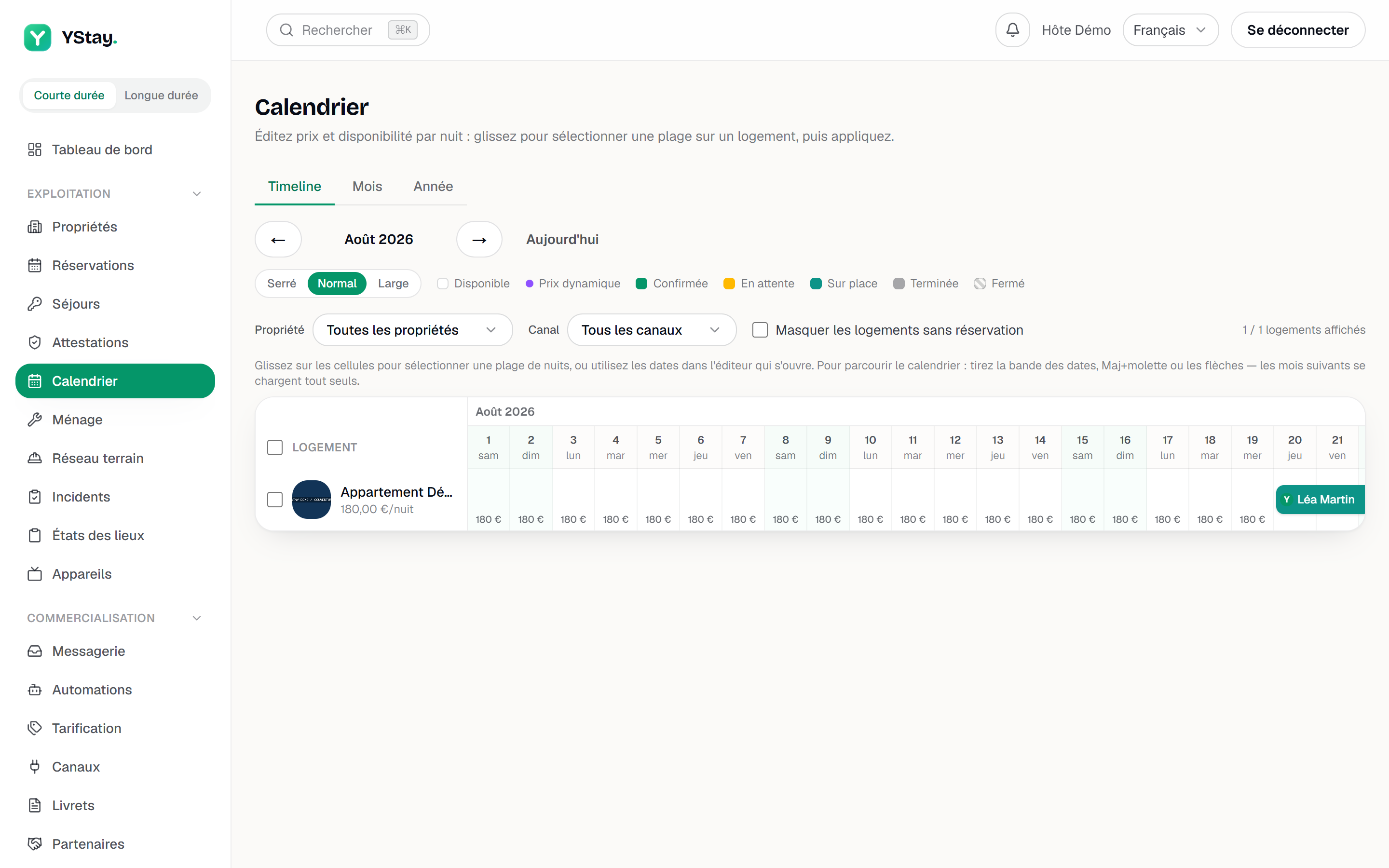
The calendar Timeline view: reservation bars coloured by status, and the legend. Select a range of nights
Click a first night then a second one (or drag): a panel settles at the bottom of the screen. It recalls the listing, the number of nights selected, and offers First night, Last night and Price / night (€), then four moves: Create a reservation, Apply price, Close the nights, Reopen the nights — plus Cancel selection to start over.
A night that is already booked cannot be selected. In the Timeline, the row checkboxes let you act on several listings at once: the panel then announces Apply to followed by the number of listings, and Select all listings takes them all.
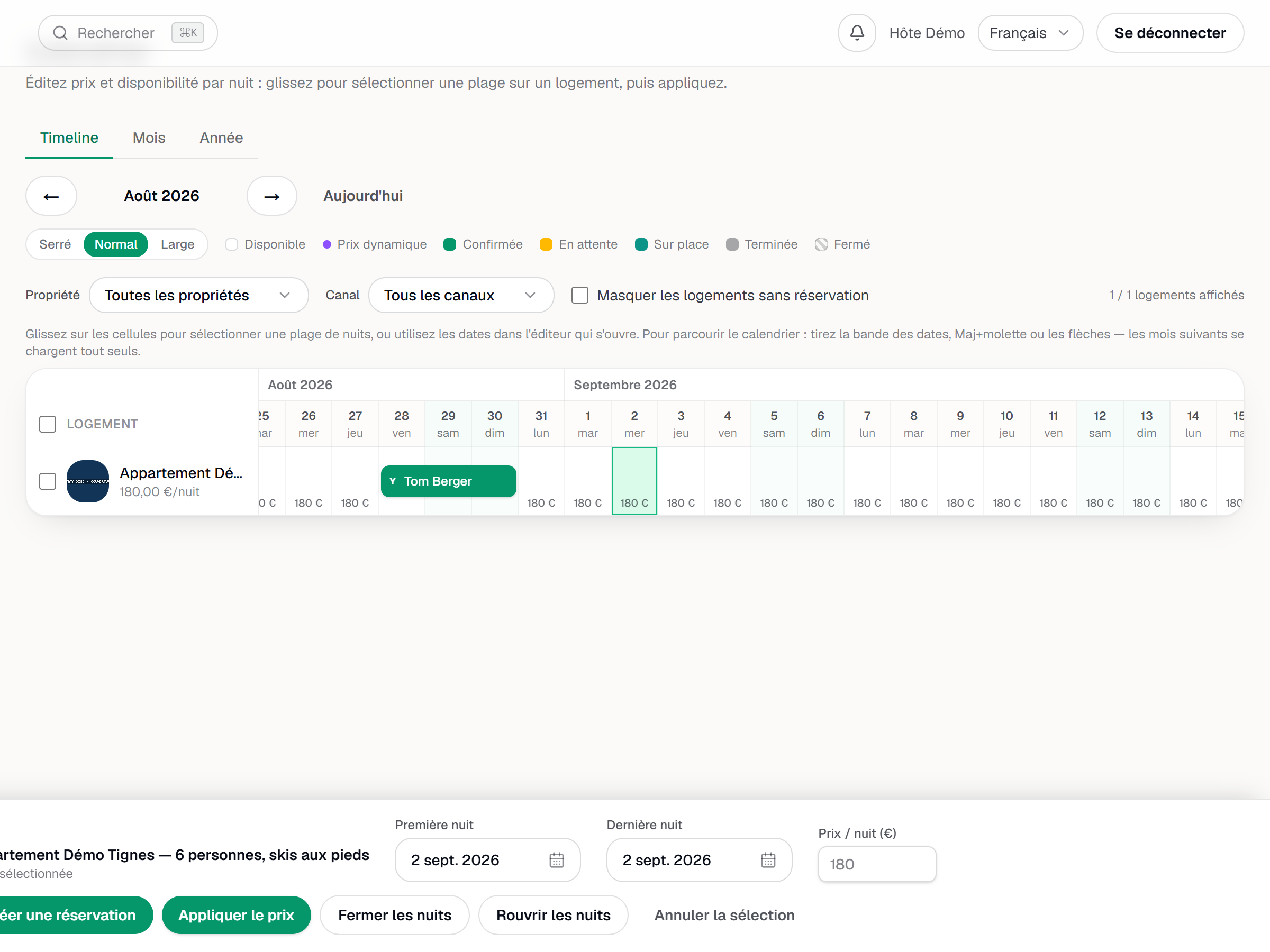
A selected range of nights and the edit panel: price, close, reopen, create a reservation. Open a reservation from the calendar
A click on a bar opens a side panel. It shows the guest, the channel chip, the status, the dates and the number of nights, then Stay cost — Total, Paid, Outstanding — and Messages. Open reservation leads to the full page. The cost block is all or nothing: on a reservation imported before YStay kept the sale detail, it does not show at all rather than showing partial amounts. This panel reads the reservation: with the Lecture box of Inventory & pricing alone, it opens on the header (channel, status, dates — and Reservation in place of the guest's name) and shows Access denied in place of the details, with the message “The details of this reservation are reserved for members with read access to "Stay operations (reservations, check-in/out)".”, and no Open reservation button.
Under Messages, Open conversation leads straight to that reservation's thread, without going through the inbox list. The button only appears if a thread already exists; otherwise the block reads No messages yet. It also requires the Lecture box of Messaging & automations: without it, the block never offers the button.
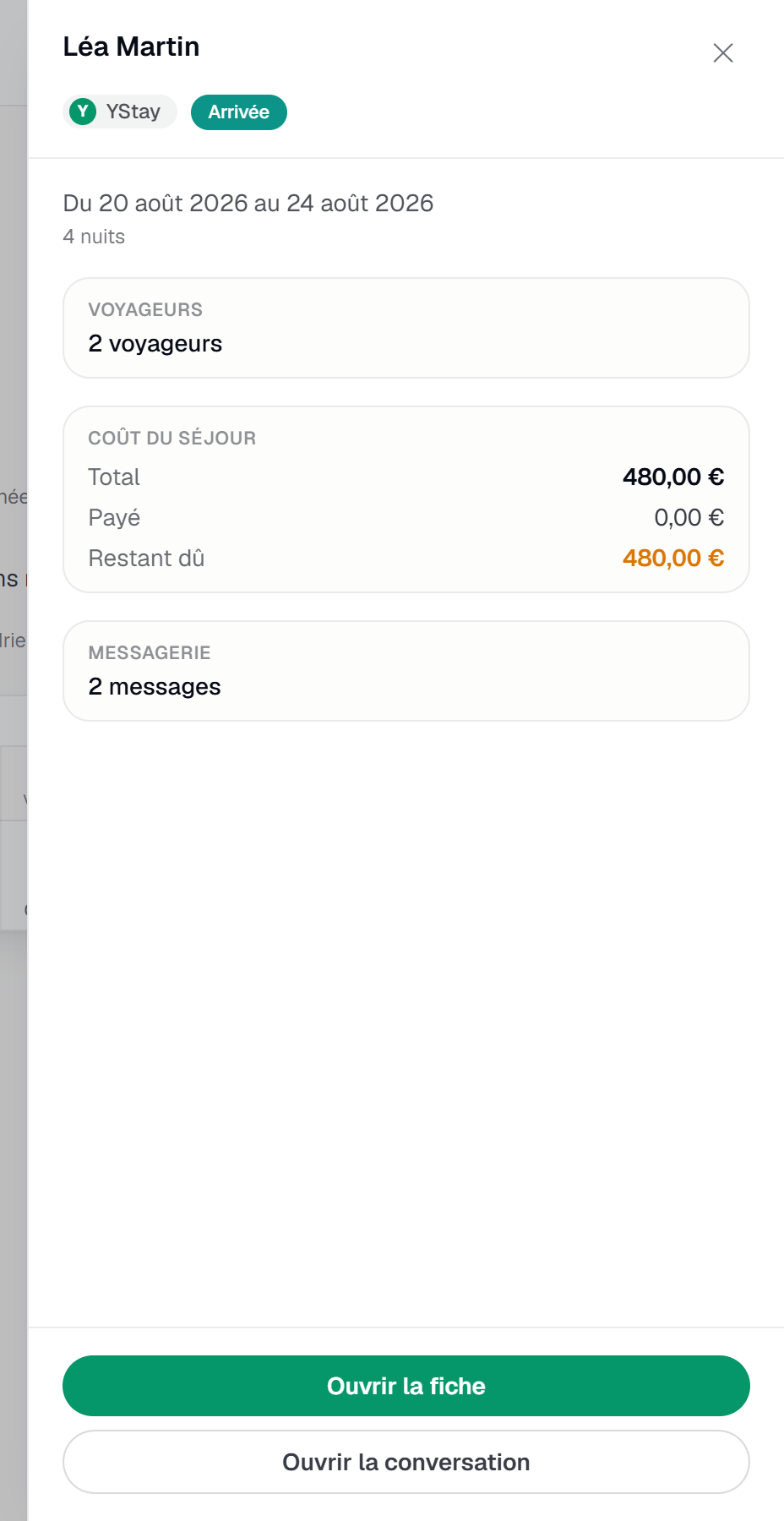
The side panel of a reservation: guest, channel, status, stay cost. Switch to Month, or to Year
The Month and Year tabs change the scale. Month shows two months side by side for a single listing, picked with the Listing selector, with the price under each night and a Today button. Year lines up read-only mini-months with a tier legend — Below base rate, At base rate, Above base rate; a click opens the matching month.
The two-month window is a real limit: at its edge, a quiet link sends you back to the long view, “For a longer range, use the Timeline view”.
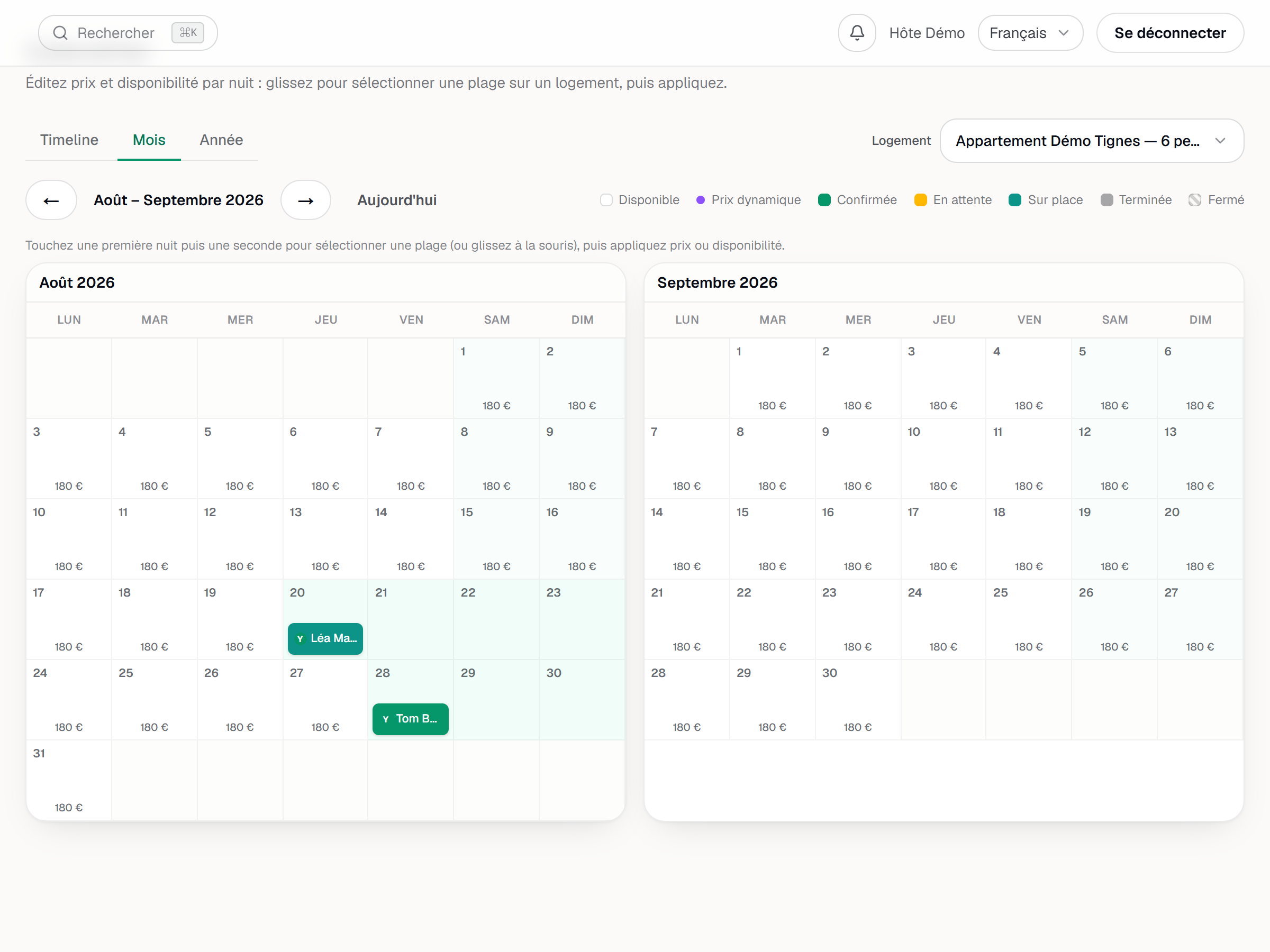
The Month view of one listing: two months side by side with the nightly price. Find your reservations in the list
Reservations lists upcoming, current and past stays, the next ones first. The pills filter by status — All, Pending, Confirmed, Checked in, Checked out, Cancelled — and an All channels menu filters by origin. The Search for a guest… field searches by name.
Every card carries the guest and the listing, the dates, the number of guests, the amount Paid by the guest, the channel chip, the status badge — and, for a guest who has stayed before, a Returning badge with their average rating. That badge only counts stays completed with you — on this account, and within the property scope of the member looking at the list: it is not a platform-wide history, and a guest who stayed elsewhere, or in a property outside your scope, carries no badge.
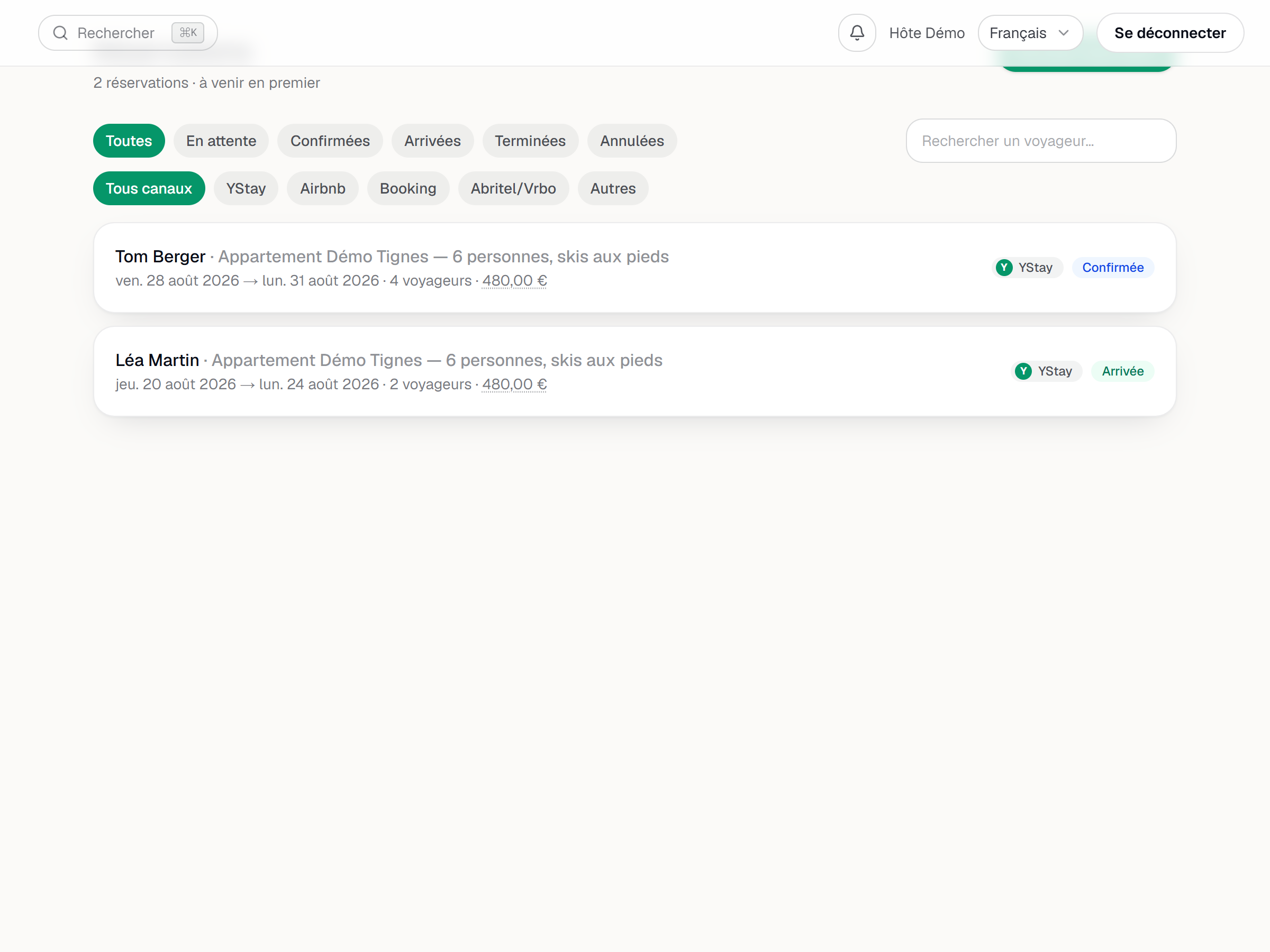
The reservation list with the status and channel filters. Update the status from the reservation page
The page gathers the listing and its balance (Paid, or Balance due followed by the amount), the guest, the editable stay, then Update status — whose buttons are exactly the transitions allowed at that moment, never one more.
Cancel reservation and the move to no-show open a confirmation that spells out the consequences — nights released, active access codes revoked, pending installments cancelled — and offers a reason field, which is optional. Fill it in anyway: it is kept under History, next to every status change.

A confirmed reservation page: the Update status block and its buttons. Create a reservation by hand
New reservation — from the list, or from a calendar selection, which pre-fills the dates — opens a short form: Listing, Check-in, Check-out, Adults, Children, Guest name, then phone, email and arrival notes, all optional.
On the right, the Quote panel recomputes on every keystroke: nights, Cleaning, Fees, Taxes, Total — and, with no dates, “Enter the dates to see the price.” Create reservation stays disabled while the quote is in error.
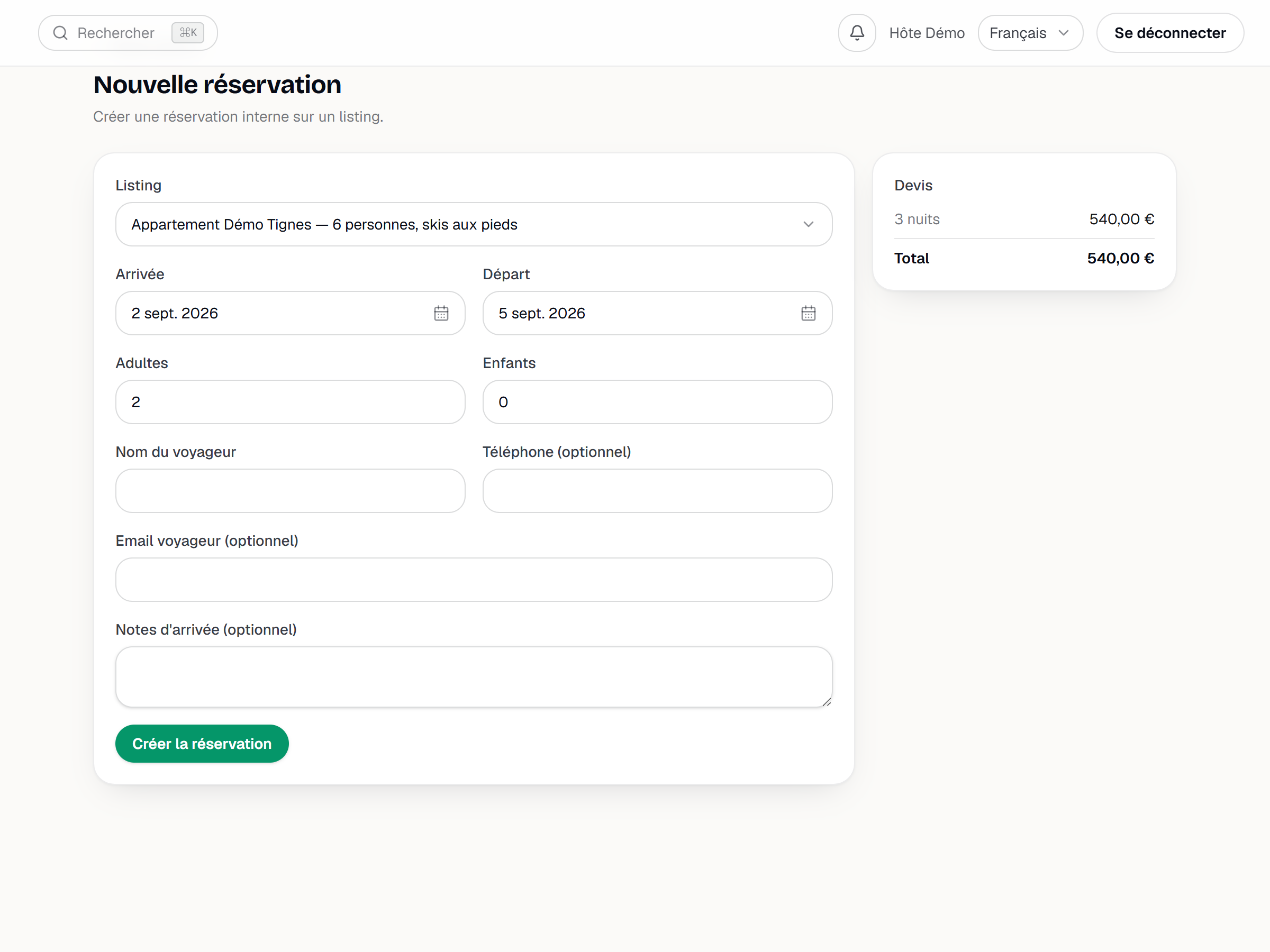
The New reservation form with the quote computed live.
The statuses, and what confirmation triggers
The cycle is short and has no way back: Pending → Confirmed → Checked in → Checked out, with two exits, Cancelled and No-show. A direct reservation paid online can arrive already confirmed; a channel reservation always does. Confirmation is the transition that matters, because it sets off three things:
- the stay is created — it is the stay that carries access, check-in/out and proof, and it appears with the Scheduled status;
- the lock code is issued automatically if a connected lock is attached to the unit — with no lock, nothing simply happens;
- the contract is generated for a direct reservation (never for a channel one: YStay does not generate any for those).
Cancellation and no-show walk the same road backwards, and share three effects: access codes revoked, pending installments cancelled, deposit released. The refund, however, only goes out on a cancellation, following the listing's policy; a no-show triggers none — the guest never showed up.
If something does not go as planned
- The button you expected is missing. The block follows the allowed transitions the server returns for the current status. The most frequent cause is simply that the transition is not open from where the reservation stands: a Checked in reservation only offers check-out, no cancellation is possible there. Otherwise the status is terminal, the reservation comes from a channel, or your access only has the Lecture box of Stay operations: without writing, no transition button is shown.
- Reopening is refused. The range overlaps a block synced from a channel: free those nights up on the channel side, then try again.
- A night refuses to be selected. It is booked; a price applied to a batch skips those nights and says so.
- The cost is missing from the side panel. The reservation has no recorded sale detail; the reservation page stays the reference.
Next
- Connect a lock — the code issued on confirmation.
- Reply to your guests — the conversation attached to every reservation.
- Publish your booking site — the first source of direct reservations.
- Set your rates — the price of a night, set before it reaches the calendar.
- Run a stay: check-in and checkout — where this guide continues: what a confirmed reservation becomes, from arrival to departure.
Updated on