Incidents and disputes
Open an incident by hand or from a StayProof analysis, claim against the deposit, and prepare the statement you will send.
An incident, in YStay, is the file opened on damage or a dispute attached to a reservation. It carries a status, possibly one or more claims against the deposit, and — in one case only — an Evidence dossier assembled for you. Two paths lead there, and they do not produce the same file.
These screens follow the team accesses. The Incidents menu, the list and an incident's page require the Lecture box of Stay operations (reservations, check-in/out); declaring an incident, moving it along, opening a claim and preparing the statement require the Écriture box. Approve & charge and Reject, for their part, fall under Short-term finances for writing, like any movement of money.
The incident list
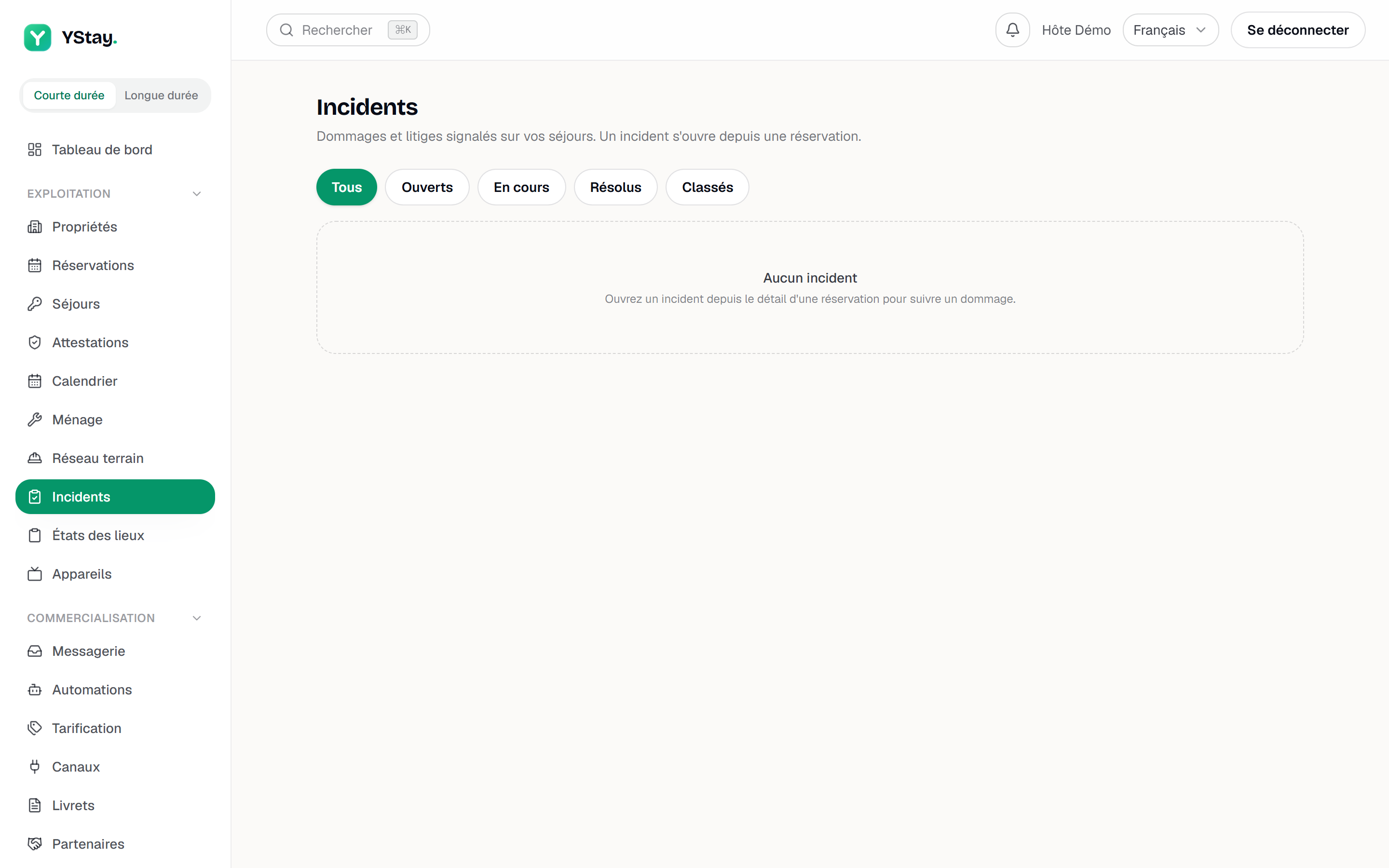
The Incidents menu opens every incident on your account. Five status filters: All, Open, In progress, Resolved, Dismissed. Each row recalls the originating reservation, the date it was opened and the number of claims attached. On a new account the page shows No incidents and restates the essential: an incident is opened from a reservation, never from this list.
Opening an incident
From the reservation page
Open the reservation, then Open an incident. The New incident form asks for a Title, a Severity — Low, Medium (the default) or High — and a Description (optional). Open incident creates it, and a View incident → link appears straight away.
The reporting form on the reservation page. From a stay's StayProof analysis
On the stay page, below the entry / exit analysis, Create an incident opens Incident pre-filled from the analysis: the title, the Severity, the Findings to include and the Description arrive filled in, and everything stays editable before creation. Untick a finding and the description rebuilds itself, until you edit the text — yours then wins. Create the incident opens the file, which carries the From the departure analysis badge and links back to the stay.
Moving the status along
The file offers the transitions other than the current status: Mark in progress, Mark resolved, Dismiss. Dismissing asks for confirmation and warns that unresolved claims will stay open — settling them is a separate move.
Claiming against the deposit
Open the claim
At the bottom of the file, Open a claim asks for an Amount claimed (€), then Open. The claim joins the Claims block with the Open badge. Amounts are in euros, entered in units and cents.
Screenshot to be produced
captures/incidents-et-litiges/03-reclamation-caution.png
Approve, or reject
An open claim offers Amount to charge (€) and Note (optional), then Approve & charge. The amount is optional: approving without entering one settles the claim without charging anything. The screen states the cap — the charge is capped at the deposit held on the reservation. Reject opens a confirmation that repeats the amount at stake and asks why the claim is rejected.
The dispute statement
Under each claim of a linked incident, the Dispute statement block prepares the text to send to the platform or the insurer. Draft the statement calls the AI assistant; Write manually opens the text area directly.
Drafting is included in the paid ShortStay plans and uses a monthly quota, shown next to the button. Plan not covered, quota reached, assistant unavailable: a banner explains it — and the text area opens all the same. None of these cases stops you writing it yourself.
The amount itself is never written by the AI: the text comes back with the claim's amount already inserted by YStay, from what you entered.
An open dispute suspends the deletion of the stay's evidence — see StayProof: build and share the evidence.
Turning this feature off
The account holder can turn off Assistance with declaring a dispute for the whole account, from the AI features page (My account page): the Draft the statement button then no longer sends anything to the AI provider, and Write manually stays the normal way to prepare your dispute statement. The area concerned shows “This AI feature is turned off for your account.” and, for the account holder, the Turn back on in AI features link. Details: AI features: turning them on and off.
What's next
- The StayProof evidence dossier — the entry / exit analysis that pre-qualified incidents come from.
- Run a stay: check-in and checkout and Take your first reservation — the reservation page every incident starts from.
- Operations — the other screens of the stay and its aftermath.
Updated on