Set up what a TV displays
The standby visual that doubles as the home background, the message shown to guests, the blackout window — and why these settings belong to the unit.
A paired TV shows two different things depending on the moment. Between stays it sits in standby: a clock, the unit's name and your visual, cycling slowly so the panel does not burn in. During a stay it switches to the home screen: a greeting, the dates, your message and up to four tiles pointing to the guidebook, the Wi-Fi, your contacts and the stay companion.
This guide covers what you control from the dashboard: the visual, the message and the blackout hours.
The path, screen by screen
Open the settings window
On the Devices page, the screen's row offers the Standby screen & home background action. It opens the settings for the unit that screen belongs to.
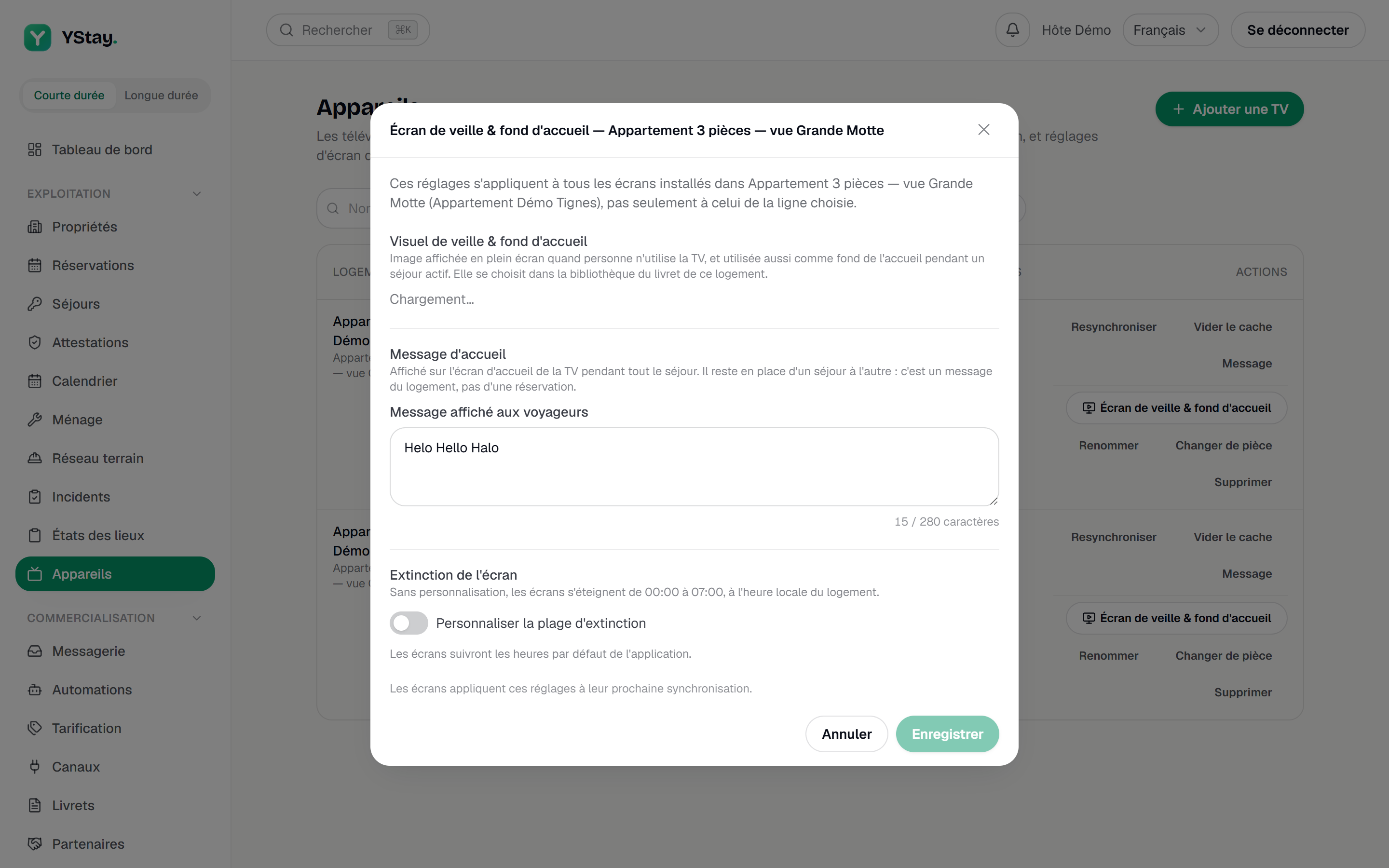
The “Standby screen & home background” window of a unit. Pick the standby visual
The Standby visual & home background card explains its double duty: “Full-screen image shown when nobody is using the TV, also used as the home background during an active stay.” One image serves both moments — so pick one that stays readable under text, not only one that looks good full screen.
It comes from this unit's guidebook library, through Pick a visual, or is uploaded on the spot with Upload an image. With nothing chosen, the card reads “No visual selected: screens show the app's default visual.” If the unit has no guidebook yet, the card says so and points to creating it; the blackout window stays settable either way.
Write the welcome message
The Message shown to guests field takes 280 characters, tracked by a counter below it; past that, saving is refused rather than the text silently cut. It appears on the home screen for the whole stay and, as the card puts it, “It stays in place from one stay to the next: it belongs to the unit, not to a reservation.” So write a lasting instruction — the bread, the bikes, the bins — never a guest's name or a date.
Clearing the field removes the message: nothing shows in that spot on the home screen.
Set the blackout window
With nothing set on your side, the Screen blackout card states the app's default behaviour: “screens switch off from 00:00 to 07:00, in the unit's local time.” Nothing is stored until you touch it.
Customise the blackout window opens two fields, Switch off at and Switch back on at. The window may cross midnight — 23:00 then 06:00 — and the screen confirms it when it does. The two times must differ; to never switch off, simply turn the customisation back off.
Save, then wait for the sync
Saving confirms the change, but nothing happens on the TV right away: “Screens apply these settings at their next sync.” This is not a remote command, and there is no button to force it through.
If you need to see the result immediately — a walkthrough, a photo to approve — send Resync to the screen from the Devices page, then check the command actually reaches Executed.
Partner slots in standby
If you list local businesses and distribution is open on your account, standby can slot partner cards between your visuals. They are labelled as partner content and offer the guest no action button: the TV informs, it does not sell. That distribution is governed in the Partners section, not here — the screen window only controls your visual, your message and your hours.
Next
- Install a TV and pair it with your account — pairing, fleet statuses and remote commands.
- Create and publish your first guidebook — the guidebook library supplies the visual, and the guidebook feeds the home tiles.
- Local partners — listing a business and governing its distribution.
Updated on