Terrain: the stay plan and My day
The Terrain module: the stay plan per unit, inherited settings, your notifications, and the day-to-day view on Host Ops.
The Terrain module is where housekeeping, welcome and check-out tasks are born: as soon as a reservation is confirmed, YStay creates them on its own, following the unit's stay plan — see Housekeeping and turnovers. You can also add one by hand, see below. Two surfaces split the work: the web to set things up — each unit's plan, inherited settings, your notifications — and Host Ops to do the work — "Ma journée" (My day) lists your tasks, step by step.
The stay plan per unit
From the Terrain menu, the Stay plans tab opens three blocks: the Account plan, the list of your Units — each with its origin badge — and the Task type catalogue.
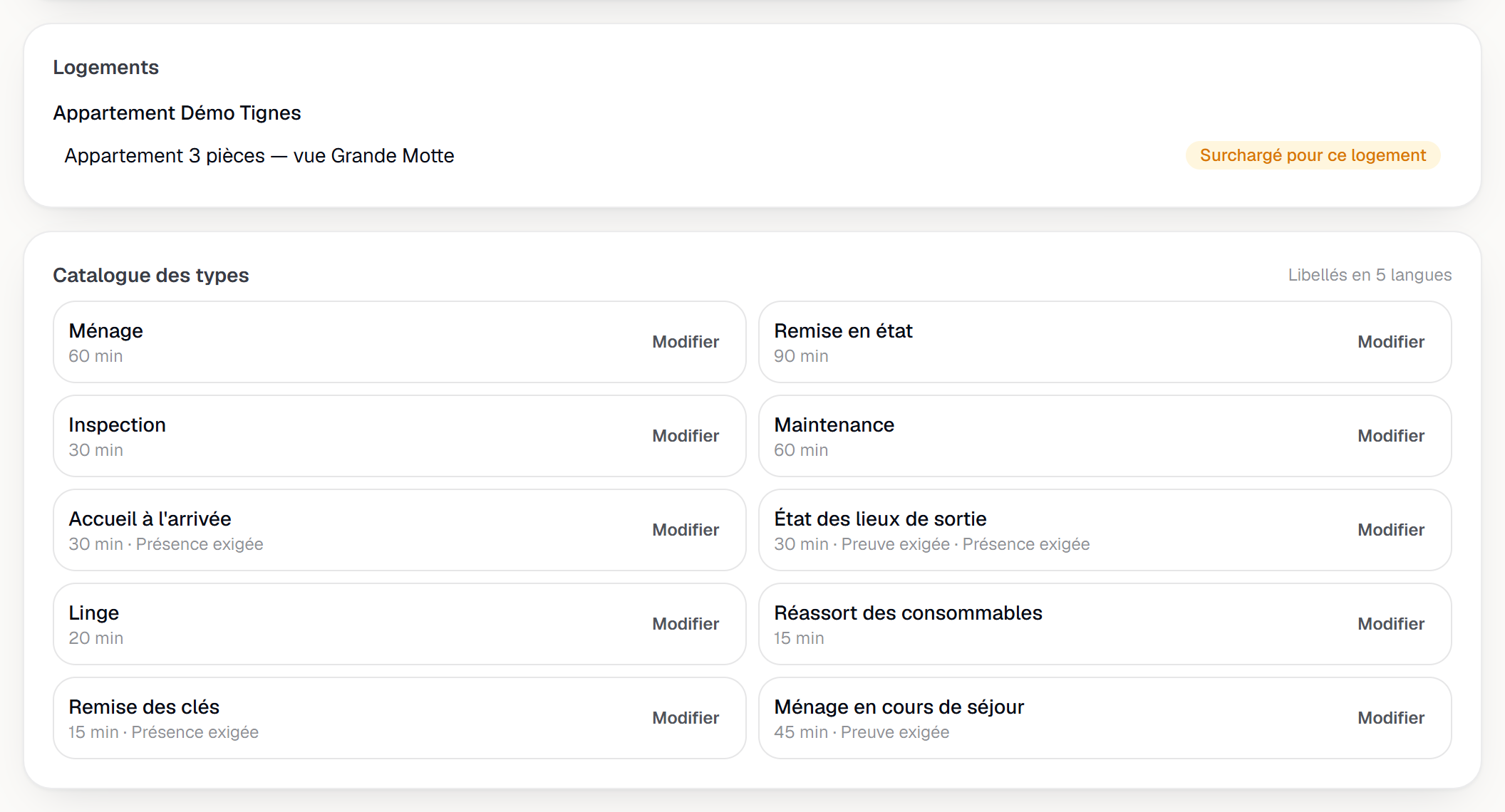
An origin badge comes with a plan just like a setting: YStay default (the baseline shipped by the platform), Inherited from the account (once a plan or a setting exists at that level), Overridden for this property or Overridden for this unit (an override at that exact level — a stay plan never goes deeper than the unit; a setting can also stop at the property, see below).
Opening a unit leads to its Stay plan page. As long as no override exists, the steps shown are the account's (or, failing that, the YStay baseline), read-only; Override for this unit makes a copy that belongs to this unit, now editable, and Revert to the account plan clears it, handing control back to the level above.
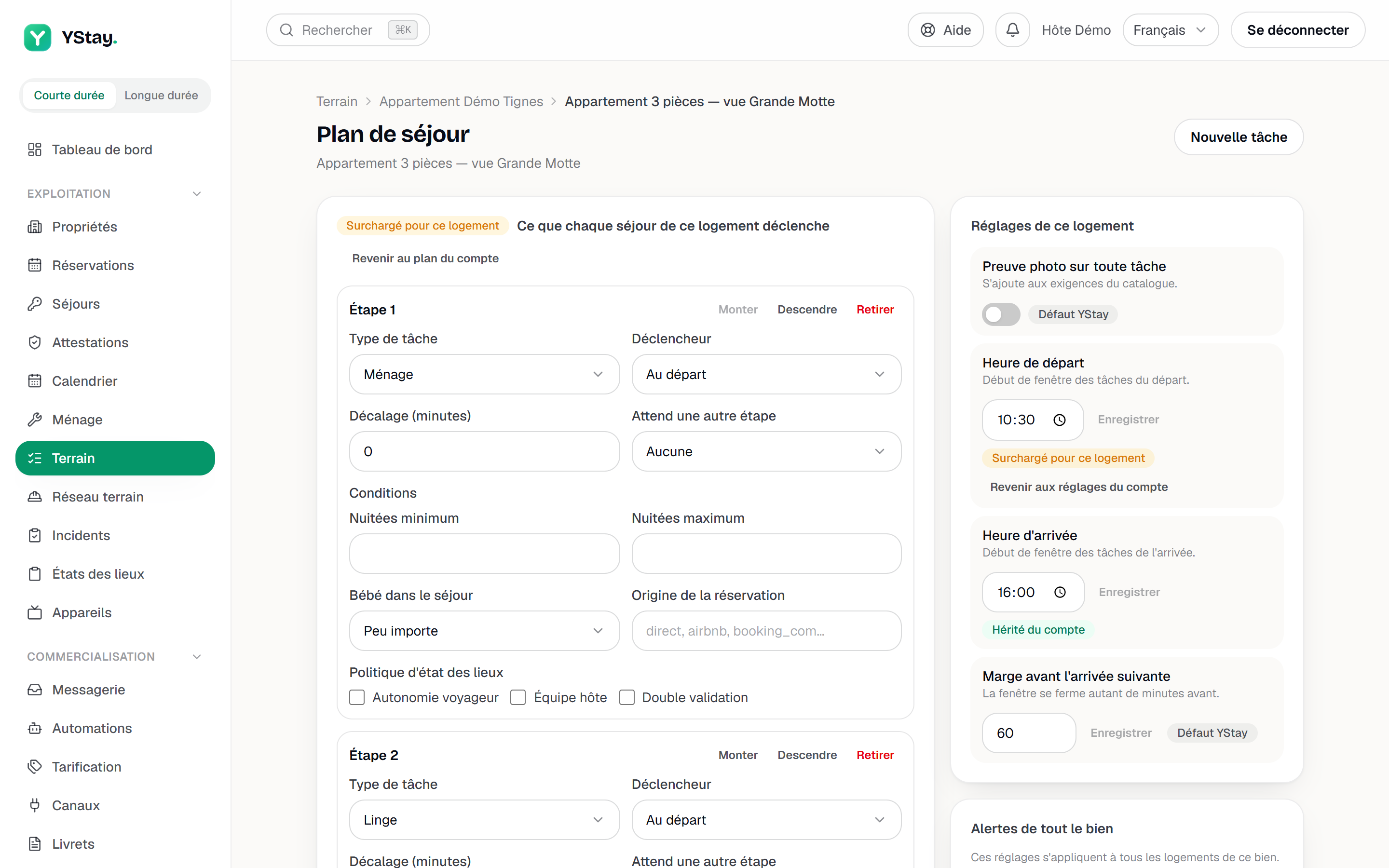
Each step of a plan sets:
- a task type, picked from the catalogue;
- a trigger — as soon as the reservation is confirmed, at check-in, at check-out, or during the stay (recurring every N days);
- an offset, in minutes, before or after that trigger;
- optional conditions — minimum or maximum nights, an infant on the stay (doesn't matter, yes or no), the reservation's source, the inspection policy (guest self-service, host team, dual validation) — a step whose conditions aren't met simply doesn't fire for that stay;
- an optional dependency on another step of the same plan, which must finish first.
Add a step creates a new one, the arrows reorder the list, and Save the plan validates the whole thing.
The Task type catalogue, at the bottom of the tab, lists every available type with its default duration and two possible requirements, Proof required and Presence required. You can edit a type for your account — its label in all five languages, its duration, its requirements, whether it's active; a Your type badge then flags the override, with a Reset to default action to undo it. On a unit's page, the same catalogue shows read-only: the override applies to the whole account, never to a single unit.
Create a one-off task
Besides what the plan triggers on its own, the New task button — on Housekeeping just as on a unit's Stay plan page, where the unit is already picked — opens a form to add a one-off task: Unit (hidden and pre-filled from a unit's page), Type (among the catalogue's active types), Date (today by default), Window start and Window end, Estimated duration (minutes), Assigned to and Note — everything is optional except the unit and the type. The window's times are the unit's local time, not yours — the form says so ("The unit's local time, not yours."). Create the task saves it and opens its detail directly.
Creating a task is open to the same roles that have write access to the Housekeeping & turnovers or Stay operations (reservations, check-in/out) modules — not necessarily to whoever can edit the stay plan, a broader, separate right (see Terrain settings, below). The Assigned to list, for its part, only offers people who can see tasks: the account owner and the active members with access to the Stay operations or Housekeeping & turnovers modules — a Field network contractor isn't listed there, they get assigned through their own channel.
Terrain settings
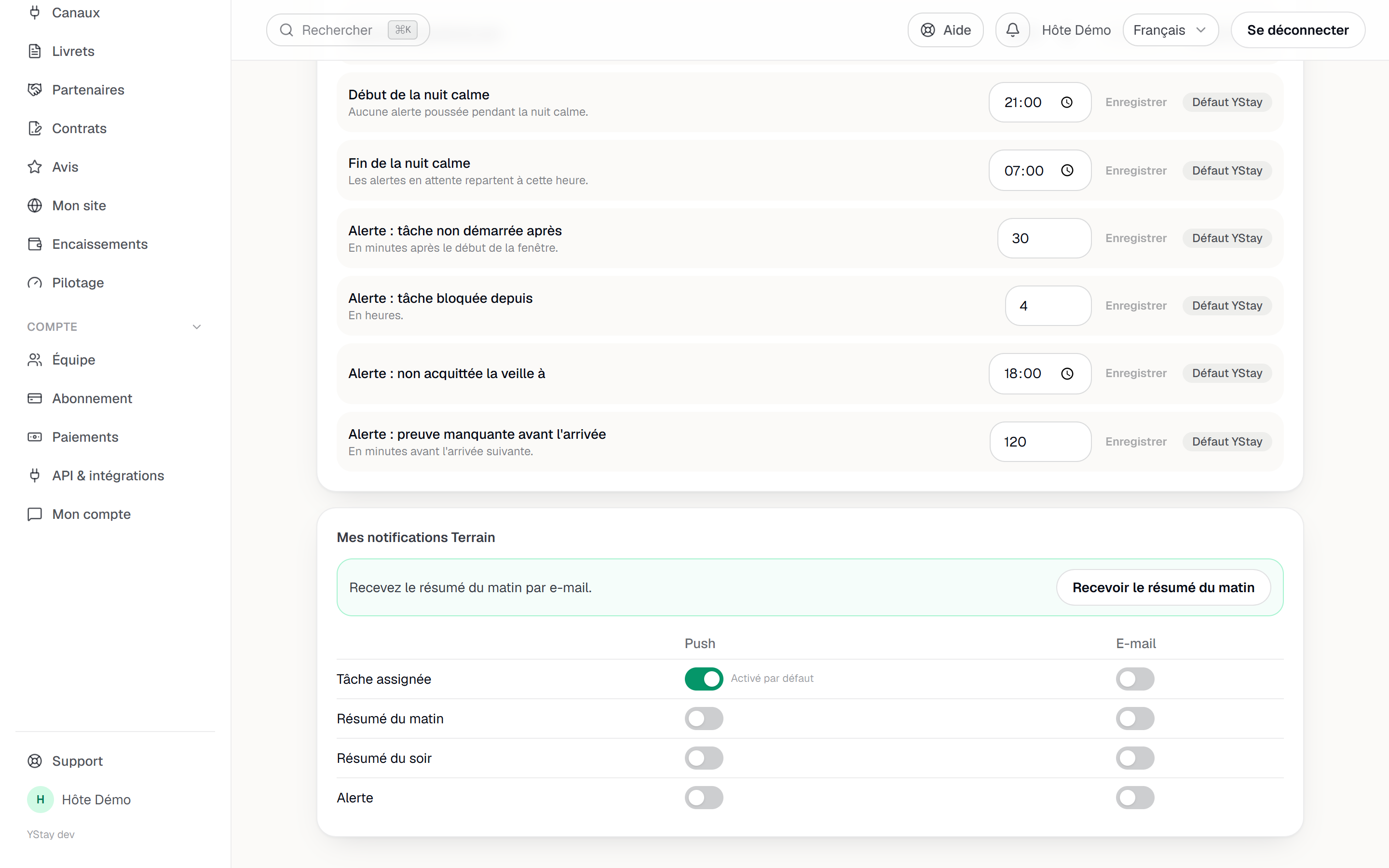
Account settings gathers fifteen settings: check-out time and check-in time (the start of the window for the matching tasks), the margin before the next check-in, a proof photo on every task, automatic assignment when solo, a forced interface level (Solo / Team / Pro — can only go up from the automatically computed level), Terrain notifications enabled, the two digest times (07:00 and 19:00 by default), and the quiet hours bounds (21:00 → 07:00 by default) — digests and alerts are detailed in the next section. Every setting carries its origin badge; Reset to the YStay default clears it here. A time or number setting is edited as a draft, confirmed with the row's Save button (or Enter) — nothing goes out on every keystroke; a toggle or a dropdown, on the other hand, apply as soon as you change them.
Four of them go down to the unit — proof photo on every task, check-out time, check-in time, margin before the next check-in: on a unit's page, the Settings for this unit card shows any override with Overridden for this unit, and Revert to the account settings to clear it. The four alert thresholds, for their part, stop at the property: a separate card, Alerts for the whole property — “These settings apply to every unit in this property.” —, shows them on that same page and lets you edit them, with the Overridden for this property badge once a value is set there.
Your Terrain notifications
Under Terrain settings, the My Terrain notifications block crosses four categories — Task assigned, Morning digest, Evening digest, Alert — with two channels, Push and Email. Nothing goes out without your choice: the only exception is the Task assigned push, on by default (you can turn it off like the others). This block, like the notifications themselves, only exists for those who can see tasks — access to the Stay operations or Housekeeping & turnovers modules, the same gate as the Assigned to list on a task: without that access, a member gets no digest, no alert and no assignment push, and so finds nothing to set here.
As long as you haven't turned on the morning digest by email, a banner offers to do it in one tap, Get the morning digest. The same idea exists on Host Ops, for push this time — see below.
Digests leave at a fixed time, adjustable at account level — 07:00 and 19:00 by default: the morning one gathers your tasks for the day and your overdue tasks; the evening one, your still-open tasks for the day and the ones whose required proof is still missing. Alerts, on the other hand, are raised as they happen, each one only once per task: not started 30 minutes after the window opens, blocked for 4 hours, unacknowledged the evening before at 18:00, or proof missing 2 hours before the next check-in — once that check-in has passed, it no longer fires, and closes itself if it was still open. These four thresholds are adjustable. No push alert between 21:00 and 07:00 (quiet hours, adjustable): an alert still active by morning leaves then. They also join the dashboard bell, which sends nothing further — it's a list, not a channel.
My day, on Host Ops
The "Ma journée" (My day) tab in Host Ops shows your tasks for the chosen day — yesterday, today, tomorrow — split into four sections: "En retard" (Overdue), "Maintenant" (Now), "Plus tard" (Later), and "Terminées" (Done, collapsed, with its count). Each card shows the time, the type, the unit and, for a welcome task, the arrival it prepares for; a single button offers the next possible step, without leaving the list.
Screenshot to be produced
captures/terrain-plan-de-sejour-et-ma-journee/04-ma-journee-host-ops.png
Until you've turned on the morning digest on that phone, a banner offers "Recevoir le résumé du matin sur ce téléphone" (Receive the morning digest on this phone): "Activer" (Enable) registers the device, "Plus tard" (Later) dismisses the banner for this session — it comes back next time the app opens.
Below your tasks, "Arrivées et départs" (Arrivals and departures) stays put, unchanged: the same lists as before this release, to open a reservation directly.
The task detail
The title at the top of every card, on Housekeeping and turnovers as much as on My day, opens the task's full detail: window, a summarized reservation (dates and headcount only — never a guest's name or contact), assignment, proof, checklist and log.
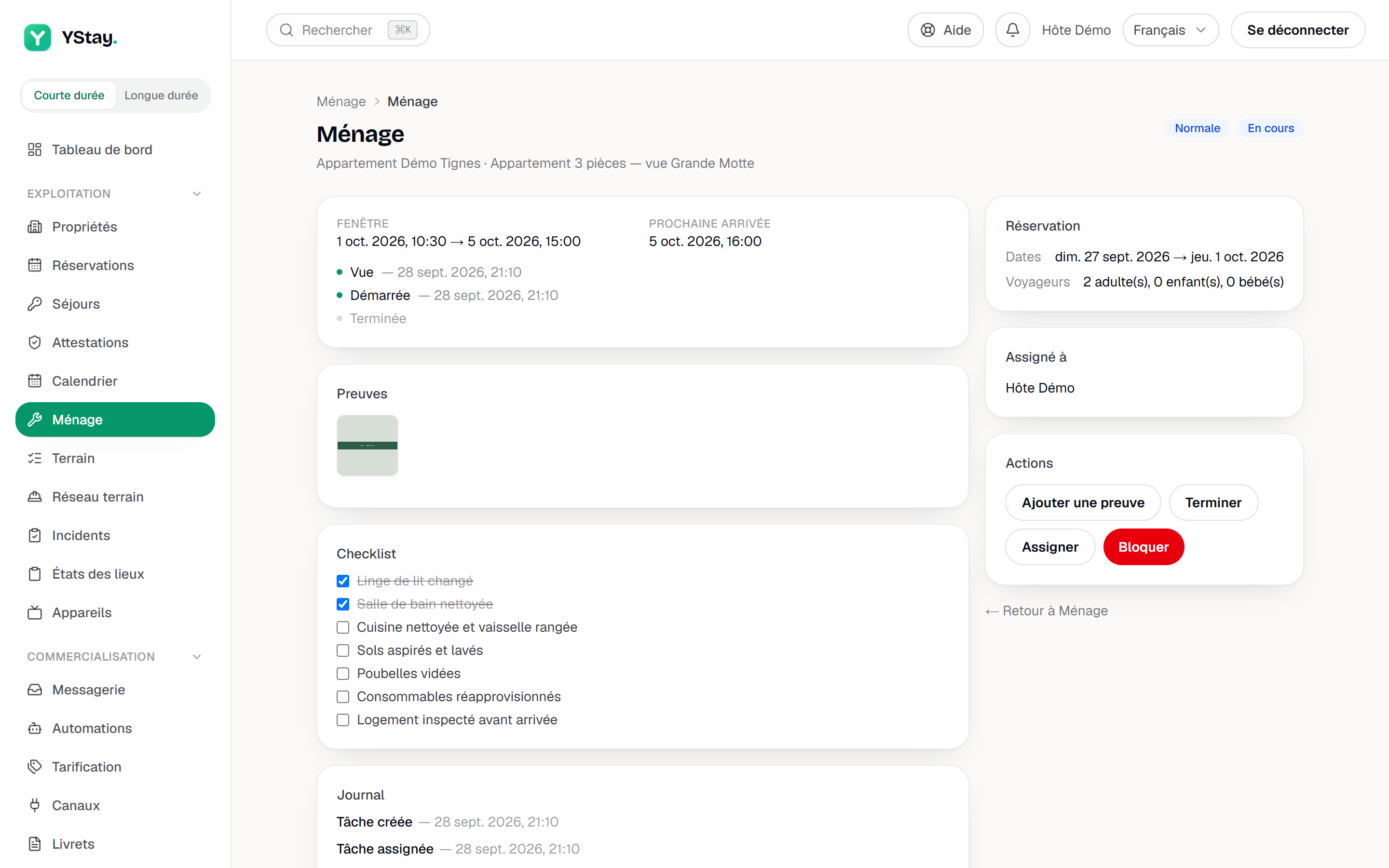
Acknowledge
Acknowledge ("Vu" on Host Ops) confirms you're aware of the task — often the first gesture, on the way past the door.
Start
Start ("Démarrer" on Host Ops) moves the task to in progress.
Add a proof photo
On the web, Add a proof photo picks a file; on Host Ops, "Prendre une photo" (Take a photo) opens the camera directly — jpg, jpeg, png, heic or webp, 20 MB at most.
Finish, or force it with a note
Finish ("Terminer" on Host Ops) closes the task. If the checklist isn't complete, or a required photo is missing, YStay refuses and offers Force close ("Forcer la clôture"): a note then becomes mandatory, and the forced close stays logged.
Block it, with a reason
Block ("Bloquer" on Host Ops) asks for a reason picked from a closed list — Access issue, Missing supplies, Damage found, Guest still present, Other — with an optional note.
Cancel
Cancel ("Annuler la tâche", Cancel the task, on Host Ops) removes the task from the to-do list; the cancellation stays logged.
For a welcome or a check-out inspection, the task doesn't close itself: on Host Ops, "Ouvrir la session d'arrivée" (Open the check-in session) or "Ouvrir l'état des lieux de sortie" (Open the check-out inspection) leads to the reservation, where the session or the inspection takes place — closing it is what closes the task.
What's next
- Housekeeping and turnovers — today's board and a task's life cycle, on the web.
- StayProof: build and share the evidence — task proof photos count there too.
- Run a stay: check-in and checkout — the sessions that a welcome or a check-out inspection open from a task.
Updated on