Create and publish your first guidebook
From the Welcome guidebooks page to the guest link: building a guidebook, filling it block by block, translating it, then publishing it.
The guidebook is what your guests open before they arrive and keep at hand during the stay: the Wi-Fi, the access, the times, the addresses you recommend. Filled in properly, it replaces most arrival messages — and it stays available when you are not.
This guide builds one end to end: open the Studio, lay out a structure, write blocks into it, then publish a link to send to the guest. Allow about an hour for a first honest guidebook, less if you start from a template.
The path, screen by screen
Open the Guidebooks page
In the menu, under Sales & marketing, open Guidebooks. The Welcome guidebooks page lists all your listings — one card each, with its title, a preview of its description and an Edit guidebook badge. There is nothing to create here: the list follows your listings.
If the screen shows No listings, there are none yet, and it points you to the right step: “Create a listing on a unit to attach a guidebook to it.”
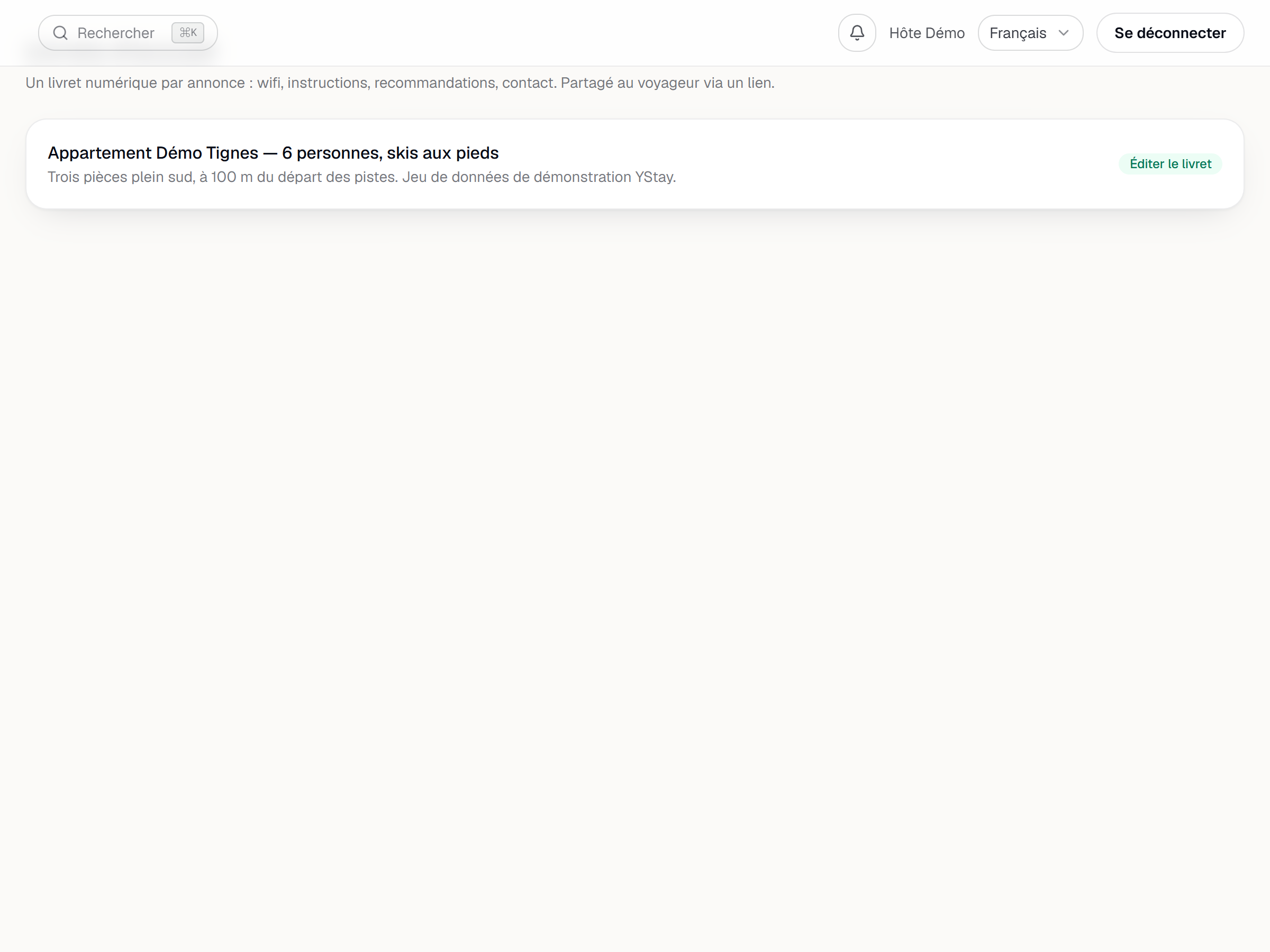
The Welcome guidebooks page: the listing card with its Edit guidebook badge. Create the guidebook
The Edit guidebook badge opens the Studio full screen. As long as the listing has no guidebook, the Studio shows Guidebook not set up yet and a single button, Create the guidebook. One click is enough: the guidebook is created empty, then the Choose a template gallery opens straight away.
Each template sets a colour mood and a starting structure; Apply installs it. You can also close the gallery and start from a blank page — it stays reachable from the Templates button in the Studio bar. One caution for later: applying a template to a guidebook that already has content asks for a confirmation, Replace content, because the existing structure goes.
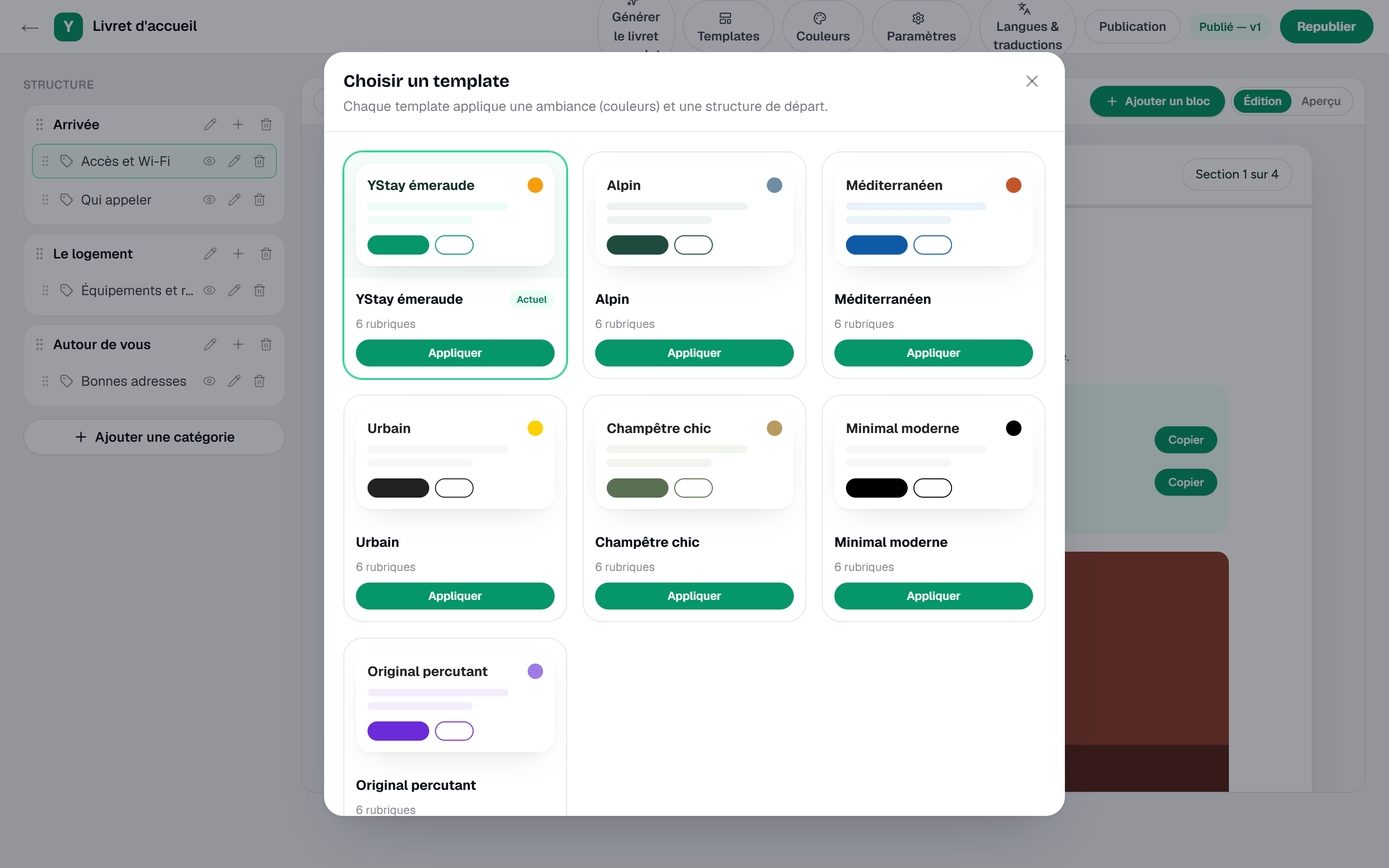
The template gallery of the guidebook Studio. Lay out the structure
The Studio reads in two columns. On the left, Structure: your categories and, under each one, its sections. Add a category and Add a section create them, names are edited in place, order is set by dragging, and an eye hides a section — it then carries the Hidden badge. On the right, the real rendering of the guest guidebook, updating as you write.
Along the top, the Studio bar lines up Generate the full guidebook, Templates, Colors, Settings, Languages & translations and Publishing, with the status badge — Never published to begin with — and the Publish guidebook button.
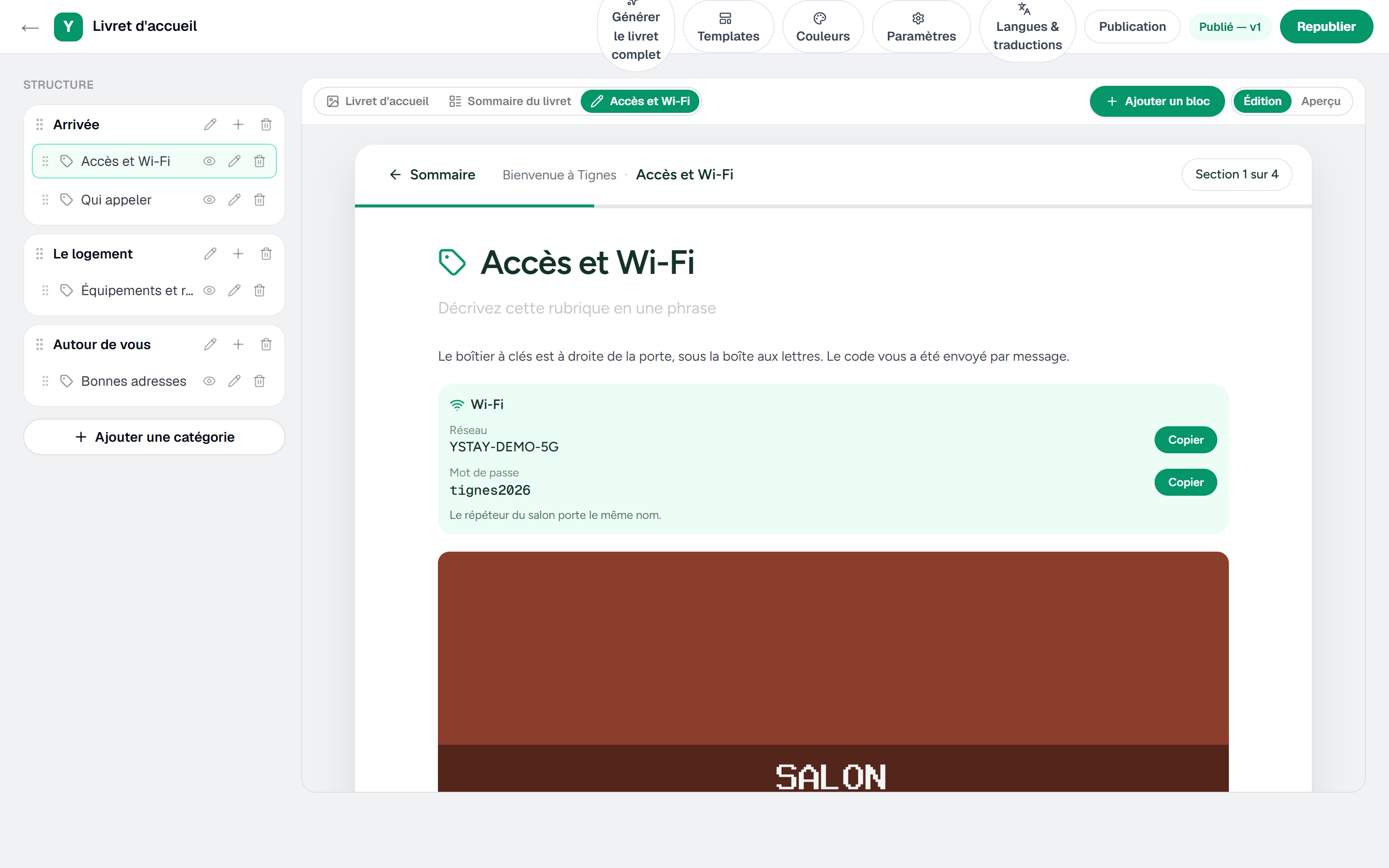
The guidebook Studio: the structure on the left, the guest rendering on the right, the toolbar on top. Fill the sections with blocks
A section is filled with blocks. Add a block opens a grid of fourteen core types: Rich text, Image, Gallery, Video, Map / directions, Contacts, Wi-Fi, Amenities, House rules, Recommendations, FAQ, Documents, Buttons / links and Table.
Titles and rich text are written straight into the rendering on the right; the other settings of a block — a map link, a Wi-Fi password, the rows of a table — open in a side panel. Nothing needs saving by hand: the bar goes through “Saving…” then “Saved”.
Image, gallery and document blocks draw from Guidebook media: Upload brings a file in, within the limits stated on screen — “JPG, PNG or WebP images — 10 MB max.” and “PDF documents — 10 MB max.” A HEIC (or HEIF) photo, even renamed to .jpg, is refused for now with the message “HEIC format is not supported yet: import the photo as JPEG or PNG.”
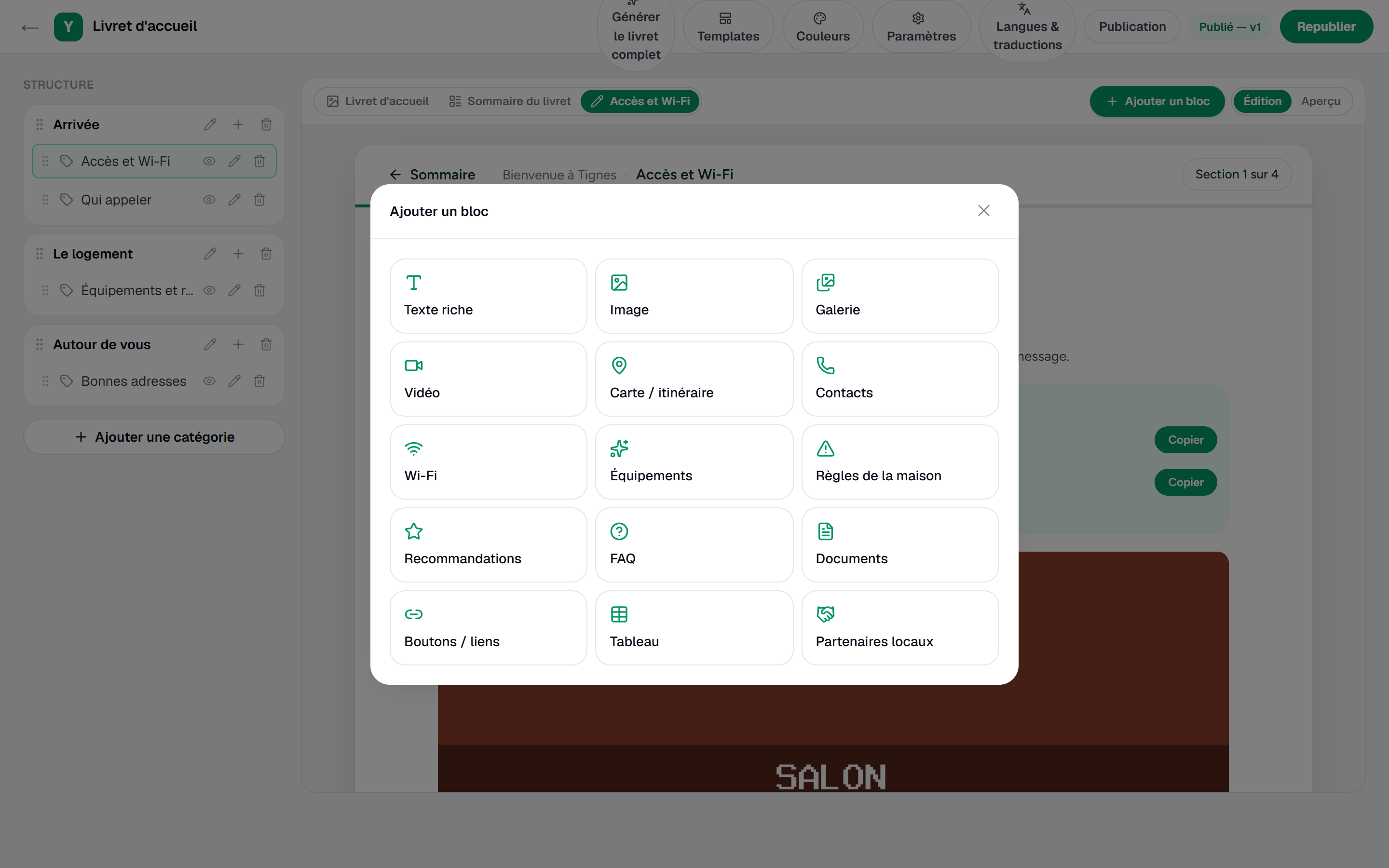
The Add a block window and its grid of block types. The Wi-Fi block has its own settings, in the side panel: Network name (SSID), Password, Hint (router location…) and the Show a connection QR code (web page and PDF) box. Two more settings describe the network to the QR code: the Encryption list (WPA/WPA2, WEP or None) and the Hidden network box. For an ordinary router, leave them as they are: the QR code then describes a visible WPA/WPA2 network — or a network without a password when the Password field is empty.
The guest scans this QR code with the phone camera and joins the network without typing anything. YStay generates it when the guidebook is displayed, from the block's values: it appears in the Studio, in the preview, on the guidebook's web page and in the PDF. The editor says so: “The QR code is generated when the guidebook is displayed (web page and PDF), not in the guest app or on the TV.” With no network name, or with the box unticked, no QR code is shown.
The box is ticked by default: a Wi-Fi block whose box was never unticked therefore shows its QR code, including in a version that is already published, with no republishing. To remove it from the published version, untick the box, then republish.
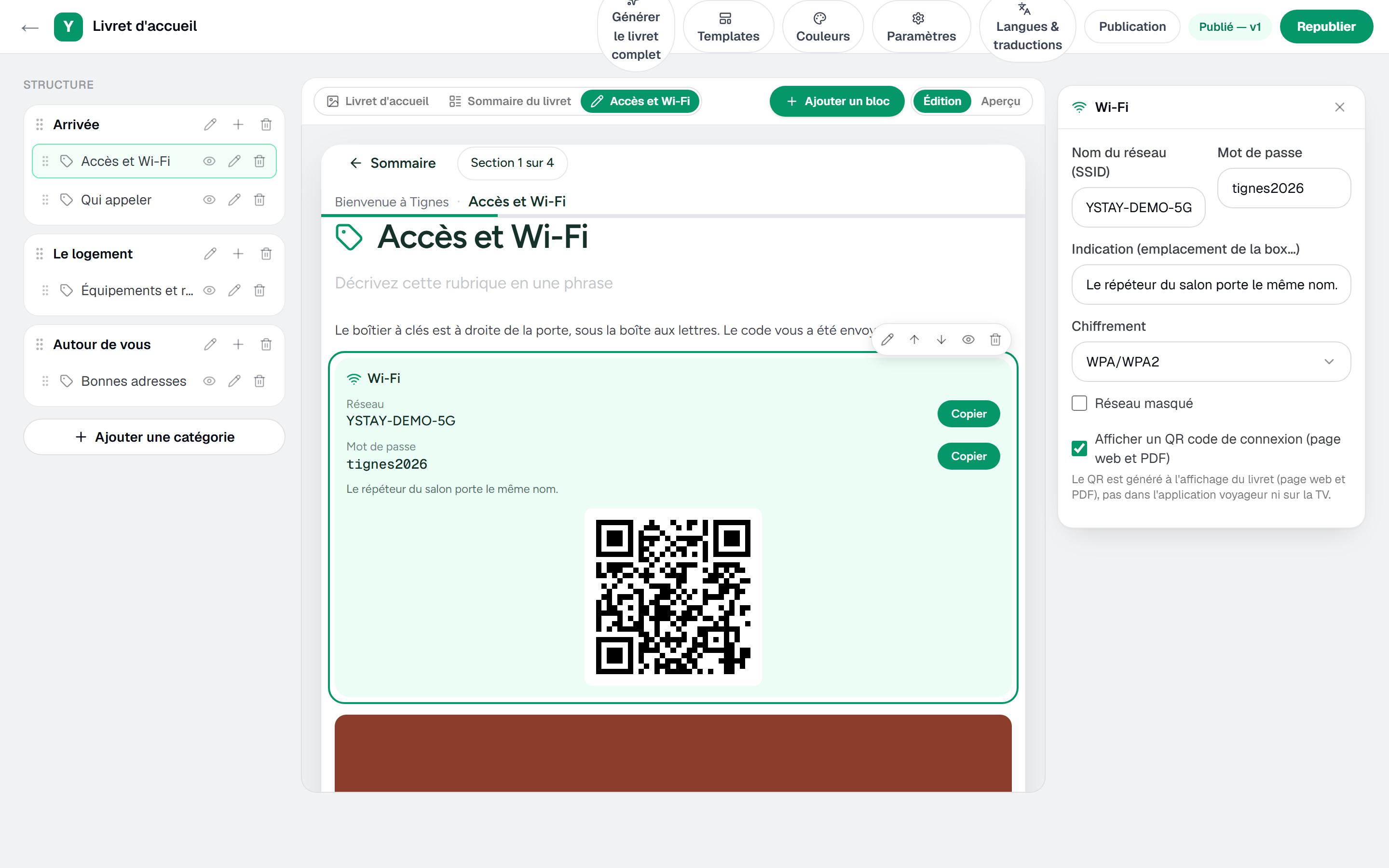
The Wi-Fi block editor: network name, password, Encryption, Hidden network and the connection QR code box. Translate the guidebook
Languages & translations opens the Source language and the target languages. The source language is always served to guests; switching a language on triggers the translation of the blocks, tracked in a coverage table. Switching a language off does not delete its translations: it is simply no longer offered.
Publish
Publishing opens the right-hand panel. While nothing is published it shows “No publication yet.” and reminds you: “Publish the guidebook to enable the guest link, the QR code and the PDF.” Publish guidebook then freezes a numbered version — a complete snapshot of the guidebook, carrying only the visible sections and blocks.
The panel then gives the Guest link, an address ending in
/g/…that Copy puts on your clipboard, the QR code to print in the property, and the Printable PDF in the chosen PDF language. A Version history fills in below.This QR code encodes the guest link: it is not the Wi-Fi connection QR code, which comes from the Wi-Fi block and is generated when the guidebook is displayed. One does not replace the other.

The Publishing panel: guest link, QR code, PDF per language and Publish button. Check what the guest sees
Open the guest link in another tab. It is the only check that counts: the Studio shows your draft, the link shows the published version. Look there at the blocks that depend on something other than your own text, and at the language switcher if you enabled several.
The browser's Back button follows the guest's path there: it returns to the previous screen, from a section to the contents, then from the contents to the cover, without reloading the page. Reloading the page, on the other hand, reopens the section on display. That behaviour belongs to the guest link; the Studio does not apply it, its preview adding nothing to your browser history.
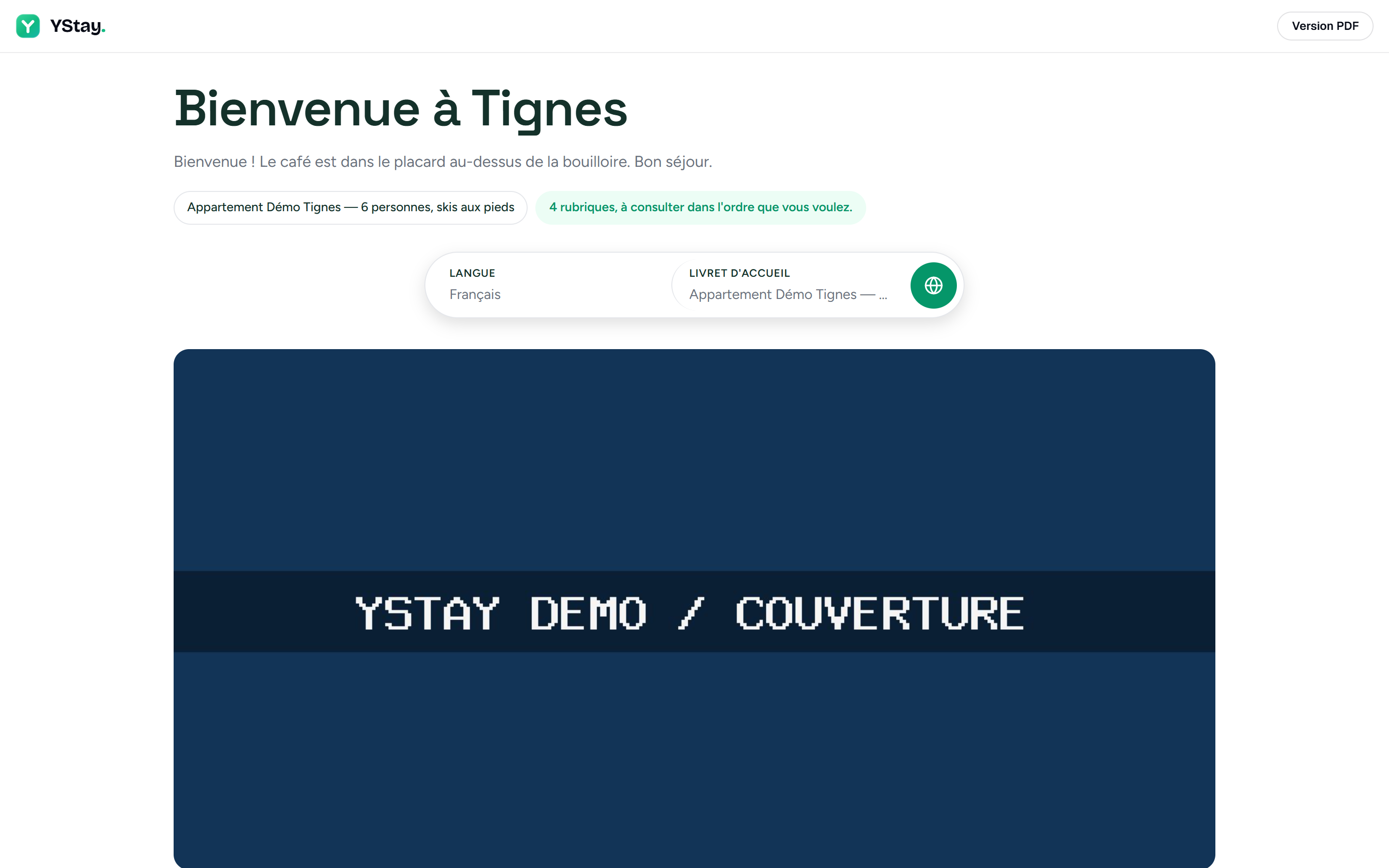
The guidebook as the guest sees it, opened through the public link.
Turning these features off
The account holder can turn off, separately, for the whole account from the AI features page (My account page), Drafting of welcome guides and Translation of welcome guides. Generate the full guidebook and the block translation under Languages & translations then no longer send anything to the AI provider: you keep writing and translating every block by hand. The area concerned shows “This AI feature is turned off for your account.” and, for the account holder, the Turn back on in AI features link. Details: AI features: turning them on and off.
If the guidebook does not behave as expected
- The guest link shows a page-not-found. Four causes give the same screen: never published, unpublished, a suspended account, or a guidebook withdrawn by the platform. YStay deliberately does not tell them apart — a public link must reveal nothing. Check the state under Publishing. That panel, however, knows nothing about a platform withdrawal: it keeps showing the guidebook as online. If everything looks normal there while the link stays not-found, contact support.
- A section does not appear for the guest. Only visible items go into the published version: a Hidden section or block is left out, even after republishing.
- A media file refuses to be deleted. The screen explains it: “This media is used by the published version of the guidebook: republish without it before deleting.” Remove it from the blocks, republish, then delete.
- The PDF does not show your latest corrections. It is rendered “from the latest published version, in the chosen language” — republish first, reopen afterwards.
- The Wi-Fi connection QR code does not appear. Check that the Show a connection QR code (web page and PDF) box of the Wi-Fi block is ticked and that the Network name (SSID) is filled in. It does not appear in the guest app or on the TV: “The QR code is generated when the guidebook is displayed (web page and PDF), not in the guest app or on the TV.”
- A “Plain-text code: …” warning appears. YStay has spotted, in a text of the guidebook, what looks like an access code, and shows it — masked, except its last two characters — in the section panel, then in the publishing panel when you publish. The warning does not stop you from publishing. Remove from text opens the block concerned so you can delete the code; send it to the guest by message instead, as the “Never write the code in the guidebook” section of the Guest access codes guide explains.
Next
- Take your first reservation and manage your calendar — the stay this guidebook will be handed to.
- Connect a lock and give guests access — the access the guidebook announces but does not manage.
- Guidebooks — what a guidebook covers, section by section.
- Install a TV and pair it with your account — show this guidebook on a screen inside the unit.
- List a partner and run their insert — the addresses you recommend, this time on the local-partner side.
Updated on