Room-by-room guidance and reference photos
What the field worker — agent without an account or contractor — sees from 24 hours before their task: the unit sheet without the contacts, the checklist grouped room by room, the reference photos, the comparison slider and the ghost overlay. The setting that opens or closes sharing, the photo quality flags and offline work.
You have described a unit in its sheet: rooms in walking order, key locations, instructions, reference photos. Room-by-room guidance puts that sheet in the hands of the person doing the work — an agent working from their link, a contractor working from My jobs — at the moment they need it: 24 hours before their task. Their checklist is then grouped room by room, each item can carry the reference photo of what you expect, and a comparison slider and a ghost overlay (your reference photo laid, see-through, over the camera) help them take the same view.
This guide says what the field worker sees, how to open or close this sharing, what the quality flags that can come with a photo mean, and what happens without a network.
What the field worker sees, and from when
The unit sheet opens to the field worker 24 hours before the start of their task — the same window as the address (see Your schedule by link). It stays readable as long as the task is in their schedule: a cancelled task no longer shows it, and a finished task shows it until the end of the day.
Before the window opens, the field worker only reads a banner: “Unit sheet available from …” on the agent's link, “The property sheet (instructions, rooms, reference photos) will be available from …” in My jobs.
Once the window is open, they read:
- the sheet's Access instructions for the team, under “Access instructions”;
- Where to find the Wi-Fi (never the password), under “Where to find the Wi-Fi” on the agent's link and “Wi-Fi details” in My jobs;
- the Waste sorting and the Unit particularities;
- the key locations, with their note and photo;
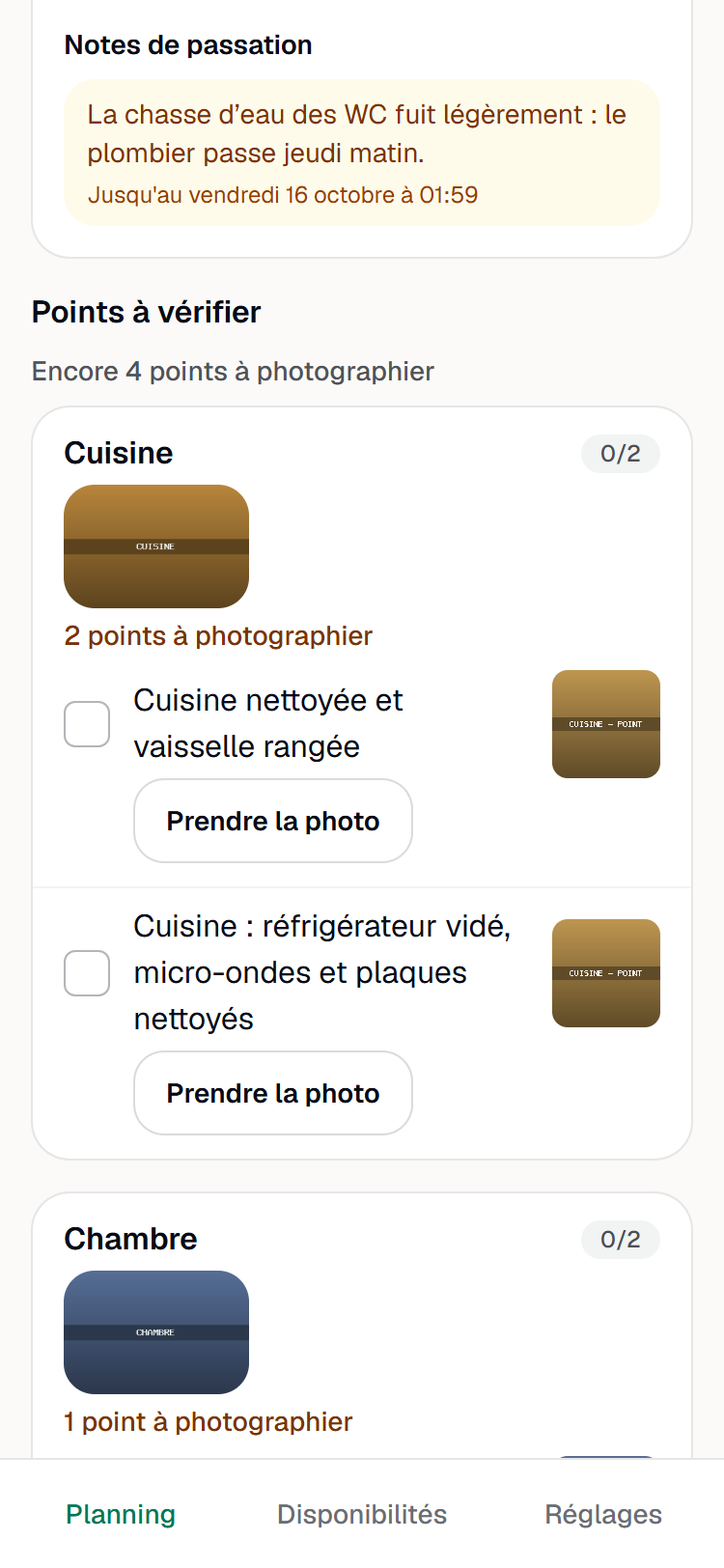
- the current handover notes, without their author: the text and, when there is one, “Until” followed by the end date;
- the rooms, with their reference photo, and the reference photo of every checklist item that carries one.
They never read the useful contacts, the name of the person who validated the sheet, the author of a note or the sheet proposals in progress — and, as everywhere in YStay, no guest data.
Opening or closing sharing
The setting is called Share the unit sheet with field workers. It is in the Terrain menu, Terrain settings tab, Account settings card. Its help text says what it covers: “Access instructions, Wi-Fi hint, waste sorting, rooms, locations and reference photos, handover notes: served to your agents and contractors 24 hours before their job. Never the useful contacts.”
It is on by default: as long as you do not touch it, your field workers read the sheet of the units where they have a task. A toggle applies as soon as you change it, and Reset to the YStay default restores the starting setting.
It goes down to the unit. On a unit's page, the Settings for this unit card lets you close it (or reopen it) for that unit alone: the Overridden for this unit badge shows it, and Revert to the account settings clears the override. Like the other Terrain settings, it is edited with the right to edit stay plans (see Terrain: the stay plan and My day).
When sharing is closed, the field worker gets back what they had before: the flat checklist, with no sheet, no reference photo and no banner. Your choice only applies to your units: a contractor who works for several hosts reads the sheet of the accounts that share it, and not of the others.
Room-by-room guidance
When the sheet is shared, a task's checklist is grouped by room, in the order of the sheet's rooms. Each room shows its name, its progress — “1/3” on the agent's link, “1 of 3” in My jobs — and its reference photo, which a tap enlarges. Items that are tied to no room come last, under “Other items”; if no item has a room, the list stays in one piece, as before.
Each item keeps its checkbox. Next to it, the thumbnail of its reference photo shows what you expect, and the Take the photo button starts the shot; once the photo is kept, the item shows “Photo taken”. Under a room's name, a line such as “2 items to photograph” reminds how many items with a reference photo do not have theirs yet: a reminder that blocks nothing.
Guidance asks nothing more than the sheet: it reads the rooms and photos you set on the items of the unit's template (see “The unit's checklists” in The unit sheet: rooms, key locations, instructions and checklists). Two consequences:
- a task picks up the template's items when it is created: a task created before you tied a room or a photo keeps its old checklist;
- removing a reference photo from the sheet makes it disappear from the field worker's screen, even for a task that already exists.
The comparison slider and the ghost overlay
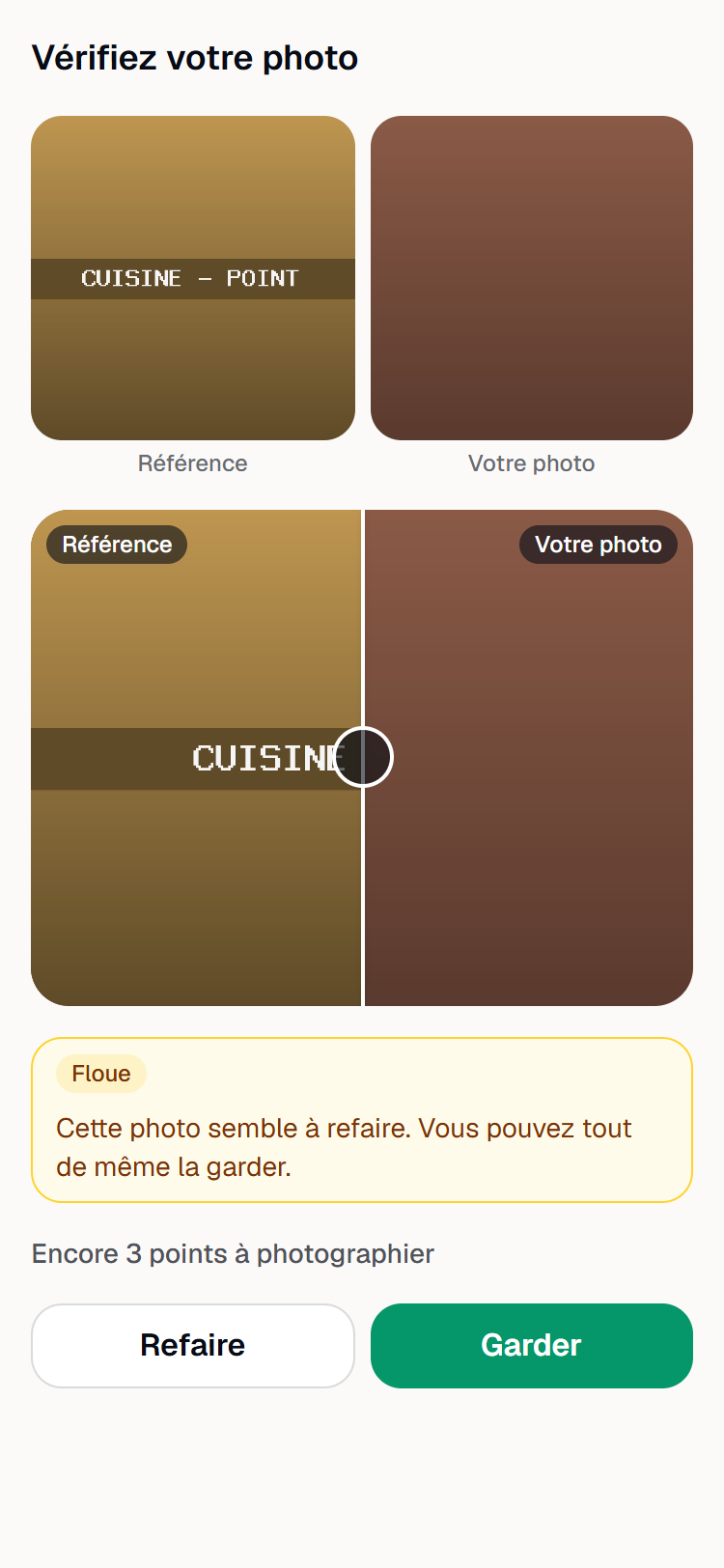
For an item that has a reference photo, the shot is taken with a ghost overlay: the reference photo is laid see-through over the camera, to take the same framing. Afterwards, a comparison slider sets the reference and the photo taken against each other.
Take the photo
Take the photo opens a full-screen viewfinder: the phone's rear camera, with the reference photo laid over it, see-through. The Reference transparency slider sets the opacity from 20 to 80% — the phone remembers the setting —, and Take picture takes the photo. For an item without a reference photo, the phone's camera opens directly. No camera image leaves the phone, except the photo the field worker chooses to keep.
If the camera does not open
When the browser refuses the camera or cannot open it, the viewfinder says so — “The camera cannot open in this page: use the phone's camera.” — and Use the phone's camera opens the usual camera. The rest is the same: the photo takes the same path.
Check the photo
The Check your photo screen shows the reference and the photo side by side, then the comparison slider: a handle to drag between Reference and Your photo. A line reminds what is left to photograph — “1 more item to photograph” — or says “All reference photos have been taken”.
Retake or keep
Retake reopens the shot; Keep queues the photo for upload, like any proof photo. Keep is always active.
In My jobs, the path is the same, with different labels:
- the slider is called Reference photo transparency and the fallback button Take or choose a photo;
- the check screen is titled Check the photo;
- the reminder of what is left to photograph says “1 more item with a reference photo to photograph.” or “Every item with a reference photo has been photographed.”;
- the thumbnail of an item's reference opens the photo in a new tab instead of enlarging it in place.
Quality flags
Before the photo is kept, the phone looks at it and may put up to three flags on it. The check screen accompanies them with a sentence that reminds they oblige to nothing: “This photo may need to be retaken. You can still keep it.” on the agent's link, “This is a suggestion, not a requirement: retake the photo if you can, or keep it as it is.” in My jobs. The three flags are:
- Blurry — the photo lacks sharp detail: a movement, a missed focus;
- Dark — the photo is not bright enough;
- Different angle — the photo is portrait while the reference is landscape, or the other way round. This flag judges neither the framing nor what can be seen: it only compares the photo's orientation with the reference's, so it only applies to an item that has one.
Three guarantees come with these flags:
- they never block: Keep stays active, even during the check, and Finish depends on no flag;
- they are never a rating: a flag qualifies the photo, not the person. YStay gives no rating to a field worker and draws no ranking from them;
- they use no artificial intelligence: the calculation runs on the phone, with fixed sharpness and brightness thresholds, and only its result goes along with the photo. It can be wrong — a cellar is dark, a close-up is sometimes not sharp: it is a suggestion to retake it, nothing more.
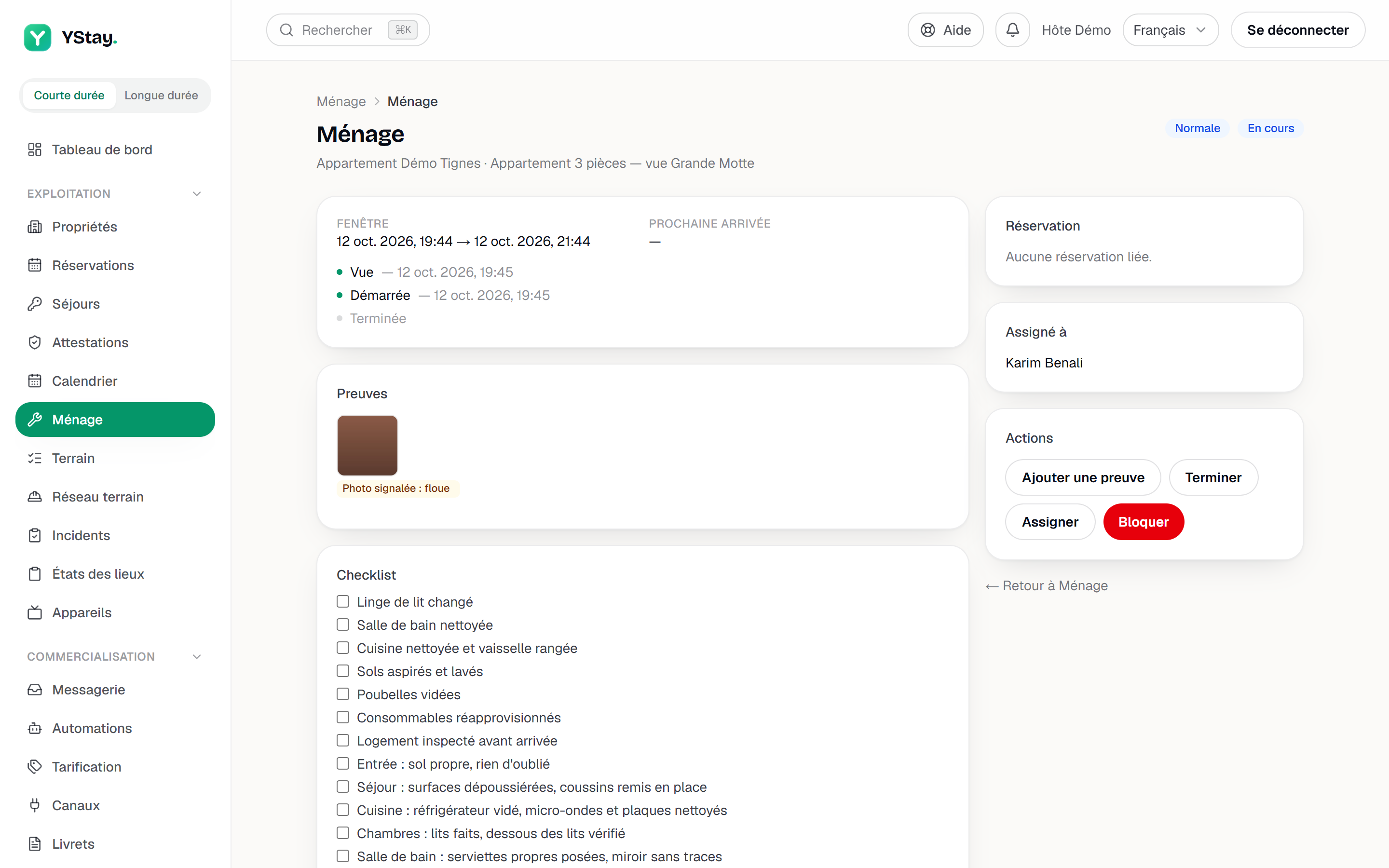
You see them in the task detail, under Proof: a flagged photo carries the badge “Flagged photo: blurry · dark” (depending on what was detected), whose tooltip reminds “Detected on the field worker's device when the photo was taken: a suggestion to retake it, never a rating.” A photo without flags carries none. The badge informs: it changes neither the task's status nor the right to finish it.
Without a network
On an agent's link, the sheet and the reference photos are kept on the phone. When the agent opens their schedule with a network, their phone saves the sheet and the reference photos of the open tasks that start within 24 hours — 60 photos at most. Without a network, they can then reread the sheet, see the references, compare their photo with the reference and keep their photo, which goes out by itself when the network is back, like the other waiting photos (see Your schedule by link).
This copy sits on a phone you do not control, hence three rules:
- a copy older than 14 days is never served again;
- the copy is updated each time the schedule is opened with a network, and the sheets and photos that no longer belong — sharing closed, task finished or cancelled — are removed from it;
- if you cut the agent's access, everything their phone keeps from their link is erased as soon as it gets a network and reopens the link. As long as it has no network, the copy stays readable on their phone, within the limit of 14 days.
In My jobs, nothing is kept on the device: the sheet, the references and the guidance need a network, like the rest of the page.
When the screen refuses to move on
- “Unit sheet available from …” — the 24-hour window is not open yet: the sheet will appear by itself.
- The field worker sees neither a sheet nor a reference photo — check that Share the unit sheet with field workers is on for the unit (account, then the unit's override), that the sheet actually contains something, and that the task is the one of that unit. They can also reload their page.
- Items are not grouped by room, or have no thumbnail — the task was created before the unit's template carried its rooms and photos: it keeps the old checklist. The next tasks will pick up the updated template.
- An item opens no ghost overlay — it has no reference photo: add it on the template item, in the unit's sheet.
- “The camera cannot open in this page: use the phone's camera.” — the browser has no access to the camera (permission refused, or a page opened in a context that forbids it): the Use the phone's camera button leads to the same photo.
- A flag that looks wrong — it is a suggestion calculated on the phone: the field worker can keep their photo as it is.
Next
- The unit sheet: rooms, key locations, instructions and checklists — compose the rooms, the reference photos and the templates that guidance picks up.
- Your schedule by link — what the agent reads on their phone, to point them to.
- Field network: partners and missions — contractors with an account and their My jobs page.
- Add a field agent without an account — hand these tasks to a person who works from a link.
- Terrain: the stay plan and My day — the Terrain settings and a task's detail.
- Operations — every screen of the stay and its aftermath.
Updated on