Description, amenities and listing score
Writing the four description sections, ticking amenities, and reading the score that follows — including what AI does there, and what it does not.
Three cards on the listing page answer each other. Description and Amenities are what you fill in; Listing score, at the top of the page, is what YStay derives from it. The score is not an opinion: it is a calculation, and this guide explains which one.
Fill in the content, then read the score
Read the Listing score panel
The gauge shows your score out of 100, doubled by a band badge. Below it, the four dimensions each show the points earned out of the points available, with a coloured dot: this is where what costs the most is visible at a glance.
As long as the listing is neither published nor connected to a channel, the Distribution dimension is set aside and its weight is spread over the other three. A message says so under the gauge: “Distribution isn't counted yet: publish and connect the listing to include it.”
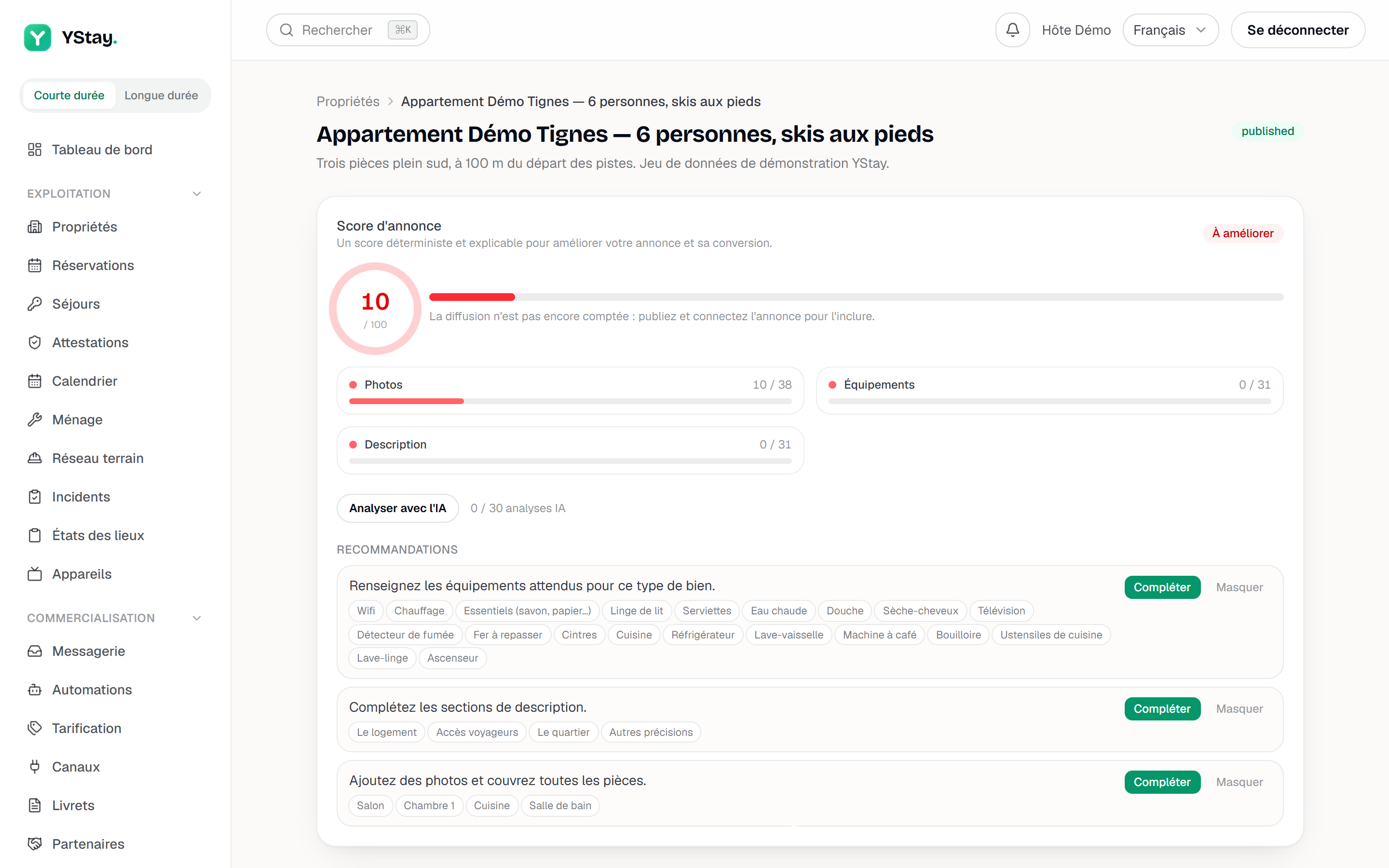
The Listing score panel: gauge, dimensions and recommendations. Write the four description sections
The Description card does not ask for one text, but four: The space, Guest access, The neighborhood and Other things to note. Each is capped at 2,000 characters, with a live counter under the field.
The editor accepts light formatting — bold, italic, lists, small heading — with a preview view and a code view. On save, the public page switches to that rendering: what you see in the preview is what the traveller will read. Save confirms with “Description saved.”
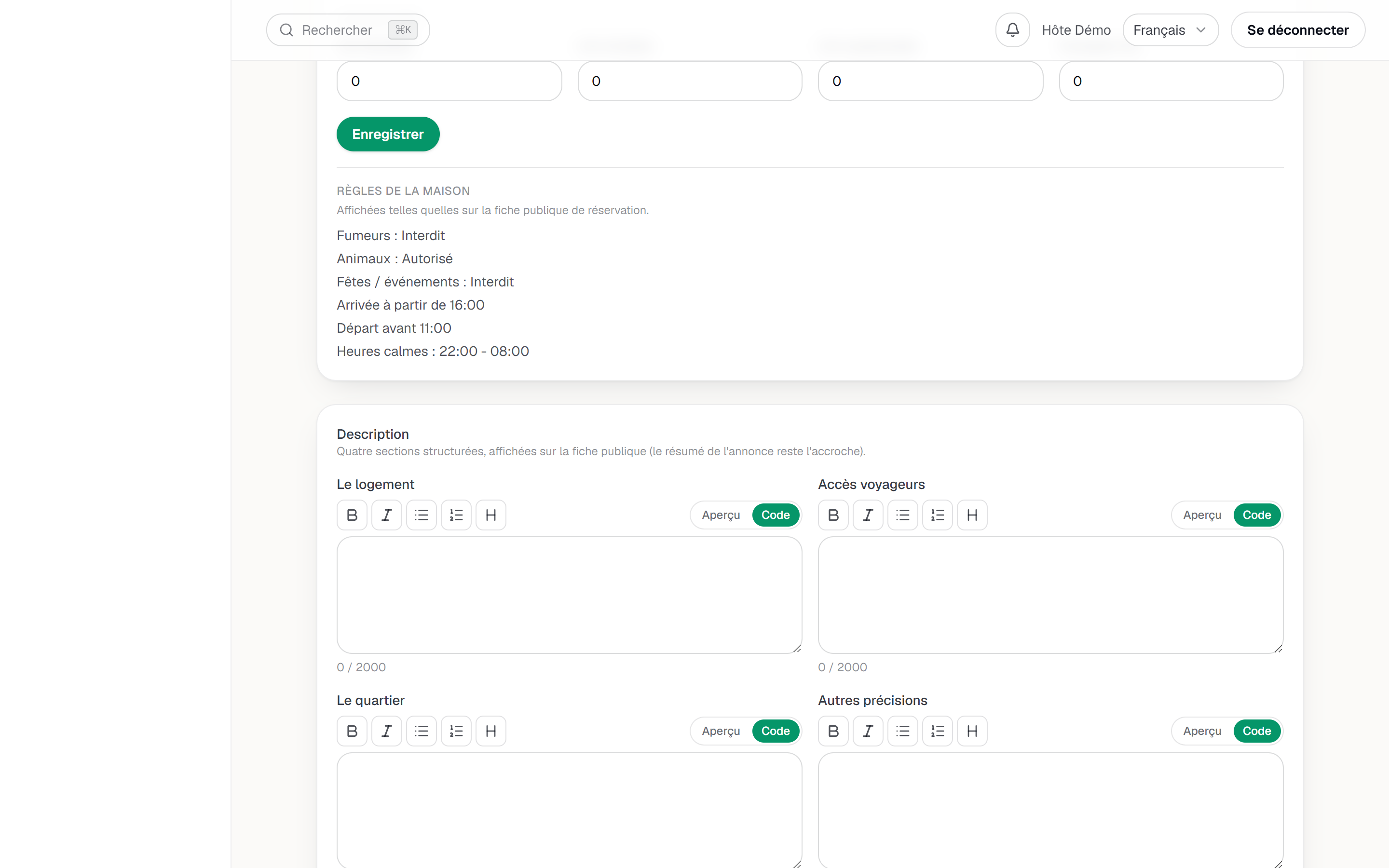
The description card: the four structured sections. Tick the amenities
The Amenities card groups the YStay catalogue into eight collapsible categories — Kitchen, Bathroom, Bedroom, Outdoor, Comfort, Safety, Family, Workspace. Each header shows how many items are ticked out of the total, and a selection counter sits at the top of the card.
A ticked amenity opens a Note (optional) field, capped at 120 characters: this is where the useful nuances go, along the lines of “Pool heated May–Sept”.
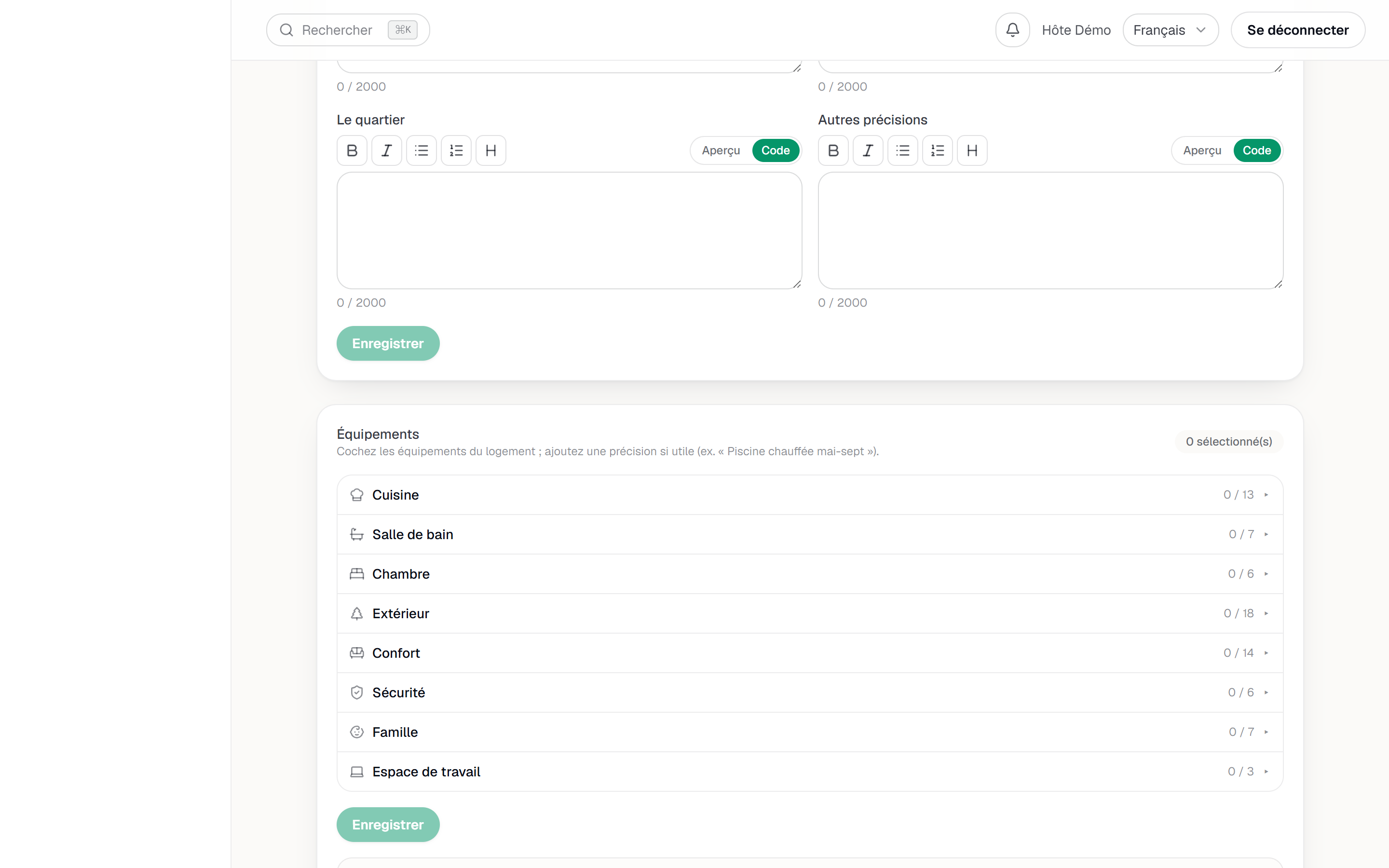
The Amenities card expanded: catalogue and custom entries. Add amenities of your own
Under the catalogue, the My amenities block belongs to your account, not to this listing: “Create your own amenities and categories: they become selectable on all your listings.” A name, a category, Add amenity — and you can create your own categories too.
What you create can be renamed in place and deleted there, with a mention of how many listings use it. The YStay catalogue's own amenities do not appear in that block: they cannot be deleted, only ticked or left alone.
Work through the recommendations
Under the score, each gap becomes a line under Recommendations, with chips naming exactly what is missing — a photo zone, an expected amenity, a description section. The Complete button takes you straight down to the card concerned.
Hide sets aside a recommendation whose trade-off you accept; a count of hidden recommendations lets you Show again. That hiding lives in your browser, not in the listing: it follows neither your teammate nor your other machine.
Ask AI for a rewording
Analyze with AI takes the same recommendations and rewrites each as one actionable sentence; the lines concerned then carry the AI mark. Once done, the analysis can be run again with Re-run AI analysis.
What reaches the model is narrow: the listing title, its property type, the score and the recommendation keys. Neither your photos nor the text of your description are sent.
House rules, read-only
The The space card ends with a House rules block — smoking, pets, parties, arrival and departure times, quiet hours — with the note “Shown as-is on the public booking page.”
Turning this feature off
The account holder can turn off Listing advice for the whole account, from the AI features page (My account page): the Listing score keeps being computed — it always has been, without AI — but the Analyze with AI button no longer rewords the recommendations and sends nothing to the AI provider. The area concerned shows “This AI feature is turned off for your account.” and, for the account holder, the Turn back on in AI features link. Details: AI features: turning them on and off.
Next
- Listing photos and zones — the heaviest dimension of the score.
- Translate and distribute the listing — the Distribution dimension, once the listing is published.
- Set your rates — the other publication requirement.
Updated on