Install a TV and pair it with your account
The hardware to plan for, the Guest TV app, the 8-character code shown on the screen, then what the Devices page tells you about your fleet.
YStay Guest TV turns a television in the unit into a welcome screen: a standby visual between stays, the message and the guidebook during a stay. This guide covers the host side — choosing the hardware, pairing a screen with a unit, then running the fleet from the dashboard.
The hardware stays yours
YStay sells neither televisions nor set-top boxes, and mandates no brand. What is needed: an Android TV set or a dongle plugged into an existing TV — an entry-level model is enough —, a power socket, a free HDMI port and the unit's Wi-Fi. So you buy where you like, and replace a broken screen without waiting for us.
The path, screen by screen
Open the Devices page
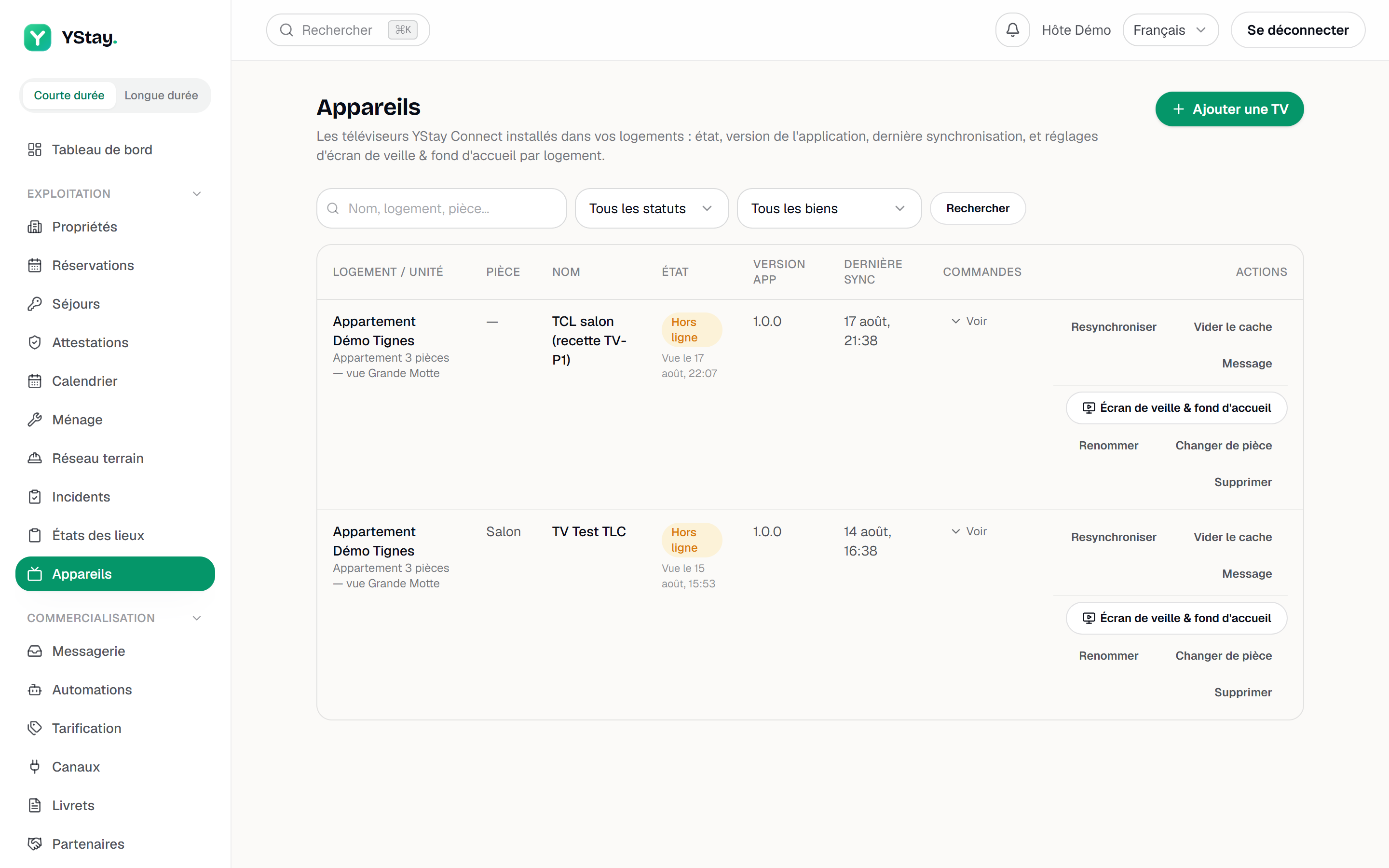
In the dashboard navigation, the Devices entry opens the list of your screens. While none is paired, the page shows Pair your first TV, with a reminder of the steps and a note that a detailed installation guide will ship with the rollout.
The Devices page of your account. Show the code on the TV
Plug in the box, open the YStay app on the television. It displays an 8-character code together with a QR code. The add window says it again: “Open the YStay app on the TV: it displays an 8-character code, valid for 15 minutes.” After that the code is dead — the screen offers a new one.
Enter the code in the dashboard
Pairing runs from the TV to the dashboard, never the other way round: you, signed in to your account, claim the screen. The Add a TV button opens the window; copy the code into Code shown on the TV. Lower case, missing dash, stray space: input is normalised, and the field states “8 characters — letters and digits, the dash is optional.” Scanning the QR code opens the same window with the code already filled in, and nothing more.
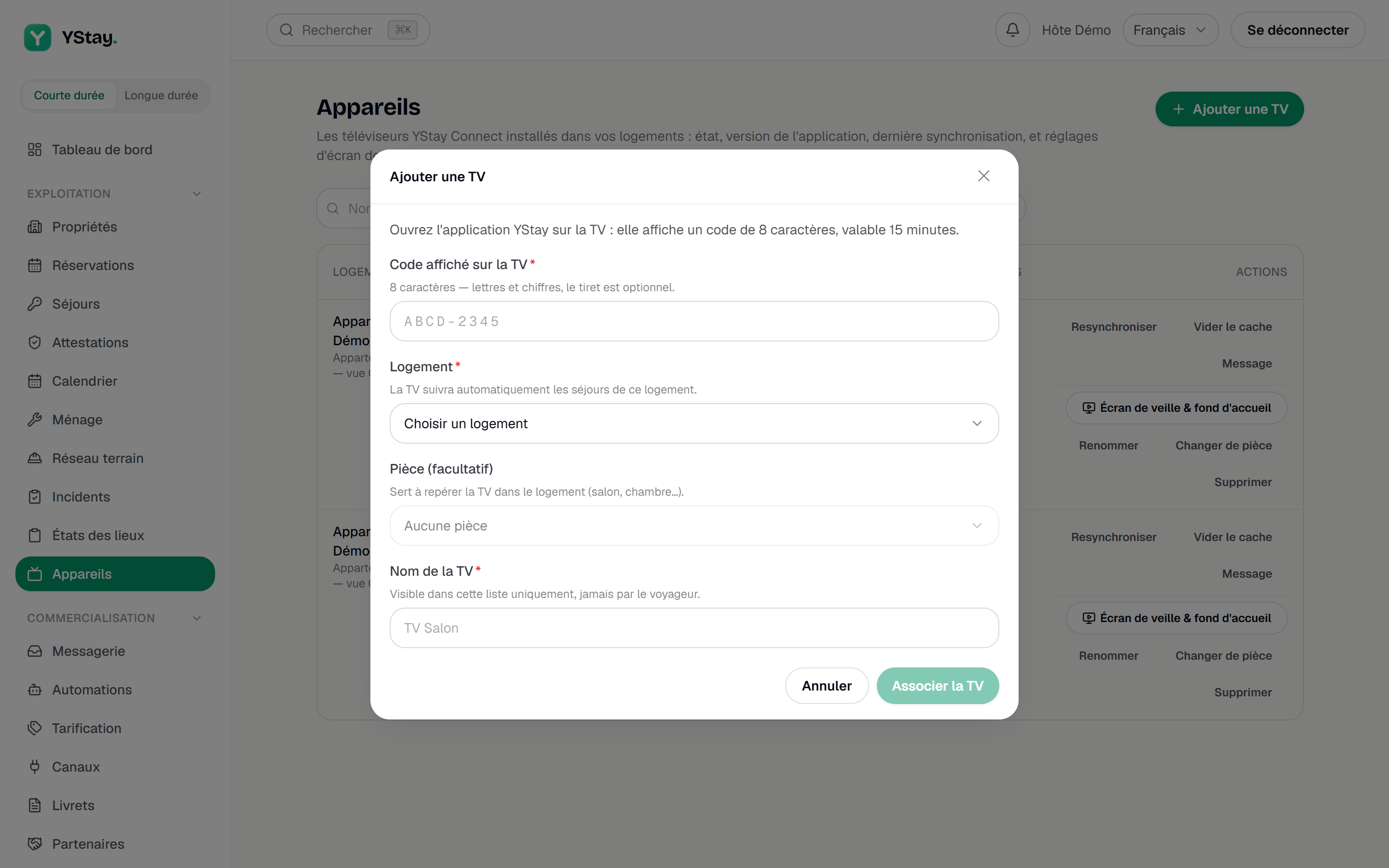
The “Add a TV” window: the 8-character code. One single message covers all three refusals — unknown, expired, already used: “Invalid or expired code. Display a new code on the TV, then try again.” Too many attempts get their own message: wait a few minutes rather than starting over.
Pick the unit, the room and the name
Three fields go with the code. The unit field — labelled Property on this window, and Property / unit in the list — is mandatory: it decides what the TV will show, since “The TV will automatically follow this property's stays.” Room (optional) only helps you locate the set, and TV name is “Visible in this list only, never to the guest.” Pair the TV finishes the job. Allow a few minutes, once the app is installed.
Reading the state of your fleet
The list gives, per screen: Property / unit, Room, Name, Status, App version, Last sync and the actions. Two different pieces of information overlap there, and confusing them costs time.
- The status is administrative: Active, Suspended, Decommissioned. In practice your screens are Active or Decommissioned: Suspended, the reversible dormancy, is provided for by the product, but no dashboard gesture sets it today.
- The presence is technical: Online appears only when the server sees the screen connected and its last sign of life is under 5 minutes old; otherwise Offline. A screen never seen since pairing says so explicitly, and a suspended or decommissioned screen is never “online”, even if its signal still arrives: it no longer serves the stay. The page refreshes itself about once a minute.
Sending a command to a screen
Three remote commands exist, for active screens only: Resync (reload guidebook and media), Clear cache (useful when outdated content is still showing after an update) and Message — text of 200 characters max, shown full screen on top of the current content, for a duration picked from 10, 30, 60 or 120 seconds. The guest staying there will see it.
The Commands column unfolds the Last 20, with their status: Pending, Delivered, Executed, Failed, Expired.
Rename, move, remove a TV
Rename and Change room only touch your own bookkeeping. Remove goes further: it decommissions the screen, which “loses its access, goes back to its pairing screen and will have to be paired again with a new code”. That is the gesture for a screen leaving the unit; it is not a pause button.
Next
- Set up what a TV displays — the standby visual, the welcome message and the blackout window, all set per unit.
- Create and publish your first guidebook — the guidebook feeds the screen, and its library supplies the visual.
- TV screens — the other guides in this section.
Updated on