Your schedule by link
For field agents without an account: open your link, read your schedule, accept, start and finish a task, confirm the arrival or departure steps, get the key handover signed, report a blocker, read the unit sheet and its reference photos, scan a tag, message your manager, work offline, set your availability and your messages.
This guide is for you, if your manager sent you a link by SMS or WhatsApp. You have no account to create and no password to remember: that link is your access. It opens your schedule — the tasks you have been given — and nothing else.
Open your link
Tap the link in the SMS or the WhatsApp message: it opens in the phone's browser, on the My schedule page, which greets you by name. The language is the one your manager chose for you.
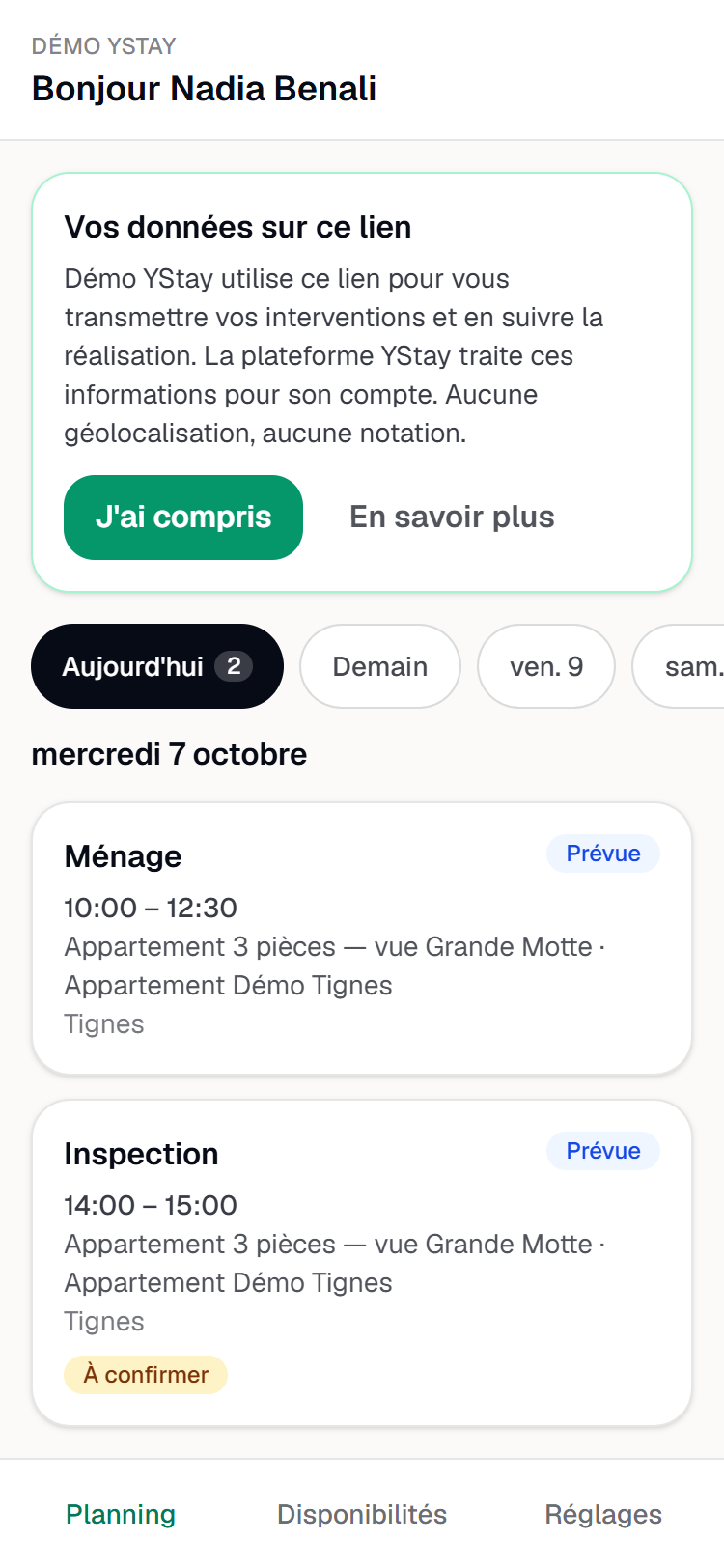
On the first opening, a Your data on this link card shows at the top: it explains who uses your information and why (see “Your data”, below). Your schedule stays readable underneath. Got it puts the card away; Learn more unfolds the detail.
Three tabs at the bottom of the screen structure the page: Schedule, Availability and Settings.
Read your schedule
The Schedule tab shows your tasks for today and the next seven days, with one tab per day: Today, Tomorrow, then the dates. A day without tasks reads “Nothing planned that day”.
Each card gives the time, the task type, the unit and its city, with a state: Unassigned, Planned, In progress, Blocked, Done or Cancelled. Two badges may be added:
- To confirm — the task is waiting for your answer: open it to accept or decline.
- Guest on site — the unit is occupied during the task. You see nothing else about the guest.
When the time is not set, the card reads “Time to be confirmed”. Tap a card to open the task.
A task, from start to finish
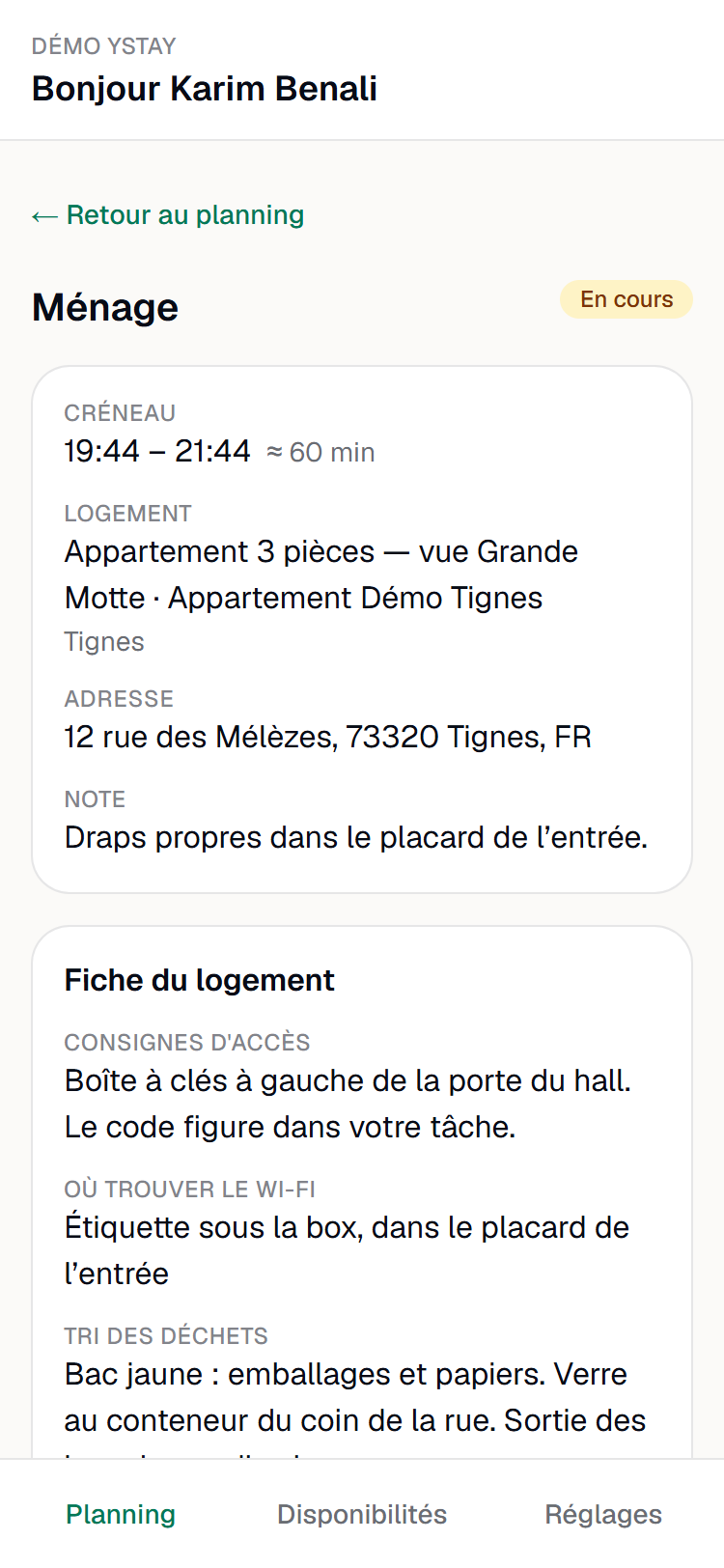
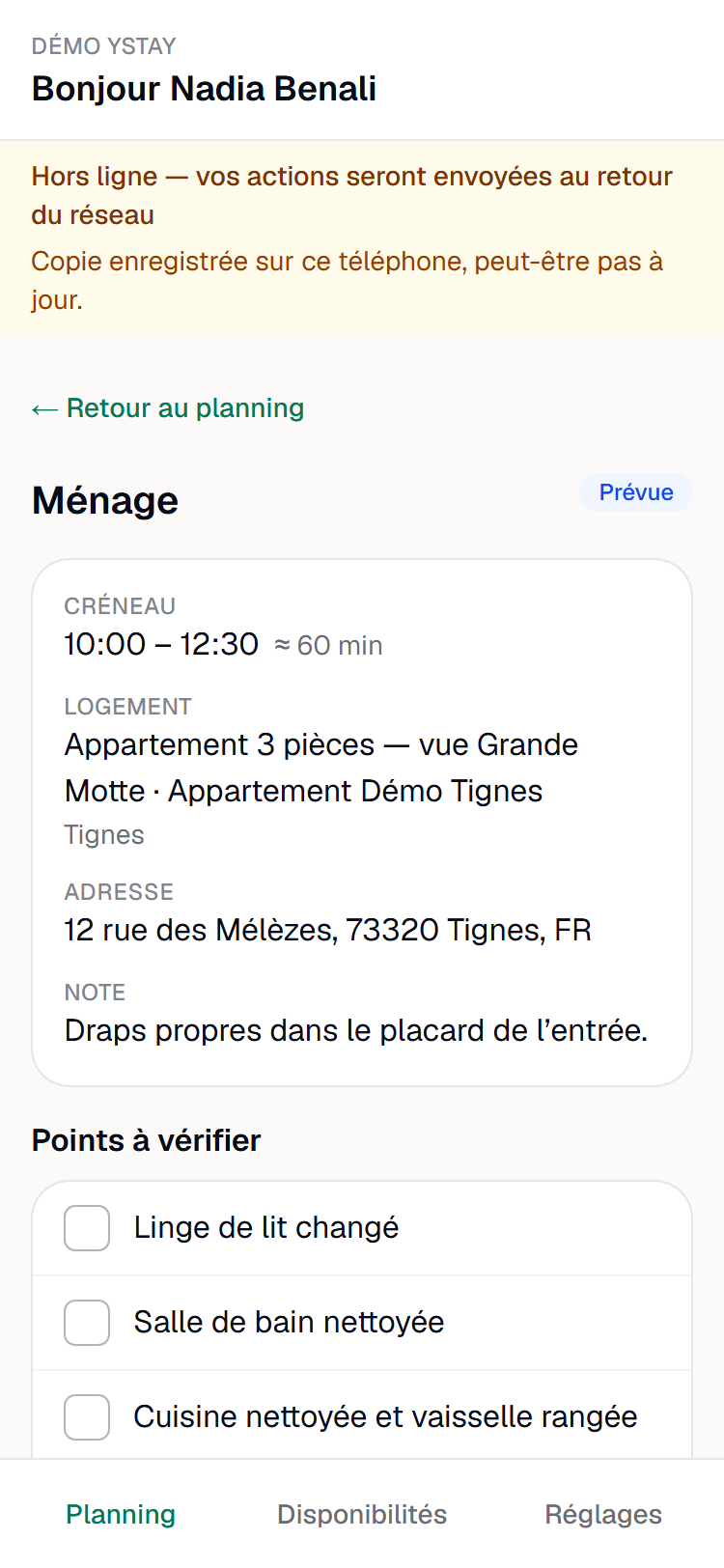
The task detail gathers the Time slot, the Property, the Address, a Note from your manager, the Checklist (each point marked Done or To do) and the Photos. While the task is more than 24 hours away, the address is not shown: “Address shown 24 h before”. After that, the full address appears. The unit sheet opens at the same time (see below).
Accept or decline
Accept tells your manager you are taking the task. Decline asks for confirmation — “Decline this task?” — then hands the task back to your manager, who will give it to someone else. No reason is asked. A refusal is no longer possible once the task has started. On some tasks, Seen replaces Accept.
Start
Start moves the task to In progress.
Confirm the steps
On a check-in welcome or a check-out inspection, an Arrival steps section — Departure steps for a departure — appears as soon as you have started, above your Checklist. On arrival, you confirm “Access to the unit checked” and then “Guest arrival confirmed”; on departure, “Guest departure confirmed” and then “Access closed”. Tap Confirm on the line: the step is ticked and shows its time — “Done at …”. A step cannot be unticked: confirming is recording a fact. The two other steps, “Check-in condition recorded” and “Check-out condition checked”, are not yours: they are ticked with the inspection report, and the screen says so — “Ticked with the inspection report”. While your steps are not confirmed, Finish stays greyed out — “Confirm each step to finish”.
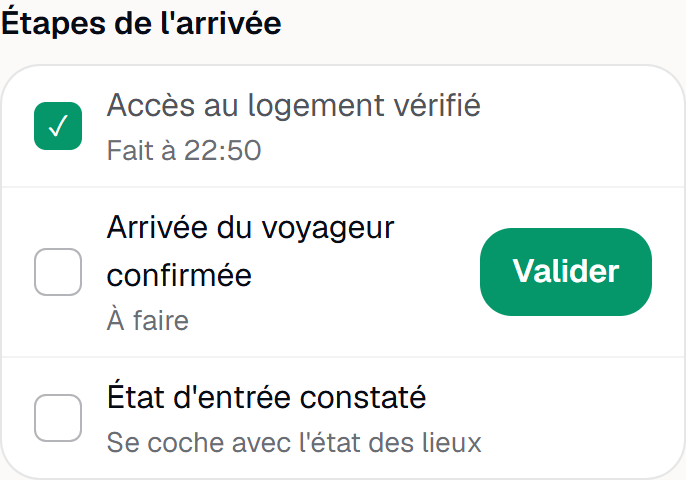
The arrival steps on a phone: Access to the unit checked already done with its time, Guest arrival confirmed with its Confirm button, Check-in condition recorded read-only, and the Finish button greyed out. Take a photo
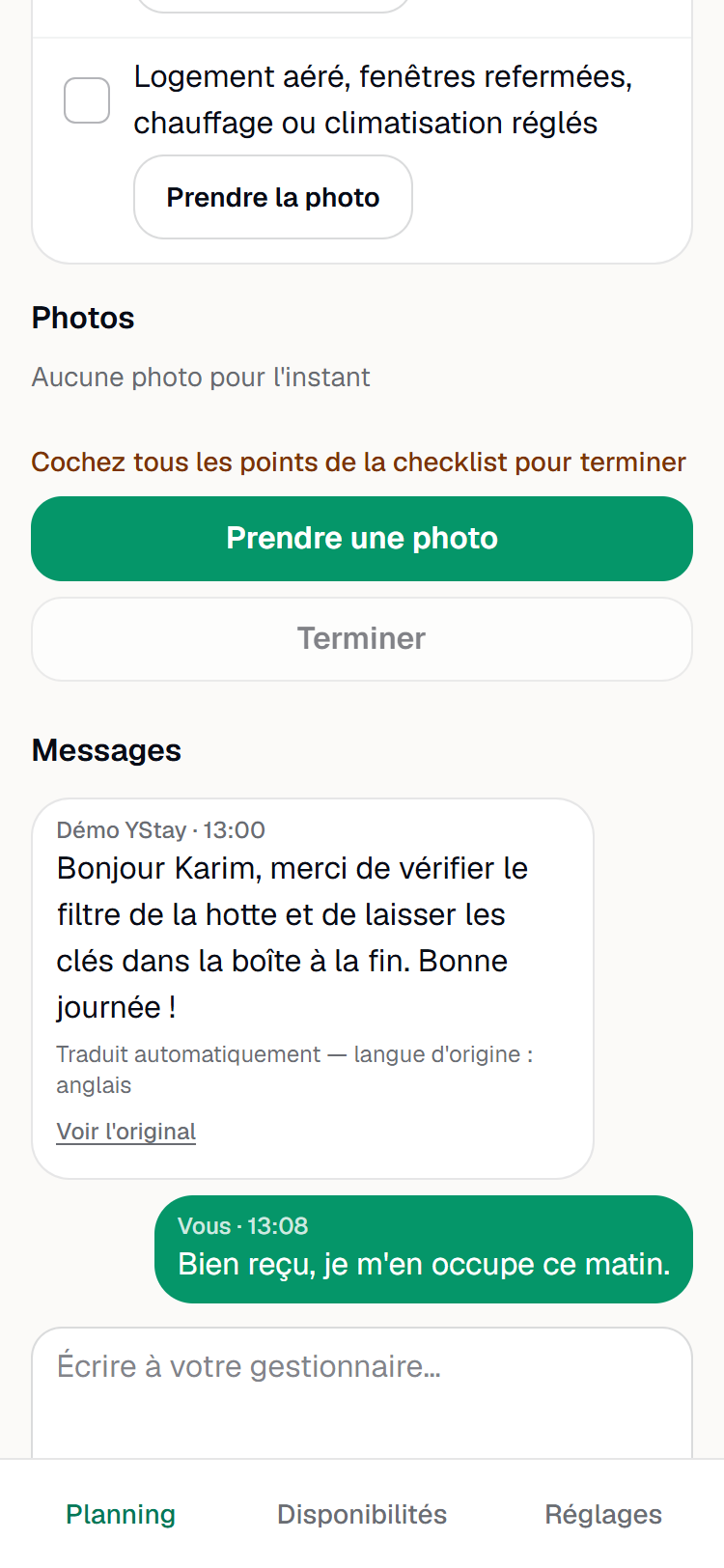
Take a photo opens the camera; the photo is added under Photos. When the task asks for proof — “A proof photo is required” —, Finish stays greyed out until your manager has received a photo.
Get the key handover signed
On arrival, the Key handover section, under the Photos, invites you to have the guest sign: “The guest signs on this phone to confirm they received the keys.” Tap Get the key handover signed: a full-screen page, Guest signature, opens. Hand the phone to the guest, who signs with a finger in the Guest signature area — “The guest signs in the box so you can confirm.” Clear starts again, Confirm signature sends it, Cancel closes without sending anything. The section then says “Handover signed at …”. The signature goes to your manager: “It is never shown to the guest or to field staff.” You cannot read it back yourself.
When your manager does not require the signature for this unit, the section says so — “Signature optional for this unit.” — and Finish does not wait. Otherwise, Finish stays greyed out while it is missing — “Have the key handover signed to finish”. If the signature is refused, the section shows “Signature not accepted” — or “Signature not sent” — and “This signature will not be sent. Please have it signed again.”: tap Have it signed again and the guest signs once more. A refused signature is never sent again as it is.
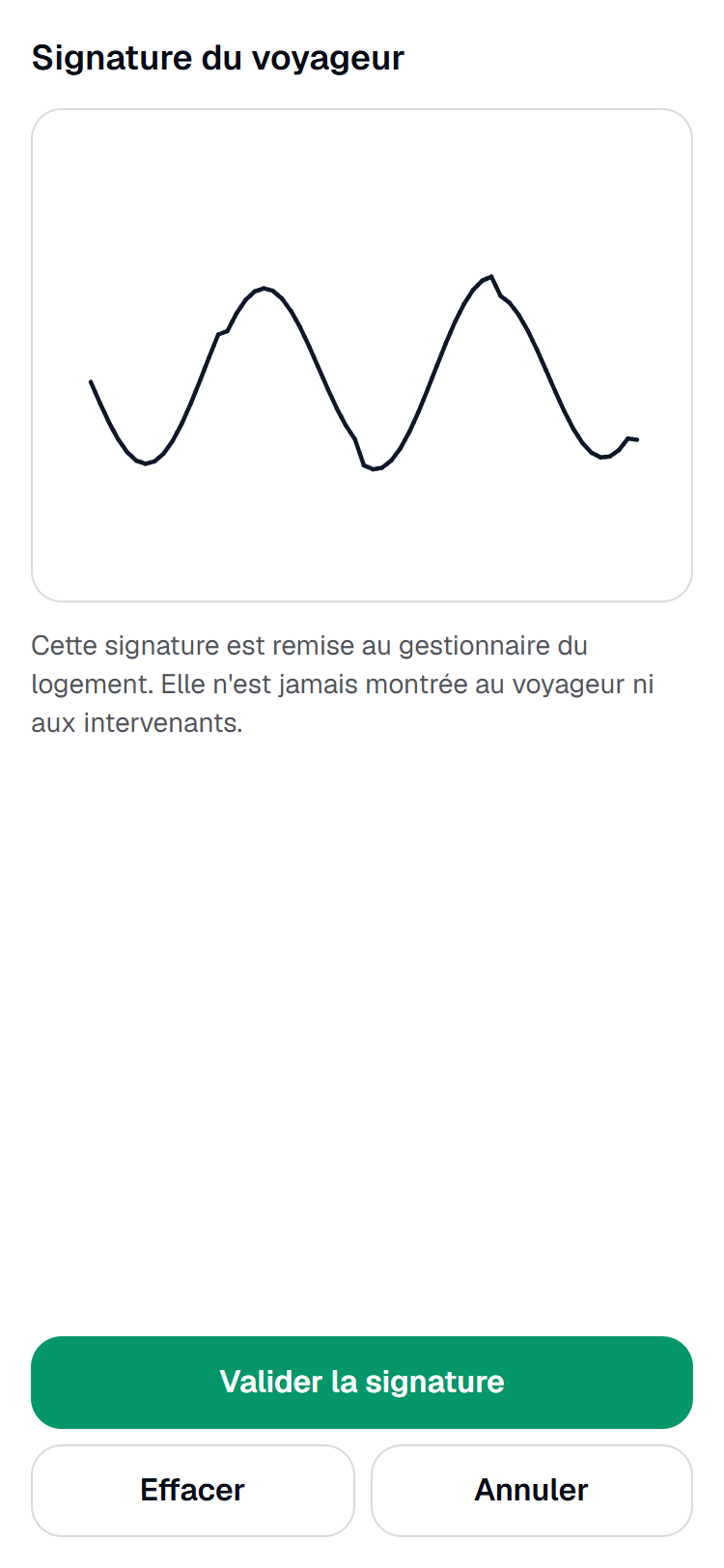
The Guest signature page on a phone: the signature area with a stroke, the note that the signature goes to the manager and is never shown to the guest or to field staff, and the Clear and Confirm signature buttons. Finish
Finish opens “Finish the task?” with an optional field, “Note for your manager”, then closes the task: the badge becomes Task finished. On a welcome or a departure, Finish also waits for your steps and, on arrival, for the key handover signature, as described above.
If your manager changed or closed the task in the meantime, the screen tells you — for example “This action is no longer possible: the task has changed.” — and refreshes. A finished or cancelled task shows no button any more.
Reporting a blocker
A key you cannot find, a guest still on the premises, damage: Blocked / SOS, at the very bottom of the task, alerts your manager straight away. The button is offered while the task is scheduled or in progress.
Choose the reason
Tap Blocked / SOS: “Report a blocker” opens — “Your manager is alerted straight away. Choose the reason.” The Reason is picked from a closed list: Access issue, Missing supplies, Damage found, Guest still present or Other.
Add details, if needed
The “Details (optional)” field accepts up to 500 characters. This detail goes into the task's Messages: only you and your manager read it, and it is translated like your other messages if your languages differ.
Send
Report the blocker sends the report; the screen confirms — “Blocker reported: your manager has been alerted.” The task goes to Blocked until your manager unblocks it.
The report needs a network: offline, the button is greyed out and the screen says “Offline: call your manager.” A blocker held back and sent later would arrive too late to be of use. If sending fails, “The report did not go through. Try again or call your manager.”
The unit sheet and the reference photos
If your manager shares the unit sheet, you read it in your task, 24 hours before it starts — like the address. Before then, a banner says so: “Unit sheet available from …”. When the sheet is not shared, or is empty, nothing is added: your Checklist stays a plain list.
The Unit sheet section gathers what your manager has written down for you: Access instructions, Where to find the Wi-Fi, Waste sorting, Unit particularities, Useful locations (with their photo) and Handover notes, with “Until …” when they have an end date. You never read third-party contact details there, nor any guest data.
Your Checklist is then grouped room by room. Each room shows its name, your progress (“1/3”), its reference photo — tap it to enlarge — and, if any are left, “2 items to photograph”. Each item keeps its checkbox and may carry a thumbnail: its reference photo, which shows what your manager expects; tap it to enlarge, Close to go back. Items that are in no room come last, under “Other items”.
Take the photo
Tap Take the photo under the item. If the item has a reference photo, the camera opens with that photo laid over it, see-through: position yourself so the two overlap — Reference transparency adjusts how see-through it is — then tap Take picture. If the camera does not open — “The camera cannot open in this page: use the phone's camera.” —, tap Use the phone's camera.
Compare
Check your photo shows the reference and your photo side by side; drag the slider between Reference and Your photo to compare them. If the photo looks blurry, dark, or taken from a different angle than the reference, a flag appears — Blurry, Dark or Different angle — with these words: “This photo may need to be retaken. You can still keep it.”
Retake or keep
Retake starts over; Keep queues the photo for upload and marks the item “Photo taken”. A flag is a suggestion, never a block: Keep is always possible, and no rating is given to you.
The check runs on your phone; its result goes along with the photo as a hint, it does not rate your work. Under Photos, a flagged photo carries the same mark.
Without a network, the sheet and the reference photos stay readable: when you open your schedule with a network, your phone keeps a copy for the tasks starting within 24 hours. You can then reread the sheet, compare your photo with the reference and keep it; it goes out when the network is back, like the other waiting photos. The copy is kept for 14 days at most; if your manager cuts your link, it is erased as soon as your phone gets a network again.
Without a network
A basement, a stairwell, a poorly covered village: the schedule still opens.
- A banner warns you: “Offline — your actions will be sent when the network is back”. The schedule and the tasks already opened show from a copy saved on the phone (“Copy saved on this phone, may not be up to date.”). For a task to be available offline, open your schedule once with a network.
- Photos taken offline are kept on the phone — “Photo saved, waiting to upload” — and go out by themselves as soon as the network is back. A counter (“1 upload waiting”) tracks them.
- The other actions — accept, start, finish — need a network: “No network: try again as soon as you are connected.”
- A tag scan is kept too: “Scan saved, will be sent when the network is back”. It goes out as soon as the network returns, dated from the moment of the scan; the room, however, does not open without a network.
- The steps you confirm without a network are kept with their time — “Waiting to upload” — and go out when the network is back; Finish waits until they have been received: “Your steps are waiting to upload: you can finish once they have been received.”
- The guest's signature is kept too — “Signature saved, will be sent when the network is back” — and Finish waits until it has been received: “The signature is waiting to upload: you can finish once it has been received.” Blocked / SOS, on the other hand, needs a network (see above).
- Messages need a network: your text stays in the field and the screen says “Offline: message not sent. Try again when the network is back.”
- If a photo is refused on upload — “1 photo could not be sent” —, Retry sends it again, Remove deletes it.
Some browsers do not keep waiting photos once the page is closed. When that is the case, the screen says so: “This browser does not keep waiting photos once closed: keep the page open until they are sent.”
Scanning a tag
When your manager has turned check-in tags on, QR labels are stuck in the unit's rooms. On arrival, you scan the one in the room where you are: your visit is recorded — the time and the room, never your position — and the room's checklist is highlighted. It is not a rating: nobody ranks you, and nothing more is asked of you.
The Scan a tag button shows in your task, above the checklist, as long as the task is neither finished nor cancelled. If it is not there, your manager has not turned tags on, or the task is closed.
Aim at the QR code
Tap Scan a tag: the rear camera opens. Aim at the QR code stuck in the room — “Point at the QR code stuck in the room.” The reader ignores a QR code that is not a tag's and keeps looking.
Or type the code
If the camera does not open — “The camera does not open in this page: type the code printed under the QR code.” — or if the QR code is damaged, type the code printed under the QR code in the “Or type the code printed under the QR code” field, then tap Confirm. Upper case, spaces and dashes do not matter. A code that cannot be right is flagged at once: “This code is not valid. Check the 16 printed characters.” Cancel closes the reader.
Read the result
The banner says “Visit recorded”; when the unit sheet is shared, the screen scrolls to the room's checklist, highlighted (with a “whole unit” tag, only the banner appears). “This code does not match this property or is no longer active” means the label is not this property's, that it has been replaced or that tags have just been turned off: tell your manager. “The visit could not be recorded. Try again.”: tap Scan a tag again.
Without a network, the scan is kept on your phone with its time — “Scan saved, will be sent when the network is back” — and goes out by itself when the network returns. The room only opens with a network.
If you read a QR code with the phone's camera app instead of the button, a page opens: “Label reserved for the service team.” It shows nothing else. On the phone where you have already opened your link, tap Open my schedule: the screen records your visit on the day's job (if you have several, it asks “Which job is this for?”). The detail is in NFC / QR tags.
Messages with your manager
Each job has a message thread between your manager and you: a detail about the key, about the time, an unexpected event. The Messages section is at the bottom of your task.
- Reading. Your manager's messages carry their name (otherwise “Your manager”), yours carry “You”, each with its time. The thread refreshes when you open the task, every 30 seconds while the screen is visible, and when you come back to it. In the schedule, a “1 new message” or “3 new messages” badge flags a task with unread messages from your manager.
- Writing. The “Write to your manager…” field, then Send — “Sending…” while it goes. 2,000 characters at most: “Message too long: 2,000 characters maximum.” A network is needed: offline, your text stays in the field and the screen says “Offline: message not sent. Try again when the network is back.”
- Automatic translation. Each message is translated into the other person's language — yours is the language of your link. You read the translation, with “Automatically translated — original language: …”; Show original displays the text as it was written, Show translation goes back; “Translating…” shows while it arrives. The translation is made by an artificial intelligence provider: email addresses and phone numbers are masked before sending, and it can be wrong. If your manager has turned this feature off, you read the message in the language it was written in.
- When it is closed. “Messages are closed for this job.” — the task has been cancelled. Finishing a task does not close its thread.
- An SMS to warn you. If your manager writes to you and you do not open the task, you receive an SMS after ten minutes, “New message about your job on …”, with the link to the app — never the text of the message. You only receive it if you kept SMS on for “New job” in the Settings tab; never between 22:00 and 08:00 (it waits until 08:00), and at most one SMS every four hours for the same task.
- What it never carries. The thread is between your manager and you: no guest data goes through it.
- Kept with the job. The messages and their translation are kept with the job (see “Your data”).
Your availability
The Availability tab (“My availability”) is for telling when you can work: “It is information for your manager, not a commitment.”
- Every week — tick the days you are Available, with a Start and an End; an unticked day is Unavailable.
- Specific dates — Add a date for an exception (a day off, an extra day), Remove this date to take it out.
Save confirms: “Availability saved”. The end time must come after the start time, and every specific date must carry a date. Nothing here blocks the assignment of a task: it is a pointer for your manager.
Your messages
The Settings tab shows the Language — chosen by your manager for this link — and your Messages: for each kind of message, you turn each channel on or off.
- New job — the message that warns you of an assigned task;
- Morning summary — the list of your tasks for the day.
The channels are SMS and WhatsApp. If WhatsApp is not offered for now, the screen says so: “WhatsApp is not available for now.” Preferences saved confirms the change.
The route sheet (PDF)
Under the tasks of the day shown, Route sheet (PDF) opens a document to print or keep: the day's route, task after task. How it works opens this guide.
Expired or revoked link
If your manager cut your link — or if it expired because you have not opened it for a long time (a link lasts 180 days, and each opening renews it) —, the page shows This link is no longer valid: “Ask your manager for a new link.” They only need to send it again by SMS or WhatsApp; your tasks and your history are kept.
If you open the page without a link, it invites you to open the one you received: “Open the link you received by SMS or WhatsApp to access your schedule”.
Your data
This summarises the Your data on this link card, shown on the first opening.
- Who is responsible? The manager who added you. YStay hosts and processes your information on their behalf, and does not use it for its own purposes.
- What data? Your name, phone number and language, to send you the link and your tasks; your answers, availability and photos, to track the jobs; a log of link openings, to keep the link safe. Your photos are analysed on your phone (sharpness, brightness) to suggest retaking them; this result goes along with the photo. When you scan a tag stuck in a room, the time of the visit and the room are recorded — never your position. The messages you exchange with your manager are translated automatically by an artificial intelligence provider when your languages differ; the email addresses and phone numbers they contain are masked before sending. The steps you confirm on an arrival or a departure (access checked, guest welcomed, departure confirmed, access closed) are recorded with their time. On arrival, the guest may sign the key handover on your phone: this signature is sent to your manager, is not kept on your phone once sent, and is never shown to guests. Once the job is finished, a proof of service is handed to your manager: it gathers the photos, the checklist ticks, the scanned visits, the steps, the signature and the timeline of your job, without your name. If you are blocked, the “Blocked / SOS” report (a reason and, if you wish, a note) is sent to your manager. No geolocation, no rating.
- How long? The opening log is deleted after 90 days. Your contact details are kept for as long as the manager works with you, then deleted. Proof photos, the key handover signature and the proof of service follow the job retention period set by your manager. Scanned visits, confirmed steps and messages, with their translation, are kept with the job.
- Your rights. Access, rectification, erasure, restriction, objection: contact your manager. For a question about YStay: privacy@ystay.app. You may also lodge a complaint with your data protection authority (in France, the CNIL — cnil.fr).
Next
- Add a field agent without an account — your manager's guide, to understand what they see on their side.
- Operations — every screen of the stay and its aftermath.
Updated on