The unit sheet: rooms, key locations, instructions and checklists
Keep in one place what the field team needs to know about a unit: rooms in walking order, key locations with a photo, instructions, contacts, handover notes, the unit's own checklists and check-in tags — with a sheet proposal to review item by item.
When you hand a cleaning or a welcome to someone else, what you know about the unit — where the fuse box is, which room to start with, how waste is sorted — usually stays in your head or in old messages. The unit sheet puts it in writing, unit by unit, in one place: the rooms in the order the team goes through them, the key locations (meters, stopcock, key box…) with a photo so nobody has to search, the instructions, the useful contacts, the handover notes and the unit's own checklists.
Opening the sheet
The page is titled Unit sheet and shows the unit's name as a subtitle; its breadcrumb runs Terrain, the property, the unit, then Unit sheet. Two entries lead to it:
- from the Properties page: open a property, and each unit in the list carries a Unit sheet link, next to Stay plan;
- from the unit's Stay plan page (Terrain menu, Stay plans tab, then the unit): the Unit sheet button is at the top of the page. The other way round, the Stay plan button of the sheet takes you back there.
Reading the sheet requires the right to read stay plans; editing it, the right to edit them. Without the second, the page shows “Read only: your role lets you view this sheet, not edit it.” and every write button disappears. A member limited to certain properties only sees — and only edits — the sheets of the units in their properties.
The page is made of cards that each save on their own: Save rooms, Save locations and Save instructions save their card, handover notes are added with one click, and the “Unsaved changes” mention reminds you of what is still pending. Lists are reordered with Move up and Move down, and Remove takes a line out of the list.
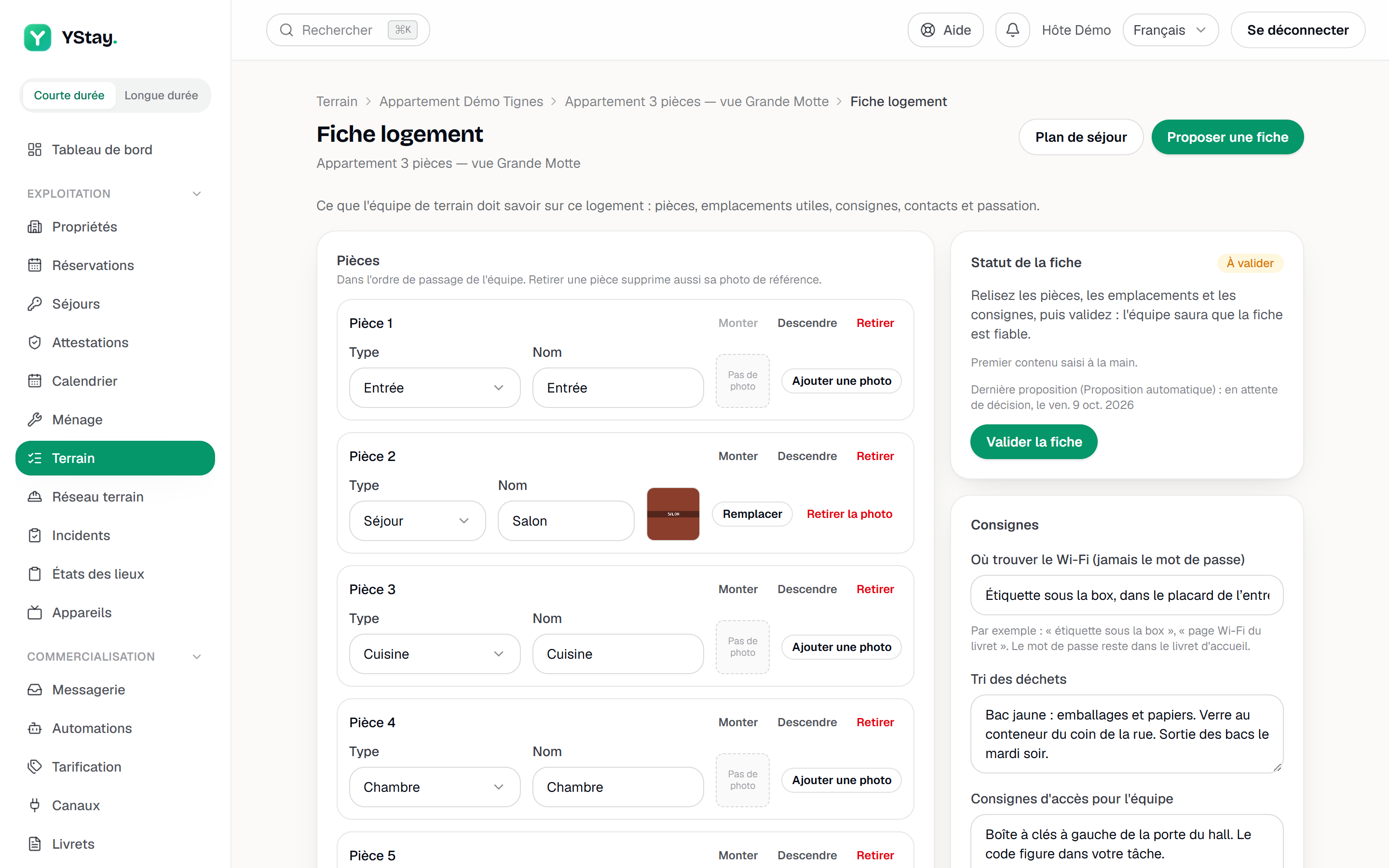
Rooms
The Rooms card lists the rooms “in the order the team goes through them.” Each room has a Type — Entrance, Living room, Kitchen, Bedroom, Bathroom, Toilet, Laundry room, Office, Outdoor area, Garage, Storage or Other — and a Name; choosing a type suggests its label as the name as long as you have not typed another one. Add a room adds one, and Save rooms saves the whole list. A unit holds at most 30 rooms.
A saved room can carry a reference photo, an overall view of the room: Add a photo, then Replace or Remove photo. Removal asks for confirmation — “The photo will be permanently deleted.” — and removing a room also deletes its photo; the locations and checklist items that referred to it lose that link, and any check-in tags it had are revoked (see NFC / QR tags). The photo is a JPEG, PNG, WebP or HEIC image of 10 MB at most. It can only be added to a room that is already saved and has no pending change: “Save first to add a photo.” Reference photos are private: they only open for a signed-in person who has access to the unit's sheet — or, 24 hours before their task, for the field worker to whom sharing of the sheet is open (see Room-by-room guidance and reference photos) —, never from an address open to everyone.
Key locations
The Key locations card notes what people always look for at the wrong moment: “Meters, fuse box, stopcock, key box… with a photo so nobody has to search.” Each location has a Type — Water meter, Electricity meter, Gas meter, Fuse box, Water stopcock, Key box, Bins, Fire extinguisher, Boiler, Internet router or Other —, a Label (optional), a Room (one of the sheet's rooms, or No room), a Note and a reference photo, with the same rules as for a room. Add a location, then Save locations; a unit holds at most 40 locations.
Instructions and contacts
The Instructions card gathers four text fields:
- Where to find the Wi-Fi (never the password) — for example “label under the router” or “Wi-Fi page of the guidebook”. The password stays in the guidebook: the whole team reads the sheet, so it must never carry it;
- Waste sorting;
- Access instructions for the team — “Visible to your team and, 24 hours before their job, to the field workers assigned to this unit; never to guests.”;
- Unit particularities.
Below these fields, Useful contacts keeps the people to call: the plumber, the building manager, a neighbour. Each contact has a Role — Plumber, Electrician, Locksmith, Heating engineer, Neighbour, Building manager, Cleaning, Owner or Other —, a Name (required: “Every contact needs a name.”), a Phone and a Note. Add a contact adds one, up to ten. Save instructions saves the four fields and the contacts together.
Handover notes
The Handover notes card is “a message for the next team: something broken, a temporary instruction.” Type the New note, add an Expiry date (optional) if needed, then Add note. Each note shows its author and date, and “Until” followed by the expiry date when there is one; an expired note is no longer shown. Delete removes a note, after confirmation. A unit holds at most 50 current notes.
The unit's checklists
By default, a task's checklist is the one of its type, defined in the catalogue. The This unit's checklists card lets you give this unit, and this unit alone, its own: one template per task type, whose items the next tasks pick up.
Add a template
Add a template asks for the Task type (“Choose a type”) and the Starting point: Empty list, or a library template of the same type (see “Templates”, below). Create opens the editor or, for a copy, saves it straight away. When every type already has its template, the card says so: “Every task type already has a template for this unit.”
Compose the items
The editor asks for a Name and lists the Checklist items. Each item has a Label, a Room — one of the sheet's rooms, or Any room — and a reference photo, added as for a room once the item is saved. Add an item, Move up, Move down, Remove, then Save template: a template holds at most 80 items, and its Version number goes up with every save. The type of a unit template can no longer be changed after it is created.
Archive it if needed
Archive removes a template. A confirmation warns you: “The template will no longer be used for new tasks and its reference photos will be deleted. Tasks already created keep their checklist.”
When YStay creates a task of that type for that unit — on its own, following the stay plan of a confirmed reservation, or by hand with New task — it picks up the template's items, in order. It is a copy made at creation: editing or archiving the template afterwards does not change tasks already created, and a recurring task that carries its own checklist keeps it. Without a template of its own, nothing changes for the unit: the task follows the default checklist of its type.
Propose a sheet
Starting from a blank page takes time. Propose a sheet, at the top of the page for whoever can edit the sheet, prepares a proposal from the unit's layout and amenities. It writes nothing: you decide, item by item.
Ask for the proposal
Propose a sheet opens the Sheet proposal window. A badge says where it comes from: AI suggestion or Automatic proposal. When the AI was not used, the reason appears under the badge — for example “The AI suggestion is paused for now.”, “The AI suggestion is turned off for your account.”, “The AI suggestion is not included in your plan.” or “This month's AI quota has been reached.” —, followed by “This proposal is built from the unit's layout and amenities.”
Decide item by item
The proposal groups Rooms, Key locations, a Cleaning checklist and, if there are any, Particularities and Waste sorting. Each item carries a badge — To decide, Accepted, Rejected or Edited — and three actions: Accept, Reject and Edit (during an edit, Cancel edit puts the item back to be decided). Accept all and Reject all decide a whole section at once. The bottom of the window counts the Accepted, Rejected and To decide items: an item left as To decide is not applied.
Apply, or discard
Apply to the sheet becomes active as soon as one item is accepted: “Proposal applied: the sheet needs validating.” Discard the proposal abandons it without writing anything, and closing the window writes nothing either.
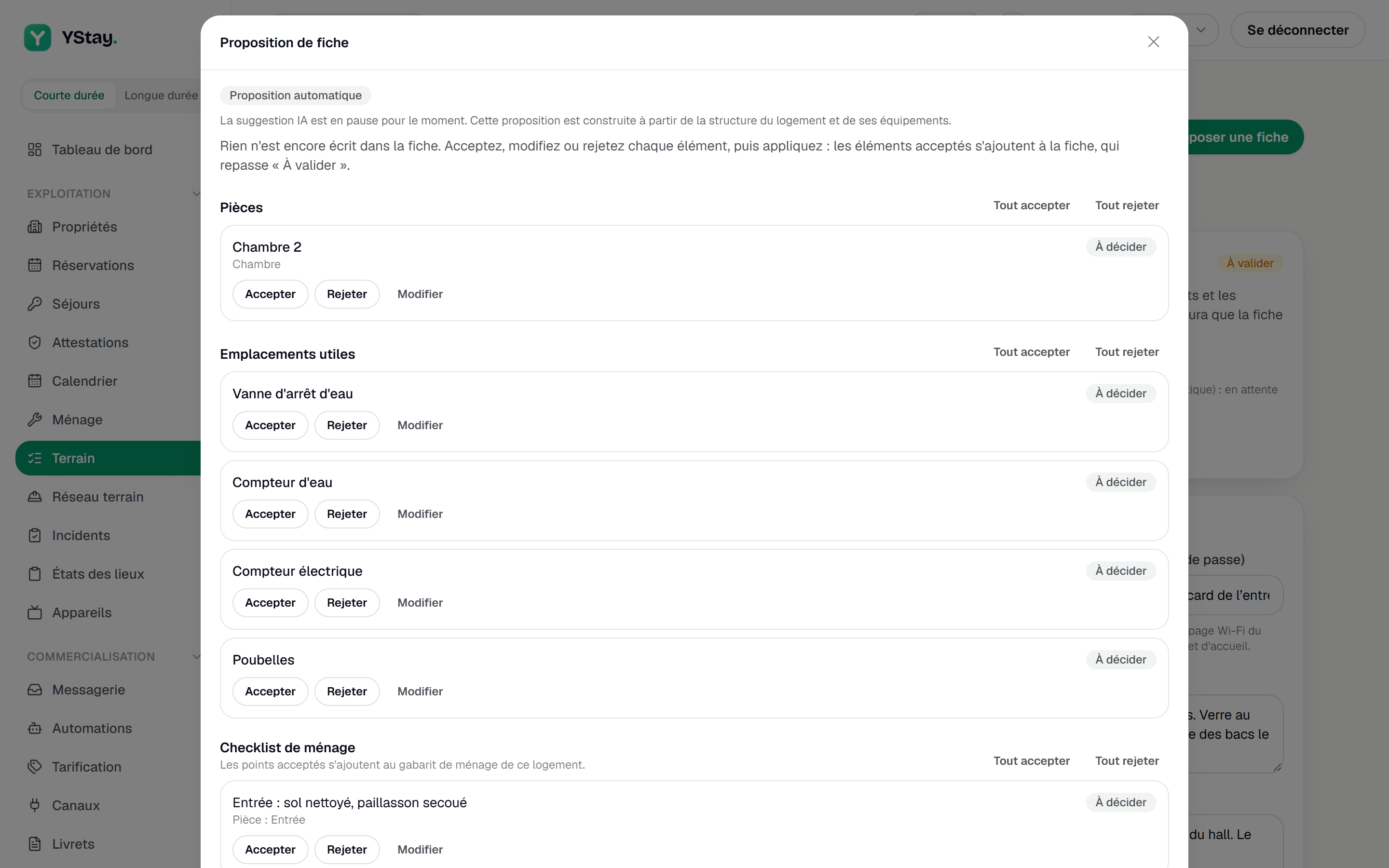
What applying changes on the sheet:
- accepted rooms and locations are added to the existing ones; no room is replaced or deleted, and rooms that come from a proposal carry the badge of their origin;
- accepted Cleaning checklist items are added to this unit's cleaning template, which is created if it does not exist;
- accepted Particularities and Waste sorting replace the text on the sheet — the window reminds you: “If accepted, this text replaces the one on the sheet.”;
- the sheet goes back to To validate, because machine-written content has just entered it.
The proposal leaves out what the sheet already contains: a room of the same type and name, then, type by type, as many rooms as the sheet already describes (a single bedroom in the sheet of a two-bedroom unit: only the second one is suggested); a key location of the same type and label, then, type by type, as many key locations as the sheet already describes — for a key box, a Fuse box, a meter, a Boiler or an Internet router, it is enough that one exists; an item already in the unit's cleaning checklist. Key locations and items that pointed to a room already described are attached to it. When nothing is left, the window says so: “Nothing new to suggest: the unit sheet already has these rooms, key locations and checklist items.”
A proposal can only be applied once, within seven days of being prepared: after that, “This proposal can no longer be applied (already handled, or more than 7 days old). Ask for a new one.”
AI suggestion or automatic proposal
- The Automatic proposal is built by rules, from the unit's layout and amenities. It does not use artificial intelligence and sends nothing to a provider.
- The AI suggestion would be prepared by an assistant that only receives the unit's layout, the catalogue amenities and the listing texts: neither the unit's address, nor its city, nor your photographs. If a listing text contains an email address or a phone number, the AI is not called — “The listing texts contain personal data, so the AI was not used.” — and the automatic proposal takes over. It uses one AI credit of the month, on the same counter as the listing assistant; the automatic proposal uses none.
Today, the “Unit sheet draft” AI feature is not offered by YStay: it is waiting on version 1.3 of the Data Processing Agreement. Propose a sheet therefore delivers an Automatic proposal, without sending anything to an AI provider.
Validating the sheet
The Sheet status card shows a badge — To validate, then Validated — and the origin of the first content: “First content entered by hand.”, “First content from an automatic proposal.” or “First content from an AI suggestion.”, with the latest proposal and what became of it. “Review the rooms, locations and instructions, then validate: the team will know the sheet can be trusted.”
Validate the sheet requires at least one room (“Add at least one room before validating.”) and shows the date and your name (“Validated on … by …”). Touching the sheet up afterwards does not remove the validation; only applying a new proposal removes it. It is a mark of confidence for the team: it neither opens nor blocks anything else.
Check-in tags
The Check-in tags card, under Sheet status, manages the QR labels you stick in the unit's rooms: the field worker scans them to record their visit and open the room's checklist. You add a tag per room — or for the Whole unit —, print the label sheet with Print the sheet and revoke a lost label with Revoke. The card requires the Check-in tags (QR) in your units setting to be on; it is off by default. The full detail is in NFC / QR tags.
Templates
The Templates tab, the third tab of the Terrain page after Stay plans and Terrain settings, gathers the library of standard checklists.
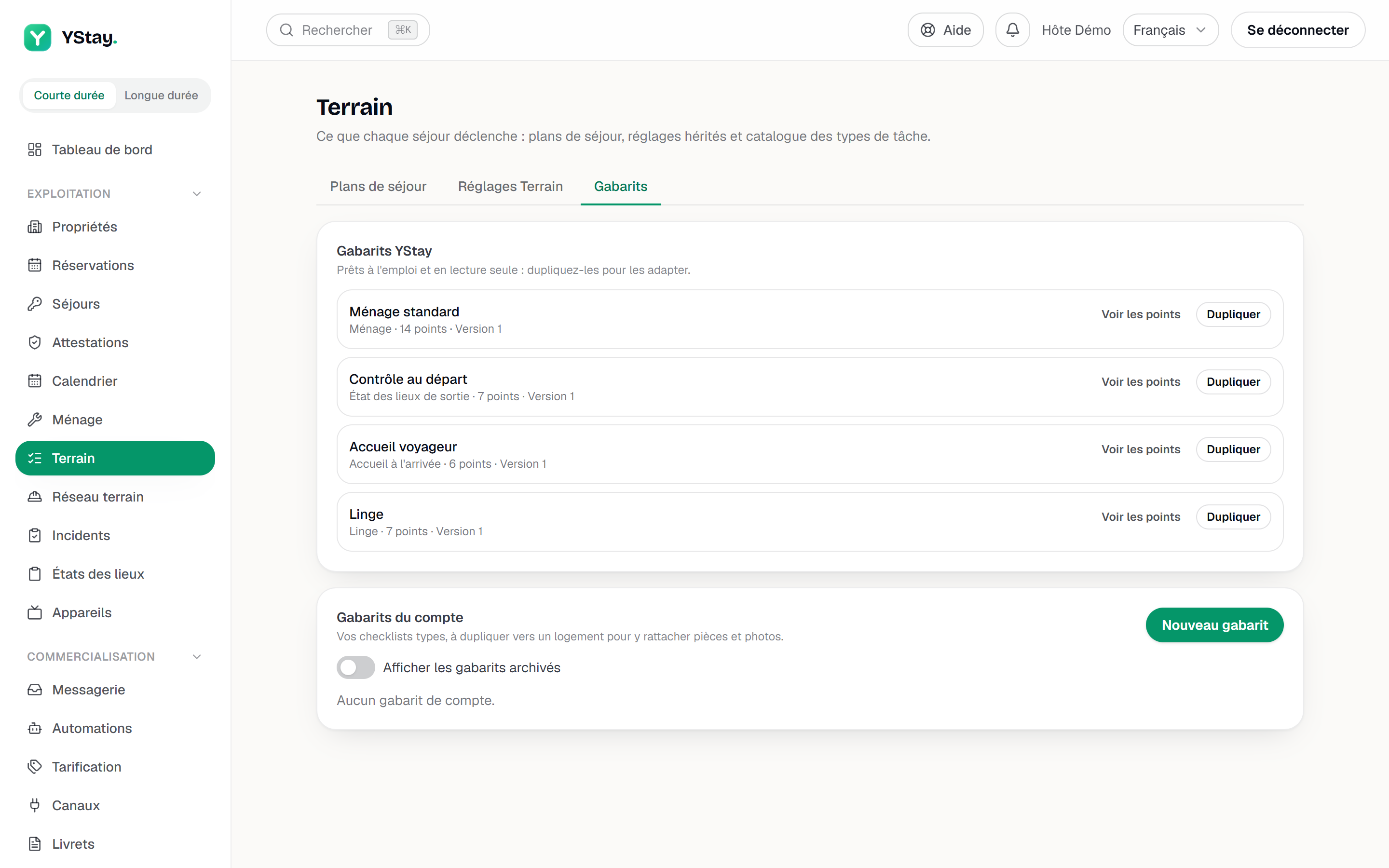
- YStay templates — “Ready to use and read-only: duplicate them to adapt them.” Four templates are supplied: Standard cleaning, Departure check, Guest welcome and Linen.
- Account templates — “Your standard checklists, to duplicate to a unit so you can attach rooms and photos.” New template opens the editor: a Name, a Task type (or None) and Checklist items with their Label. Rooms and reference photos are not set here but in a unit's sheet. Edit, Duplicate and Archive act on a template; Show archived templates also shows the ones you have archived. Each row shows its number of items and its version, Show items unfolds them, and No task type marks a template without a type.
- Duplicate opens “Duplicate” followed by the template's name, with a Destination: Account library or A unit (Unit, “Choose a unit”), and a Name of the copy (optional). Rooms and reference photos are never copied: “attach them afterwards in the unit sheet”. A YStay template cannot be edited, it is duplicated.
Only a unit's templates apply to tasks: a library template, YStay's or the account's, is a model to duplicate to a unit, not a rule that applies by itself. A unit has only one template per task type — “This unit already has a template for this task type: edit it or archive it first.” — and an account at most 100 active templates.
Creating, editing and archiving an account template requires the right to edit stay plans and access that is not limited to certain properties. A member limited to certain properties reads the library and can duplicate a template to one of their units: “Your access is limited to some properties: the account library is read-only, but you can duplicate a template to one of your units.”
Turning this feature off
The account holder can turn off the Unit sheet draft for the whole account, from the AI features page (My account page). Propose a sheet then stays available and delivers an Automatic proposal, with the reason “The AI suggestion is turned off for your account.” Details: AI features: turning them on and off.
If the screen won't move on
- “Could not load the unit sheet.” — reload the page; the sheet could not be read.
- “30 rooms at most per unit.”, “40 locations at most per unit.” or “50 current notes at most per unit.” — the limit of the card is reached; remove a line before adding another.
- “Photo rejected: JPEG, PNG, WebP or HEIC image, 10 MB at most.” — the photo is not in an accepted format, or it is too large.
- “This room no longer belongs to this unit. Please reload the page.” — the sheet changed since it was displayed; reload before trying again.
- “Too many requests in a short time. Please try again in a minute.” — the sheet proposal is limited to a few requests per minute.
- “Your role does not allow this action.” — your access does not cover editing stay plans.
Next
- Room-by-room guidance and reference photos — what the field worker reads from the sheet 24 hours before their task, reference photos and quality flags.
- NFC / QR tags — the rooms' QR labels: adding, printing and revoking them, and what a scan records.
- Terrain: the stay plan and My day — what each stay triggers, and the detail of a task.
- Housekeeping and turnovers — today's board and the turnaround tasks.
- Add a field agent without an account — hand these tasks to a person who works from a link.
- Field network: partners and missions — contractors with an account and their My jobs page.
- AI features: turning them on and off — what YStay offers in terms of artificial intelligence, feature by feature.
- Operations — every screen of the stay and its aftermath.
Updated on