Create and publish a contract template
From a template built on the YStay library to a contract signed by the guest: the Studio, the no-legal-advice checkbox, and what confirming a direct reservation sets off.
YStay produces your seasonal rental contracts from templates you compose yourself: one template published once and for all, then contracts generated automatically, reservation after reservation. The Seasonal contracts page gathers the Templates, Generated contracts, Per-property overrides and Landlord signature tabs.
Composing and publishing a template
Create a template from the library
Open the Templates tab, then Create a template. The New contract template window asks for a name, then offers Start from the YStay library: that option copies the 17 reference clauses, all editable afterwards.
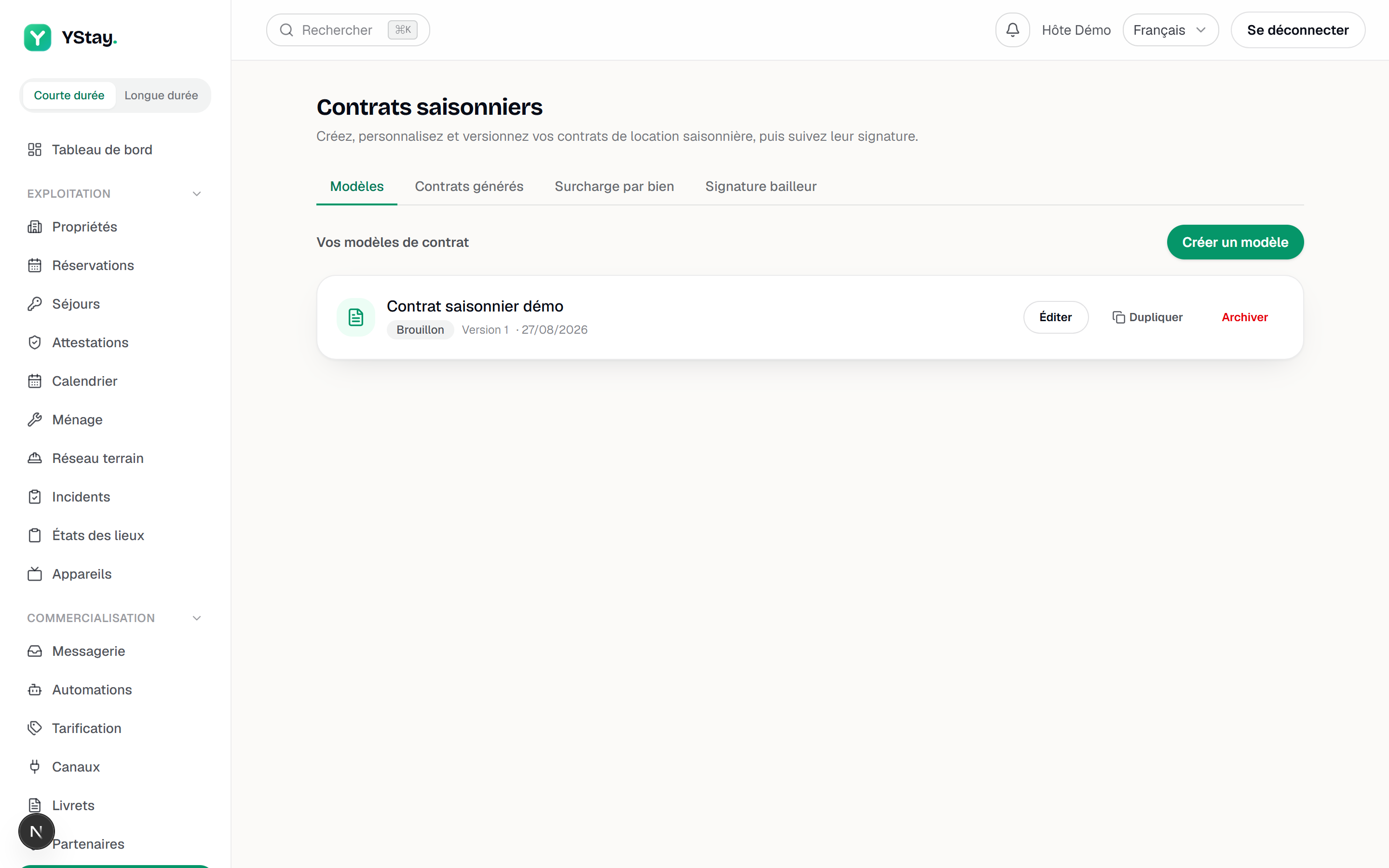
The Templates tab and the creation from the YStay library. Edit the template in the Studio
Edit opens the Studio full screen. It is not a form: it is the document itself, in A4, exactly as it will be printed. Click an article to edit it in place; the side Clauses rail enables, reorders, adds and deletes articles — except those marked Mandatory, which are locked. The Paper button applies a style to the document source: the canvas and the PDF preview move together.
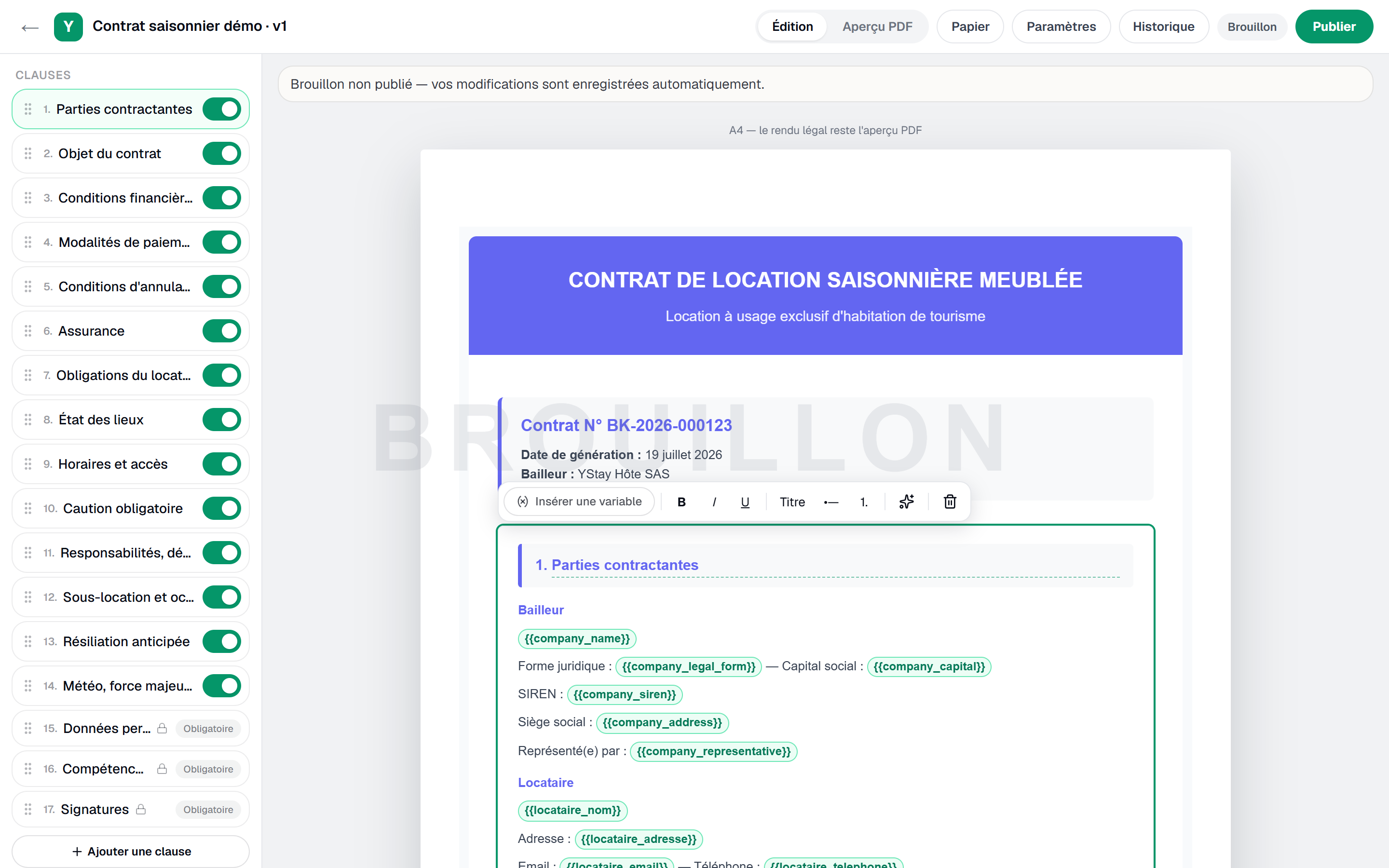
The contract Studio: the paper canvas and the clause rail. Insert dynamic fields
Insert variable opens the catalogue of fields filled in at generation time, grouped under Host / Landlord, Property, Guest, Stay, Financial, Pricing option, House rules, Settings and Signature. Each variable carries a pill: source, followed by the name of where its value comes from — Account, Payment policy, Listing policy, House rules, Reservation, Template setting or Property override — or empty when no data feeds it. That catalogue is closed: the server refuses to save a clause holding a variable it does not know, and tells you which one to fix. Inventing a field name gets you nowhere, and field names stay in French, whatever the language of your dashboard.
One field is worth knowing: URL espace client, in the Host / Landlord group, with the empty pill — nothing in your account feeds it. It prints the general address of the guest space (
https://guest.ystay.app) — never a reservation's personal link —, and the Assurance clause of the YStay library uses it to tell the guest where to upload their insurance certificate.Where the values come from
- The landlord's identity — legal form, capital, representative and SIREN for a professional — comes from the Account. An individual prints no empty company line.
- The deposit (
{{deposit_amount}}) follows an order: the Property override, then the listing's Payment policy, then the Template setting you wrote, then nothing. In that last case the Caution obligatoire clause is not printed. - Arrival and departure times (
{{checkin_time}},{{checkout_time}}) come from the listing's House rules; without them, 16:00 and 11:00. A setting you wrote in the template stays applied. - A “Label: value” line whose values are all empty is not printed.
These rules describe how YStay fills in your contract, not what your contract must contain: YStay gives no legal advice.
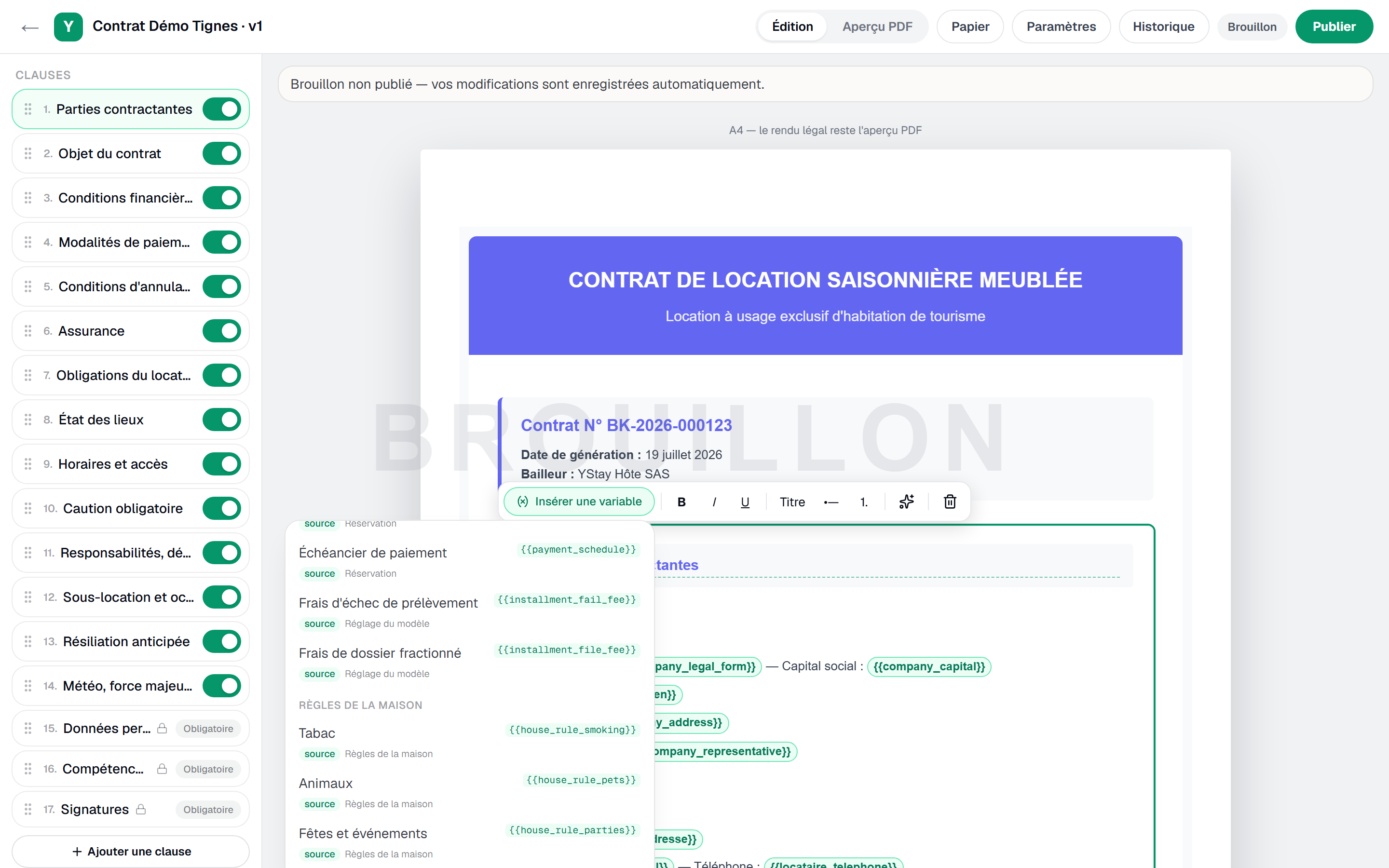
The Insert variable picker: the House rules group and the source pills with the source name. Store your landlord signature
In the Landlord signature tab, draw your signature or upload an image. It is then applied to every generated contract before it is sent; without it, the contract goes out unsigned on your side.
Only the account owner can do this: any other member reads “Only the account owner can save, replace or remove their signature.” instead.
Publish the template
Publish opens the Publish the template window: the no-legal-advice notice, then a mandatory checkbox — “I understand that YStay does not provide legal advice and that I am solely responsible for my contract and my rental.” Until it is ticked, the Publish button stays disabled, and consent is asked again every time the window is opened. Publishing freezes the version read-only, so it must be duplicated to be changed. Set as default template extends it to all your properties.
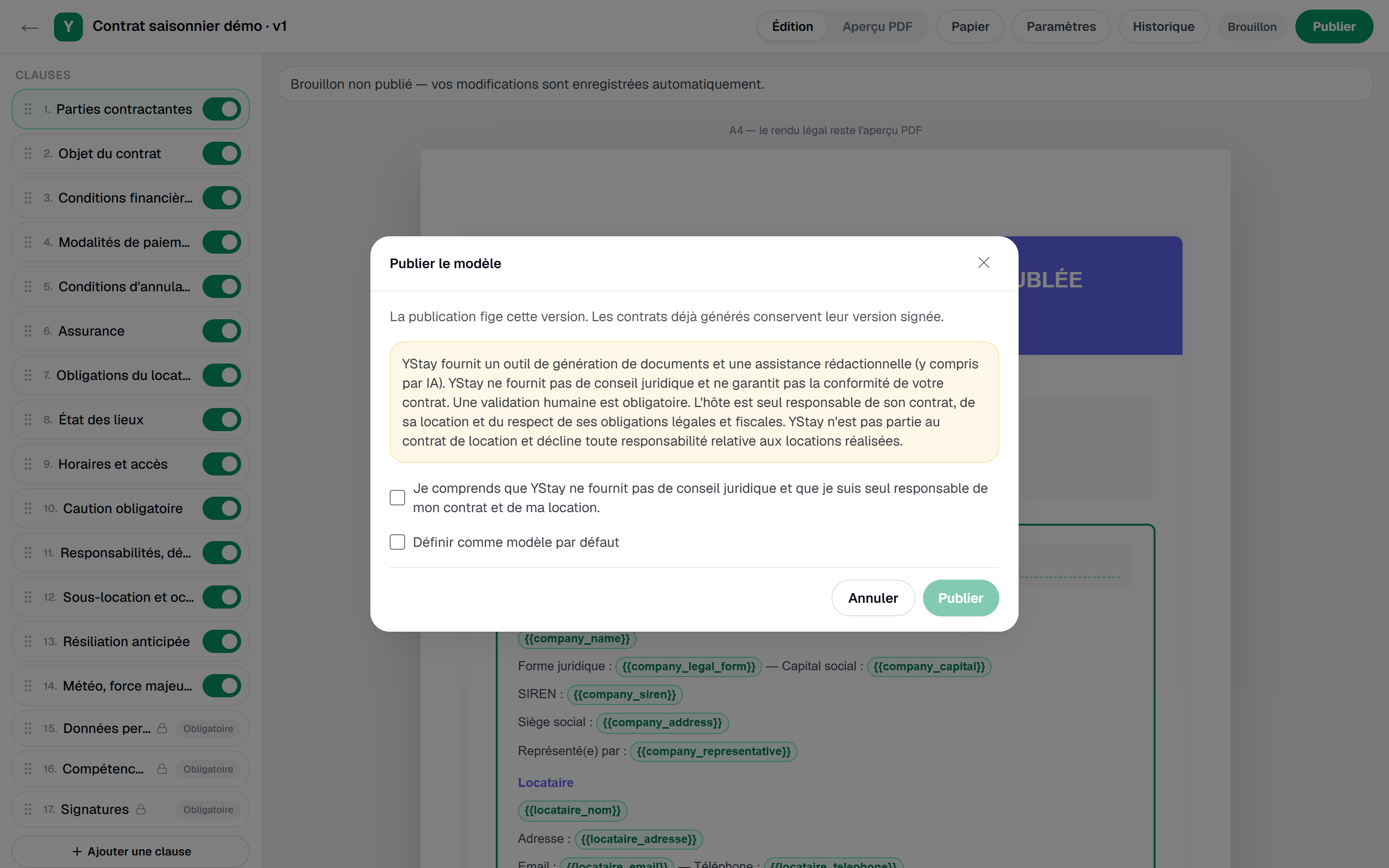
The publication step and its no-legal-advice checkbox. Override one property, if needed
In the Per-property overrides tab, pick a property, then a Base template among your published templates, and override values and clause texts without touching the original. An attached template that stops being published falls back on your default.
Generation, on confirming a direct reservation
There is nothing left to trigger: as soon as a direct reservation moves to Confirmed, YStay composes the contract from the property's effective template, applies your signature and makes it available to the guest — in the background, and one reservation never ends up with two contracts. With no published template, generation does not fail for all that: YStay falls back on a standby contract, a spare wheel rather than a destination.
Following your generated contracts
The Generated contracts tab lists contracts and their status: Generated, Sent, Signed, with two exits, Failed and Cancelled. A contract's page offers the Source PDF, the Signed PDF once the signature is in, and the Signature evidence. Three actions live there, each under a condition: Regenerate only applies to a contract in Failed; Resend link chases the guest once and once only, after which the screen shows Link already resent; Cancel contract requires the reservation itself to be cancelled or a no-show.
This tab requires the Lecture box of Stay operations (reservations, check-in/out): without it, the tab does not appear, and the Seasonal contracts page opens on its other tabs, which the reading of Inventory & pricing is enough to open. Reading the list, opening a contract's page and downloading its PDFs come with that reading; Regenerate, Resend link and Cancel contract require the Écriture box. The YStay team, when it works on your account, can read a contract and download its PDFs, but can neither regenerate it, resend the link nor cancel it: those three actions stay yours.
Since the source PDF and the signed PDF can be downloaded with that reading alone, the YStay team included, a contract never prints the guest space's personal link — the one that lets the guest pay, sign and upload the insurance certificate. That link goes to the guest by email; the PDF only carries the general address of the guest space. A PDF generated before this rule keeps the old link printed: the PDF of a contract already generated is not rewritten.
The guest's signature
The guest signs from their direct stay space, with no account to create: they re-read the contract, enter their full name, draw their signature, accept the simple electronic signature notice, then receive a six-digit code valid for ten minutes — five failed attempts lock the signature temporarily. That simple electronic signature is implemented by YStay, with no third-party provider: one-time code, drawing, timestamp and IP address make up the evidence, and the signed document is sealed. The request screen mentions email only; an SMS also goes out when the guest's phone number is known.
Turning this feature off
The account holder can turn off Draft stay contract for the whole account, from the AI features page (My account page): Improve with AI then no longer sends anything to the AI provider, and the Studio, the field catalog and the mention check stay usable to put your template together by hand. The area concerned shows “This AI feature is turned off for your account.” and, for the account holder, the Turn back on in AI features link. Details: AI features: turning them on and off.
Next
- Contracts — the rest of the section, and what becomes of a signed contract.
- Take your first reservation and run your calendar — the confirmation that sets it off.
Updated on