Inspections: policy, guest link, templates
Who records the condition of the home, how the guest gets their link — with no automatic email — and how to frame the record with a template.
The inspection is run from the stay page, in the Guest inventory panel. Three decisions are taken there: who records, how the guest receives their link, and what gets inspected. The record you make yourself goes through StayProof instead — see StayProof: build and share the evidence.
This panel is read with the Lecture box of Stay operations (reservations, check-in/out); setting it up — policy, guest link, reminder, co-validation, templates — requires the Écriture box, without which those controls are not shown.
The path, screen by screen
Choose who performs the inspection
At the top of the panel, the Who performs the inspection? card offers three policies: The host / concierge team, The guest (from their app), Guest + host co-validation. This setting belongs to the listing, not to the stay: it will hold for the next stays in the same home.
There is no save button: the choice applies as soon as you change the value, confirmed by “Inspection policy saved.”
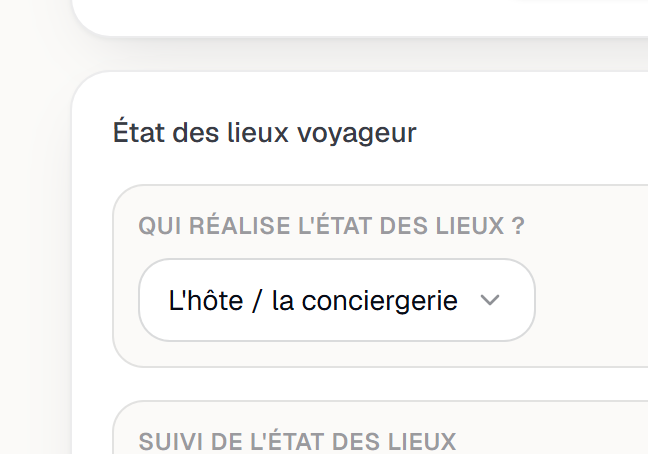
The Who performs the inspection? card and its three policies. Issue the guest link
Once the policy is on the guest or on co-validation, the Guest link block offers Generate the guest link. The link then appears in a read-only field, with Copy, the Active badge and the Revoke the link button.
You set no expiry: the dashboard offers none, and the block displays none. Validity is bounded on the platform side by the reservation — the link stops working 90 days after the check-out date, and immediately if the reservation is cancelled or marked as a no-show. The only gesture in your hands is Revoke the link.
Screenshot to be produced
captures/etats-des-lieux/02-lien-voyageur.png
Frame the record with a template
A template is the list of what has to be inspected — photos, readings, yes/no, points to judge as compliant or not. The Inspections menu opens the Inspection templates page and its New template button; the empty page shows “No template”. The page is read with the Lecture box of Stay operations, and creating, editing or deleting a template requires the Écriture box.
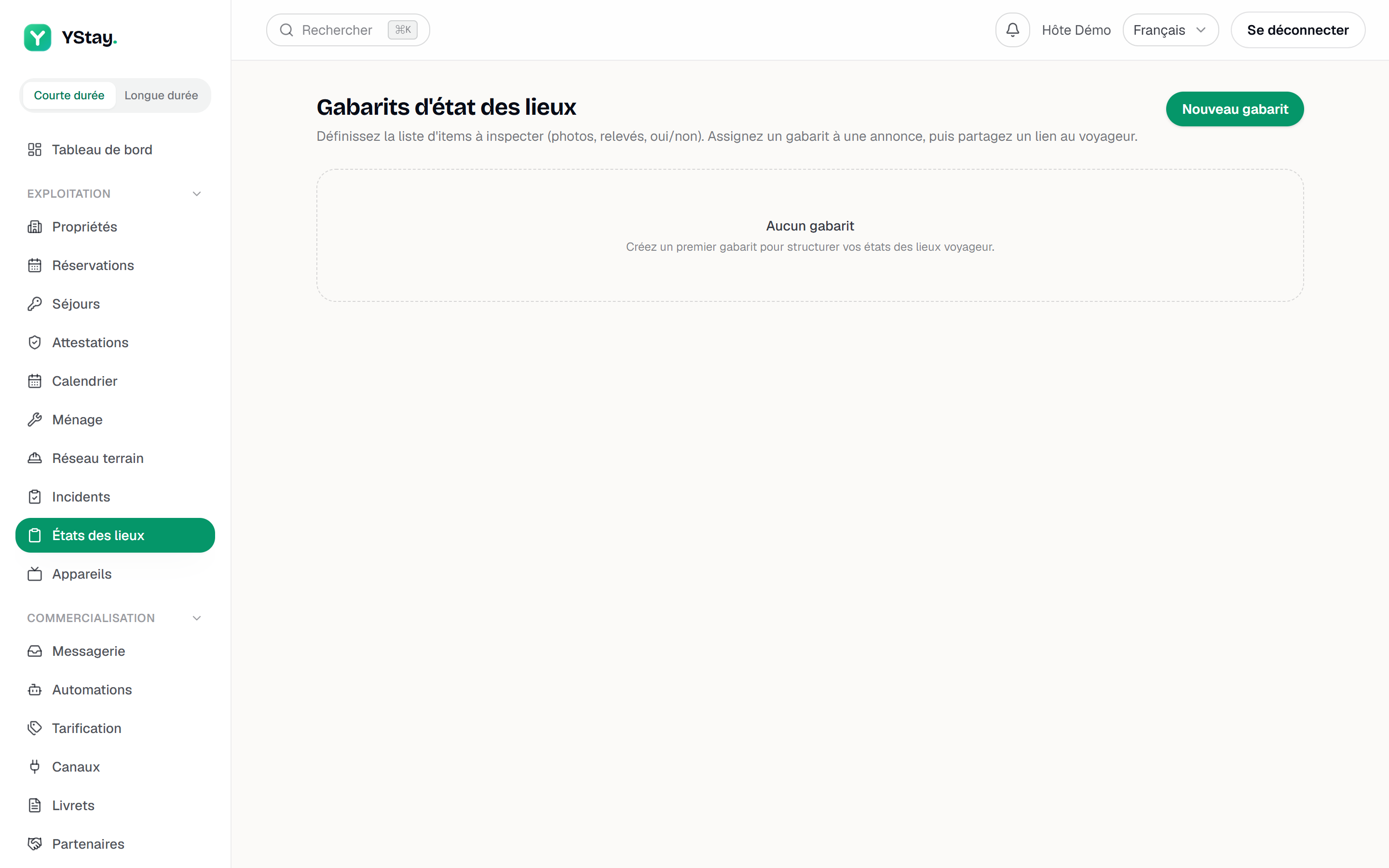
The Inspection templates page. Start from a model. When you create a template, the Start from a model button opens a gallery of three cards — Inspection — Studio, Inspection — Apartment and Inspection — House — each showing what it holds: sections, items and OK/KO checks. Use this model fills in the editor (name, sections and items) in your interface language; nothing is saved before Create template, and everything stays editable. The saved template keeps those texts as they are. If the editor already holds text, the Replace the editor content? window asks you to confirm with Replace. The gallery only exists when creating: it does not appear when you edit an existing template.
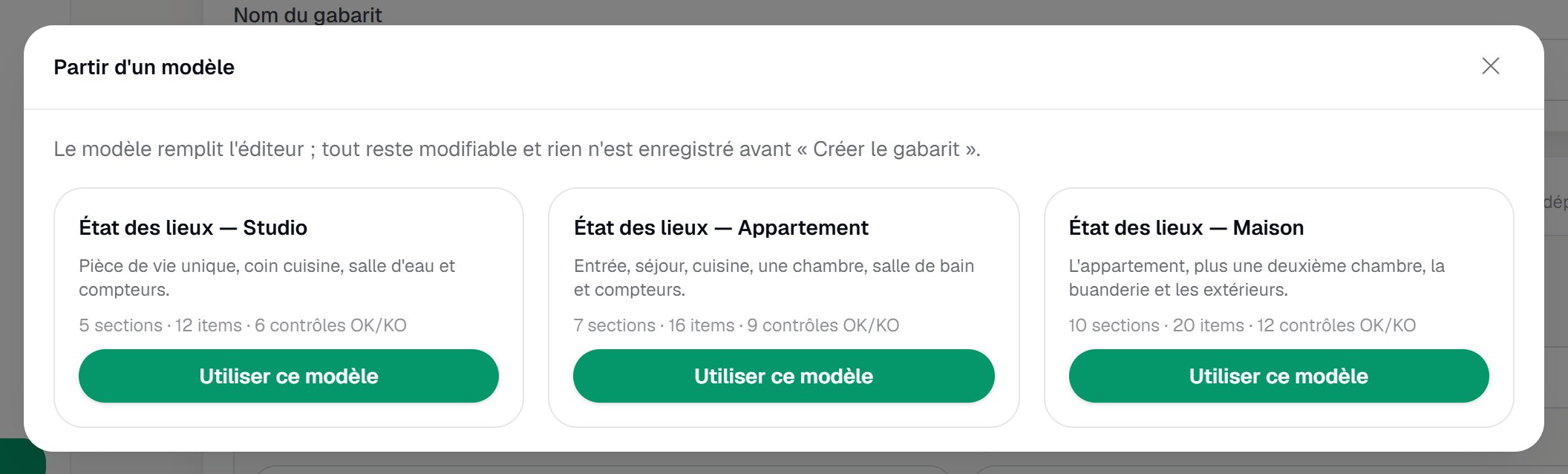
The Start from a model gallery: the three models Studio, Apartment and House. Item types. Each row has a Type: Required photo, Optional photo, Photo + OK/KO check, Yes / No, Text or Meter reading. A Photo + OK/KO check item is judged: an OK or KO verdict, a remark and several photos; a KO must be backed by a photo or a remark. The Required box exists only on that type, and it is ticked by default: a required item needs at least one photo and a verdict before the inspection can be validated. The Required photo type has no box — its row says “Always required”: the guest cannot attest without that photo. The other types never block validation.
Sections and order. The Section (optional) field of a row groups the items: the editor then shows one header per section — its name and its item count — in the order they first appear, and puts the items that have none under Other (no section), always last. To move an item to another section, edit that field: the change applies when you leave the field (or press Enter) and the item goes to the end of the chosen section; + Add an item to “Kitchen” adds one directly in a section. With no section at all, the editor stays a plain list, with no headers. To reorder, drag an item by its handle within its section, or use Move up and Move down; the arrows in a section's header move the whole section. The order shown is the order saved, so it is the order the guest follows.
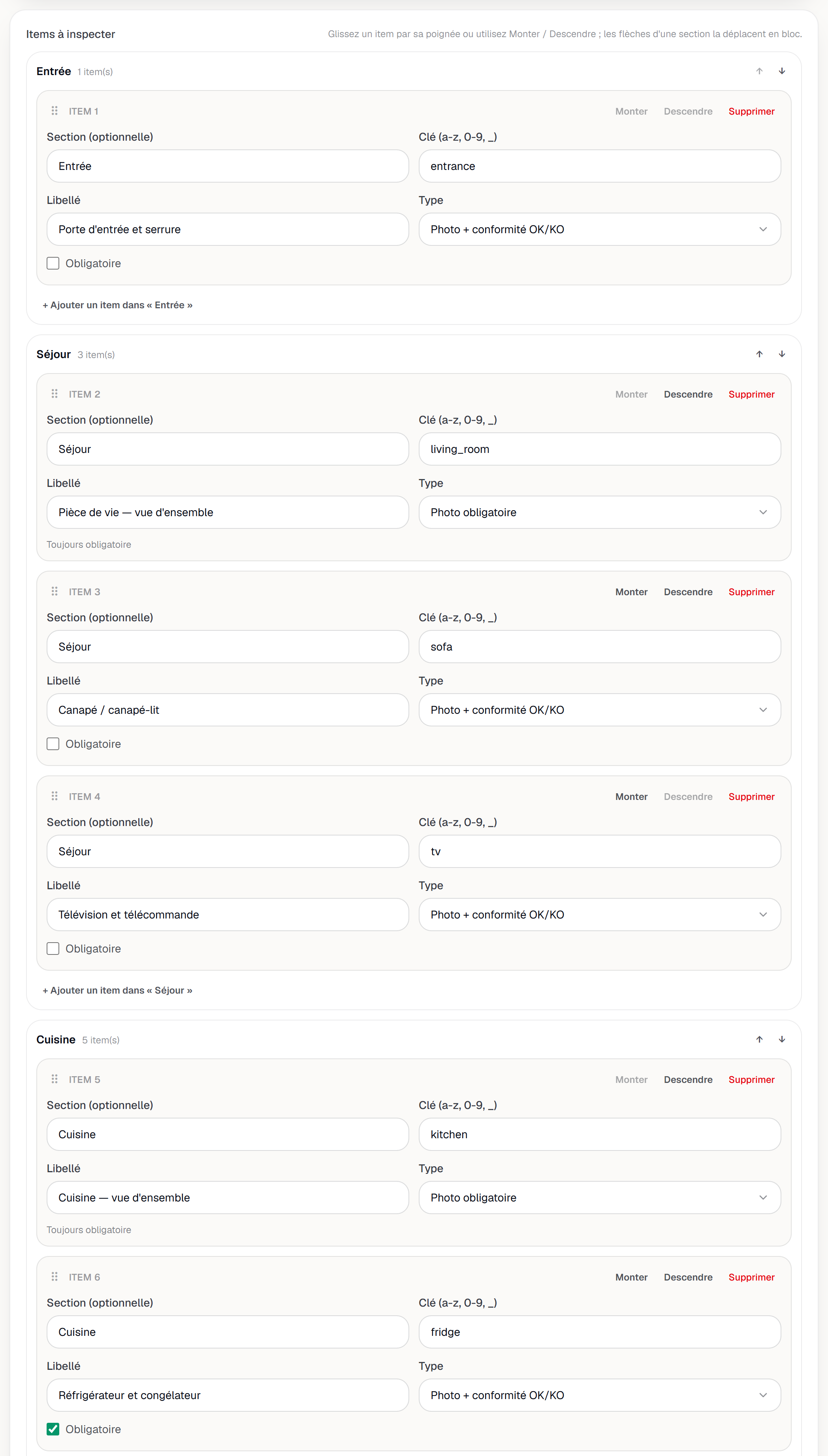
The editor after the Apartment model: section headers, a Photo + OK/KO check item with its Required box, a Required photo item (Always required), Move up and Move down buttons. Assign the template to the listing. The Inspection template card on the listing page shows Current template — the name of the assigned template, or Standard template when none is assigned — with the Choose a template… selector, then Assign — or Detach to undo. Manage my templates leads to the templates page. The card is read with the Lecture box of Stay operations; the selector and the buttons require the Écriture box. The stay page, in the Listing template block, shows the same current template and offers the same gestures; as long as no template exists, that block points back to the templates page. A change does not affect inspections that have already started: each keeps the template that applied when it began.

The Inspection template card on the listing page: current template, selector, Assign and Detach buttons. The product uses two words for the same thing here — the menu says “Inspections”, the panel says “Guest inventory”. They are the same object.
Follow the progress
The Inventory tracking block shows Entry and Exit with their state: To do, In progress, Completed, Validated or Overdue. An Evidence available badge appears as soon as the proof is built.
Two buttons sit alongside: Remind the guest, disabled while no link is active — the panel then states “Issue a guest link below to be able to send reminders.” — and Force concierge mode, which takes the record back for this stay.
Co-validate in dual mode
Under Guest + host co-validation, every inspection attested by the guest surfaces in a Co-validation required (dual mode) block, marked To co-validate, with its Reported discrepancies — or “No discrepancy reported.”
Co-validate closes the record. Reject… requires a reason, passed on to the guest: “Rejection sent — the guest will need to re-attest after correction.”
What the guest sees
In the guest app, the template is walked through room by room. The Section (optional) field you fill in on each item of the template groups the points by room: the guest first opens the Rooms to check screen, which shows how far along each room is — for example “3/5 items” — and a Done badge once all its points are dealt with. They pick a room, go through its points one by one, then come back to that list. Points with no section are grouped under Other, last. If no item in the template has a section, there is no room list: the guest simply goes through the points one by one, in the template's order.
Before signing, Review and sign opens a Summary that lists every point with its state: Answered, Missing, Not OK, Not OK without photo or note, Photo waiting to upload or Photo not uploaded. As long as a point blocks the signature, a Before you sign box flags it and the Confirm and sign button stays greyed out; the guest taps a point in the list to fix it.
A point the guest flags as Not OK has to be backed by a photo or a note. With neither, it shows as Not OK without photo or note and cannot be signed; the platform applies the same rule when the attestation reaches it, and refuses the attestation otherwise. Once the attestation is received, every point marked KO becomes a finding on the stay page, flagged Reported by the guest — see StayProof: build and share the evidence.
The guest link also opens a web form, the fallback of the app: it lists the same points on a single page, with no list of rooms. The template's sections appear there as plain sub-titles, and the points with no section under Other, last. For a Photo + OK/KO check item, the guest adds one or several photos with Take / add photos, picks OK or Not OK, and can write a Remark. Remove takes a photo off — after confirming Remove this photo? — as long as the inventory has not been validated; a photo already attached to a finding has no such button (“Linked to a finding”). If the guest presses Validate the inventory with incomplete points, the list Before validating, complete these items: appears — for example “photo missing”, “say whether it is OK or not” or “marked not OK with no photo or remark” — and the inventory is not validated until that list is empty.
What “Overdue” actually means
The deadline is not midnight. It is computed, in the property's time zone, from the actual arrival or departure time when that is known. Failing that, it falls back on the hours announced by your listing, and as a last resort on 5 p.m. for the entry and 11 a.m. for the exit.
That deadline qualifies the inspection, not the link: it flips the tracking to Overdue and drives the automatic switch described below, but it never expires the guest link.
Next
- StayProof: build and share the evidence — the inspection you run yourself, and the package that holds up.
- Run a stay: check-in and checkout — the sessions these records belong to.
- Incidents and disputes — when a discrepancy turns into a case.
- Operations — everything about the stay and what comes after it.
Updated on