Turn on two-step verification
The four-step enrolment, the eight recovery codes shown only once, and the two refusals YStay raises — both of them to keep you from locking yourself out.
Two-step verification adds a second factor at sign-in: an authenticator app or a text message. It all happens on My account, in the Security card, which states its position straight away — Two-step verification off — next to a Turn on button.
This setting is personal. It protects your identity, not the account's data: a read-only teammate can therefore turn it on for themselves, even though every other write is refused to them.
The wizard, in four steps
Choose a method and confirm your password
Turn on opens Turn on two-step verification. Two options under Choose your method: Authenticator app (recommended) — “Google Authenticator, 1Password, Authy… Works without mobile coverage.” — or Text message, which then asks for a Mobile phone number.
Either way, your Current password is required before anything goes further. Continue moves on.
Register the account in your app
With the app method, the Add the account to your app screen shows a QR code and, right below it, the Secret key in plain sight, grouped in blocks of four so it can be typed without error. A quiet fold-out also offers the full setup link.
With the text-message method, the screen simply says Code sent and recalls the masked number.
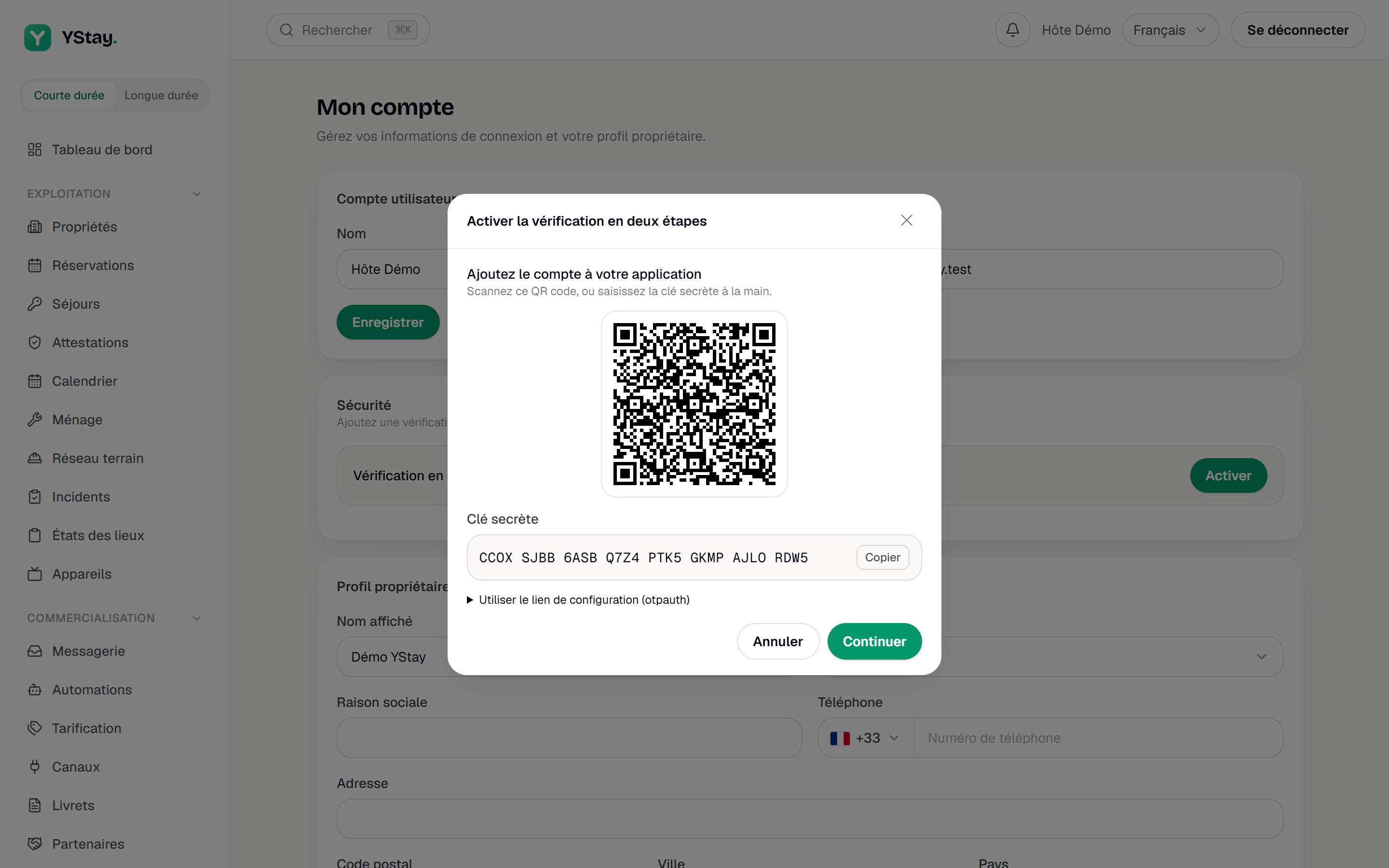
Enrolment: the QR code and the secret. Put the eight recovery codes somewhere safe
The Save your recovery codes screen hands over eight codes and an unambiguous warning: “These codes are shown only once. Write them down and keep them offline: they let you sign in if you lose access to your verification method.”
The I have written these codes down and stored them safely. checkbox governs the next button: without it, there is no way forward. That is not a formality — it is your only way back in the day your phone disappears.
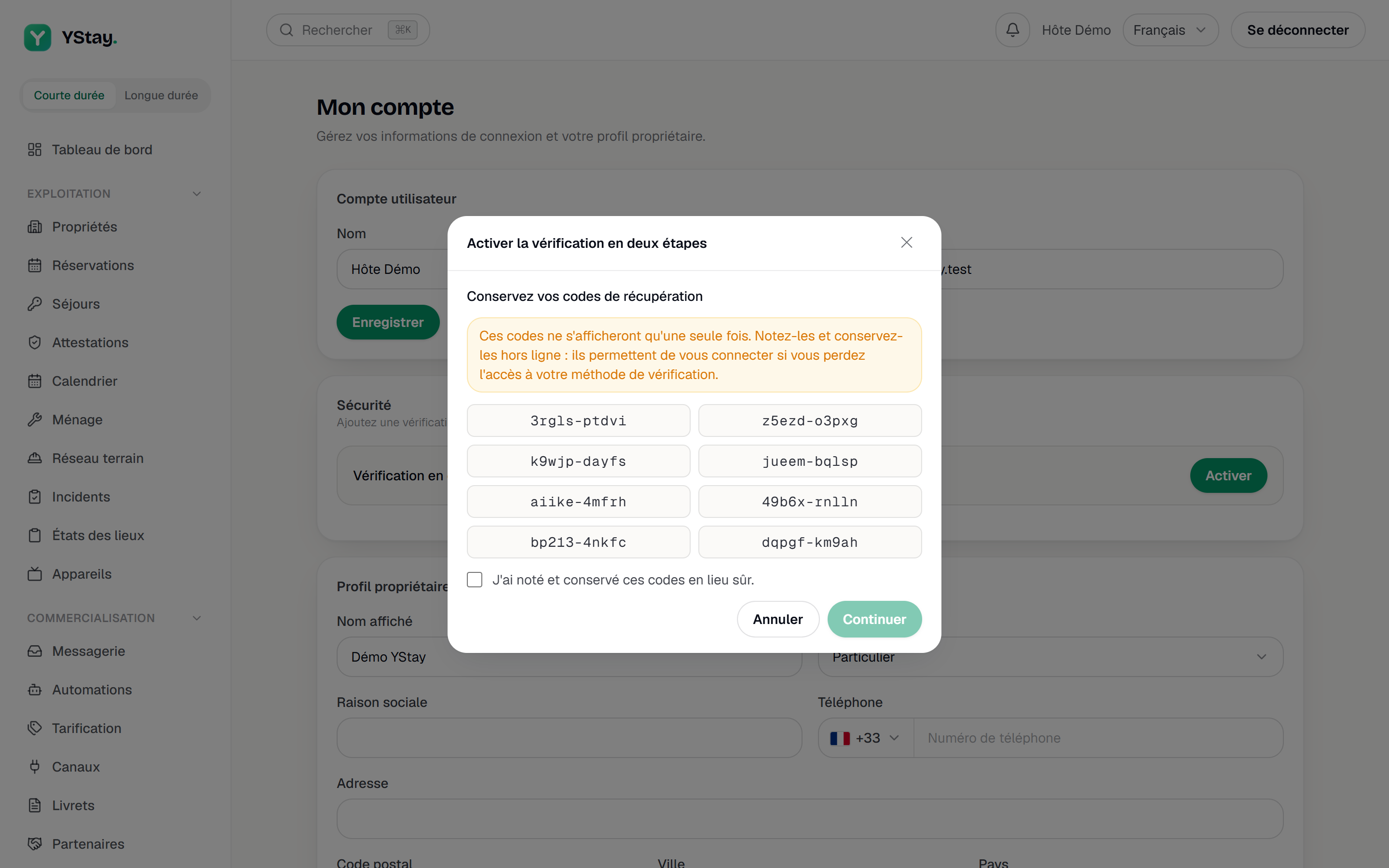
The eight recovery codes, shown only once. Confirm with a first code
Last screen, Confirm the code: “Enter a first 6-digit code to complete activation.” Turn on validates it, and the Security card flips to Two-step verification on, with the chosen method and the count of recovery codes left.
Regenerating the recovery codes
Regenerate codes asks for your password, then displays a fresh set — once again, only once. The screen warns first: “Your previous codes will be invalidated immediately.” Close only after I've saved these codes.
Turning it off, and the two possible refusals
Turn off demands double proof: “Confirm with your password and a valid code: a verification code or a recovery code.” With the text-message method, a Get a code by text message link sends the expected code; a recovery code stays typeable directly, even when the message never arrives.
The other refusal targets the owner or manager who would require the second factor from the team without having turned it on for themselves: YStay answers “Turn on your own two-step verification before requiring it from the team.” Lifting the requirement, on the other hand, never has a condition — which is precisely what keeps a whole account from being locked out.
Next
- Invite your team and set their roles — the Team security switch and its confirmation.
- Set up your account and integrations — the rest of the My account page.
- Team & account — the other guides in this section.
Updated on