Proof of service
The PDF that proves what was done on a field task: when it is built by itself and when to ask for it, what it contains — roles, never names —, the content fingerprint and the file fingerprint, regenerating it when it is out of date, who can download it and how long it is kept.
The proof of service is a PDF that YStay builds for a finished field task. It gathers what shows that the job really took place: the proof photos, the checklist, the steps of the welcome or the departure, the key handover signature when the guest gave one, and the task's timeline, hour by hour. It is meant for the host: neither the field worker nor the guest receives it. It answers the question “what was done, and when?” without opening ten screens.
The proof of service does not replace StayProof. StayProof proves the condition of the unit — the check-in and check-out inspections; the proof of service proves the field worker's work on a task. The two complement each other, and a task's proof photos serve both.
When it is built
Two cases, depending on the task.
- By itself, at closing — when a proof photo was required, by the task type (Proof required) or by the Proof photo on every task setting, or when the guest signed the key handover. Nothing to do: the build starts as soon as the task is finished, and the card says “Generated automatically when the task is closed.”
- On request, otherwise — on any other finished task, the card's Generate the proof button builds it when you need it.
In both cases there must be something to prove: at least one proof photo or one key handover signature that is still kept. With neither, the card says “No proof photo and no handover signature: nothing to prove for this task.” and offers no button. A task force-closed without a single photo therefore falls under this case.
Where to find it, and what to do with it
Open the finished task
In the Housekeeping menu, the Cleaning & turnovers block lists the tasks; a card's title opens the task detail. The Proof of service card sits there under the Proof card. It only appears on a finished task, and only to members who have Stay operations (reservations, check-in/out) for reading. It is consulted on the web, not on Host Ops.
Read the status
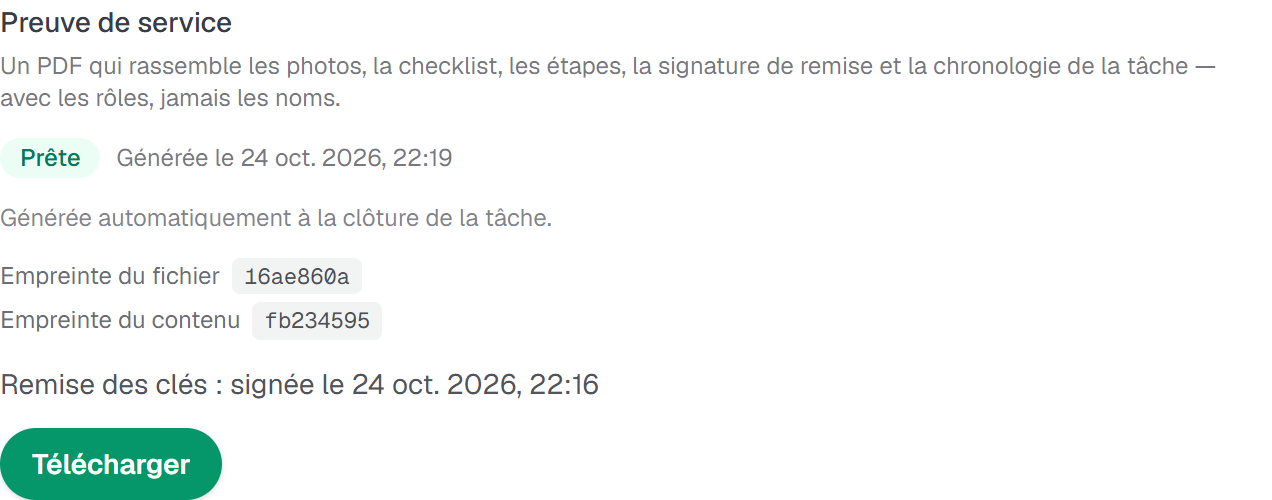
The badge says where the document stands: “Not generated yet”, “Being prepared…”, “Ready”, “Failed — regenerate” or “Deleted”. While it is being prepared, the card updates by itself, without you reloading the page. Once ready, it gives the date — “Generated on …” —, the two fingerprints (see below) and, for a check-in welcome, the state of the key handover: “Key handover: signed on …”, “Key handover: expected” or “Key handover: not requested”.
Generate it, if it does not exist
Generate the proof starts the build — “Requesting…” — which takes a few seconds. The card goes to “Being prepared…”, then to “Ready”.
Download it
Download saves the PDF, named
preuve-de-service-followed by the task number. The file can only be downloaded from this screen, with your sign-in: there is no address open to everyone and no link to share. It is up to you to send the file to whoever has to read it.
What the document contains
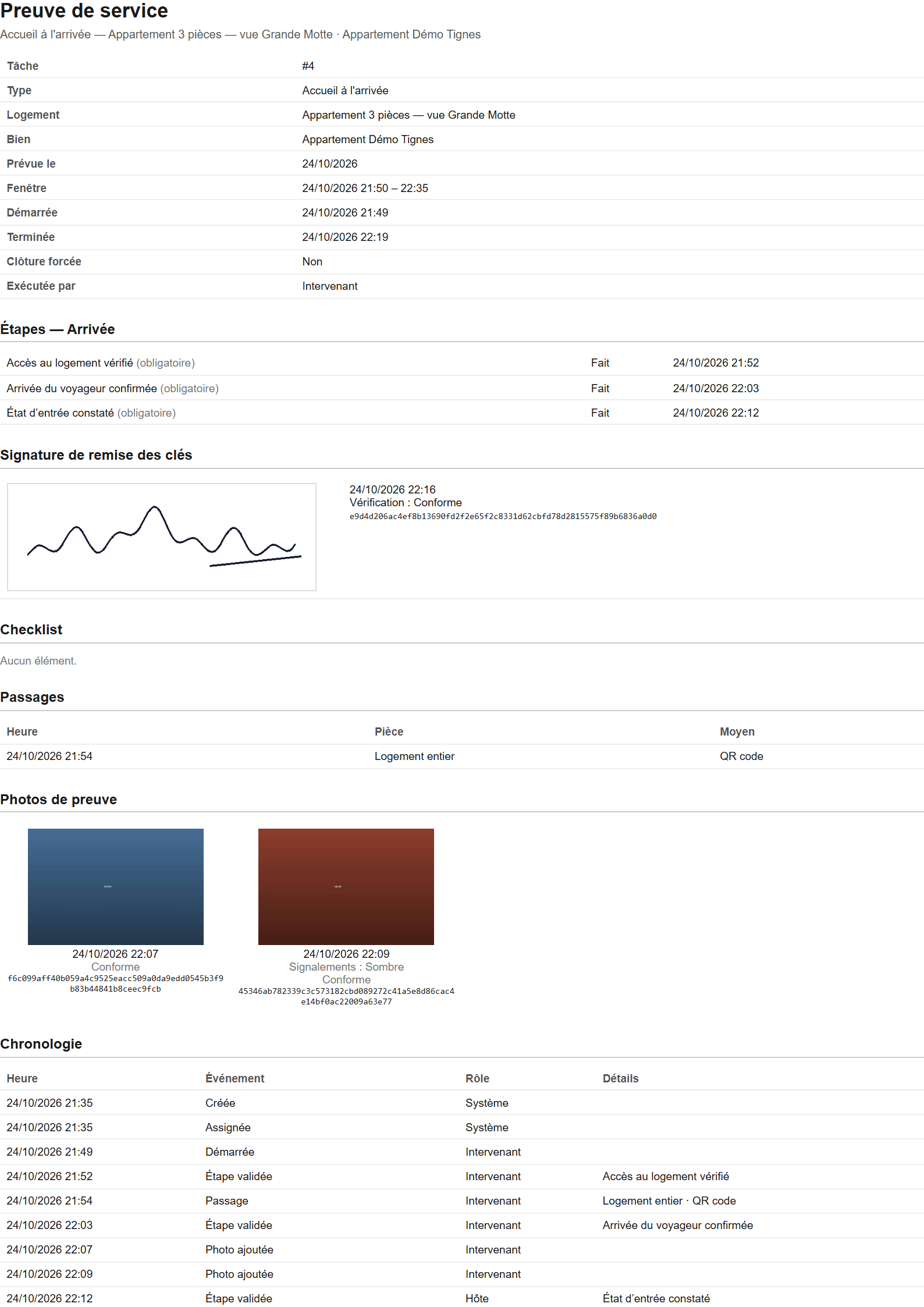
The PDF is A4, written in the language of the account owner at the time of generation, whichever member asked for it. Its times are the unit's. It reads from top to bottom:
- The header — the task type, the unit and the property (their name, never their address), the scheduled slot, the start and end times, “Forced completion” (Yes or No) and “Carried out by”, which gives a role.
- “Steps” — for a welcome or a departure, each step of the session, “Done” or “Not done”, with its time.
- “Key handover signature” — the image of the signature, its time and its check, or “No handover signature.”
- “Checklist” — each item in its final state, done or not, with its room. The document shows the final state, not the time at which each box was ticked.
- “Passages” — the scanned tags: the time, the room and the method (QR code, NFC or manual entry).
- “Proof photos” — one thumbnail per photo, with its time and any flags (Blurry, Dark, Missing angle). Beyond 24 thumbnails, the following photos are no longer displayed but stay listed further down; a photo that YStay cannot display carries “Preview unavailable” and keeps its fingerprint.
- “Timeline” — every event of the task, in order: the time, the event, the role and the details.
- At the bottom of the page — the “Items and fingerprints” table and the “Content fingerprint”.
The two fingerprints
A fingerprint is a code (a SHA-256) computed from data: if the data changes, even by one character, the code changes. That is what makes it possible to prove that a document has not been modified since it was built. The proof of service carries two, and they do not say the same thing.
- The content fingerprint — computed on everything the proof says: the task, the steps, the checklist, the passages, the items and the timeline, without the time of production. It is printed at the bottom of the document, under “Content fingerprint”, and repeated on the card. Two builds of a task that has not moved give the same fingerprint; one more photo, box or event changes it.
- The file fingerprint — the SHA-256 of the PDF file itself, as YStay recorded it when building it. A PDF cannot carry its own fingerprint: it is therefore not in the document, only on the card, under “File fingerprint”. The card only shows its first eight characters; hover over them to read the full value.
To check a copy that you kept or sent on, compute its SHA-256 on your computer — shasum -a 256 preuve-de-service-12.pdf on Mac or Linux, certutil -hashfile preuve-de-service-12.pdf SHA256 on Windows — and compare the result with the card's file fingerprint: if the two are identical, the file has not been modified. The PDF is time-stamped at every build, so the card gives the fingerprint of the latest version. If you regenerate the proof, the new file has a new fingerprint: note the one of the copy you archive.
The “Items and fingerprints” table lists each photo and each signature with its own fingerprint and a “Check”: at build time, YStay re-reads the file and compares it with the fingerprint recorded when it was uploaded. “Matches” means the re-read file corresponds to the recorded fingerprint, “Differs” that it does not, “File missing” that it could not be read. The document says so instead of staying silent.
Out of date, failed: regenerate
- “Out of date — regenerate: the task has changed since it was generated.” — something was added to the task's log after the build, for example a scanned tag from a phone that had no network, received after closing. Regenerate builds a new document, which replaces the old one, with new fingerprints.
- “Failed — regenerate” — the build did not go through. Regenerate starts it again. If the status stays “Being prepared…” for more than a quarter of an hour, the button comes back in the same way.
- No more regenerating — once the task's photos have been deleted: “This task's photos were deleted at the end of the retention period.” Regenerating would bring back a copy of deleted evidence; YStay does not do that.
Two clicks in quick succession start only one build, and requests are limited: “Too many requests: try again in a minute.”
Who can read it
- You and your team. Seeing the card and downloading the PDF require Stay operations (reservations, check-in/out) for reading; Generate the proof and Regenerate require writing. A Ménage member, whose access only covers tasks, does not see the card.
- Field workers — the agent without an account as well as the contractor — never have access to it: none of their screens shows or offers it. Nor does the guest.
- YStay support. During a support session, it reads the card and downloads the PDF with you. In read-only mode, it cannot generate it: “Read-only: the proof cannot be generated in support mode.”
How long it is kept
The proof of service follows the task's photos: same duration as StayProof evidence, 24 months after the stay by default, which the account owner can extend up to 60 months from Account › StayProof evidence retention. 30 days before the purge, you receive StayProof's email and notification inviting you to download the file if you want to keep it (see StayProof: build and share the evidence). An open dispute on the stay suspends the purge.
At purge time, the PDF is deleted as soon as the task's photos are. The card goes to “Deleted” — “Deleted with the task's photos at the end of the retention period.” The fingerprints stay displayed, but the document can no longer be rebuilt or downloaded.
If the screen refuses to move on
- “The proof of service could not be loaded.” — tap Retry.
- “The request did not go through. Please try again.” and “The download did not go through. Please try again.” — repeat the action.
- “The proof of service is not ready yet.” — the build is under way; the card updates by itself.
- “The proof file cannot be found. Please regenerate it.” — regenerate it.
- “This task has no proof photo and no handover signature: there is nothing to prove.” — the task has nothing to put in the document.
- “This task's evidence has been deleted: the proof of service no longer exists.” — it went away with the task's photos.
- The card does not appear — the task is not finished, or your access does not include Stay operations (reservations, check-in/out) for reading.
Next
- StayProof: build and share the evidence — the proof of the unit's condition, and the retention period that the proof of service shares.
- Housekeeping and turnover — the life cycle of the task the proof comes from.
- Your schedule by link — what the agent does on their phone: the steps, the key handover signature, the blocker.
- Terrain: the stay plan and My day — the key handover signature setting, and what a task's log records.
- Operations — every screen of the stay and its aftermath.
Updated on